2500_Users_Manual - 第199页
Preventi ve Mai nten ance ProM aster 25 00 User Manua l 5-45 Text R otation The 2500 displays : Select a text rotation valu e and press ENTER . Device Orie ntation in Receiving Tu be The 2500 displays : Use the arrow key…
Preventive Maintenance
5-44 ProMaster 2500 User Manual
To select a custom device for which you determine the length, move the
cursor to CUSTOM, and press
ENTER
. The 2500 displays:
Type the length of your device in inches, up to three decimal places and
under 2.250 inches. Press
ENTER
. If you type an invalid number, the
2500 displays:
Type a valid number and press
ENTER
.
Type Size
After you have selected an existing device or entered a valid length for
your custom device, the 2500 displays:
“S” indicates a short font, which allows more lines to be printed on the
labels. Select the font you want and press
ENTER
.
Device Orientation in
Input Tube
The 2500 displays:
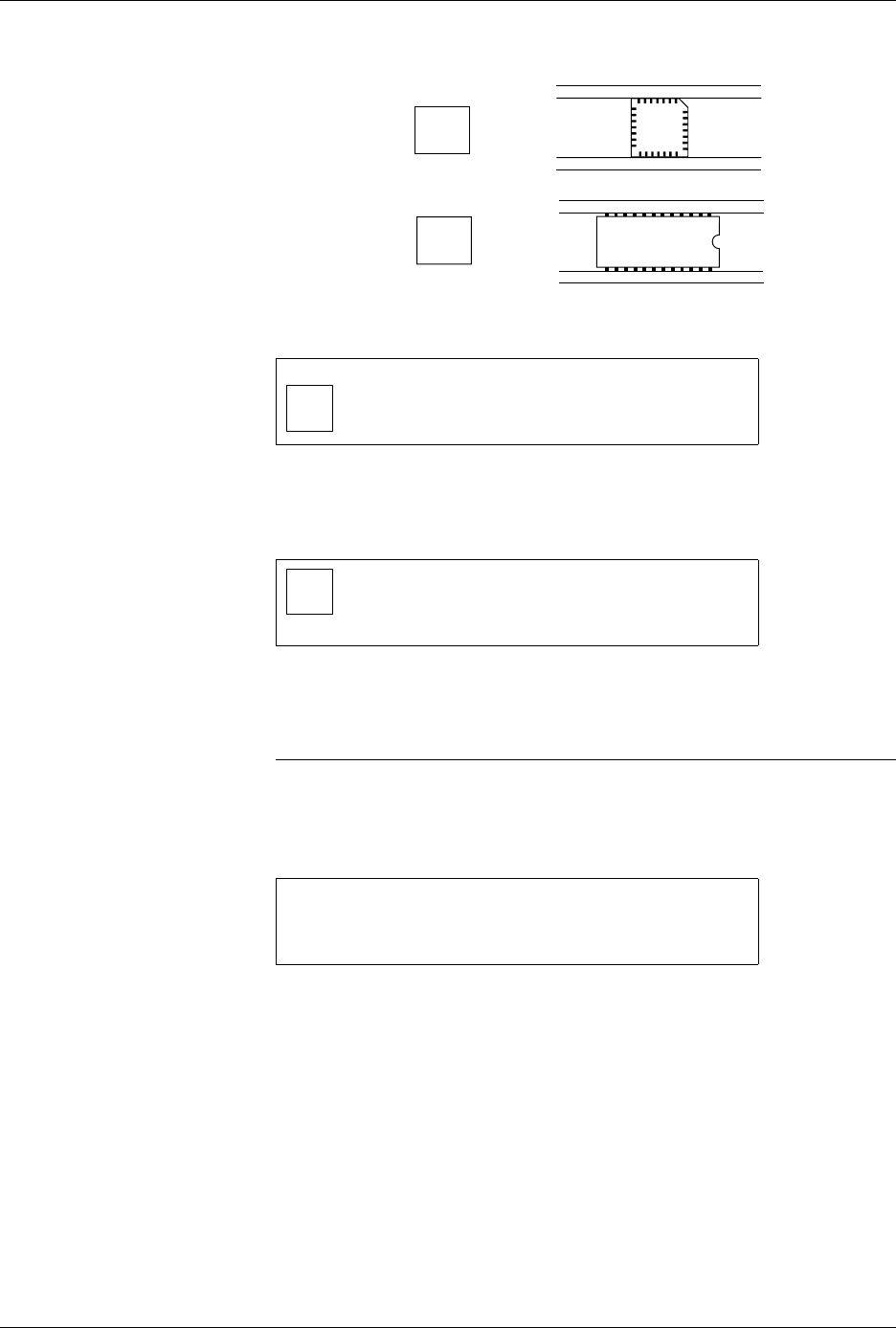
Move the pin 1 icon (using the arrow keys) to match the position of pin 1
on the device in the input tube. We recommend the following settings:
• For square PLCC devices, orient pin 1 toward the back of the 2500.
• For 32-pin PLCC, all DIP, and all SOIC devices, orient pin 1 toward
the right (when standing in front of the 2500).
CAUTION: Be sure the device orientation in the display is the same as in
the input track. If it is not, during operation the device may
be inserted incorrectly into the programming module,
possibly damaging the device or module.
Press
ENTER
after you have made your selection.
PROGRAM/TEST LABEL TEMPORARY FILE
ENTER PART LENGTH: _
EXAMPLE: 1.234 OR .28 OR 1
PROGRAM/TEST LABEL TEMPORARY FILE
ENTER PART LENGTH: _
LENGTH CAN NOT EXCEED 2.250
PRINT LABEL TEMPORARY FILE
AUTO-SEL 26 CPI 26 CPI S 20 CPI
18 CPI 16 CPI T 12 CPI T
MOVE TO SELECTION THEN PRESS ENTER
1 <------- TEMPORARY FILE
SELECT POSITION OF PIN 1
AS IT COMES OUT OF THE TUBE.
USE ARROW KEYS THEN PRESS ENTER.
Preventive Maintenance
ProMaster 2500 User Manual 5-45
Text Rotation
The 2500 displays:
Select a text rotation value and press
ENTER
.
Device Orientation in
Receiving Tube
The 2500 displays:
Use the arrow keys to move the pin 1 icon to match the position of pin 1
as the device enters the receiving tube. Press
ENTER
when you have
made your selection.
Tip: So that you can place devices back in the 2500 without repositioning them,
choose a setting that places devices in the receiving tube opposite their
orientation in the input tube.
Creating Label Text
The Temporary text file is ready to edit when the 2500 displays:
Any text on the left side of the display is from the last file edited and
COLUMN
X
and ROW
X
refer to the position of the cursor.
Figure 5-18
Recommended Orientation of Pin 1
for DIP and PLCC Devices
1 TEMPORARY FILE
SELECT POSITION OF PIN 1
TXT IN RELATION TO THE TEXT.
USE ARROW KEYS THEN PRESS ENTER.
<------- TEMPORARY FILE
SELECT POSITION OF PIN 1
AS IT WILL GO INTO THE TUBE.
1 USE ARROW KEYS THEN PRESS ENTER.
_ | TEMPORARY FILE
| COLUMN X ROW X
| PRESS STOP WHEN
| EDITING IS COMPLETE.
1
SQUARE
PLCC
1
DIP, SOIC
32-PIN PLCC
FRONT PANEL DISPLAY
IN INPUT TUBE
1256-2

Preventive Maintenance
5-46 ProMaster 2500 User Manual
Up to three lines of text with 25 characters per line are available, but the
number of lines and characters that will fit on a device is limited by the
size of the device, and type (font). See the charts on pages 5-15 and 5-17.
Three lines is the maximum number currently available. Enter the text
you want on the label. Existing text is overwritten.
To delete a character, move the cursor one space to the right of the
character you want to delete, and press
DEL
. To insert a space between
two characters, move the cursor to the right of the place you want to add
a space, and press
SHIFT
and
SPACE
at the same time.
When you are finished editing, press
STOP
.
Print Test
(Dot Matrix Printer)
This test activates the 24 print head wires (pins) to verify that they are all
operating. Check the labeler wires by performing the following steps:
1. Press
CAL
to calibrate the labels.
2. With the 2500 in local mode, go to the Diagnostics menu.
3. From the Diagnostics menu, press
5
to select
PRINT TEST
.
4. Press and release
START
quickly. The labeler continuously fires all
print head wires (pins) while
START
is pressed. Holding
START
too
long will result in a blurred image on the label and you will not be
able to see the printed points.
5. Press
RESET
to exit the Print Test and return to the Diagnostics
menu.
6. Press
CAL
to calibrate the labels. You should see two clear, parallel
lines printed on the label. Use an eye loupe to check that there are 24
printed dots.
If you suspect that one of the wires is not firing, you may check the
control circuit on the handler controller board that drives each wire. Each
circuit includes an LED that turns on when the labeler wire is enabled by
its control circuit. Refer to Figure 5-20 for the location of these LEDs. Each
LED number has a
CR
prefix.
Check the LEDs while you are running the print test to confirm that all
the LEDs are turned on. Disconnect the two print head cables to
determine whether that problem is on the handler controller board, the
cable, or the print head.