2500_Users_Manual - 第201页
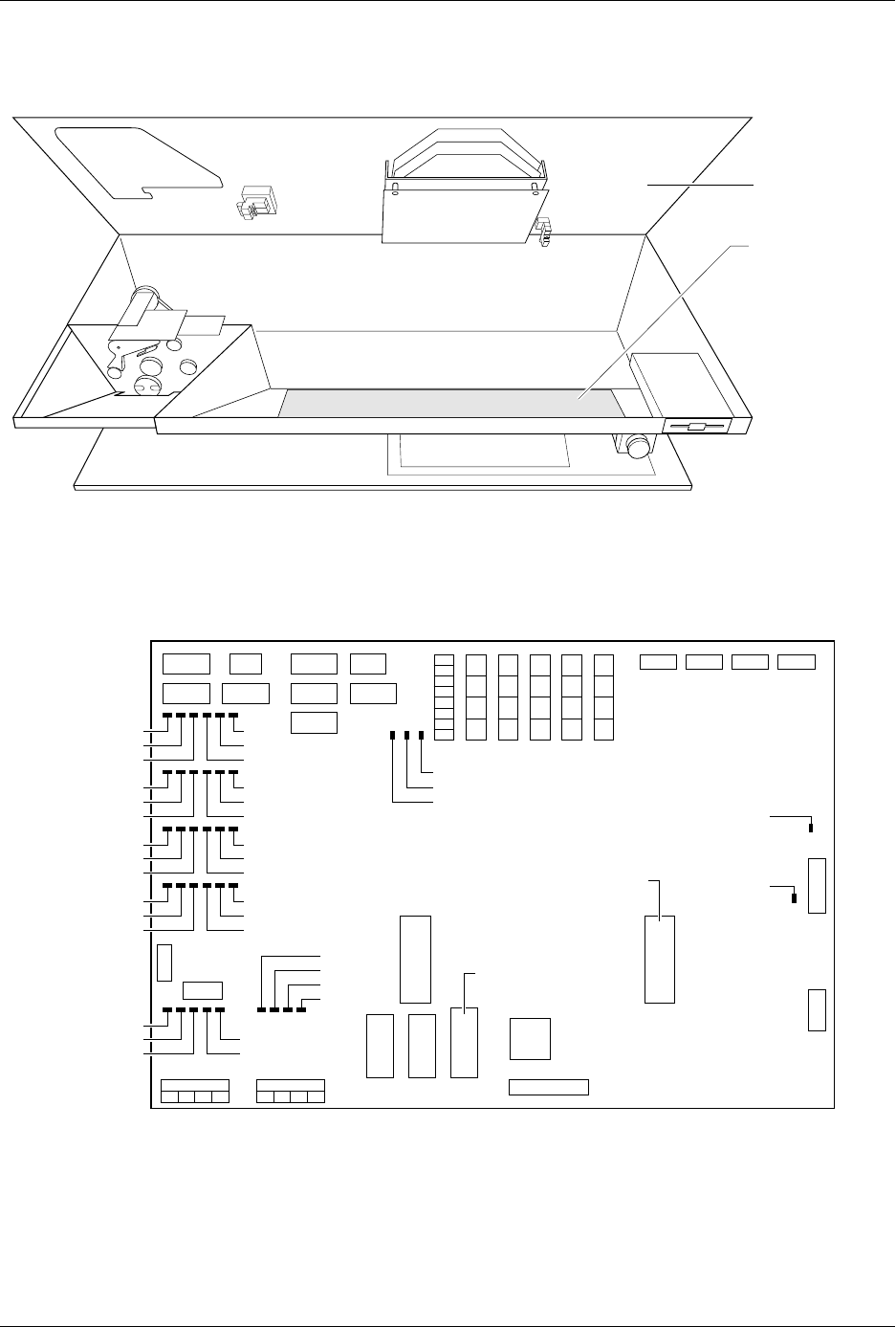
Preventi ve Mai nten ance ProM aster 25 00 User Manua l 5-47 Figure 5-19 Interi or View of the 250 0’s Base Figure 5-20 Print Head LEDs on Handler Controller Board 1931-2 MAIN PLATE CONTROLLER BOARD 1955-2 +5V -12V +12V …

Preventive Maintenance
5-46 ProMaster 2500 User Manual
Up to three lines of text with 25 characters per line are available, but the
number of lines and characters that will fit on a device is limited by the
size of the device, and type (font). See the charts on pages 5-15 and 5-17.
Three lines is the maximum number currently available. Enter the text
you want on the label. Existing text is overwritten.
To delete a character, move the cursor one space to the right of the
character you want to delete, and press
DEL
. To insert a space between
two characters, move the cursor to the right of the place you want to add
a space, and press
SHIFT
and
SPACE
at the same time.
When you are finished editing, press
STOP
.
Print Test
(Dot Matrix Printer)
This test activates the 24 print head wires (pins) to verify that they are all
operating. Check the labeler wires by performing the following steps:
1. Press
CAL
to calibrate the labels.
2. With the 2500 in local mode, go to the Diagnostics menu.
3. From the Diagnostics menu, press
5
to select
PRINT TEST
.
4. Press and release
START
quickly. The labeler continuously fires all
print head wires (pins) while
START
is pressed. Holding
START
too
long will result in a blurred image on the label and you will not be
able to see the printed points.
5. Press
RESET
to exit the Print Test and return to the Diagnostics
menu.
6. Press
CAL
to calibrate the labels. You should see two clear, parallel
lines printed on the label. Use an eye loupe to check that there are 24
printed dots.
If you suspect that one of the wires is not firing, you may check the
control circuit on the handler controller board that drives each wire. Each
circuit includes an LED that turns on when the labeler wire is enabled by
its control circuit. Refer to Figure 5-20 for the location of these LEDs. Each
LED number has a
CR
prefix.
Check the LEDs while you are running the print test to confirm that all
the LEDs are turned on. Disconnect the two print head cables to
determine whether that problem is on the handler controller board, the
cable, or the print head.
Preventive Maintenance
ProMaster 2500 User Manual 5-47
Figure 5-19
Interior View of the 2500’s Base
Figure 5-20
Print Head LEDs on Handler Controller Board
1931-2
MAIN PLATE
CONTROLLER
BOARD
1955-2
+5V
-12V
+12V
+36V
+90V
CR111
CR75
CR99
CR51
CR87
CR63
CR112
CR76
CR100
CR52
CR88
CR64
CR113
CR77
CR101
CR53
CR89
CR65
CR114
CR78
CR102
CR54
CR90
CR66
+24V
S8
S7
S5
S6
S2
S3
S1
S4
U15
EPROM
U43
EPROM

Preventive Maintenance
5-48 ProMaster 2500 User Manual
Key/Display Test
This test verifies that the keypad keys and the display dot matrixes are
operating correctly. To select the Key/Display test, press
6
from the
Diagnostic menu. The 2500 displays:
Testing the Keys
Press
1
and the 2500 displays:
Press the keys you want to check. The characters for these keys appear on
the display, in the first column of the second row. As you press
additional keys, the displayed characters wrap to the third and fourth
lines and then appear on the first line, overwriting the message.
Press
RESET
to return to the 2500’s Main menu. Press
STOP
to end the
test and return to the Diagnostics menu.
If the characters for the keys you pressed are not displayed, the keyboard
may be defective. Replace the keyboard and try the test again. Also, check
the cable to the controller board.
Testing the Display
To test the display, press
6
from the Diagnostics menu and then press
2
. If
the display is operating correctly, each dot on the display is visible. Each
display matrix is outlined by an unlit row of dots. Press
RESET
to return
to the 2500’s Main menu. Press
STOP
to end the test and return to the
Diagnostics menu.
EEPROM Test
The 2500’s EEPROM stores the file and system data. The EEPROM test,
which lasts approximately five minutes, runs a test pattern through the
memory to verify that every location in the file storage area is functioning
properly.
CAUTION: Do not turn off power while this test is in progress. Turning
the power off will erase some or all of the 2500’s system
parameters.
To enter the EEPROM test, press
7
from the Diagnostics menu and the
2500 displays:
Pressing
RESET
before the test begins returns you to the Main Menu.
Pressing any other key begins the EEPROM test.
Note: While the test is running, pressing
RESET
will NOT return you to the
Main Menu.
PRESS 1 FOR KEY TEST, 2 FOR DISPLAY TEST
PRESS KEYS TO TEST, STOP TO ABORT
EEPROM TEST - PRESS ANY KEY TO START