2500_Users_Manual - 第208页
Preven tive Maint enance 5-54 ProMa ster 25 00 U ser Ma nual 4. Pr ess F1 . If you are prompted to select a new terminal type, press ↵ to accept the default. 5. S ele ct M (More Com mands) and S (Self-test) to get to the…
Preventive Maintenance
ProMaster 2500 User Manual 5-53
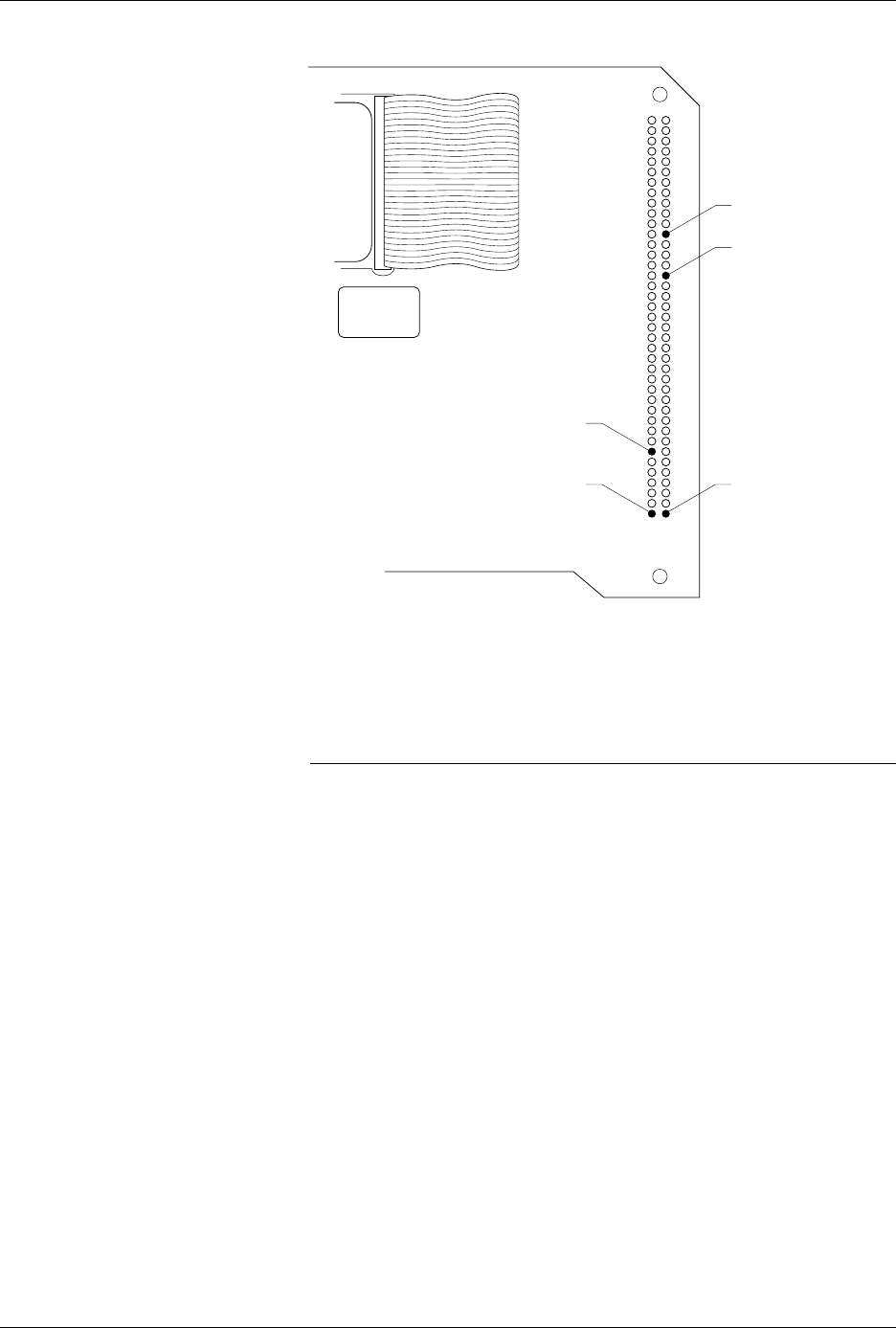
4. Check the +15 reference by reading pin 24 (+15V) on the connector
block (see Figure 5-14). The +15V signal should read between the
minimum and maximum values shown below:
This completes the performance verification for the programming
electronics assembly.
If any of the measurements described above are outside the specified
ranges, contact Data I/O Customer Support as listed in the Preface.
Running the Self-test
You cannot access the self-test command from TaskLink’s operator mode.
To perform a self-test you must be in TaskLink’s administrator mode. To
start this self-test, perform the following steps:
1. From the DOS prompt, start TaskLink in administrator mode by
entering
tl a
on your PC keyboard at the DOS prompt. If you are already running
TaskLink, exit TaskLink and restart it in administrator mode.
2. Select
Programmer Interface
from the
Utilities
menu.
3. Check the programming module to verify that no device is installed.
Figure 5-22
Test Points on the MSM 78-pin
Connector
Minimum Nominal Maximum
+14.25V +15.00V +15.75V
178
3940
PIN 28 (8MHz)
PIN 24 (+15V)
PIN 1 (Ground)PIN 78 (+10V)
PIN 72 (Plugged)
2143-1

Preventive Maintenance
5-54 ProMaster 2500 User Manual
4. Press
F1
. If you are prompted to select a new terminal type, press
↵
to
accept the default.
5. Select
M
(More Commands) and
S
(Self-test) to get to the Self-test
screen.
6. Select the One Pass mode to perform all the displayed tests once.
7. Move the cursor to the Test Mode field and press
S
PACE
. You may
stop the test by pressing
C
TRL
+
Z
. There may be a delay before the
system responds to the C
TRL
-Z if you are testing system RAM.
CAUTION: Executing the System RAM test or the User RAM test erases
all data in RAM.
8. To test all hardware, move the cursor to the
Perform All Tests
prompt and press
↵
. To test a particular item, move the cursor to the
desired test and press
↵
.
One of the following four characters will appear next to each test to
indicate the status of that test:
? Untested
Pass
Fail
_ Not Installed
When testing begins, a question mark (
?
) appears next to the untested
areas. As each test completes, either
PASS
or
FAIL
appears next to the
test name to show the results of that test. The “
?
” may be displayed on
some tests if the programming electronics has failed an earlier test. In this
case the “
?
” means that this item was not tested and will not run until the
earlier failure has been corrected.
Note: When you abort a test, a status of
????
is displayed, and if you try to run
TaskLink, the message
Programming hardware has not passed
self test
is displayed.
A hyphen (–) indicates that an item is not installed on your ProMaster
2500 system.
While a test is being performed, a rotating action symbol and a status
message are displayed in the upper, left corner of the TaskLink screen.
Tests are performed in the following order:
1.
Calibration of the supplies
(on the controller/waveform board)
2.
Pin control unit test
(on the controller/waveform board)
3.
EPROM
(on the controller/waveform board)
4.
Serial ports
(on the controller/waveform board)
5.
System RAM
(on the controller/waveform board)
6.
User RAM
(on the controller/waveform board)
7.
Disk drive
8.
Programming module/relays
(on the pin driver boards)

Preventive Maintenance
ProMaster 2500 User Manual 5-55
Note: A programming module must be installed to run the programming
module/relays test. To install and clamp a programming module
a Set any programming module in the programming station.
b Put the 2500 in local mode and start the Optic diagnostics test (see
page 5-32).
c Press
C
to toggle the programming module clamps closed.
d Run the programming electronics self tests. When the testing is
complete, press
C
to open the clamps, and remove the module.
9. Mass Storage Module
10.
Pin drivers
(on the pin driver boards)
Note: All of the installed programming hardware must pass self-test before any
other operations can take place. If any component has failed, contact
Customer Support at the number listed in the Preface.
Returning to the TaskLink
Screen
When the self-test has been completed, press
Alt
+
F1
to return to the
TaskLink main screen.
Preventive Maintenance Procedures For Operators
This section provides the ProMaster 2500 operator with a guideline for
routine preventive maintenance. By following these procedures for
cleaning each of the components along the device path, you can ensure
that the 2500 will continue to function properly. Maintenance at the
operator level is limited to the adjustment or cleaning of each of the listed
components.
Note: Maintenance intervals are based on operation of the ProMaster 2500 for
40 hours per week with a throughput of 40,000 devices per month.
To clean the 2500, you will need the following items:
• Lint-free cloth
• TriFlow
®
lubricant
•DeoxIT
™
Pen
• Solvent that has been approved for use by your company
• All-purpose spray cleaner
•Isopropyl alcohol
•Cotton swabs
• Compressed air
Note: These procedures recommend cleaning printer parts with a mild cleaning
solvent (such as isopropyl alcohol). Be sure to choose a solvent that has
been approved for use by your company.