2500_Users_Manual - 第23页
Pro Master 25 00 User Manu al 3/97 1-1 1 Introduction Product Descr iption What Is the ProMaster 2500? The Dat a I/O ProMas ter™ 2500 i s an autom ated, int egrated circui t (IC) handler/programmer system. It tran sports…
Preface
xxii ProMaster 2500 User Manual
Repair Service
After the warranty period expires, repair services are available at
Data I/O Service Centers on a time-and-materials basis, and through a
fixed price annual agreement that covers all parts and labor needed to
correct normal malfunctions. The annual agreement includes semiannual
performance certification.
For more information, call Data I/O Customer Resource Center at the
numbers listed at the front of the Preface. To order a Repair Service
Contract, call Data I/O Corporate Sales at
800-332-8246
.
End User Registration and Address Change
If the end user for this product or your address has changed since the
Registration Card was mailed, please notify Data I/O Customer Support
at the numbers listed at the front of the Preface. This ensures that you
receive information about product enhancements. Be sure to include the
product serial number, if available.
Typographic Conventions
Throughout this manual different typographic conventions represent
different cases of input and output.
Keys
Keys on the front panel of the 2500 appear bolded and all capped (for
example:
RESET
). Keys on the PC keyboard appear bolded and small-
capped (for example,
E
SC
). The
E
NTER
key (or on some keyboards, the
R
ETURN
key) may be represented by this symbol:
↵
Key Combinations
An instruction for pressing two keys at once, such as Control and Z, is
represented by two keys separated by a plus, for example:
C
TRL
+
Z
. A
key combination like
E
SC
,
C
TRL
+
T
means press and release
E
SC
, then
press
C
TRL
and
T
at the same time.
Variable Input
Variable input is italicized and should be replaced with the requested
information. For example, “enter
copy
filename.hex
” means type
copy
just as you see it and replace
filename.hex
with the name of your file.
Displayed Text
Text displayed on an LCD or screen appears in a typewriter-like (Courier)
typeface.
You will see this text displayed on the screen.
Text displayed on the handler’s front panel is enclosed in a box:
ProMaster Remote Mode
ProMaster 2500 User Manual 3/97 1-1
1
Introduction
Product Description
What Is the
ProMaster 2500?
The Data I/O ProMaster™ 2500 is an automated, integrated circuit (IC)
handler/programmer system. It transports, programs, tests, and labels
devices and then sorts them in standard IC tubes. The system supports
programmable integrated circuit (PIC) devices in a variety of package
types, including dual in-line packages (DIP), plastic leaded chip carriers
(PLCC), and small outline integrated circuits (SOIC).
Introduction
1-2 3/97 ProMaster 2500 User Manual
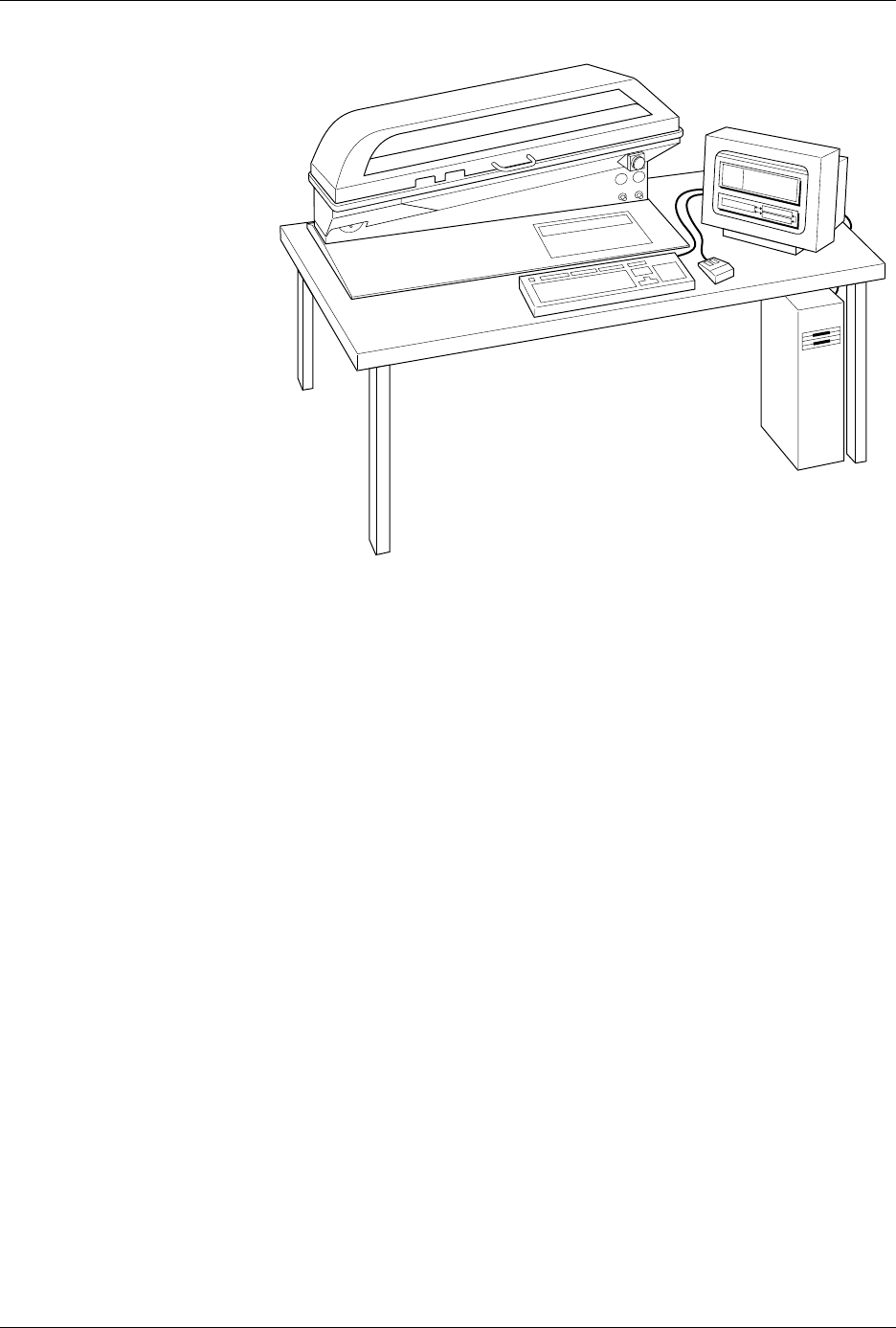
The system is composed of two major parts:
1. ProMaster 2500 handler with programming electronics
2. TaskLink software operating on a personal computer (PC)
2500 Handler
The 2500 handler is the hardware portion of the system. System firmware
controls the transportation, programming, and labeling of a wide variety
of IC device styles and packages. The system is designed to allow for easy
conversion between IC package types without the use of tools or time-
consuming adjustments. A single, state-of-the-art pick- and-place beam
transports devices for programming and labeling. The system is designed
to minimize lead damage while producing reliable device throughput.
TaskLink Software
TaskLink™ Universal Production Automation Software is the primary
user interface controlling the operation of the 2500. The system
administrator selects the configuration parameters necessary to perform a
programming/labeling job and saves these together as a Task. The
system operator simply selects this Task from a list on the opening screen.
The 2500 is configured, data files are transferred, and devices are
programmed, verified, and labeled in a single, automated operation.
TaskLink supports a variety of Data I/O programming products. Some of
the commands and options displayed on TaskLink’s menus are intended
to be used with other products and not in the operating environment of
the 2500. Information on these commands is available by pressing
F1
to
invoke TaskLink’s online Help.
Figure 1-1
ProMaster 2500 System
1825-2