2500_Users_Manual - 第25页
Intr oduc tion Pro Master 25 00 User Manu al 3/97 1-3 General Features This section describes the major hardware components on the 25 00. The components are divided into three broad ca tegories: external features, featur…
Introduction
1-2 3/97 ProMaster 2500 User Manual
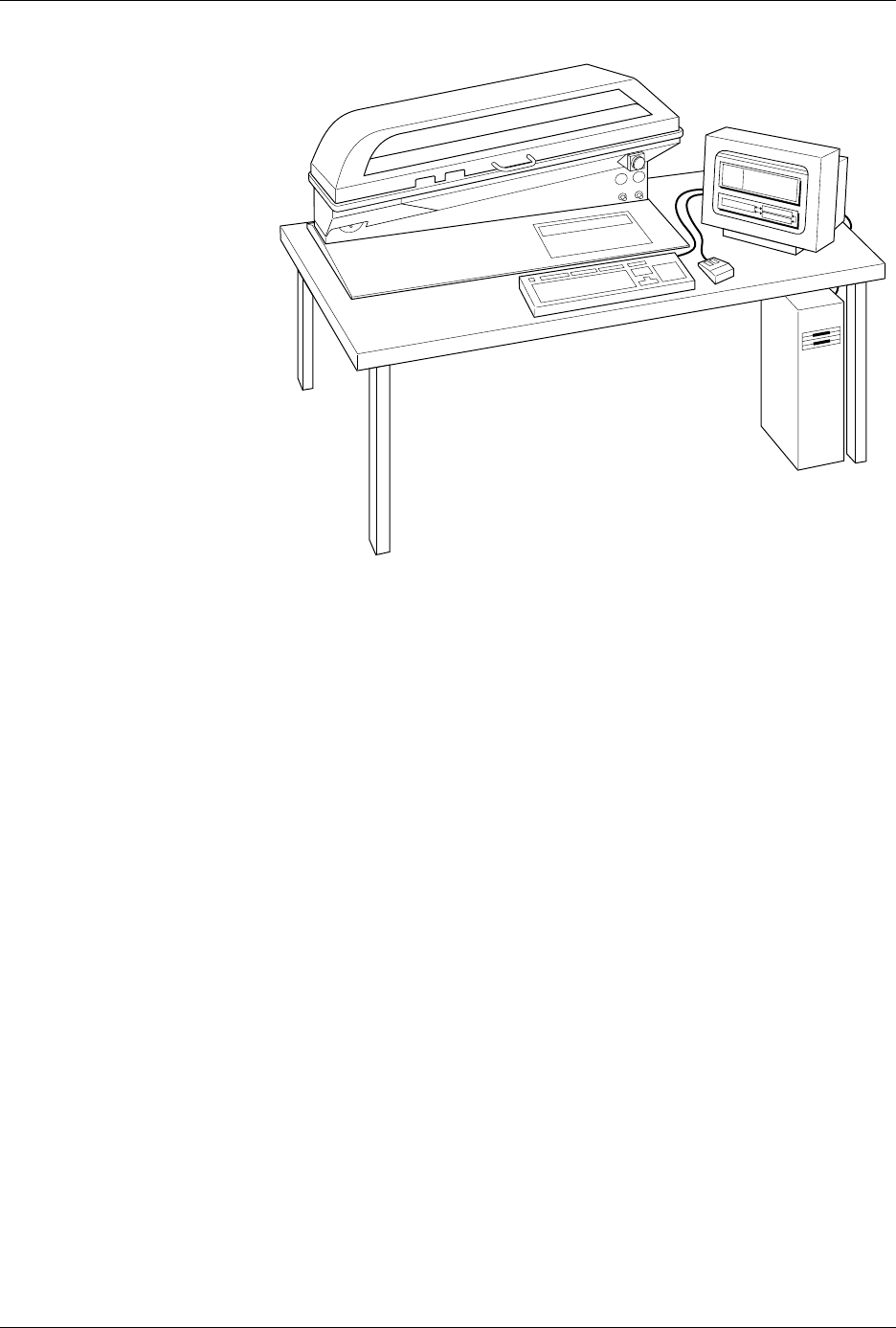
The system is composed of two major parts:
1. ProMaster 2500 handler with programming electronics
2. TaskLink software operating on a personal computer (PC)
2500 Handler
The 2500 handler is the hardware portion of the system. System firmware
controls the transportation, programming, and labeling of a wide variety
of IC device styles and packages. The system is designed to allow for easy
conversion between IC package types without the use of tools or time-
consuming adjustments. A single, state-of-the-art pick- and-place beam
transports devices for programming and labeling. The system is designed
to minimize lead damage while producing reliable device throughput.
TaskLink Software
TaskLink™ Universal Production Automation Software is the primary
user interface controlling the operation of the 2500. The system
administrator selects the configuration parameters necessary to perform a
programming/labeling job and saves these together as a Task. The
system operator simply selects this Task from a list on the opening screen.
The 2500 is configured, data files are transferred, and devices are
programmed, verified, and labeled in a single, automated operation.
TaskLink supports a variety of Data I/O programming products. Some of
the commands and options displayed on TaskLink’s menus are intended
to be used with other products and not in the operating environment of
the 2500. Information on these commands is available by pressing
F1
to
invoke TaskLink’s online Help.
Figure 1-1
ProMaster 2500 System
1825-2
Introduction
ProMaster 2500 User Manual 3/97 1-3
General Features
This section describes the major hardware components on the 2500. The
components are divided into three broad categories: external features,
features under the hood, and internal features.
Note: Illustrations in this manual show the ProMaster 2500 with an E-stop
button, hood interlock switch, labeler cover, and a modified hood with a
handle. Handlers with the dot matrix labeler installed do not have these
additional features.
External Features
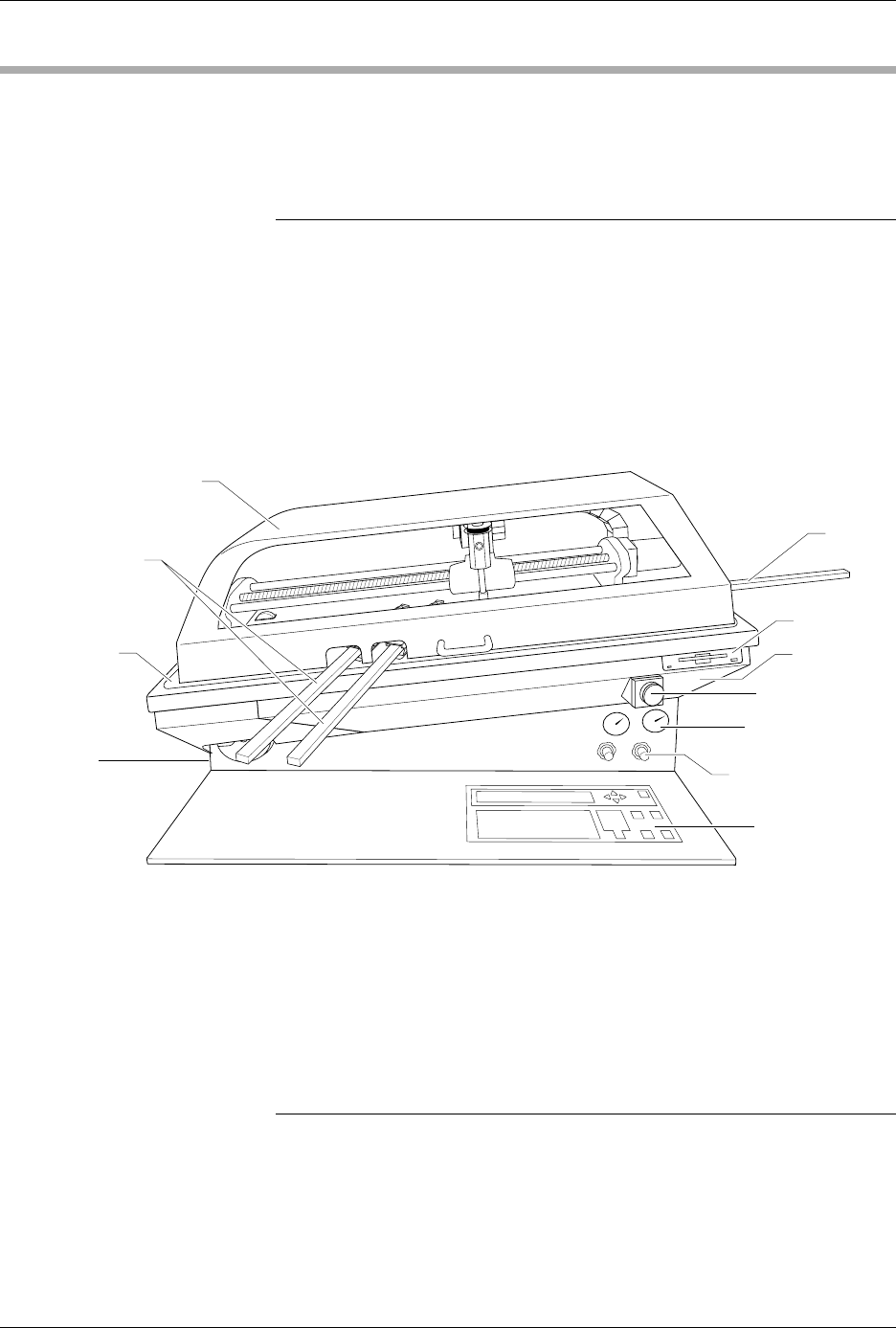
The primary external features of the ProMaster 2500 are identified in
Figure 1-2.
Front of 2500 Disk Drive
—The disk drive is used to update the Mass Storage Module
with operating system commands and programming algorithms used by
the programming electronics.
Hood
—The hood covers devices as the beam transports them through
the system. Figure 1-2 shows the hood in its operating position (down).
The 2500 will not operate (except when running diagnostics) while the
hood is raised.
Note: A safety interlock switch under the hood prevents the 2500 from operating
when the hood is up. The hood must be lowered to the operating position
(shown in Figure 1-2) before the 2500 will process devices. Service
personnel are provided with a key that is inserted into the switch keyhole
and turned to activate the switch. This allows them to service the handler
and run diagnostics when the hood is raised. If a user lifts the hood while a
Task is running, all handler motion will be stopped, but the power to the
handler will remain on.
Figure 1-2
External Features of the 2500
1749-3
OUTPUT TUBES
AIR PRESSURE
GAUGE
AIR PRESSURE
ADJUSTMENT KNOB
DISK DRIVE
BASE
INPUT
TUBE
MAIN PLATE
GROUND WRIST
STRAP CONNECTOR
(on the side)
FRONT PANEL
E-STOP BUTTON
HOOD

Introduction
1-4 3/97 ProMaster 2500 User Manual
Front Panel
—The front panel includes an alphanumeric keyboard for
text and data entry, and a 4-line, 160-character back-lit display for
communicating prompts to the operator. This panel is used primarily for
running diagnostics and invoking special handler/labeler firmware
commands. (Refer to page 1-11 for more detailed information.)
Output Tube Holders
—By default, the right tube holder (tube 1) accepts
all devices that have passed the programming/testing operation. The left
tube (tube 2) holds any devices that have not passed the system
programming and verify cycles.
Main Plate
—The primary surface on which the track, beam, and other
components described above are mounted. The system power supply and
controlling electronics boards are located in the base, under the main
plate. Two corner screws attach the hinged main plate to the base. With
these screws removed, the plate can be raised to allow access to service
the system electronics.
CAUTION: To prevent the main plate from accidentally falling shut, be
careful not to jar it when it is raised.
Ground Wrist Strap Connector
—The operator’s antistatic wrist strap is
inserted in this connector.
CAUTION: The devices being processed through the ProMaster 2500 and
components on the system’s circuit boards are static
sensitive and may be damaged by electrostatic discharge
(ESD). To help eliminate damage from ESD, operators and
service personnel should wear an antistatic wrist strap
while using the equipment. The wrist strap should be
connected to the grounding plug. It should contain a 1M ohm
(minimum value) to 10M ohm (maximum value) isolating
resistor.
Emergency Stop Button (E-stop)
—A red emergency stop button is
located below the disk drive on the right side of the front panel. Pressing
this button will shut off all input AC power to the 2500, immediately
stopping all handler movement and turning the programmer off. Devices
in the middle of the programming and labeling process (those in
programming module sockets and waiting in the middle track) will be in
an undefined state. All devices in the module sockets and tracks should
be removed from the 2500 and discarded. Power to the PC is not affected,
but TaskLink’s Job Status report statistics will not be accurate because the
information displayed on this screen includes devices that were in the
middle of the processing cycle when the power was turned off.
Remove all devices from the track sections and programming modules
before turning the power back on. To restore power, pull out on the red
E-stop button. The Task that was running when the button was pressed
must be restarted.
Air Pressure Adjustment Knobs
—High and low pressure can be
adjusted by using these knobs. High and low air pressure are used to
raise and lower the beam, pick up the device, assist devices into output
tubes, and clamp the programming module in place (see Figure 1-3).