2500_Users_Manual - 第33页
Intr oduc tion ProMas ter 250 0 User M anual 3/97 1-11 Front Panel The primary features of the 2500’s front panel are describe d below (see Figure 1-8). Control Keys START —P r e s s i n g START indicates th at you are r…

Introduction
1-10 3/97 ProMaster 2500 User Manual
Beam
—With a chuck on the beam head, a pick-and-place method is used
to gently transport devices. Information in the Task instructs the beam to
rotate the device so that programming and labeling are performed with
the correct device orientation. The beam’s position is automatically
calibrated each time the system is initialized.
Chuck
—Located on the end of the beam, the chuck achieves an air-tight
seal on the device so the beam’s vacuum can pick up and release devices
as they are processed.
Programming Station
—Opening in the main plate through which the
SPA pins can be seen. This is where the programming module is installed
and devices are programmed.
Programming Module
—Installed over the SPA pins of the 2500, serves
as the socket for the device during the programming operation. Devices
are inserted by the beam into a DIP, PLCC, or SOIC programming
module, where they are programmed or tested by the system.
Internal Features
The internal features include all the component parts located beneath the
main plate, in the 2500’s base. These include the system’s power supplies,
firmware and controller board, motors, programming electronics, and
other components.
WARNING:Raising the main plate with power on will expose you to
harmful, high voltage. Only trained service technicians
should perform the diagnostic tests that require lifting the
main plate while the power is on.
Introduction
ProMaster 2500 User Manual 3/97 1-11
Front Panel
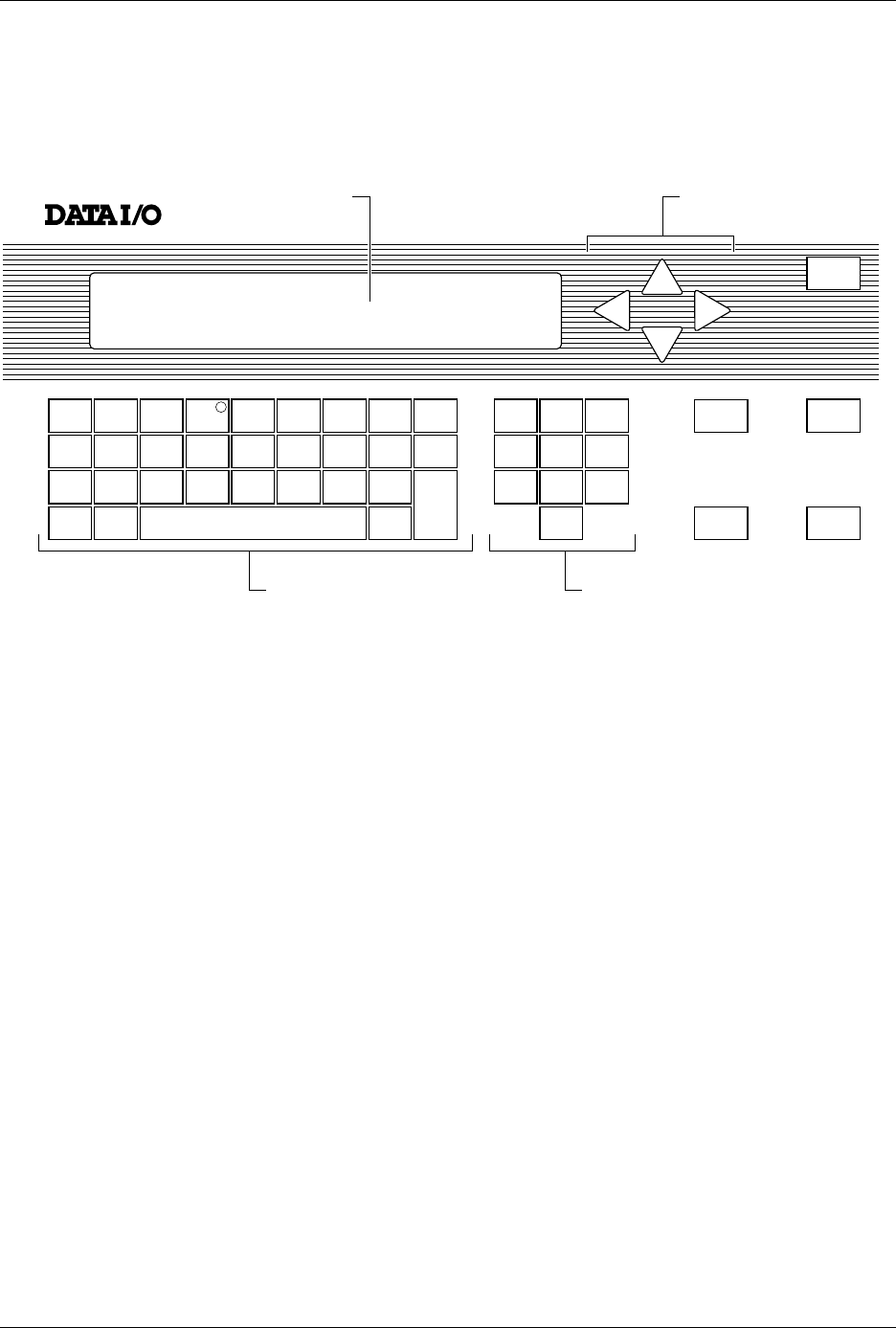
The primary features of the 2500’s front panel are described below (see
Figure 1-8).
Control Keys START
—Pressing
START
indicates that you are ready to begin the
operation you have selected.
STOP
—Pressing
STOP
once suspends system operation so you can
make an adjustment. Refer to the STOP commands described in the
Appendix B. Pressing
STOP
twice releases the programming module
clamp.
RESET
—Pressing
RESET
while in local mode stops the operation being
performed and returns you to the Main Menu (except in the Diagnostics
EEPROM test when pressing
RESET
returns you to the Diagnostics
Menu). After you press
RESET
, all counters are reset, and the 2500 is
ready to begin another operation.
CAL
—Pressing
CAL
calibrates labels to determine their reference
position on the label liner. This reference point is required for correct
label printing and application to the device.
Figure 1-8
The ProMaster 2500 Front Panel
!
_
$
"
*
,
#
:
;
=
<
%
~
>
&
@
?
'
\
.
(
+
/
)
-
c
1765-1
SHIFT
A
J
S
B
K
T
DEL
C
L
U
D
M
V
E
N
W
SPACE
F
O
X
G
P
Y
H
Q
Z
LOWER
CASE
I
R
ENTER
1
4
7
2
5
8
0
3
6
9
STOP
START
ON
DISPLAY ARROW KEYS
KEYBOARD NUMERIC KEYS
RESET
CAL
Introduction
1-12 3/97 ProMaster 2500 User Manual
Display
The 160-character, 4-line, back-lit display prompts you with menus
during setup and diagnostic testing and for all operations in local mode.
ON
—A green LED behind this status indicator is on whenever the
system is turned on. This is not a control key.
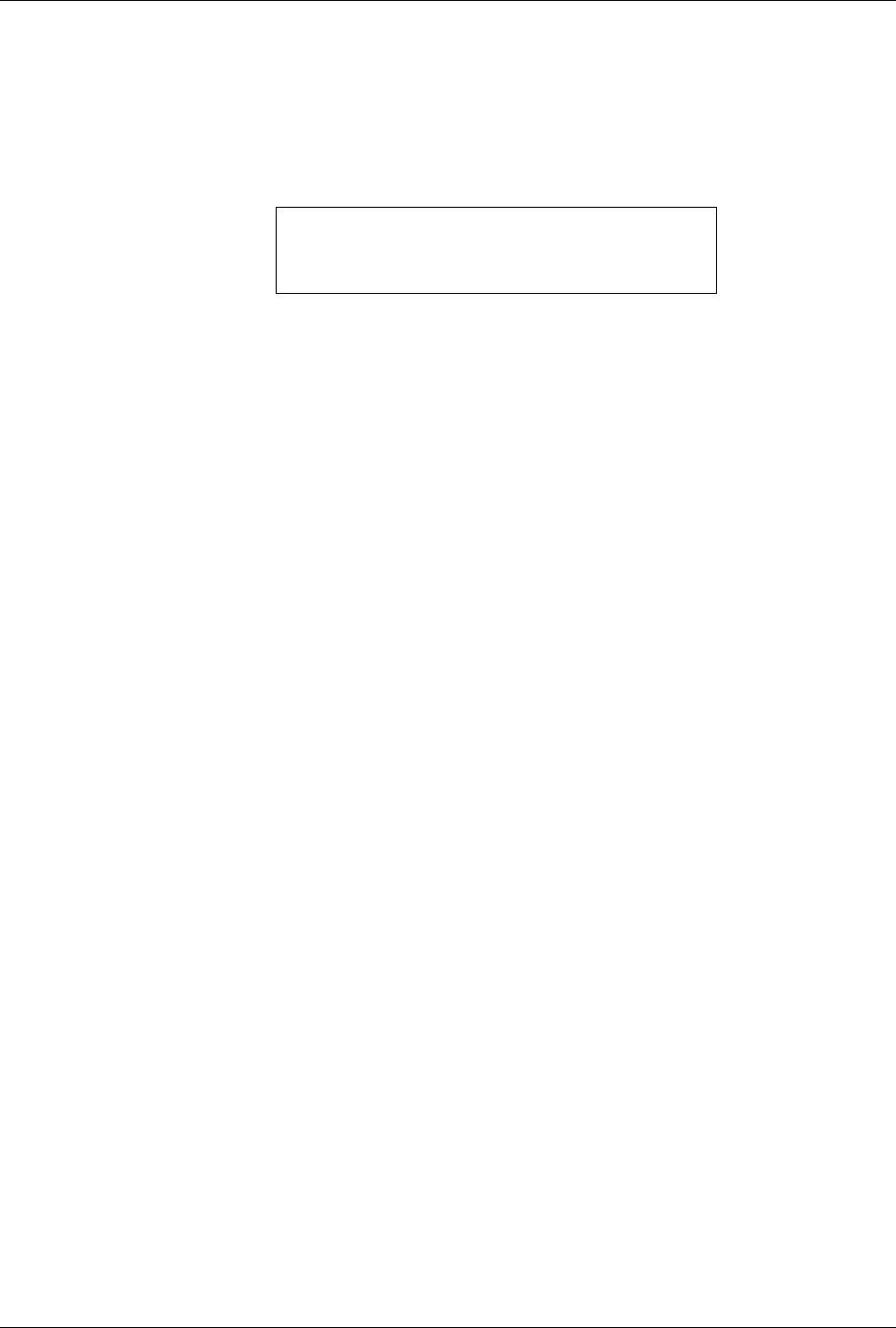
Main Menu
—The 2500 Main Menu is shown below.
Making a Selection
—To make a selection from a menu, enter the
number of the function you want to use. That function’s sub-menu will be
displayed.
Default Values
—On most of the front panel messages, the 2500 displays
the default value in parentheses. If you press
ENTER
without making a
change, the default value is entered.
Prompts
—To respond to a prompt, type the appropriate entry from the
keyboard. To answer Yes, press
Y
.
Keyboard
From the keyboard you can enter upper- and lower-case letters as well as
special characters. These are selected by pressing
SHIFT
and the
character key at the same time.
All keys except
ENTER
are auto-repeating, with a half-second delay.
The message
PRESS ANY KEY TO CONTINUE
does not apply to
SHIFT
or
LOWER CASE
. These keys are used most often to configure the 2500 to
operate in remote (
LOWER CASE
+
R
) and local (
LOWER CASE
+
L
)
modes.
Arrows
—Use the
↑
,
↓
,
←
, or
→
arrow keys to move the cursor.
* * * PROMASTER 2500 MAIN MENU * * *
ENTER THE NUMBER OF THE DESIRED FUNCTION
1 - OPERATIONS 3 - SYSTEM SETUP
2 - FILE UTILITIES 4 - DIAGNOSTICS