2500_Users_Manual - 第37页
Intr oduc tion ProMas ter 250 0 User M anual 3/97 1-15 Push Butto ns — Di alog boxes conta in one or m ore push buttons . To select a push button, highlig ht it and press ↵ , or select it usi ng a m ouse. <O K> and…
Introduction
1-14 3/97 ProMaster 2500 User Manual
How to Use
TaskLink Screens
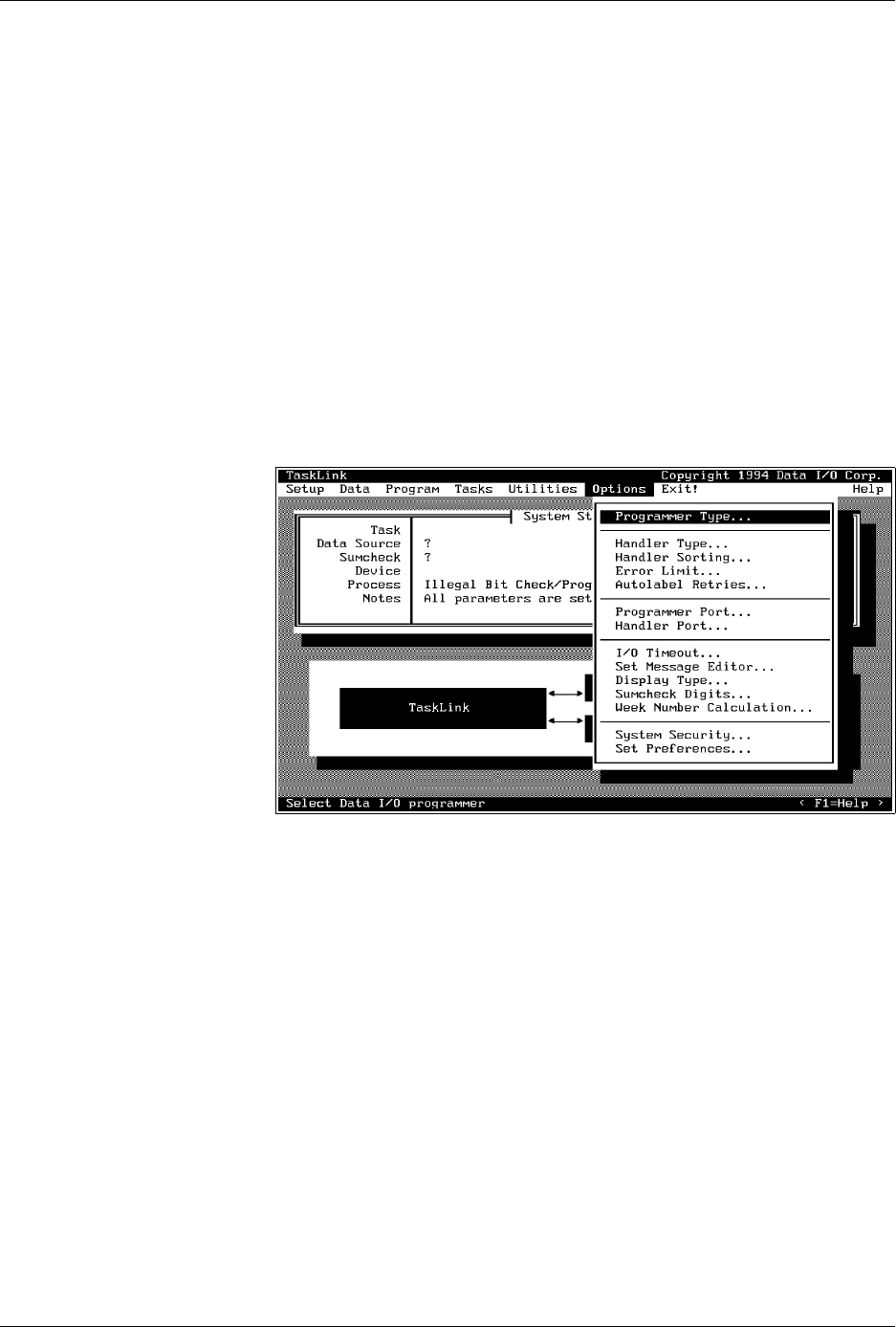
Figure 1-9 shows the TaskLink main screen for the system administrator.
The
Options
pull-down menu has been selected.
When you first enter TaskLink, the message line prompts you to press the
A
LT
key on your PC keyboard. This highlights the
Setup
selection and a
single letter on the other menu bar options. Press
↵
to select
Setup
or
press the highlighted letter key for any displayed option you wish to
select. For example, to select the
Options
pull-down menu as shown in
Figure 1-9, press
A
LT
+
O
.
Select the
Handler Type...
option by doing one of the following:
•Press
H
on the keyboard.
•Use the
↓
to move the cursor bar to that selection and then press
↵
.
• Move the mouse cursor to that selection and press the mouse’s select
button.
When you move the cursor to a new entry field on the TaskLink screen,
the message line in the lower left corner changes to explain the options
and prompts you for the required action.
The three trailing dots (ellipsis) that you see on most lines indicate that
you will need to make another choice on the next screen before TaskLink
will have enough information to execute the operation. In the example
above, select the handler system and then press
↵
.
Types of Screen Selections
There are several types of screen selections you will make in TaskLink. If
you select
Setup
from the main screen and then press
G
to access the
General Parameters
dialog box, the following selection options would be
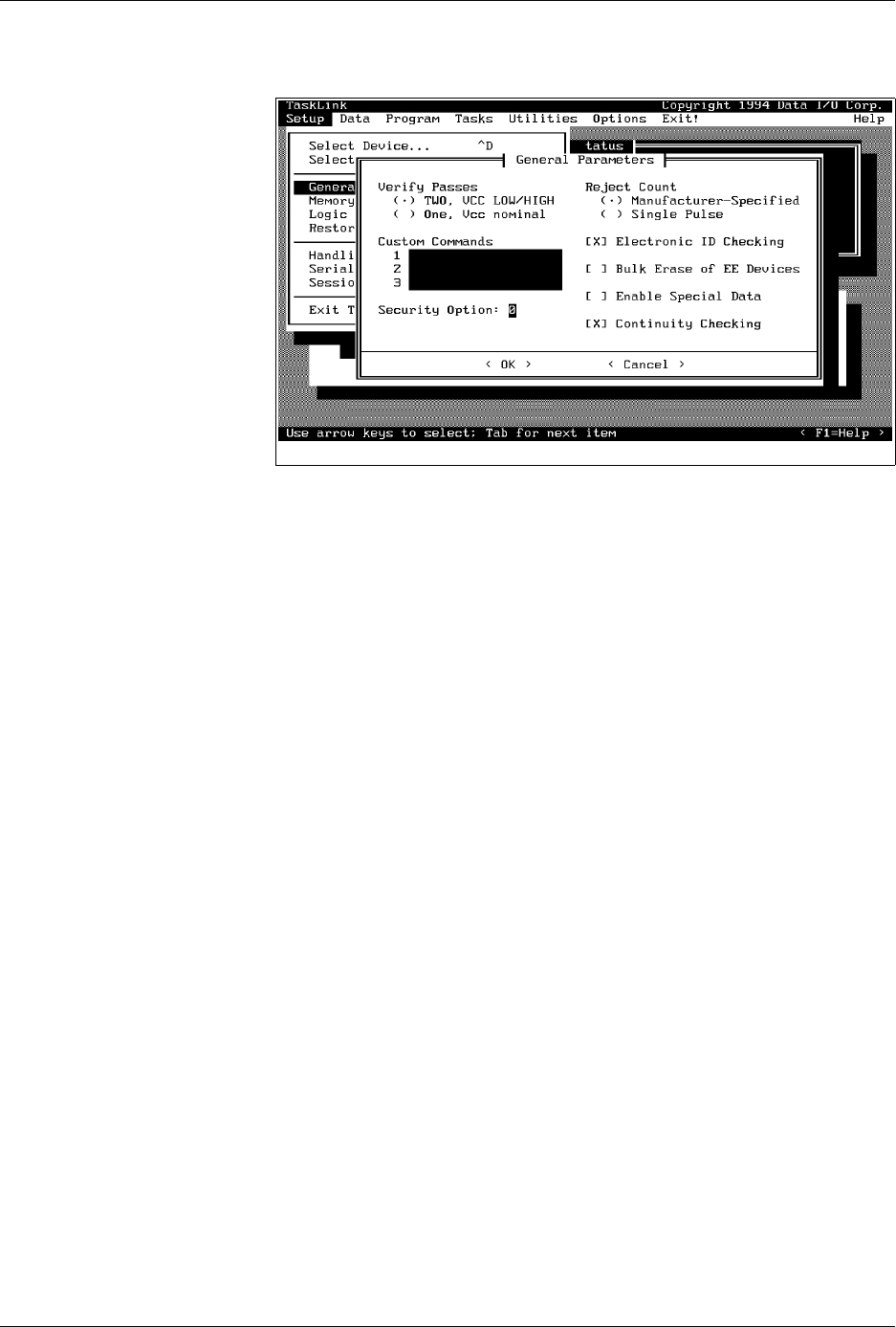
displayed (see Figure ).
Dialog Boxes
—A dialog box allows you to select or set different
parameters. They can contain push buttons, check boxes, radio buttons,
and entry fields. This
General Parameters
screen is an example of a
dialog box. Use
T
AB
to move between the selection groups.
Figure 1-9
TaskLink Main Screen: Options
Pull-Down Menu Selected
Introduction
ProMaster 2500 User Manual 3/97 1-15
Push Buttons
—Dialog boxes contain one or more push buttons. To select
a push button, highlight it and press
↵
, or select it using a mouse.
<OK>
and
<Cancel>
are examples of push buttons.
Check Boxes [ X ]
—Check boxes toggle an option on and off. Use the
S
PACE
bar, or click on the check box with your mouse to toggle a selection
on and off.
Electronic ID
is an example of a check box.
Radio Buttons
(
•
)—Radio buttons are used to select an option from a
list of mutually exclusive options. Use the arrow keys or click on the
option to select a radio button option. The two options listed under
Verify Passes
are examples of radio buttons; selecting one deselects the
other.
Parameter Entry Fields
—These fields allow you to input information
that TaskLink needs. When highlighted, text entered at the keyboard goes
into the entry field.
Custom commands
is an example of a parameter
entry field.
Online Help
For more detailed information on any aspect of TaskLink, context-
sensitive online help documentation is available by:
• Clicking the mouse button on the
< F1 = Help >
push button at the
bottom right of the screen.
• Moving the cursor to a selection and pressing
F1
.
All topics covered in online documentation are also accessible from the
General Help Index
in the
Help
menu.
TaskLink Screen
Movement Summary
Both the mouse and the PC keyboard can be used to select items from the
TaskLink menus. All screen movement and selection instructions in this
manual are given using the PC keyboard commands. If you are using a
mouse, simply point the mouse to an item on TaskLink’s action bar,
boxes, or buttons, and select the item by clicking the mouse button.
Figure 1-10
TaskLink General Parameters
Dialog Box

Introduction
1-16 3/97 ProMaster 2500 User Manual
The table below summarizes the keys commonly used with TaskLink and
the function they serve.
Note: Press the ESC key at any time to exit any menu or dialog box without
saving and to display an Exit TaskLink confirmation window.
User Interface Options TaskLink Screen
—System operators will use TaskLink for most of their
communication with the system. Most operator prompts are displayed in
the TaskLink screens on the PC monitor.
Front Panel
—The 2500’s keyboard and display will be used by the
system operator on limited occasions to:
• Adjust specific handler parameters using special function key
commands (refer to Appendix B for Firmware key commands).
• Align the beam to the programming module.
• Read device handling messages.
PC Key(s) Description of Action
T
AB
Moves the cursor to the
next field
(forward) in a dialog
box.
S
HIFT
+
T
AB
Moves the cursor to the
previous field
(backward) in a
dialog box.
↵
Accepts
the current
selections
in a dialog box. In a
multiple-line text entry field, this key moves the cursor
to the next line or the beginning of the next field.
E
SC
Cancels
a dialog box
without saving
any changes, or it
cancels any operation in progress.
Arrows
Moves the cursor between selections in a dialog box.
H
OME
, E
ND
Moves the cursor to the
beginning
or
end
of a list.
P
G
U
P
,
P
G
D
N
Moves the cursor
up one screen
or down one screen.
F1
Accesses context-sensitive
help
.
F2 Accesses lists
from several dialog box entry fields. You
are prompted to press this key at appropriate times by
the TaskLink message line in the lower left corner of the
screen.
C
TRL
+
F1
Checks communication between TaskLink and the
Programmer port
on the 2500 (enter command from
TaskLink’s main screen).
C
TRL
+
F2
Checks communication between TaskLink and the
Remote port
on the 2500 (enter command from
TaskLink’s main screen).