2500_Users_Manual - 第419页
Local M ode ProM aster 25 00 User Manua l F-7 Editing a n Existing File To se lect a fi le, s croll to that fi lenam e and p ress ENTER , or type the name of a fi le and pres s ENTER . The filen ame is show n on the top …
Local Mode
F-6 ProMaster 2500 User Manual
Print Only
The Print Only feature enables you to check the position of text on the
label by printing a label without applying it to a device. To use this
feature, perform the following procedure.
1. Press
1
from the Main Menu to select OPERATIONS. The 2500
displays:
2. Press 5 to select PRINT ONLY. The 2500 displays:
Select the file name and press
ENTER
to select it.
3. Select a file to print and press
ENTER
to select it. The 2500 displays:
4. Press
START
to print a label. Catch the label with your finger. Press
RESET
to return to the Main Menu.
Purge
The Purge feature allows you to cycle devices through the system
without programming or labeling them. Use this mode to remove
unwanted devices from the system.
File Utilities Menu
The File Utilities allow you to create, edit, or delete files. From the 2500
Main Menu, press
2
to select FILE UTILITIES. The 2500 displays:
Edit Files
To create and edit files, press
1
. The 2500 displays:
Note: Pressing
RESET
cancels the operation and returns you to the Main
Menu.
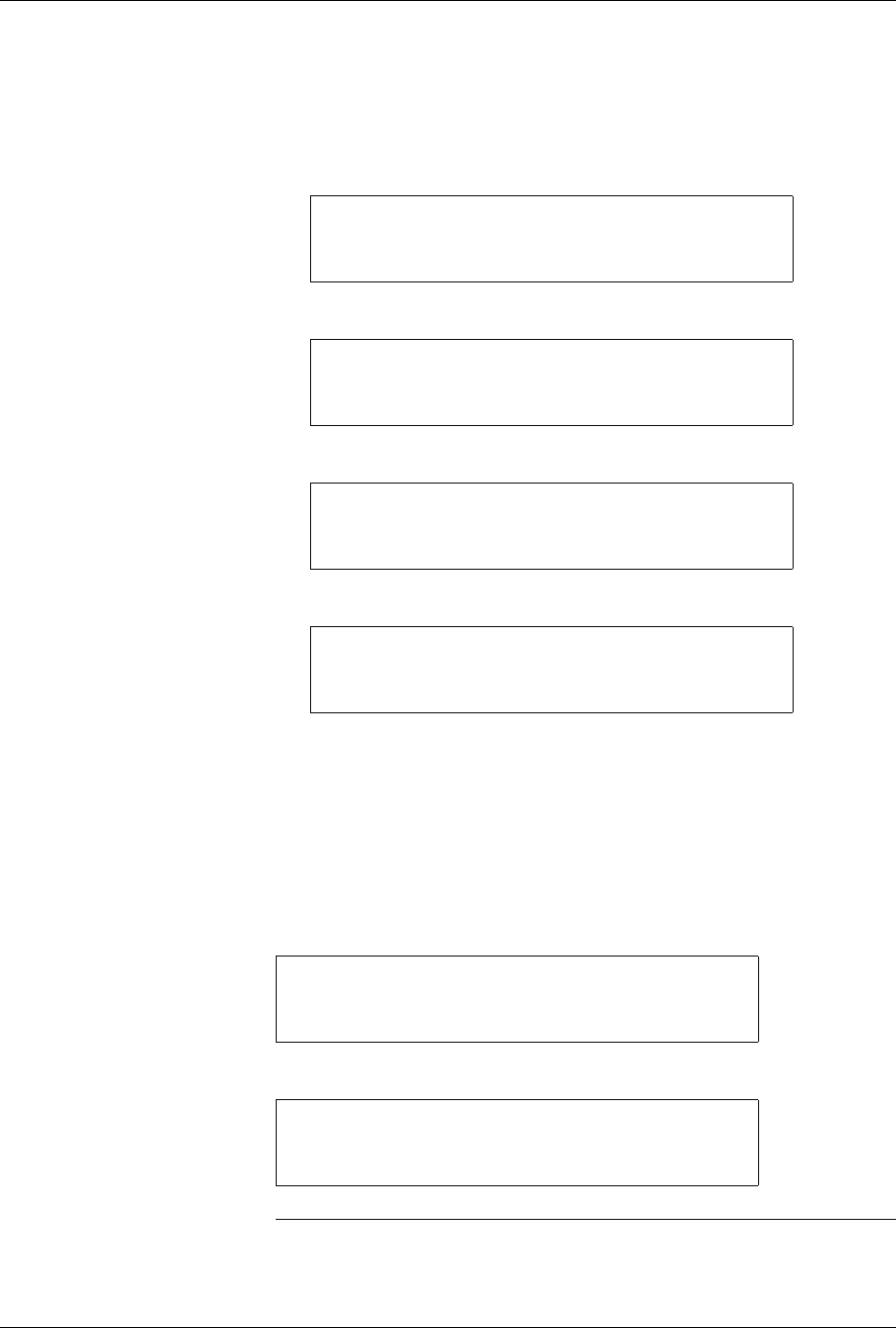
* * * OPERATIONS MENU * * *
1 - PROGRAM/TEST & LABEL 4 - LABEL ONLY
2 - LOAD MASTER 5 - PRINT ONLY
3 - PROGRAM/TEST ONLY 6 - PURGE
PRINT LABEL
TEMPORARY FILE1 FILE2 FILE3
FILE4 FILE5 FILE6 FILE7
ENTER FILE NAME:
PRINT LABEL TEMPORARY FILE
AUTO-SEL 26 CPI 26 CPI S 20 CPI
16 CPI T 12 CPI T 18 CPI
MOVE TO SELECTION THEN PRESS ENTER
PRINT LABEL FILE NAME: FILE5
PRESS START TO PRINT
A LABEL
* * * FILE UTILITIES MENU * * *
ENTER THE NUMBER OF THE DESIRED FUNCTION
1 - EDIT FILES 3 - MAIN MENU
2 - DELETE FILES
FILE EDIT MODE
FILE1 FILE2 FILE3 FILE4
FILE5 FILE6 FILE7 FILE8
ENTER FILE NAME TO EDIT:
Local Mode
ProMaster 2500 User Manual F-7
Editing an Existing File
To select a file, scroll to that filename and press
ENTER
, or type the name
of a file and press
ENTER
. The filename is shown on the top line of the
display:
To change the device package, press
Y
. Otherwise, press
N
or
ENTER
.
The 2500 displays:
Press
Y
to select a new font. Otherwise, press
N
. The 2500 asks you to
select the orientation of pin 1 in the tracks. When the text file is ready to
be edited, the 2500 displays:
Up to three lines of text with 25 characters per line are available, but the
number of lines and characters that you can put on a device is limited by
the size of the device, the label, and type. Enter the text you want on the
label. Existing text is overwritten.
To delete a character, move the cursor one space to the right of the
character you want to delete, and press
DEL
. To insert a space between
two characters, move the cursor to the right of where you want to add a
space, and press
SHIFT
and
SPACE
at the same time.
When editing is complete, press
STOP
. The 2500 displays:
If you do not wish to save the file, press
N
or
RESET
. If you wish to save
it, press
Y
. Then press any key to return to the File Utilities Menu.
Create a New File
To create a new file, press
1
from the File Utilities menu. The 2500
displays:
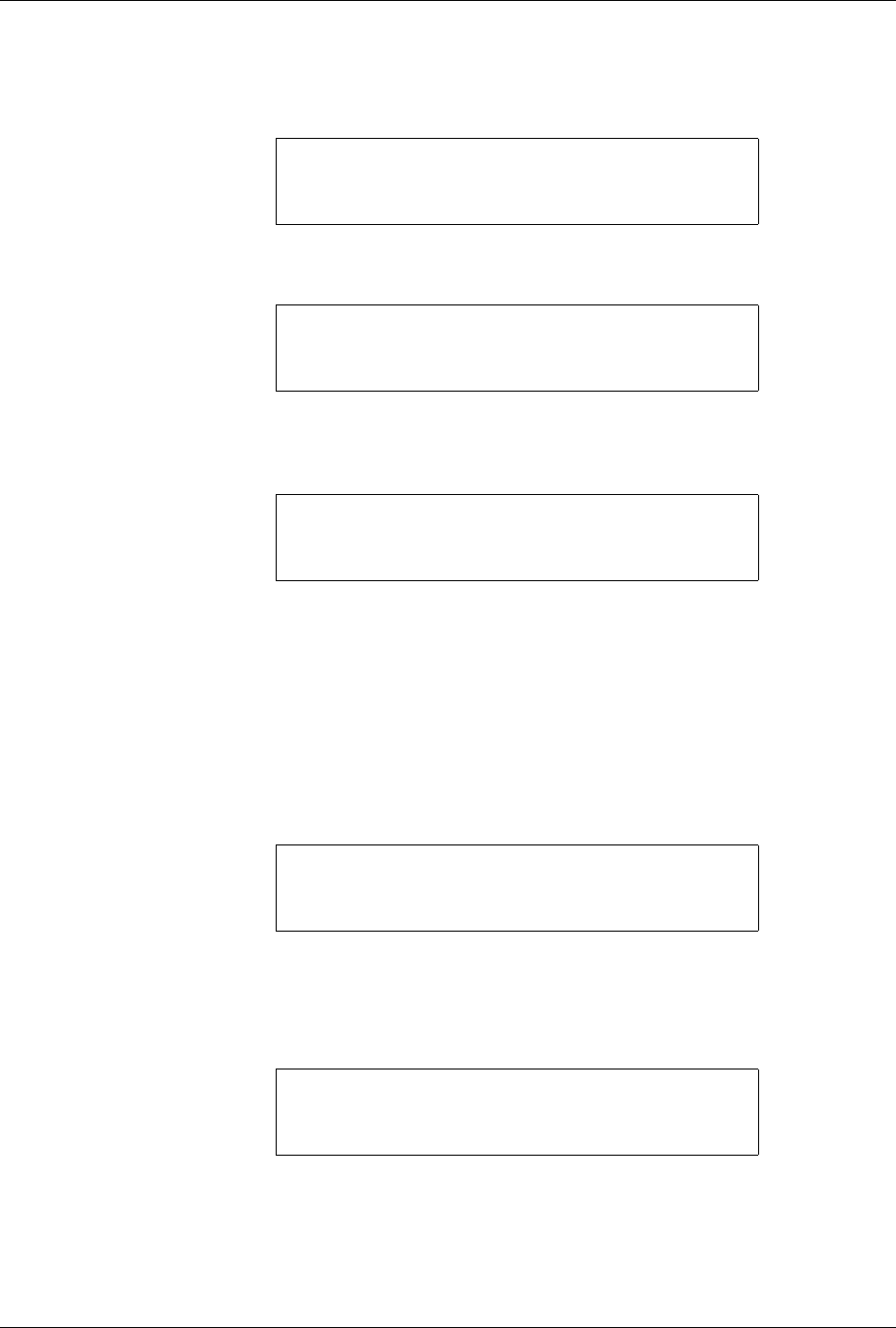
FILE EDIT MODE FILENAME: FILE5
CURRENT PART IS: CUSTOM LENGTH: .250
DO YOU WISH TO CHANGE? (Y OR N):
FILE EDIT MODE FILENAME: FILE5
CURRENT FONT IS: xxxx LENGTH: .250
DO YOU WISH TO CHANGE? (Y OR N):
ABCDEFGHI |FILE NAME: FILE5
JKLMNOPQR |COLUMN X ROW X
123456789 |PRESS STOP WHEN
|EDITING IS COMPLETE
U43 |FILE NAME: FILE5
DATA I/O CORP |COLUMN X ROW X
VER 2.1 1993 |DO YOU WANT TO SAVE
|THIS FILE? (Y OR N)
FILE EDIT MODE
FILE1 FILE2 FILE3 FILE4
FILE5 FILE6 FILE7 FILE8
ENTER FILE NAME TO EDIT:
Local Mode
F-8 ProMaster 2500 User Manual
Type a filename not currently on the list of files or use the arrow keys to
scroll to files not listed on the display. (Only eight filenames appear on
the screen at one time.)
The 2500 creates the new file and displays:
Since this is a new file, no default values are shown. Enter the device and
text information as described in the section called “Creating the
Temporary File” earlier in this chapter. Press any key (except
RESET
) to
return to the File Utilities Menu.
Delete Files
To select DELETE FILES, press
2
from the File Utilities Menu. The 2500
displays:
Type the name of the file to delete, or scroll to the name and press
ENTER
. The 2500 displays:
Press
Y
to delete the file and the 2500 displays:
Press
Y
to delete another file or press any other key. The 2500 displays:
Press any key other than
Y
to return to the File Utilities Menu.
To return to the Main Menu, press
RESET
or press
3
from the File
Utilities Menu.
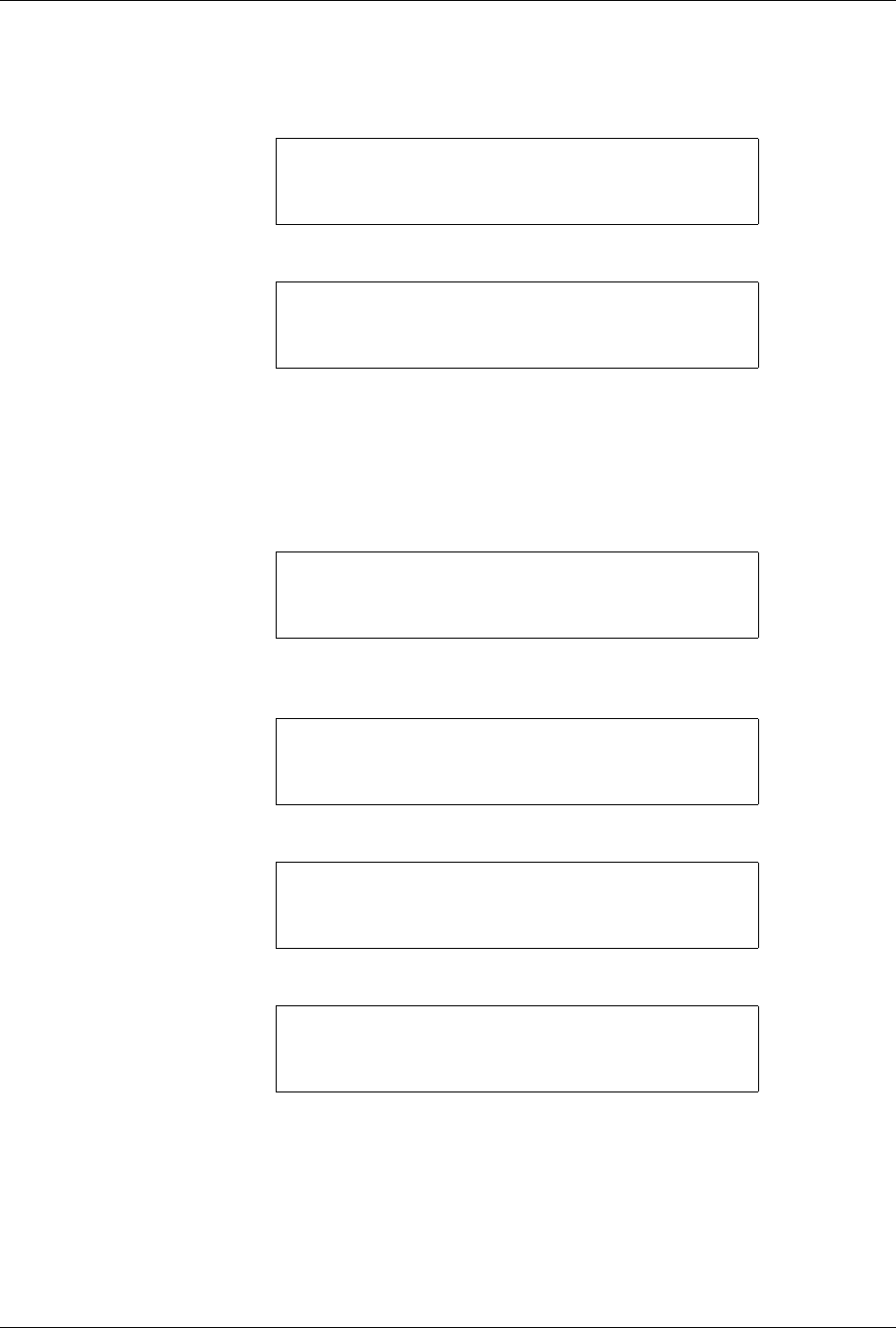
FILE EDIT MODE
FILE1 FILE2 FILE3 FILE4
FILE5 FILE6 FILE7 FILE8
ENTER FILE NAME TO EDIT: NEWNAME
FILE EDIT MODE NEW FILE: NEWNAME
CUSTOM PLCC 20 PLCC 28 PLCC 32
PLCC 44 PLCC 52 PLCC 68 PLCC 84
MOVE TO SELECTION THEN PRESS ENTER
FILE DELETE MODE
FILE1 FILE2 FILE3 FILE4
FILE5 FILE6 FILE7 FILE8
ENTER FILE NAME TO DELETE:
FILE DELETE MODE FILE NAME: NEWNAME
DELETE THIS FILE? (Y OR N)
FILE DELETE MODE FILE NAME: NEWNAME
DELETE THIS FILE? (Y OR N) Y
FILE WAS DELETED, DELETE ANOTHER FILE?
FILE DELETE MODE FILE NAME: NEWNAME
DELETE THIS FILE? (Y OR N) N
FILE NOT DELETED, DELETE ANOTHER FILE?