2500_Users_Manual - 第65页
Insta llatio n and Se tup 2-22 ProMa ster 25 00 U ser Ma nual Adjusting Prin t Quality and Label P osition This section describes several parameters that affect the appearance of characters on the label. Some of th ese l…
Installation and Setup
ProMaster 2500 User Manual 2-21
General 2500 Setup
The following procedures describe changing the system’s serial port baud
rates and enabling or disabling the audible alarm. You must put the 2500
in local mode before performing these steps. Other 2500 front panel
commands are described in Chapter 6 and Appendix F.
Remote and Programmer
Port Baud Rates
The default baud rate of the remote and programmer ports is 9600. To
change either baud rate follow the procedure below.
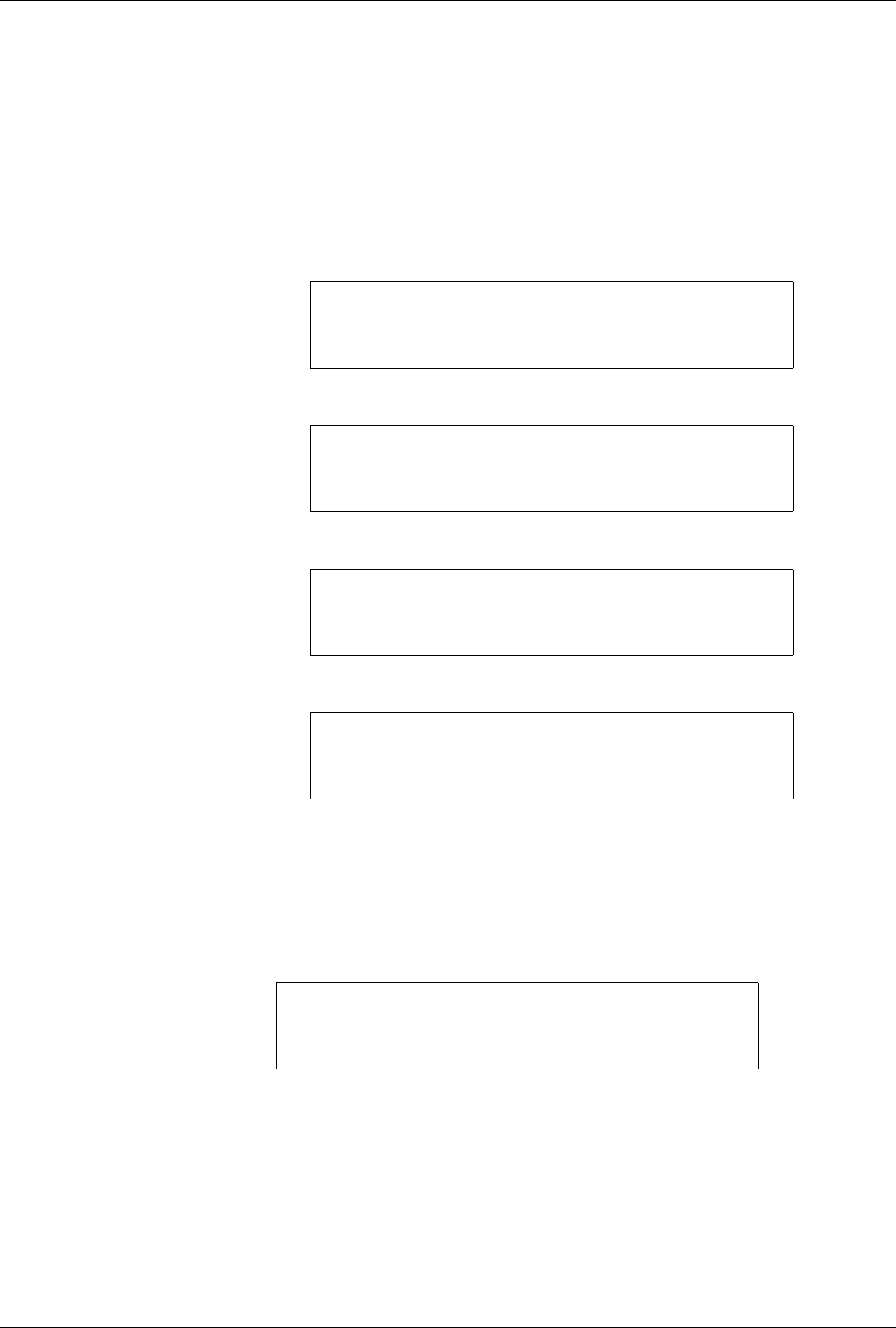
1. From the 2500 Main Menu, press
3
to select SYSTEM SETUP.
The 2500 displays:
2. Press
1
to select the GENERAL SETUP MENU.
3. Press
2
to select REMOTE BAUD RATE.
4. Press the number corresponding to the baud rate you want to use. To
return to the Main Menu, press
RESET
.
Audible Alarm
If the AUDIBLE ALARM is enabled, a tone is emitted for every keystroke
and error message. To enable or disable the Audible Alarm, press 1 from
the General Setup Menu. If the alarm is currently enabled, the 2500
displays:
If it is disabled, ON appears instead of OFF. Press
Y
if you want to toggle
to the other state.
* * PROMASTER 2500 MAIN MENU * *
ENTER THE NUMBER OF THE DESIRED FUNCTION
1 - OPERATIONS 3 - SYSTEM SETUP
2 - FILE UTILITIES 4 - DIAGNOSTIC
* * * SYSTEM SETUP MENU * * *
1 - GENERAL 4 - MAIN MENU
2 - LABELER
3 - HANDLER
* * * GENERAL SETUP MENU * * *
1 - AUDIBLE ALARM 4 - SETUP MENU
2 - REMOTE BAUD RATE
3 - PROGRAMMER BAUD RATE
ENTER NUMBER OF REMOTE BAUD RATE
DESIRED (X):
1 - 1200 2 - 2400 3 - 4800 4 - 9600
5 - 19200 6 - 38400
DO YOU WANT AUDIBLE ALARM OFF?
(Y OR N):
Installation and Setup
2-22 ProMaster 2500 User Manual
Adjusting Print Quality and Label Position
This section describes several parameters that affect the appearance of
characters on the label. Some of these labeling parameters are changed by
entering commands on the 2500’s front panel while it is in the
local
mode.
Others parameters are accessible in the middle of a Task after you press
STOP
on the 2500’s keyboard and then enter a specific key sequence.
STOP commands are used to pause a Task so you can make an
adjustment and then continue the Task from the same place. A complete
list of all the STOP commands is located in Appendix B.
When you change one of these parameters, it is often useful to print a
label to evaluate the new setting.
Print Only
Command
Using the Print Only command is an efficient method of checking the
quality and position of text on a label by printing a label without having
to apply it to a device. You can experiment with new settings for the print
parameters and thereby create the label style you will use when running
your Tasks.
To use this feature follow the steps below.
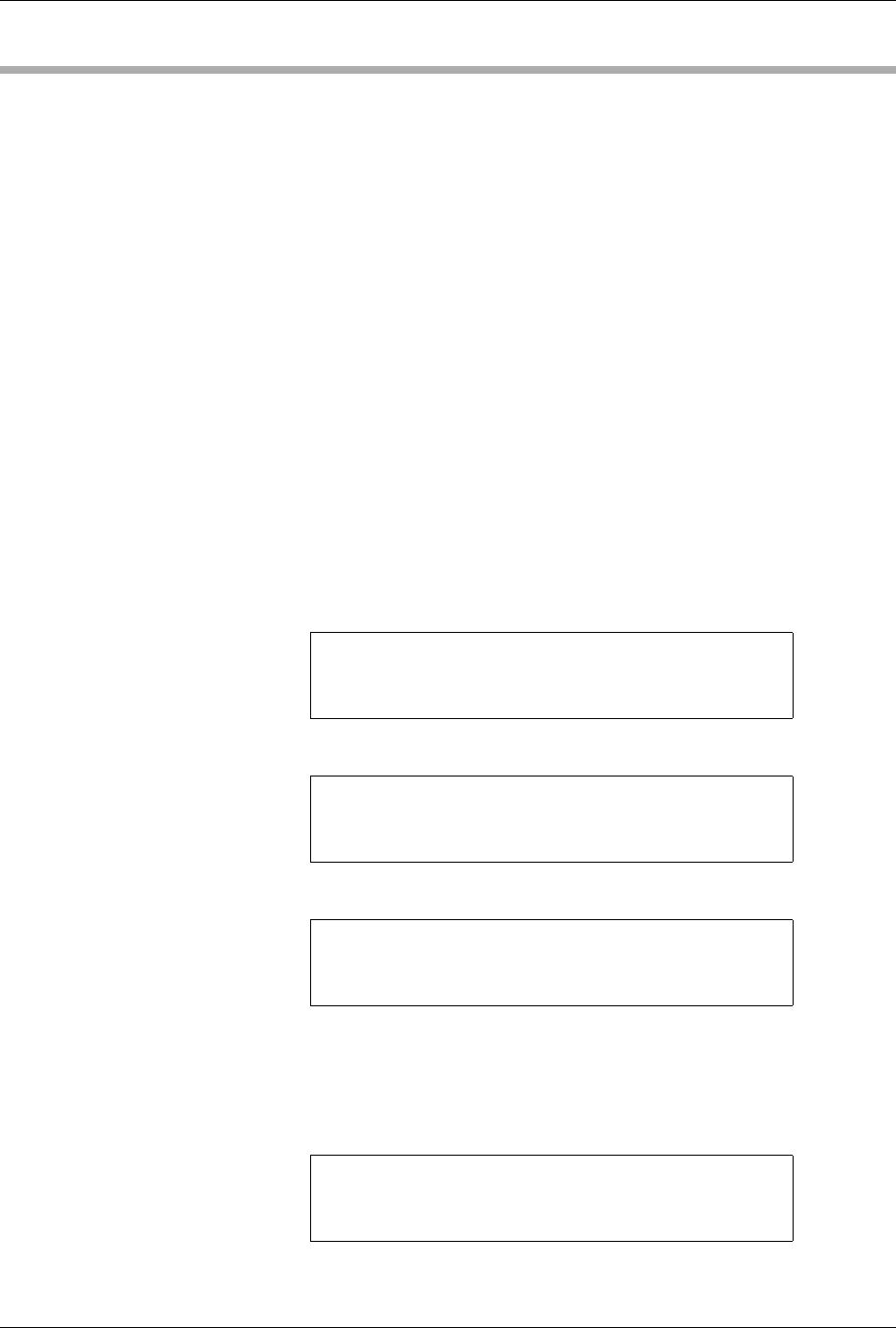
1. Press
1
from the Main Menu to select OPERATIONS.
The 2500 displays:
2. Press
5
to select PRINT ONLY. The 2500 displays:
3. Use the
←
,
↑
,
→
, and
↓
keys to point to a file.
If you select the Temporary file, continue with step 4.
If you point to any of the other files listed on the 2500’s display, press
ENTER
to select the file. The 2500 displays:
Proceed to step 7.
* * PROMASTER 2500 MAIN MENU * *
ENTER THE NUMBER OF THE DESIRED FUNCTION
1 - OPERATIONS 3 - SYSTEM SETUP
2 - FILE UTILITIES 4 - DIAGNOSTICS
* * * OPERATIONS MENU * * *
1 - PROGRAM/TEST & LABEL 4 - LABEL ONLY
2 - LOAD MASTER 5 - PRINT ONLY
3 - PROGRAM/TEST ONLY 6 - PURGE
PRINT LABEL
TEMPORARY FILE1 FILE2 FILE3
FILE 4 FILE5 FILE6 FILE7
ENTER FILE NAME:
PRINT LABEL FILE NAME: FILE5
PRESS START TO PRINT
A LABEL
Installation and Setup
ProMaster 2500 User Manual 2-23
4. With the cursor pointing to the Temporary file, press
ENTER
to select
it. The 2500 displays:
Use the
←
,
↑
,
→
,
↓
to point to one of the fonts.
5. Press
ENTER
to select that font. The 2500 displays:
6. Use the keyboard to enter label text. Press
STOP
when text entry is
complete. The 2500 displays:
7. Position your finger near the label platen so you are ready to “catch”
the label as it is printed. Press
START
to print a label. Each time you
press
START
another label is printed.
8. When you are finished, press
RESET
to return to the Main Menu.
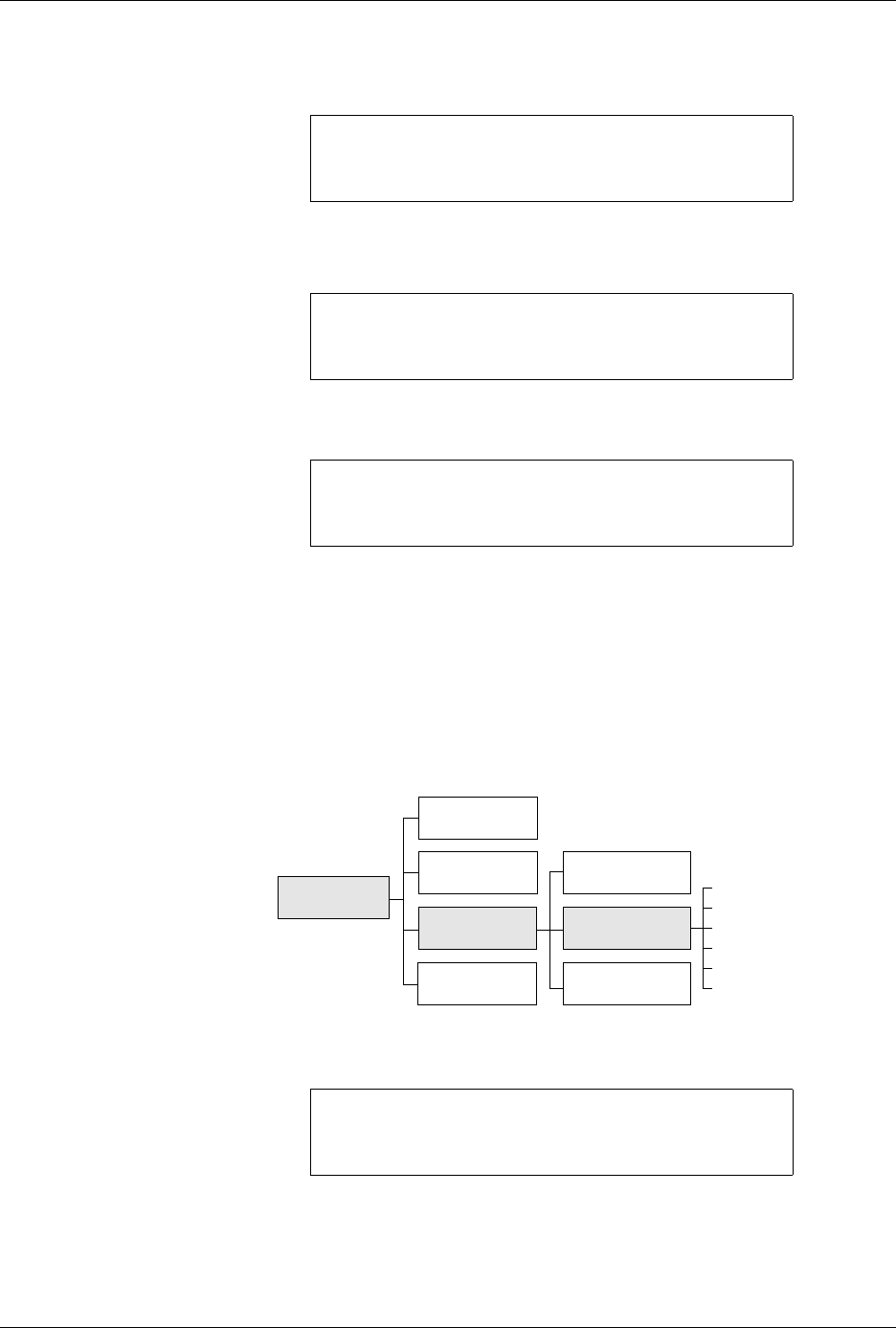
Labeler Setup Menu
Follow the procedures below to set up label calibration, label placement,
and label adjust. The 2500 must be in local mode to access these
commands.
1. Press
3
from the 2500 Main Menu. The 2500 displays:
PRINT LABEL TEMPORARY FILE
AUTO-SEL 26 CPI 26 CPI S 20 CPI
18 CPI 16 CPI T 12 CPI T
MOVE TO SELECTION THEN PRESS ENTER
TTTT | TEMPORARY FILE
HHHH | COLUMN: 01 ROW: 01
| PRESS STOP WHEN
| EDITING IS COMPLETE
PRINT LABEL FILE NAME: FILE5
PRESS START TO PRINT
A LABEL
Figure 2-14
Labeler Setup Path (Local mode on
the front panel)
* * * SYSTEM SETUP MENU * * *
1 - GENERAL 4 - MAIN MENU
2 - LABELER
3 - HANDLER
SYSTEM
SETUP
Label Calibration
Label Placement
Label Adjust
Print Mode
Label Type
Setup Menu
DIAGNOSTICS
MAIN MENU
HANDLER
GENERAL
FILE
UTILITIES
OPERATIONS
1343-4
LABELER