2500_Users_Manual - 第78页
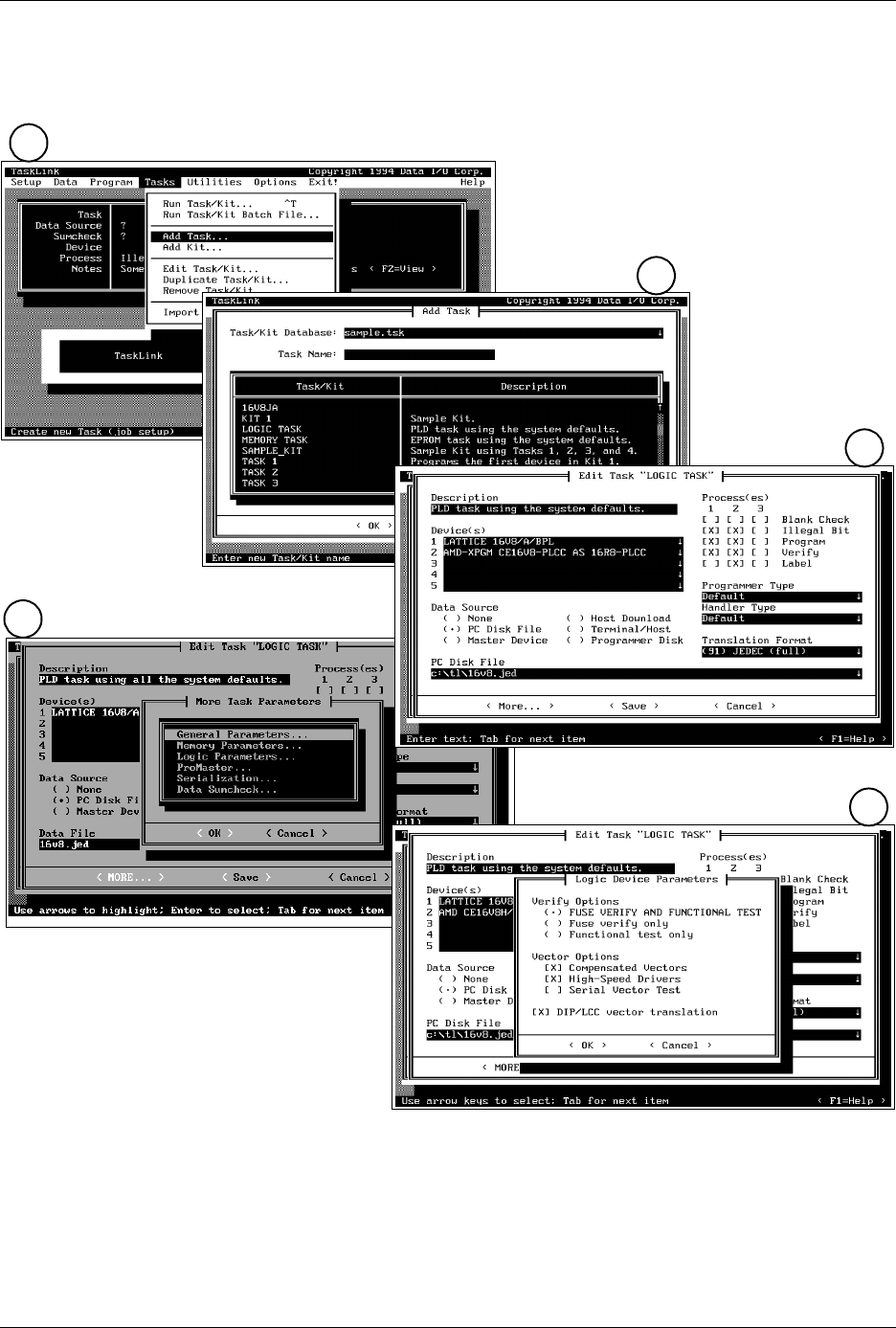
Task s and Ki ts ProM aster 25 00 User Manua l 3-3 Figure 3-1 Overvi ew of the St eps Inv olved in Creat ing Task s 1 2 3 4 5

Tasks and Kits
3-2 ProMaster 2500 User Manual
What Is a Task?
A Task is a job setup containing all the information necessary to process a
set of devices. A Task records all the parameters of the job setup
including the device type, the data file to be used, and the label text to
print and place on the programmed device. The Task is created once and
saved on disk so that it is available whenever that programming/labeling
job needs to be run.
Overview:
Creating a Task
Figure 3-1 shows the major steps involved in creating a Task for a
programmable logic device (PLD). Once the Task has been created, the
system operator simply selects it from a screen similar to screen 2 (see
Figure 3-1) and the entire system configuration and data file download is
completed with a single keystroke.
The steps below outline the task creation process (see Figure 3-1). For
purposes of this example, ignore all references to
Kits
. These are special
applications for Tasks that will be discussed later in this chapter.
1. From the
Main
TaskLink screen, select
Tasks
(see screen 1).
2. Select
Add Task
(see screen 1).
3. Enter the new Task name on the
Task Name
line on screen 2. Press
↵
to move to screen 3.
4. Select at least one
Device(s)
, a
Data Source
, and at least one
Process(es)
(see screen 3). If your Data Source is a PC disk file, you
must select a data file
Translation Format
and give the name and
path for the
Data File
.
5. There are some additional logic programming parameters, which you
may choose to change from their default settings. Choose
<More...>
to access these parameters. See “General Parameters” on page 3-20.
6. Screen 4 allows you to select
Logic Parameters
from a list of
parameter menu options.
7. Screen 5 lets you select device verify and file download parameters.
When you have finished, select
<OK>
to save your choices and close
the dialog box.
8. Select <
Save>
to record all the parameters on your PC disk.
Tasks and Kits
ProMaster 2500 User Manual 3-3
Figure 3-1
Overview of the Steps Involved in Creating Tasks
1
2
3
4
5
Tasks and Kits
3-4 ProMaster 2500 User Manual
Creating a Task for a Logic Device
This section describes how to create a Task for a logic device and
describes the necessary parameters.
The area on the screen in which you enter or select each parameter is
referred to in this manual as the parameter entry field or, simply, field.
Not all of the TaskLink parameter fields must be changed from their
default values. You may accept the default settings on many fields while
creating your Tasks.
There are several parameters or commands that all users must define in
order to create a functioning PLD (or memory device) Task. These are
known as mandatory Task fields and are listed below:
•
Device(s)
— Define device to be programmed.
•
Data Source
— Select the source of data to be programmed into the
device.
•
Process(es)
— Define the operations to be performed on the device.
•
Handling/Labeling Parameters...
— Define the device orientation
and label.
The mandatory fields are shown in the large bold letters in selected
paragraphs below. Parameters that are not shown in large bold letters are
not required for the Task to run and process devices.
Note: This manual is written for users who are using the PC keyboard to make
selections from the TaskLink screens. The same selections can be made
with a mouse by simply moving the mouse pointer over the defined field
and then pressing the mouse button.
Adding a Task
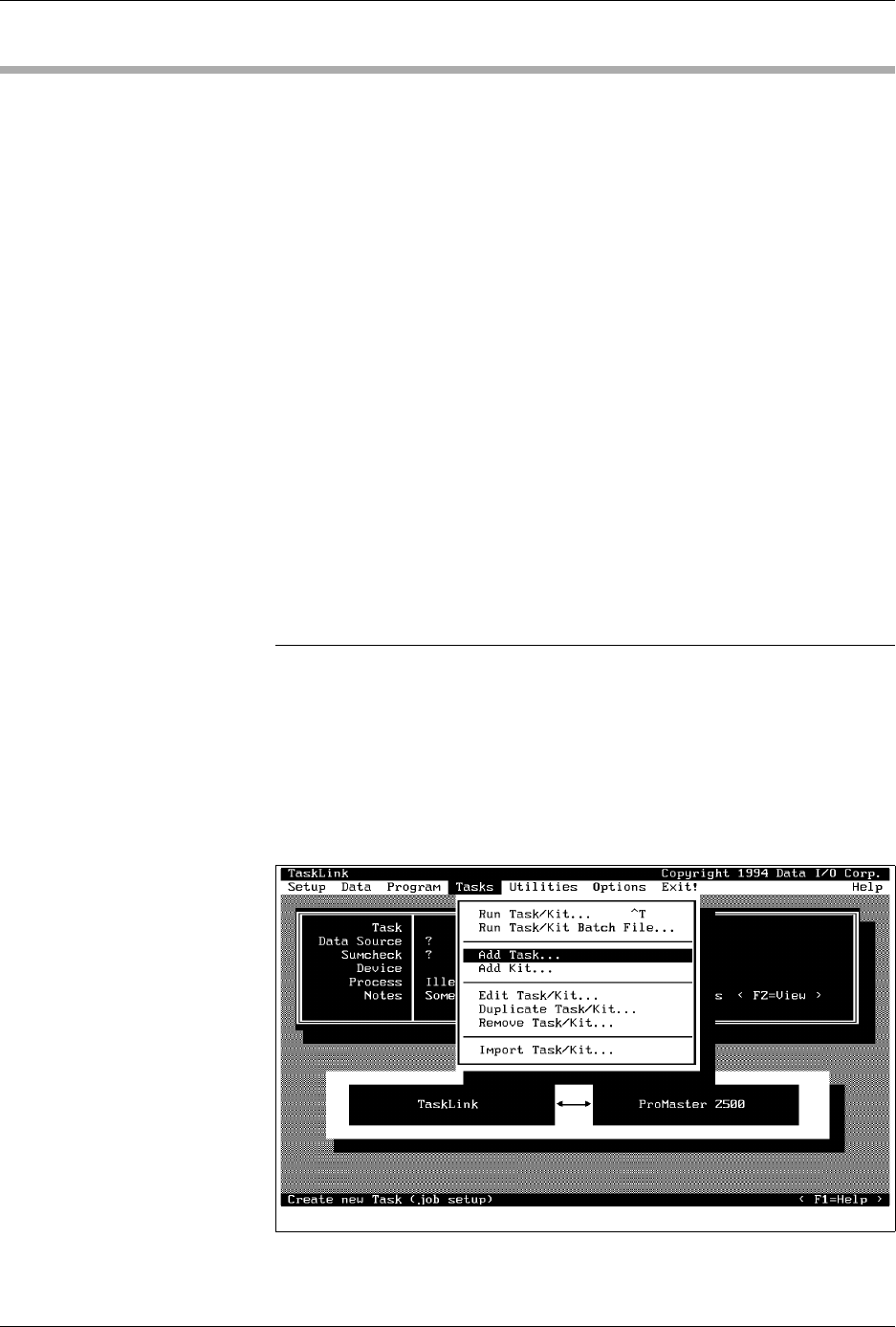
Start creating a new Task from the main TaskLink screen. To access the
Tasks
menu, press
A
LT
+
T
(Figure 3-2). You can run, add, edit,
duplicate, and remove Tasks or Kits from this menu.
Figure 3-2
Add Task Pull-down Menu