2500_Users_Manual - 第87页
Task s and Ki ts 3-12 ProMa ster 25 00 U ser Ma nual The Placement parameter ( Label placement ) controls the location of the label on the device. TaskLink’s default is Autocenter (numeric value of 255 in th is field) , …
Tasks and Kits
ProMaster 2500 User Manual 3-11
Entering Label Text
Enter
Text
to appear on the label. The TaskLink screen may allow you to
enter more characters than will fit on the label you are using. The number
of characters per line varies, but labels are restricted to three printed lines
regardless of the label size or font selected.
TaskLink includes a set of unique character commands that you can use
to have TaskLink to print non-standard characters on your label. When
you enter the predefined sequence of characters in the text field on your
screen, TaskLink prints the special character they represent on the label.
These include:
• A time and date stamp is printed when you enter the
@
sign along
with an optional parameter (refer to the online help for a list of the
options).
• A copyright symbol is printed when a tilde (
~
) is entered.
• A serial number is printed when two or more
%
signs are entered.
• The sumcheck of RAM is printed when you enter at least two dollar
signs (
$
)
.
• The session ID is printed when two to eighteen carets (
^
) are entered.
The
Print Density
field allows you to select the font type in characters per
inch (CPI) that the labeler will use when printing your label. The 2500
defaults to
Auto Select
, which instructs the 2500 to select the optimal
character size based on the Package parameter and the amount of text
entered.
You may use the
Print Only
command in local mode to select the best
font for your label size and text length.
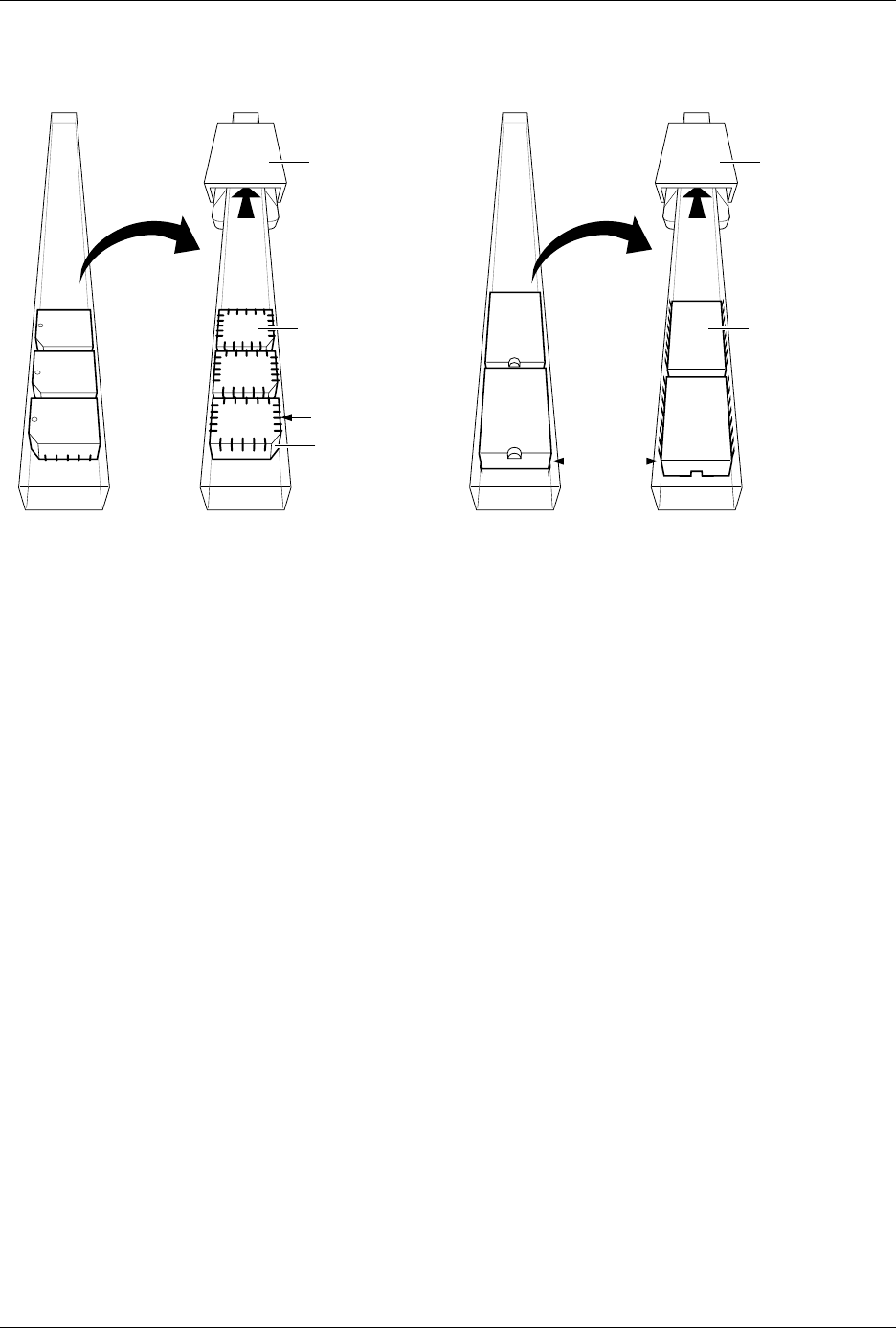
Figure 3-8
Recommended Device Orientation in Input Device
1854-3
NOTCHED
CORNER
INPUT TUBE
HOLDER
INPUT TUBE
HOLDER
TUBE INSERTED
WITH DEVICE
CONTACTS
FACING UP
TUBE INSERTED
WITH DEVICE
CONTACTS
FACING UP
SQUARE
PLCC
DEVICES
DIP/SOIC
DEVICES
PIN 1
PIN 1
Tasks and Kits
3-12 ProMaster 2500 User Manual
The
Placement
parameter (
Label placement
) controls the location of the
label on the device. TaskLink’s default is
Autocenter
(numeric value of
255 in this field), which instructs the 2500 to position the label in the center
of the device package. A placement value of 0 (zero) places the left end on
the label on the left end of the device’s leading edge. Increasing the
placement value by one moves the label 0.010 inch away from the leading
edge of the device.
Press
T
AB
to move the screen cursor over the
<OK>
pushbutton. Press
↵
to save the changes made in this dialog box. TaskLink returns to the
Edit
Task
screen.
This is the last mandatory field definition. While there may be several
other parameters that you will always change from the default setting,
the Task now has the minimum number of fields it needs to run and
process devices. It is important that you save these settings before leaving
the Task-creating portion of TaskLink.
Saving the Task
Press
T
AB
to move the screen cursor to the
<Save>
and press
↵
. TaskLink
returns to the Add Task dialog box. The new Task name and description
appear in the Task list and the cursor is in the Task Name entry field,
ready to create the next Task.
The process of creating a basic Task for a Logic device is complete when
parameters for all the mandatory fields have been entered. The Task will
run and program devices. Other non-mandatory logic parameters that
can further define the Task are described in the next section.
Other Logic
Parameters
To select other logic parameters from the
Edit Task
screen, select
<MORE...>
and then
Logic Parameters...
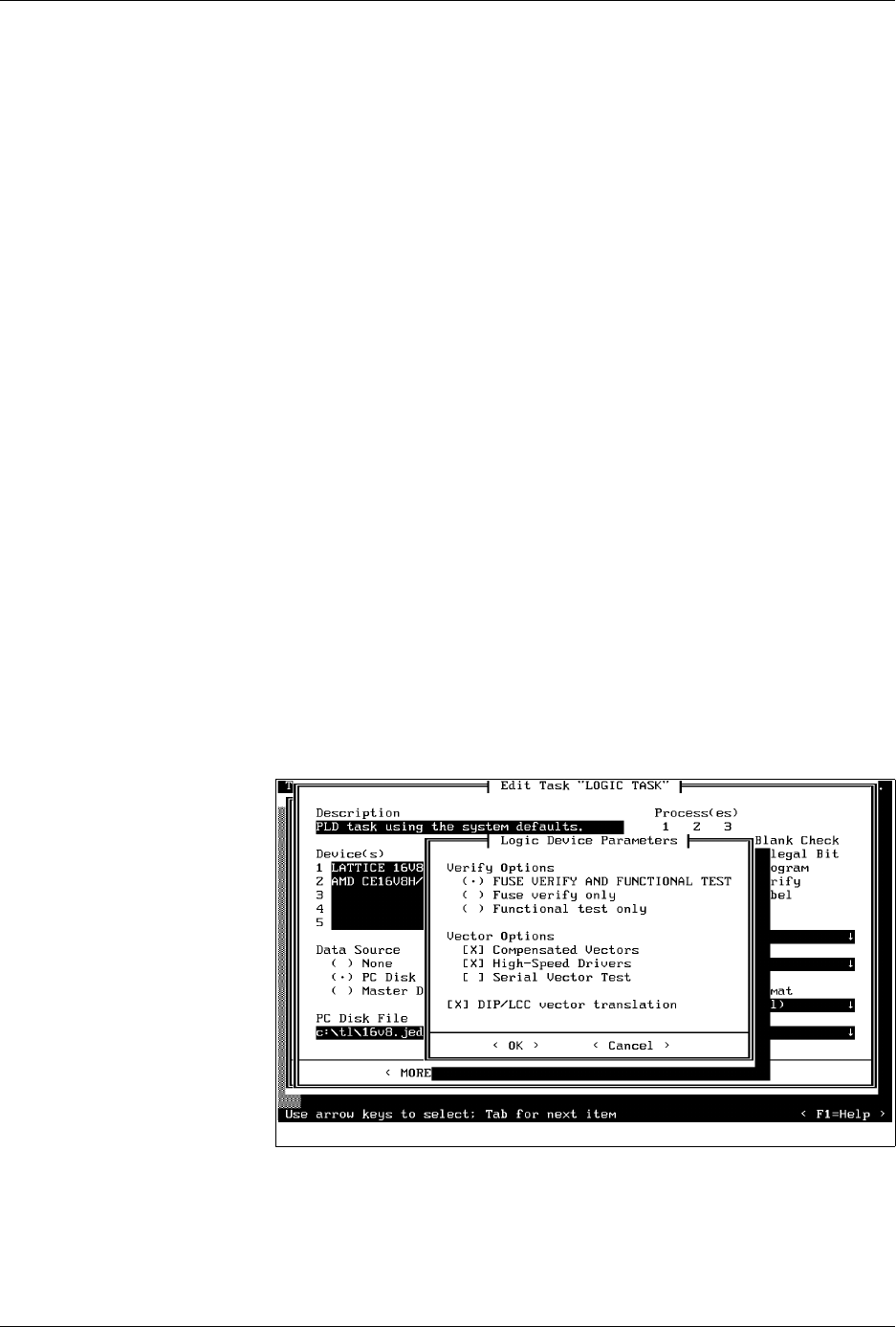
Figure 3-9
Logic Device Parameters

Tasks and Kits
ProMaster 2500 User Manual 3-13
TaskLink displays the Logic Device Parameters dialog box with these
main options:
•
Verify Options
— Select one option from the three offered.
•
Fuse verify only
— Compares the fuses programmed in the logic
device with the pattern in the 2500’s RAM. No structured test
vectors are applied to the device even if they were downloaded in
the JEDEC data file.
•
Functional test only
— Verifies the programmed device using the
structured test vectors downloaded with the JEDEC data file. The
fuses in the device are not checked. This is useful when the devices
have had their security fuse programmed so that the fuse pattern in
their main array can no longer be read by the programmer. Vectors
written for the device will confirm that the device is functioning
correctly if all vectors pass.
•
Fuse verify
and
functional test
(default)—Verifies the
programmed device by comparing the device fuses against the
fuses in RAM. If the device passes, the test vectors are applied to
the device. If all the fuses verify and the vectors pass, the device is
labeled and placed in the pass output tube.
•
Vector Options
—
Select any combination of these three options to
change the way logic test vectors are applied to your device during
the verify cycle. These test vector options may improve the yield of
devices that pass fuse verify but fail test vectors. Certain PLD Tasks
may experience a higher failure rate when test vectors are run. These
failures are usually a combination of conditions in the design (as
defined in the JEDEC file), the internal characteristics of the device,
and the way the 2500 applies vectors. These test vector options affect
the way the 2500 applies the file’s test vectors to the device in an
attempt to improve the number of devices that pass test vectors.
•
Compensated Vectors
— Some PLD designs create combinatorial
latches on registered outputs and may fail test vectors even though
the devices have been programmed correctly. This is most often
due to a combination of factors including the specific PLD design,
the device’s internal hardware characteristics, and the
programming electronics in the 2500. If this parameter has been
disabled and a large number of combinatorial output devices are
failing test vectors, selecting Compensated Vectors may improve
the yield. This parameter is enabled by default in TaskLink.
•
High-speed Drivers
— Some PLD designs, when implemented in
certain high-speed PLDs, will fail test vectors even though the
device programmed correctly and functions correctly in-circuit.
The High-speed Drivers option (which is enabled by default)
applies the vector inputs to the device at a higher speed, using a
higher current drive.
Note: Because this option is enabled by default, be careful how you write your
drivers. If the JEDEC file test vectors have not been written correctly, this
higher current applied to a bi-directional input pin might damage some
devices.