Utah-94-721002-System-Manual.pdf - 第108页
mä~ëã~ä~Ä póëíÉãNMM lñÑçêÇ =fåëíêìã Éåíë= mä~ëã~ =qÉÅÜåçäçÖó == System Manual RF Generator panel Enter the required forward power. The forward po wer, reflected power, power ON/OFF status and DC bias are displ ayed. Clic…

System Manual lñÑçêÇ=fåëíêìãÉåíë=mä~ëã~=qÉÅÜåçäçÖó== mä~ëã~ä~ÄpóëíÉãNMM
Stop button
Select to stop the current process step.
Pause button
Select to pause the current process.
Jump button
Select to jump to the next process step.
Recipe message
field
Displays information about the current recipe, step, loaded wafer
identity, etc..
Step Time fields
Enter the required step time in hours:minutes:seconds. While a process
is running, the adjacent field displays the time remaining to the end
of the step.
Log Interval
fields
Enter the interval required between data logging events.
Process status
field
Indicates the process status; either Ready, Auto or Manual
Pump to
Pressure
checkbox
Select to create a pumping step. The system will pump down until the
demanded pressure is reached. The step will remain active until this
condition is met. Both RF Generators are automatically switched off
during the step. (9 Indicates selected). All setpoints are automatically
set to zero, except for base pressure.
Pressure fields
Enter the required Process Chamber pressure for the step. The
measured pressure is displayed in the adjacent field.
Ignore
Tolerances
checkbox
Select to disable tolerance checking during the current step. (9
indicates selected).
NOTE: RF power turns on immediately without waiting for flows and
pressure to be established.
Hold button
Used in multi-step recipes to keep the plasma on between steps.
NOTES:
The Hold button is only displayed on the Process Control page when a
recipe is loaded. The Hold facility can be selected when
creating/editing a process step using the Process Editor page.
When running the recipe, at the end of the process time for a process
step without the Hold button selected, all process setpoints (chamber
pressure, helium backing pressure, table temperature, RF power, ICP
power, gas flow, etc) are set to zero (off) before starting the next
process step. This means that the plasma would be extinguished
between two plasma process steps if the Hold button were not
selected.
When running the recipe, at the end of the process time for a process
step with the Hold button selected, all process setpoints (chamber
pressure, helium backing pressure, table temperature, RF power, ICP
power, gas flow, etc) are set to the values of the next process step to
run. This means that the plasma remains on between two plasma
process steps if the Hold button is selected.
Operating Instructions
Printed: 22-Mar-06, 10:42 Page 5-41 of 52 UC Davis 94-721001 Issue 1: March 06
mä~ëã~ä~ÄpóëíÉãNMM lñÑçêÇ=fåëíêìãÉåíë=mä~ëã~=qÉÅÜåçäçÖó== System Manual
RF Generator
panel
Enter the required forward power. The forward power, reflected
power, power ON/OFF status and DC bias are displayed.
Clicking the Set Fwd Power button toggles the demand between a
forward power set point and a DC bias set point. If a DC bias demand
is set, the RF power will be varied to try to achieve the required bias.
Use this facility with care: if the plasma does not strike or if the DC
bias cannot be read (by covering the table with insulator), then the RF
power will increase to maximum.
ICP
GENERATOR
panel
Enter the required forward power. The forward power, reflected
power, ON/OFF status are displayed.
CRYO panel
Enter the required table temperature. The current table temperature
is displayed.
HELIUM
BACKING panel
Enter the required backing pressure. The current pressure (Torr) and
flow rate (sccm) are displayed. The open/closed status of the control
valve is displayed.
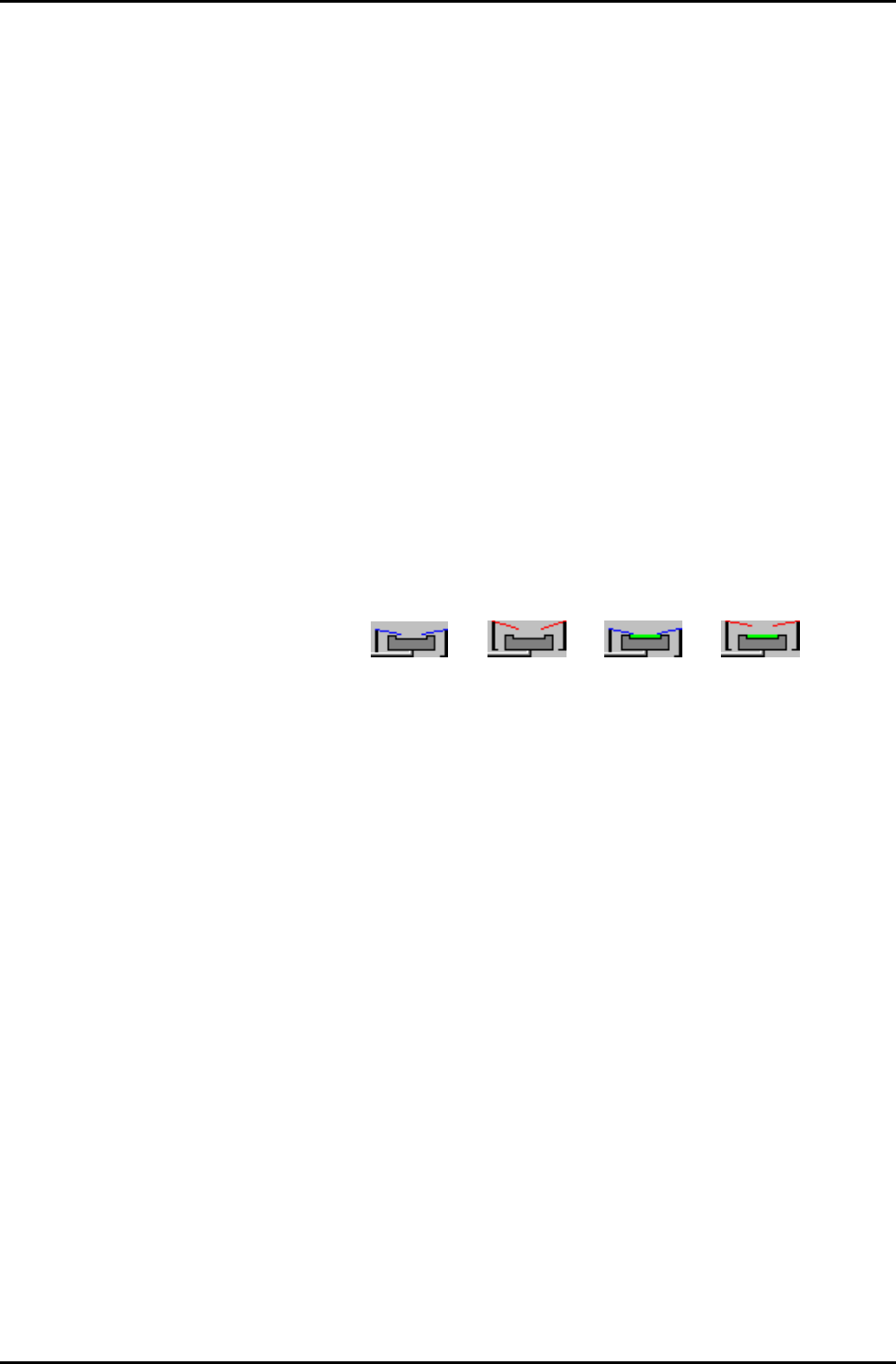
The table mimic, at the top of the panel, displays the up/down status
of the wafer clamp and whether a wafer is loaded or not. The bitmaps
below show all possible states of the mimic.
Clamp down
(no wafer)
Clamp down
(wafer loaded)
Clamp up
(no wafer)
Clamp up
(wafer loaded)
APC
CONTROLLER
panel
Select either the Pressure or the Position button. Enter the required
Chamber Pressure or APC valve position. The current Process Chamber
pressure, Valve Position and valve status are displayed.
Operating Instructions
UC Davis 94-721001 Issue 1: March 06 Page 5-42 of 52 Printed: 22-Mar-06, 10:42

System Manual lñÑçêÇ=fåëíêìãÉåíë=mä~ëã~=qÉÅÜåçäçÖó== mä~ëã~ä~ÄpóëíÉãNMM
The low pressure strike feature allows plasma processing at low
pressures. When the gas pressure is too low, it is not possible to strike
a plasma; however it is possible to sustain a plasma to very low
pressures once it has been ignited. This software feature enables the
user to raise the pressure temporarily, strike a plasma, and
automatically reduce the pressure to the desired value for processing.
The three data fields and their effects are:
LOW PRESSURE
STRIKE panel
Strike
Pressure field
DC bias
Minimum
field
Ramp Rate
field
Enter the value in mTorr at which the RF should
turn on and strike the plasma. If a zero is entered,
the feature is disabled and the RF will turn on once
the pressure has stabilised at the requested process
pressure.
Enter a positive number for the minimum DC bias
value expected once the plasma has struck. Enter
zero if DC bias cannot be read because the
substrate (and any wafer clamp) completely cover
the electrode, or if the electrode has an insulating
coating. A non-zero value is used by the software
to detect if the plasma has been properly
established. If a zero is entered, then the software
assumes the plasma has struck once the RF
reflected power goes low.
Enter a number to set the rate at which the
pressure is reduced from the strike value to the set
point. The higher the number entered, the faster
the transition to process conditions will be. Note
that too high a value can cause the plasma to go
out if the plasma impedance changes faster than
the RF matching unit can track.
Operating Instructions
Printed: 22-Mar-06, 10:42 Page 5-43 of 52 UC Davis 94-721001 Issue 1: March 06