Utah-94-721002-System-Manual.pdf - 第93页
System Manual lñÑçêÇ=fåëíêìãÉåíë=mä~ëã~=qÉ ÅÜåçäçÖó== mä~ëã~ä~Ä póëíÉãNMM 9) In the ‘Column data format’ panel, ensure that the ‘General’ option is selected and then select the Finish button. The process run log data is …
mä~ëã~ä~ÄpóëíÉãNMM lñÑçêÇ=fåëíêìãÉåíë=mä~ëã~=qÉÅÜåçäçÖó== System Manual
2) Select the Save As Text button. The Save As dialogue is displayed.
3) Navigate to the target location for the log text file, enter a filename and in the ‘Save
as type:’ field select ‘Log Text Files (*.Txt)’ from the drop-down list. If saving to a
floppy disk, label it and insert into the drive now.
4) Select the Save button. The text file is saved in your chosen location.
5) Start Excel and then in the File menu, select the Open option. The ‘Open’ dialogue is
displayed.
6) Navigate to the location of the saved text file and in the ‘Files of type:’ field, select
‘All Files (*.*)’ from the drop-down list. Select the required text file and then select
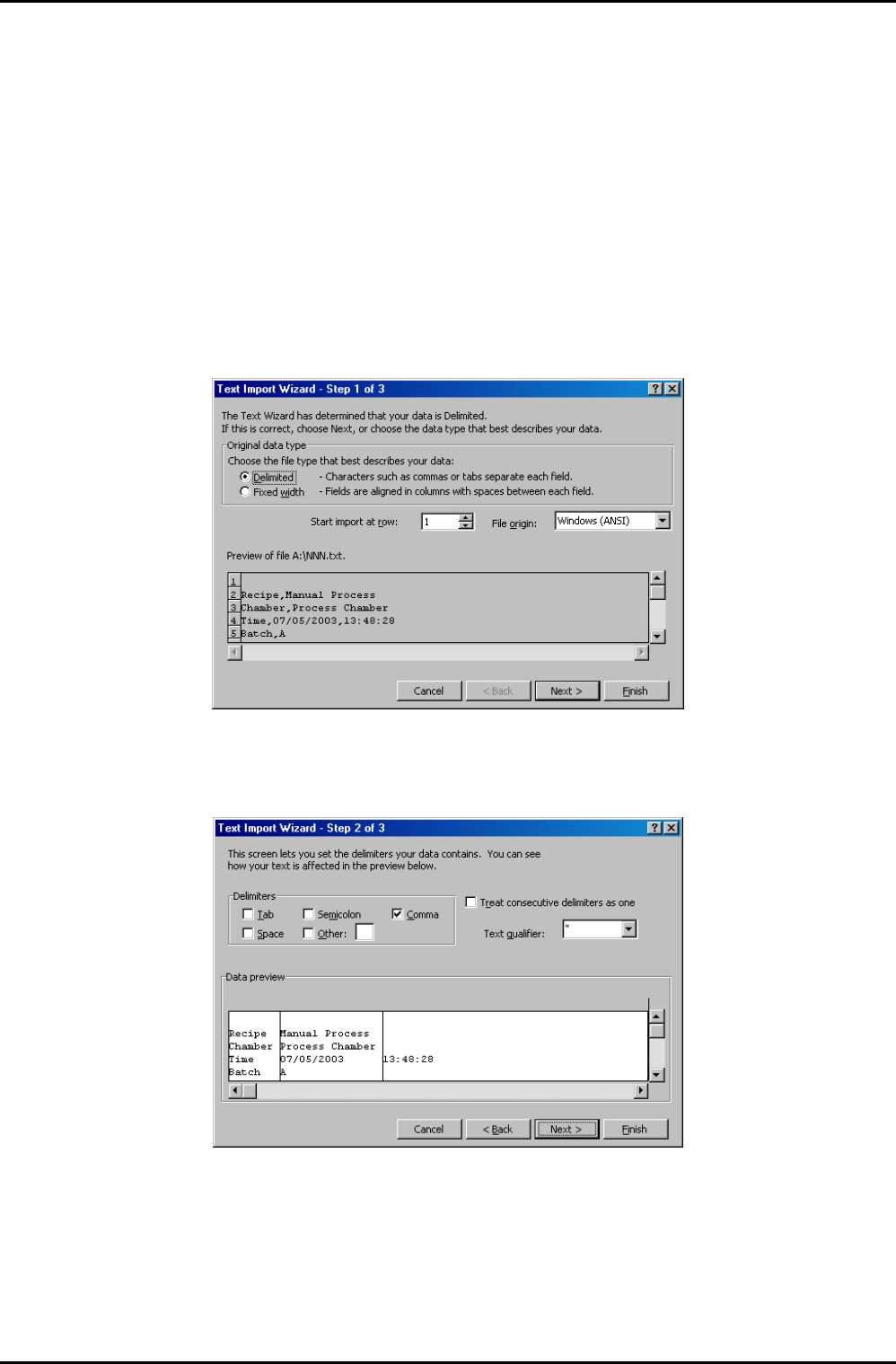
the Open button. The ‘Text Import Wizard – Step 1 of 3’ dialogue is displayed:
7) In the ‘Original data type’ panel, select the ‘Delimited’ option and then select the
Next > button. The ‘Text Import Wizard – Step 2 of 3’ dialogue is displayed:
8) In the ‘Delimiters’ panel, select the ‘Comma’ checkbox. Select the Next > button. The
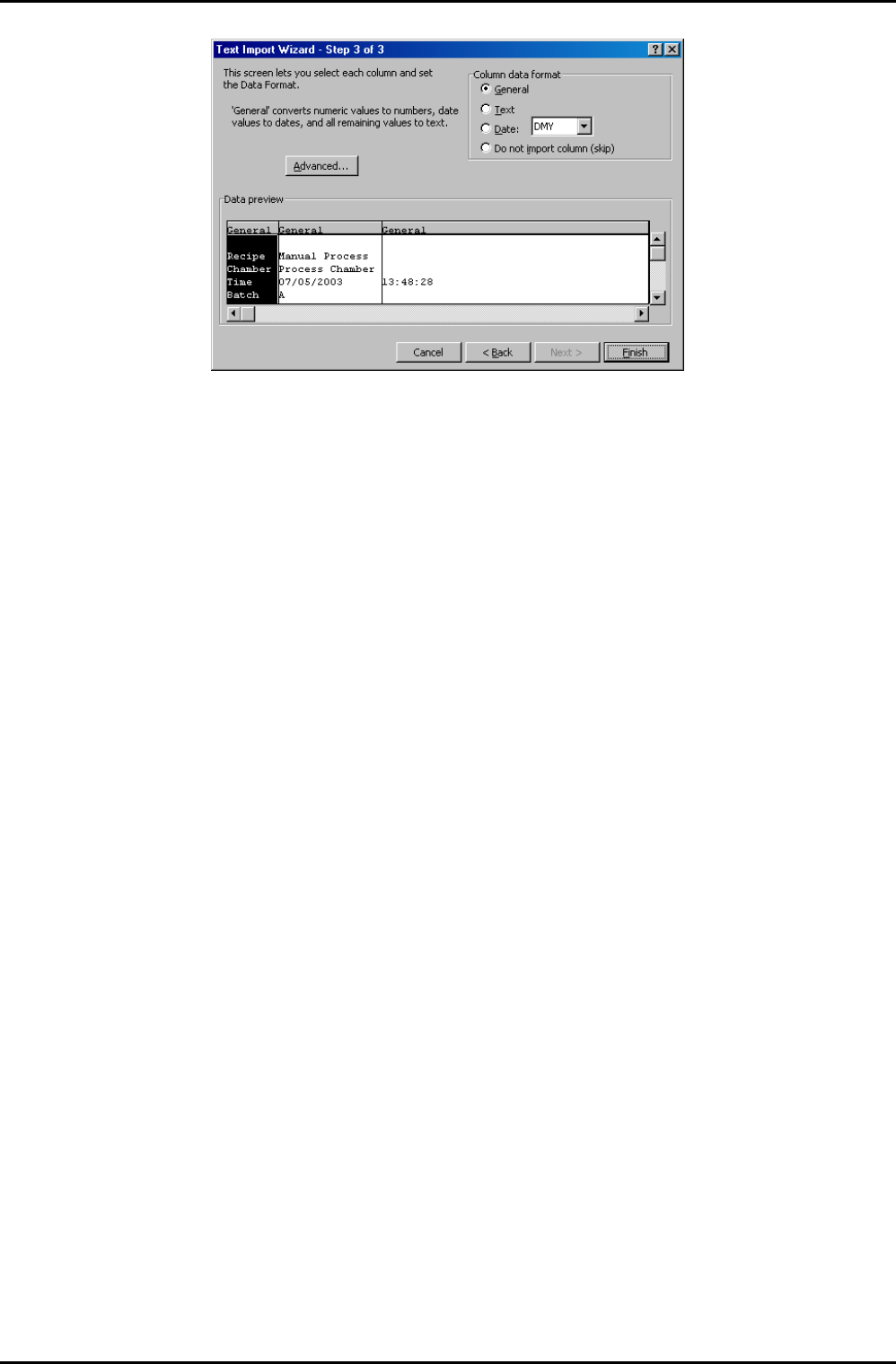
‘Text Import Wizard – Step 3 of 3’ dialogue is displayed:
Operating Instructions
UC Davis 94-721001 Issue 1: March 06 Page 5-26 of 52 Printed: 22-Mar-06, 10:42
System Manual lñÑçêÇ=fåëíêìãÉåíë=mä~ëã~=qÉÅÜåçäçÖó== mä~ëã~ä~ÄpóëíÉãNMM
9) In the ‘Column data format’ panel, ensure that the ‘General’ option is selected and
then select the Finish button. The process run log data is now displayed in the Excel
worksheet.
10) Adjust the column widths so that all text is visible and then save the spreadsheet.
Operating Instructions
Printed: 22-Mar-06, 10:42 Page 5-27 of 52 UC Davis 94-721001 Issue 1: March 06
mä~ëã~ä~ÄpóëíÉãNMM lñÑçêÇ=fåëíêìãÉåíë=mä~ëã~=qÉÅÜåçäçÖó== System Manual
RKSKO= oìå=äçÖ=é~ÖÉ=
The Run Log page is accessed from the Select Run page by clicking on the View Run button
with any process run other than a leak detection run (
) or MFC calibration run ( )
selected.
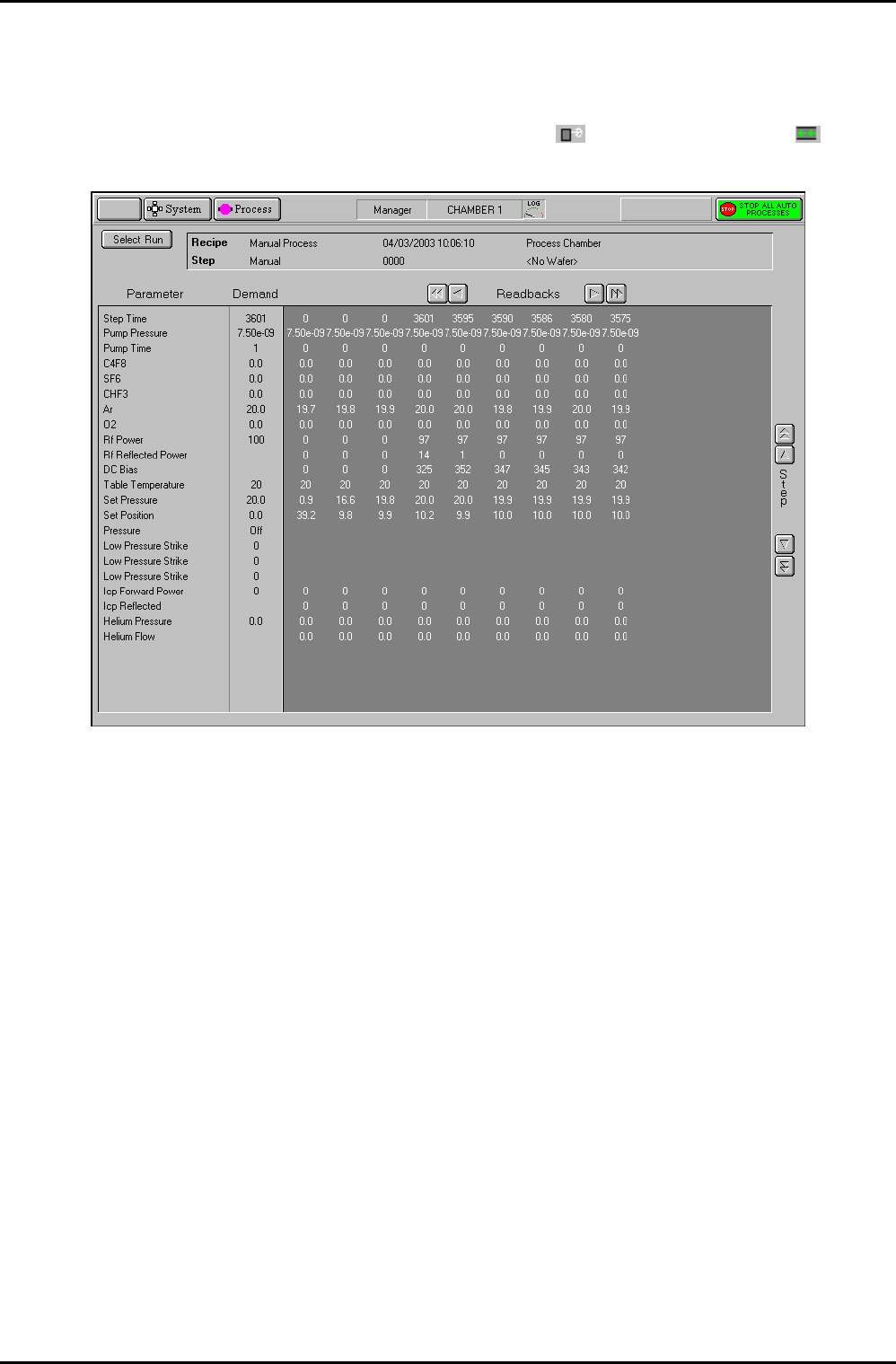
Fig 5.6: Run log page
The page displays the Parameters, Demands and Readbacks for the selected log data.
The facilities provided on the page are as follows:
Select Run
button
Displays the Select Log page.
Log information
panel
Displays details about the selected log data.
Parameter list
Lists the logged parameter names
Demand list
Displays the demanded parameter value
Readbacks list
Displays the logged parameter values with respect to time at the log
intervals specified for the process run. The list can be scrolled
horizontally either by single readbacks or by page. The list can also be
scrolled vertically to display further steps (for multi-step recipes).
Operating Instructions
UC Davis 94-721001 Issue 1: March 06 Page 5-28 of 52 Printed: 22-Mar-06, 10:42