00190802-02.pdf - 第127页
User’s Manual Line Computer UNIX 4 Data Management Software Version 402.xx Edition 06/96 4.3 User Interface of the Data Mana ger 4 - 21 ● Edit the a dditio nal infor mation and confi rm the chan ge with OK . - Creating a…
4 Data Management User’s Manual Line Computer UNIX
4.3 User Interface of the Data Manager Software Version 402.xx Edition 06/96
4 - 20
-
Quitting a data partner
The current data partner can be closed.
●
Select
FILE
-->
Quit
.
The window of the data partner is closed, the Data Manager, however, is still active.
4.3.4.2 SERVICES menu
-
Select all
This menu option enables all files or directories for an action to be selected from the display area.
●
Select
SERVICES
-->
Select all
.
All objects in the display area are displayed in reverse video.
-
Displaying
additional information
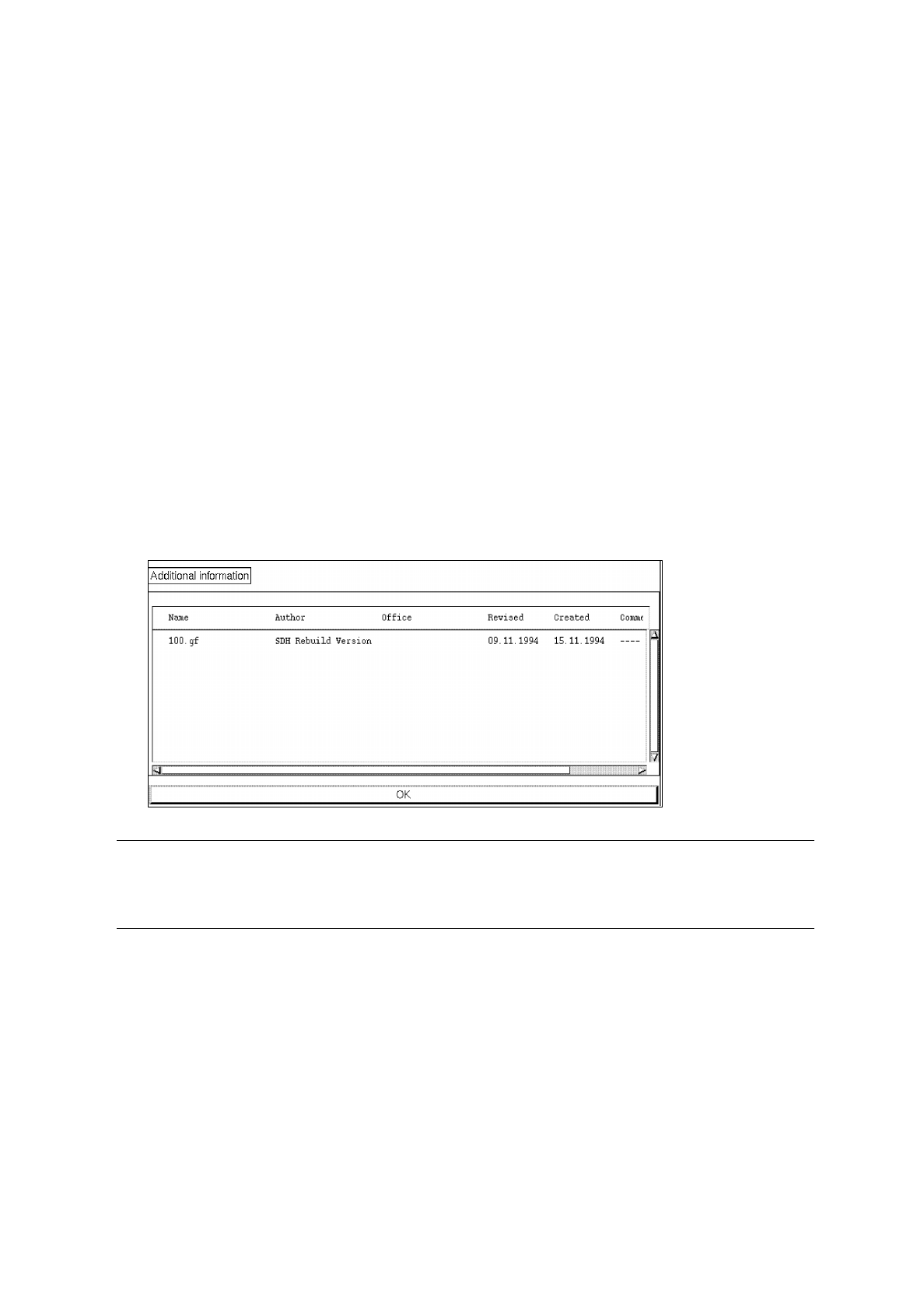
Additional information on selected files or selected directories can be displayed in a dialog box.
●
Select
SERVICES
-->
Additional information
-->
Display
.
The following dialog box appears:
☞
NOTE
If an entry is selected in the dialog box by single-clicking, an additional dialog box is opened in which
the complete comment contained in the additional information is displayed.
-
Changing
additional information
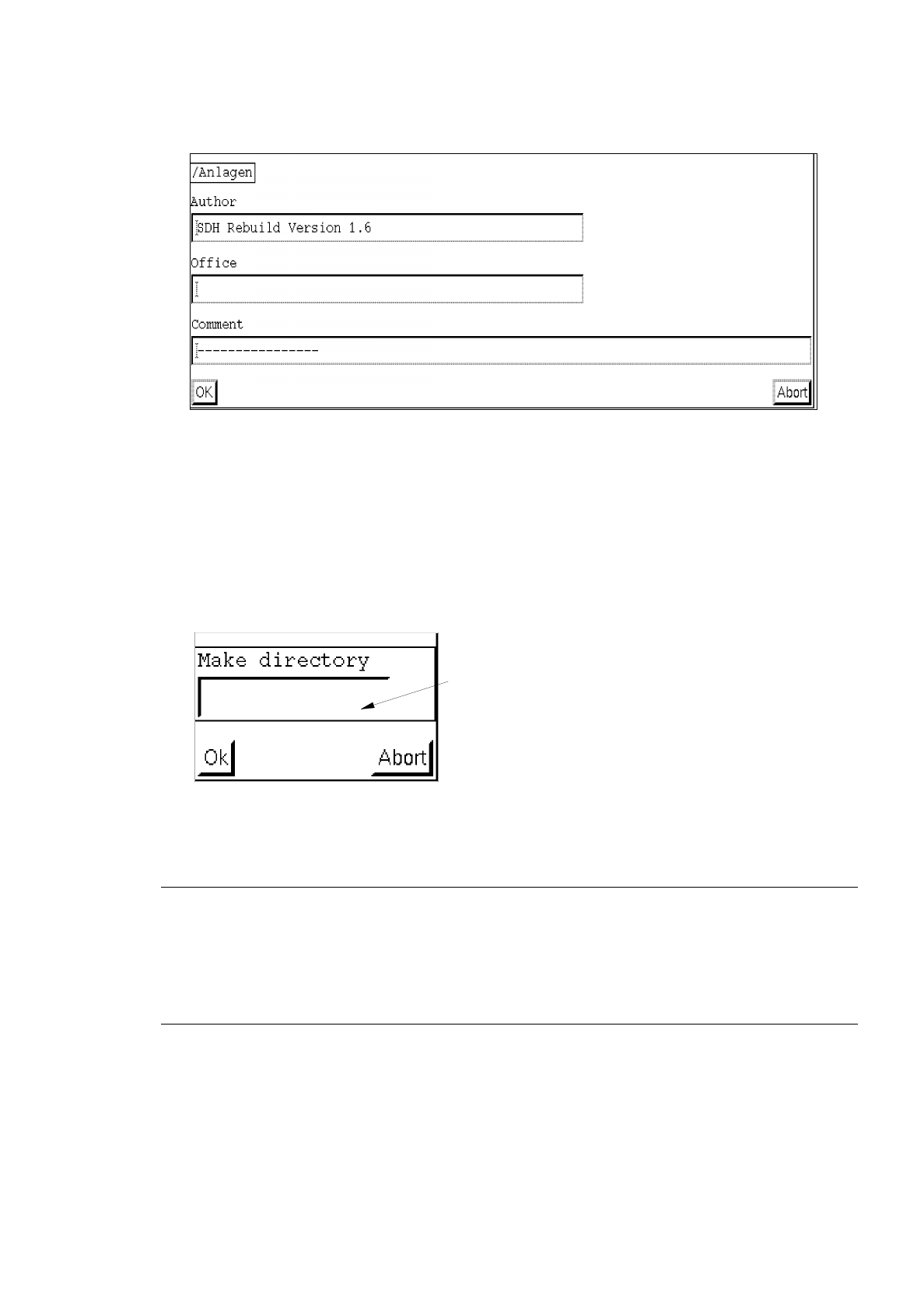
It is possible to change additional information on a selected file or a selected directory.
●
Select
file
or
directory
by clicking one time.
●
Select
SERVICES
-->
Additional information
-->
Change
.
The following dialog box appears:
User’s Manual Line Computer UNIX 4 Data Management
Software Version 402.xx Edition 06/96 4.3 User Interface of the Data Manager
4 - 21
●
Edit the additional information and confirm the change with
OK
.
-
Creating a directory
A new directory can be created in a data partner or subdirectories can be created in a directory
(see also Chapt. 2 of this User's Manual).
●
Select
SERVICES
-->
Directory
-->
Create
.
●
Enter directory name (max. 20 characters) in the dialog box.
☞
NOTE
Each name may be assigned only once to a directory or a file.
When assigning names, the following characters must not be used:
question mark (?), asterisk (*), stroke (/), blank ( ), brackets ([ ]), quotation marks ("" ') and umlaut
vowels (ä Ä, ö Ö, ü Ü).
●
Confirm dialog box with
OK
.
-
Closing a directory
Any open directory can be closed.
●
Select
SERVICES
-->
Directory
-->
Close
.
editing field

4 Data Management User’s Manual Line Computer UNIX
4.3 User Interface of the Data Manager Software Version 402.xx Edition 06/96
4 - 22
-
Rereading directory
The current directory is newly read in.
●
Select
SERVICES
-->
Directory
-->
Reread
.
The display area is newly set up.
(This function can also be activated by clicking on "
Reread directory
" in the command area.)
4.3.4.3 DISPLAY menu
-
Text
/
Icons
(software switch)
This function allows you to select whether the files and directories are to be displayed in the main win-
dow in the form of text or as icons (see examples of a file display in the form of icons on page 4 - 15).
●
DISPLAY
-->click on
Text
or
Icons
.
-
Sorting
of directories/files
Sorting can be performed by name / extension / date / size/ author / office.
●
Click on
DISPLAY
-->
Sorted acc. to
--> (e.g.)
Date
.
☞
NOTE
When selecting the
Date
, the most recent file or the most recent directory is at the top of the list.
When selecting
Name
,
Extension
,
Author
or
Office
, sorting is performed alphanumerically in ascen-
ding order.
When selecting the
Size
, sorting is performed numerically in ascending order. (The largest file is
positioned at the top of the list).
-
Displaying
additional information
It is possible to call up all information pertaining to the displayed objects in the main window, or only
specific information, e.g. size.
☞
NOTE
The additional information are only displayed in the text display mode.
●
DISPLAY
-->
Display
--> (e.g.)
Size
.
The size is displayed behind every object in the main window.