00190802-02.pdf - 第23页
User’s Manual Line Computer UNIX 1 Hardware / Software Install ation Software Version 402.xx Edition 06/96 1.2 Hardware Installation 1 - 9 1.2.4 M onitor - T ype MCM 1702 17" MU L TISC AN 1.2.4.1 Connections and Set…

1 Hardware / Software Installation User’s Manual Line Computer UNIX
1.2 Hardware Installation Software Version 402.xx Edition 06/96
1 - 8
6
Picture height (V-Size)
Serves to change the picture height.
7
Picture width (H-Size)
Use this control to adjust the picture width.
8
Brightness
The brightness is to be so adjusted that also dark grey scales can be clearly distinguished.
9
Save Button
Use this button to store the adjustments you may have made. If this button is not pressed, no storing
will take place.
10
Adjustment control
This control is used to adjust the functions selected via the buttons. If no selections have been made
this control is used for adjusing the contrast.
11
D-SUB/BNC button
Use this button to select the active video input, i.e. D-SUB or BNC.
The green LED is illuminated if BNC input is active.
12
Demagnetizing switch
Use this switch if color spots or slight misconvergences appear on the screen.
User’s Manual Line Computer UNIX 1 Hardware / Software Installation
Software Version 402.xx Edition 06/96 1.2 Hardware Installation
1 - 9
1.2.4 Monitor - Type MCM 1702 17" MULTISCAN
1.2.4.1 Connections and Settings
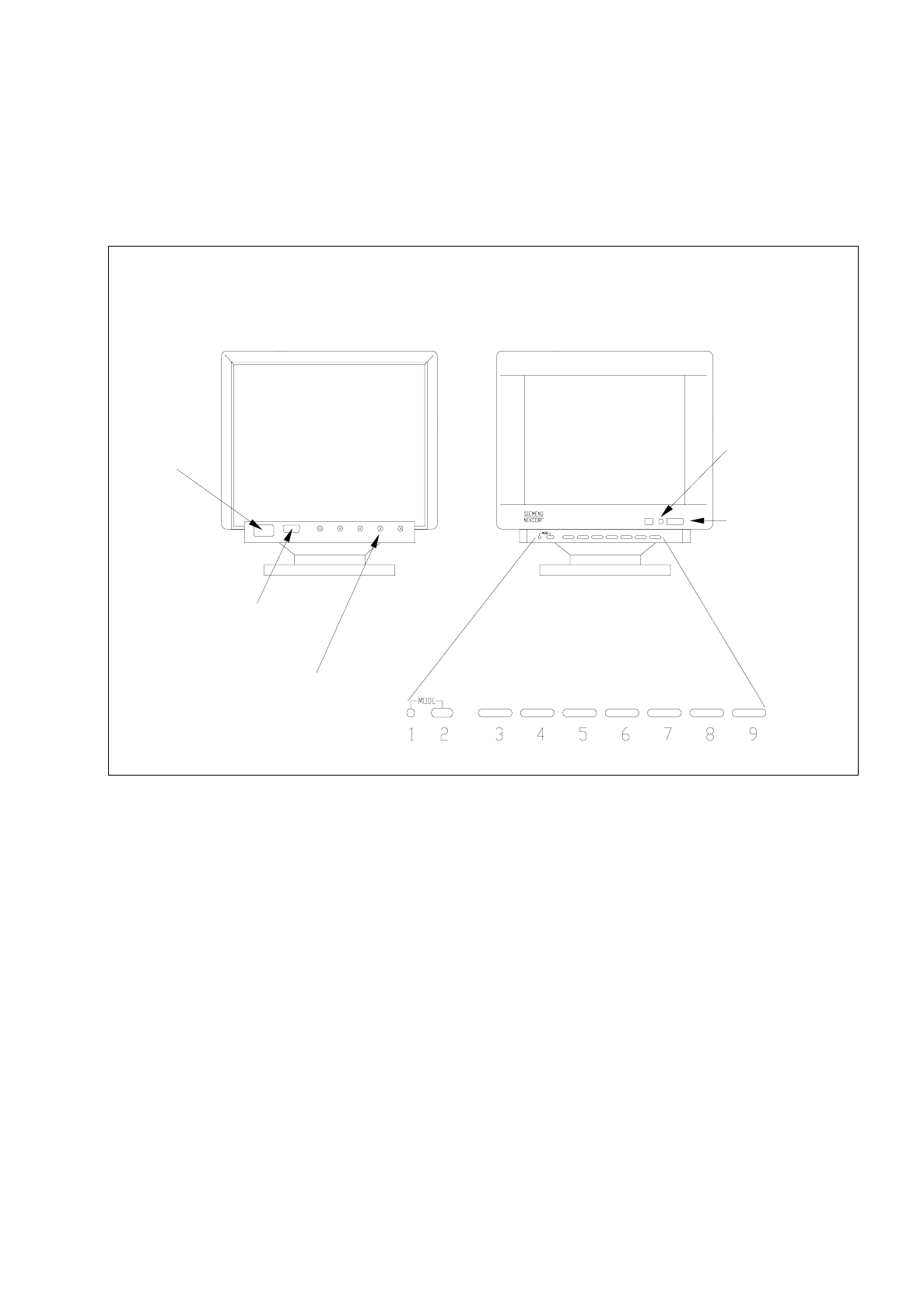
Fig. 1.2.4 Monitor - connections, control elements, setting elements
The controls to adjust the screen display have different functions depending upon the operating mode currently
used. These functions are represented by symbols provided above and below the controls. The MODE button
is used to switch between the functions assigned to the controls. Controls 3 to 9 have two functions in every
operating mode. The corresponding function can be activated depending upon whether the right or left side of
the button is pressed (see description below).
1 Mode indicator
When the mode indicator is switched off, the functions of the buttons of the control panel correspond to
those functions represented by the symbols underneath the buttons.
2 MODE
This button serves to switch between the different functions assigned to the individual controls.
●
Press the MODE button. The functions of the controls are switched to those symbolized
above or below the buttons.
Rear
Front
video interface
(connection to
computer)
signal inputs
(BNC connections)
power
power
power switch
indicator lamp
connection

1 Hardware / Software Installation User’s Manual Line Computer UNIX
1.2 Hardware Installation Software Version 402.xx Edition 06/96
1 - 10
3
RELOAD/SAVE
This button allows you to store (SAVE) setting changes, or to reload (RELOAD) the factory
dafault settings.
●
To
Store
(SAVE) the settings press the
right
side of the button.
●
To
Load
(RELOAD) the factory default settings press the
left
side of the button.
4
Adjusting the red portions (R) (mode indicator must be on)
●
Increasing the red portions = press the
right
side of the button.
●
Reducing the red portions = press the
left
side of the button.
Adjusting the horizontal position of picture (mode indicator must be off)
●
Shifting the image to the right = press the
right
side of the button.
●
Shifting the image to the left = press the
left
side of the button.
5
Adjusting the green portions (G) (mode indicator must be on)
●
Increasing the green portions = press the
right
side of the button.
●
Reducing the green portions = press
left
side of the button.
Adjusting the horizontal size (mode indicator must be off)
●
Increasing the image = press
right
side of the button.
●
Decreasing the image = press
left
side of the button.
6
Adjusting the blue portions (B) (mode indicator must be on)
●
Increasing the blue portions = press
right
side of the button.
●
Reducing the blue portions = press
left
side of the button.
Adjusting the vertical position of the picture (mode indicator must be off)
●
Shifting the image up = press
right
side of the button.
●
Shifting the image down = press the
left
side of the button.
7
Correcting cushion-shaped/barrel-shaped distortion (mode indicator must be on)
●
Correcting cushion-shaped image = press the
right
side of the button.
●
Correcting barrel-shaped image = press the
left
side of the button.
Adjusting the vertical size (mode indicator must be off)
●
Increasing the image = press the
right
side of the button.
●
Decreasing the image = press the
left
side of the button.