00190802-02.pdf - 第25页
User’s Manual Line Computer UNIX 1 Hardware / Software Install ation Software Version 402.xx Edition 06/96 1.2 Hardware Installation 1 - 11 8 Rotating th e displa y (mode i ndicator mu st be on) ● Rotate the d isplay clo…

1 Hardware / Software Installation User’s Manual Line Computer UNIX
1.2 Hardware Installation Software Version 402.xx Edition 06/96
1 - 10
3
RELOAD/SAVE
This button allows you to store (SAVE) setting changes, or to reload (RELOAD) the factory
dafault settings.
●
To
Store
(SAVE) the settings press the
right
side of the button.
●
To
Load
(RELOAD) the factory default settings press the
left
side of the button.
4
Adjusting the red portions (R) (mode indicator must be on)
●
Increasing the red portions = press the
right
side of the button.
●
Reducing the red portions = press the
left
side of the button.
Adjusting the horizontal position of picture (mode indicator must be off)
●
Shifting the image to the right = press the
right
side of the button.
●
Shifting the image to the left = press the
left
side of the button.
5
Adjusting the green portions (G) (mode indicator must be on)
●
Increasing the green portions = press the
right
side of the button.
●
Reducing the green portions = press
left
side of the button.
Adjusting the horizontal size (mode indicator must be off)
●
Increasing the image = press
right
side of the button.
●
Decreasing the image = press
left
side of the button.
6
Adjusting the blue portions (B) (mode indicator must be on)
●
Increasing the blue portions = press
right
side of the button.
●
Reducing the blue portions = press
left
side of the button.
Adjusting the vertical position of the picture (mode indicator must be off)
●
Shifting the image up = press
right
side of the button.
●
Shifting the image down = press the
left
side of the button.
7
Correcting cushion-shaped/barrel-shaped distortion (mode indicator must be on)
●
Correcting cushion-shaped image = press the
right
side of the button.
●
Correcting barrel-shaped image = press the
left
side of the button.
Adjusting the vertical size (mode indicator must be off)
●
Increasing the image = press the
right
side of the button.
●
Decreasing the image = press the
left
side of the button.

User’s Manual Line Computer UNIX 1 Hardware / Software Installation
Software Version 402.xx Edition 06/96 1.2 Hardware Installation
1 - 11
8
Rotating the display (mode indicator must be on)
●
Rotate the display clockwise = press the
right
side of the button.
●
Rotate the display anticlockwise = press the
left
side of the button.
Adjusting the brightness (mode indicator must be off)
●
Increasing the brightness = press the
right
side of the button.
●
Reducing the brightness = press the
left
side of the button.
9
Correcting the trapezium distortion (mode indicator must be on)
●
Stretching bottom of image = press the
right
side of the button.
●
Stretching top of image = press the
left
side of the button.
Adjusting the contrast (mode indicator must be off)
●
Increasing the contrast = press the
right
side of the button.
●
Reducing the contrast = press the
left
side of the button.
☞
NOTE
To store the settings, the right side of the
RELOAD/SAVE
button must be pressed.
1 Hardware / Software Installation User’s Manual Line Computer UNIX
1.2 Hardware Installation Software Version 402.xx Edition 06/96
1 - 12
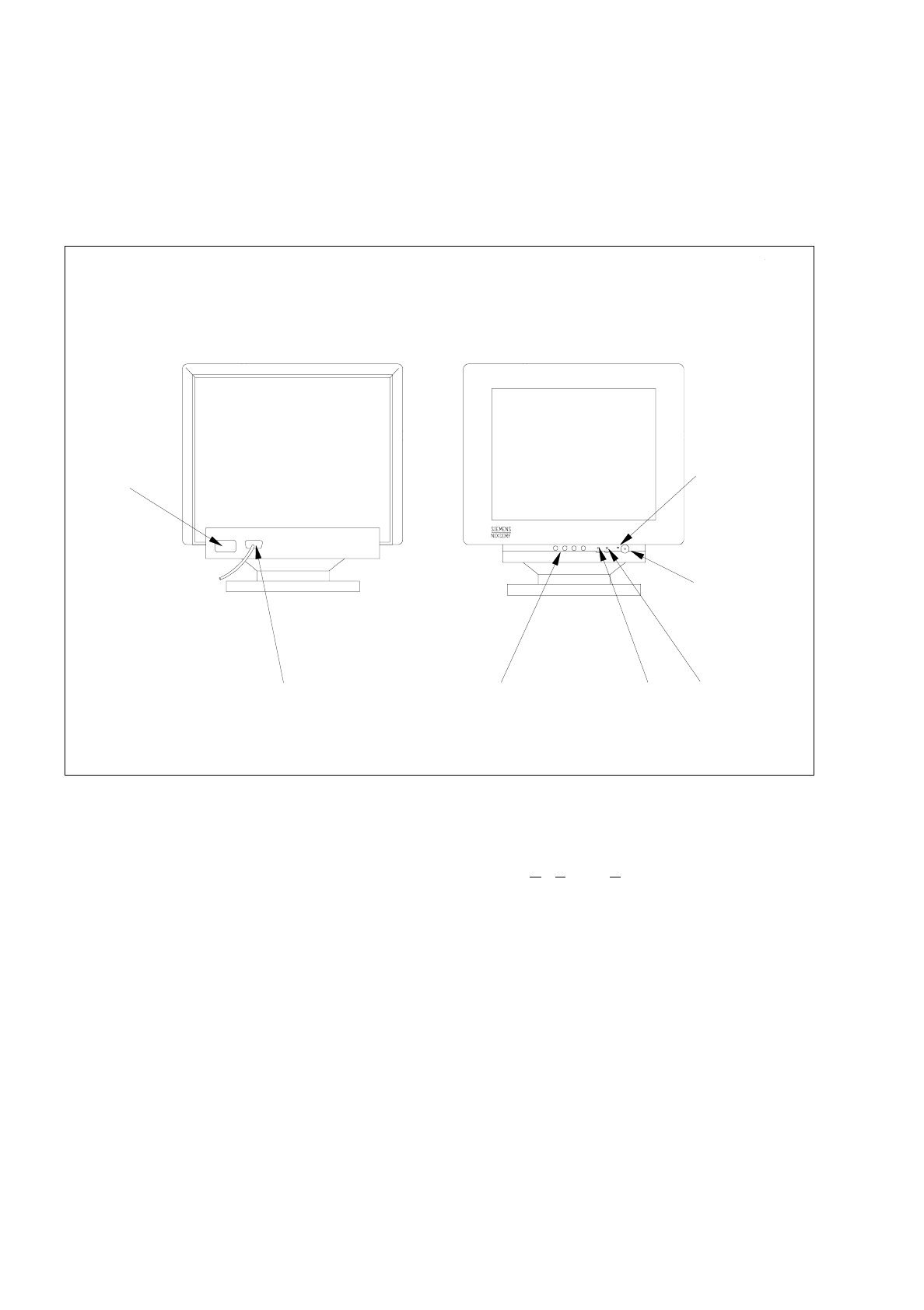
1.2.5 Monitor - Type MCM 1754 (ND) 17" MULTISCAN
1.2.5.1
Connections and Settings
Fig. 1.2.5 Monitor - connections, control elements, setting elements
The monitor can be adjusted using the functions of the OSD menu (On-Screen-Display).
The OSD menu is called up and operated by means of the buttons on the operator panel.
Adjustment of brightness and contrast is carried out using controls located to the right of the keys of the operator
panel. The respective functions are identified above the individual controls by means of symbols.
Adjusting the brightness
●
Increasing the brightness = turn control clockwise.
●
Reducing the brightness = turn control anticlockwise.
Adjusting the contrast
●
Increasing the contrast = turn control clockwise.
●
Reducing the contrast = turn control anticlockwise.
Rear
Front
video interface
((connection to computer)
control panel
(OSD menu)
power
power lamp
power switch
brightness
control
contrast
control
connection