00190802-02.pdf - 第345页
User’s Manual Line Computer UNIX 12 Production Tools / S tation and Line Configuration Software Version 402.xx Edition 06/96 12.1 Configuration Editor 12 - 9 12.1.2.4 SE R VICES Men u - In voki ng th e Structu re Editor …
12 Production Tools / Station and Line Configuration User’s Manual Line Computer UNIX
12.1 Configuration Editor Software Version 402.xx Edition 06/96
12 - 8
12.1.2.3 FILE Menu
-
Saving the current configuration or set-up
●
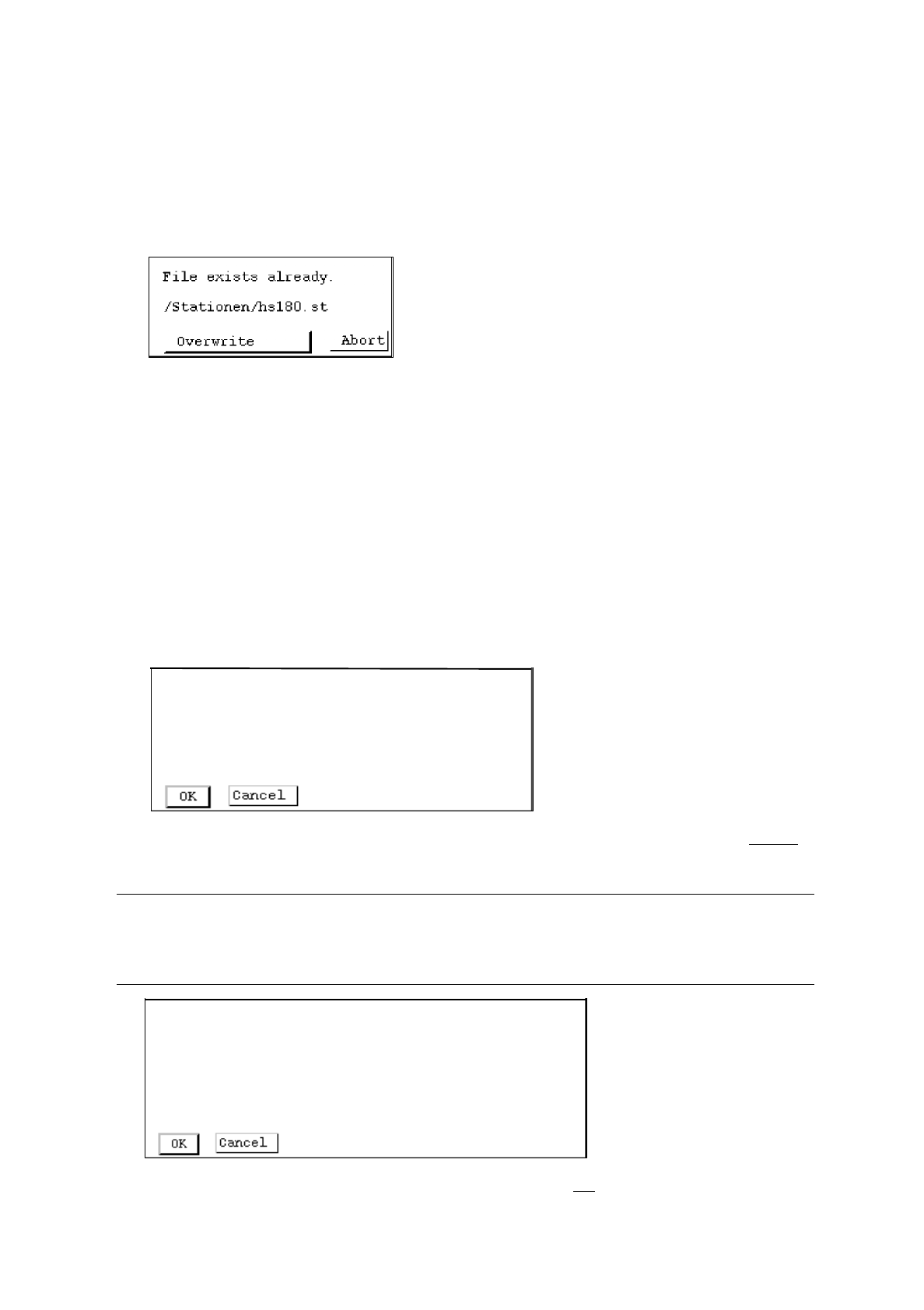
Select menu option FILE --> Save.
The following dialog box is displayed:
●
Click on Overwrite.
The current configuration or set-up is saved.
-
Printing the station configuration or set-up data
The current data of the station can be output on a connected printer.
●
Select menu option FILE --> Print.
The data relating to the station are output on the printer.
-
Quitting the Configuration (Structure) Editor
●
Select menu option FILE --> Quit.
A dialog box containing the following note is displayed:
●
Confirm your exiting from the editor by choosing OK. The Configuration Editor is exited without
the data being saved.
☞
NOTE
If the editor contains unsaved changes, the dialog box also contains a message informing you of this
(see example below).
●
Confirm your exiting from the editor by choosing OK if you do not want to save the changes.
●
Click on Cancel to perform a save before the editor session ends.
Exit editor
/Stationen/Sipl_80F.st
Exit editor
/Stationen/Sipl_80F.st was changed!
Exit without saving?

User’s Manual Line Computer UNIX 12 Production Tools / Station and Line Configuration
Software Version 402.xx Edition 06/96 12.1 Configuration Editor
12 - 9
12.1.2.4 SERVICES Menu
-
Invoking the Structure Editor
The user can load or create a new station.
●
Select SERVICES --> Structure Editor... .
The FSB containing the file listing is opened.
●
The further procedure is identical to that described in section 12.1.1.
-
Invoking the Set-up (Feeder Part) Editor for the feeder part of the "station"
●
If a command is active in the command area, it is to be deactivated by clicking on it.
●
Select feeder part in the display area (see Fig. 12.1.1) with a mouse click.
●
Select SERVICES --> Feeder Part Editor.
The window of the Feeder Part Editor is opened (see Fig. 13.1.2).
-
Invoking the Feeder Part Editor for the feeder part of the "Waffle-Pack Changer Trolley"
●
If a command is active in the command area, it is to be deactivated by clicking on it.
●
Click on WPC-Tr in the selection field "Machines" (see Fig. 12.1.1).
The display area changes to display the structure of the WPC trolley.
●
Select feeder part in the display area (see Fig. 12.1.2) with a mouse click.
●
Select SERVICES --> Feeder Part Editor.
The window of the (Set-Up)Feeder Part Editor "WPC trolley" is opened (see Fig. 13.1.4).
-
Invoking the Machine Options Editor
●
If a command is active in the command area, it is to be deactivated by clicking on it.
●
Select machine option in the display area (see Fig. 12.1.1) with a mouse-click.
●
Select SERVICES --> Machine Opt. Editor.
The window of the Machine Options Editor for the selected machine option is opened (see, for
example, Fig. 12.1.4 ).
☞
NOTE
The menu item "Machine Opt. Editor" can only be selected if a machine option was previously
selected for which a machine option editor is available.
Machine option editors are available for the machine options Station, Station Extension, Head and
Nozzle Changer.

12 Production Tools / Station and Line Configuration User’s Manual Line Computer UNIX
12.1 Configuration Editor Software Version 402.xx Edition 06/96
12 - 10
12.1.2.5 OPTIONS Menu
-
Define the feeder part as a Changeover table
This option is required exclusively for setup clustering (see chap. 11).
●
If a command is active in the command area, deactivate it by clicking on it.
●
Select desired feeder part in the view area (see Fig. 12.1.2) by clicking on it.
●
Select the OPTIONS --> ° Component changeover table menu option.
The marking (°) preceding the option now changes (
¤
).
° means that the option is deactivated. (The feeder part is considered a fixed setup).
¤
means that the option is active. (The feeder part is treated as a changeover table for setup
clustering purposes).
☞
NOTE
The "°Component changeover table" option can only be selected if the selected feeder part can actually
be defined as changeover table.