00190802-02.pdf - 第50页
2 General Information on Using the P rogram User’s Manual Line Co mputer UNIX 2.2 Basics Software Version 402.xx Edition 06/96 2 - 4 Fig. 2.2.1 "Desktop" (P rogramming Mode) The "Des ktop" fills the e…
User’s Manual Line Computer UNIX 2 General Information on Using the Program
Software Version 402.xx Edition 06/96 2.2 Basics
2 - 3
2.2 Basics
2.2.1 Starting the Line Computer
●
Switch on Monitor at mains switch (see Chapt. 1).
●
Switch on UPS at mains switch (see Chapt. 1). The Line Computer software is booted. During the
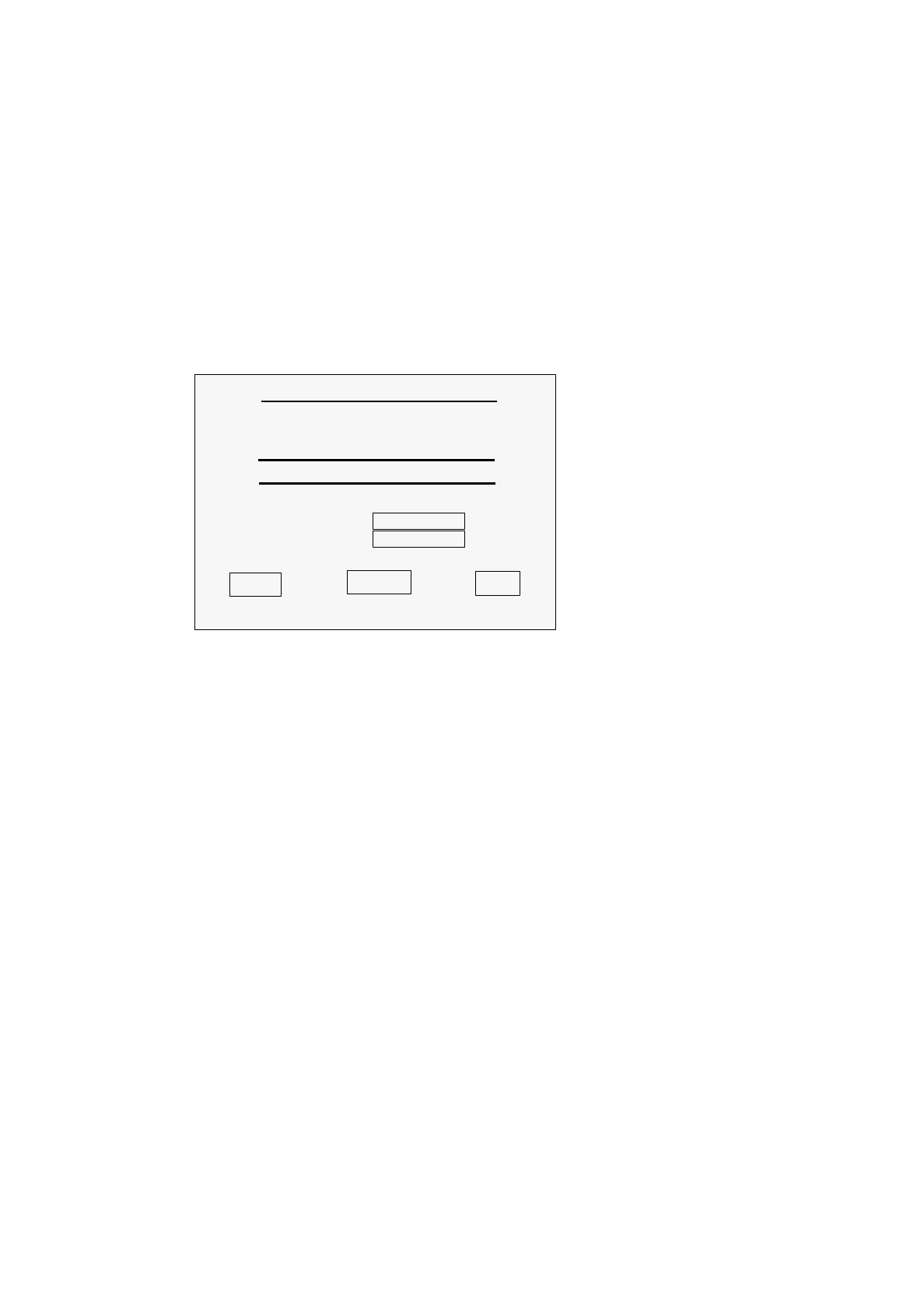
loading procedure (approx. 2 min.) no entries must be made until the following dialog window is
displayed on the screen:
●
Enter
plr
on the line "aut95289 login".
●
Press the RETURN key twice. The screen darkens. After approx. 3 minutes, the
desktop
(root window) is displayed (see Fig. 2.2.1).
OPEN SYSTEMS SOFTWARE
aut95289 login
Password
SCO
Login
Restart
Help

2 General Information on Using the Program User’s Manual Line Computer UNIX
2.2 Basics Software Version 402.xx Edition 06/96
2 - 4
Fig. 2.2.1 "Desktop" (Programming Mode)
The "Desktop" fills the entire screen and is the backdrop on which all windows, icons and menus are positioned.
It is organized like a desk on which the working documents are distributed which can be arranged as desired.
The job you are currently working on is arranged centrally on the screen and positioned at the top. All elements
are activated or selected by means of the mouse.
☞
NOTE
A detailed description of the structure and function of the desktop is contained in chapter 3 of this manual.
User’s Manual Line Computer UNIX 2 General Information on Using the Program
Software Version 402.xx Edition 06/96 2.2 Basics
2 - 5
2.2.1.1 Working With the Mouse
The mouse is used to move the
mouse cursor
around the screen. The individual elements are selected or
executed by pressing the appropriate
mouse button
.
-
The mouse has three mouse buttons. To operate the Line Computer program mainly the left button is
used. The right mouse button serves to select several entries or icons whereas the middle button is
pressed when entries are to be copied.
-
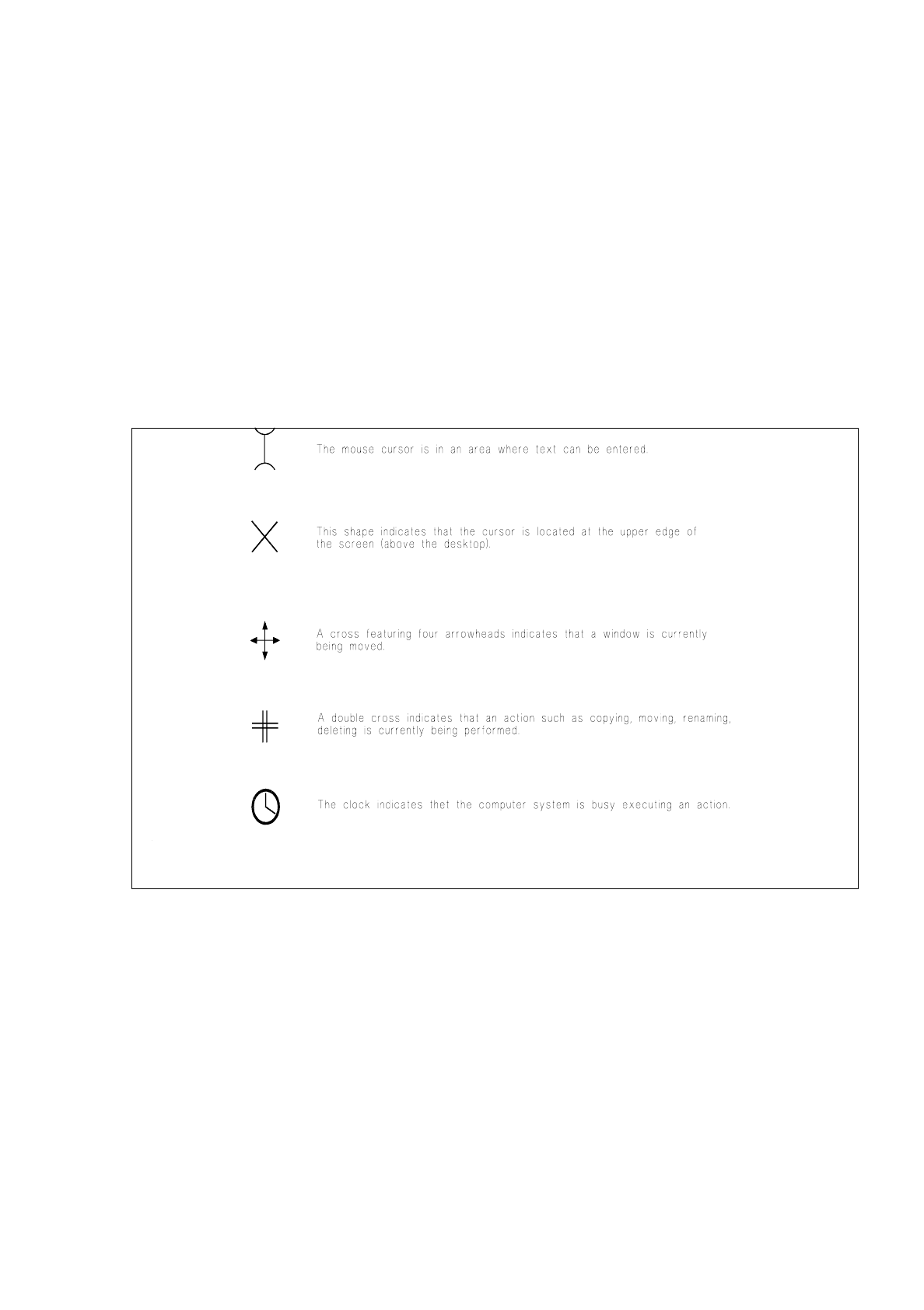
The cursor's shape depends on its location on the screen. The shape of the mouse cursor indicates
what kind of function is being executed.
In the following, the mouse cursor shapes most frequently used are shown.
Fig. 2.2.2 Mouse Cursor Shapes
Selecting object (
clicking on
object):
To be able to perform actions in an object it must first be
selected
.
●
Using the mouse, position the mouse cursor over the specified object (no mouse button to be
pressed).
●
Click
left mouse button (press and release button one time). The object is selected and displayed
in
reverse video
.
●
(Perform desired action).