00190802-02.pdf - 第97页
User’s Manual Line Computer UNIX 3 Desktop (Root Window) Software Version 402.xx Edition 03/97 3.2 Desktop User Interface 3 - 15 Or el se: ● Click on the Replace all button. The following dialo g box opens. ● Click on No…
3 Desktop (Root Window) User’s Manual Line Computer UNIX
3.2 Desktop User Interface Software Version 402.xx Edition 03/97
3 - 14
●
Close the File Display main window by selecting the
FILE
-->
Quit
menu option.
●
Click on
Cancel
in the dialog box.
The dialog box closes.
●
Remove the diskette from the floppy drive.
-
Replace GF-number
Following any changes in the GF library, this menu option is used to replace the GF number
associated with given components with a different one.
●
Click on
OPTIONS
-->
Replace GF-number
.
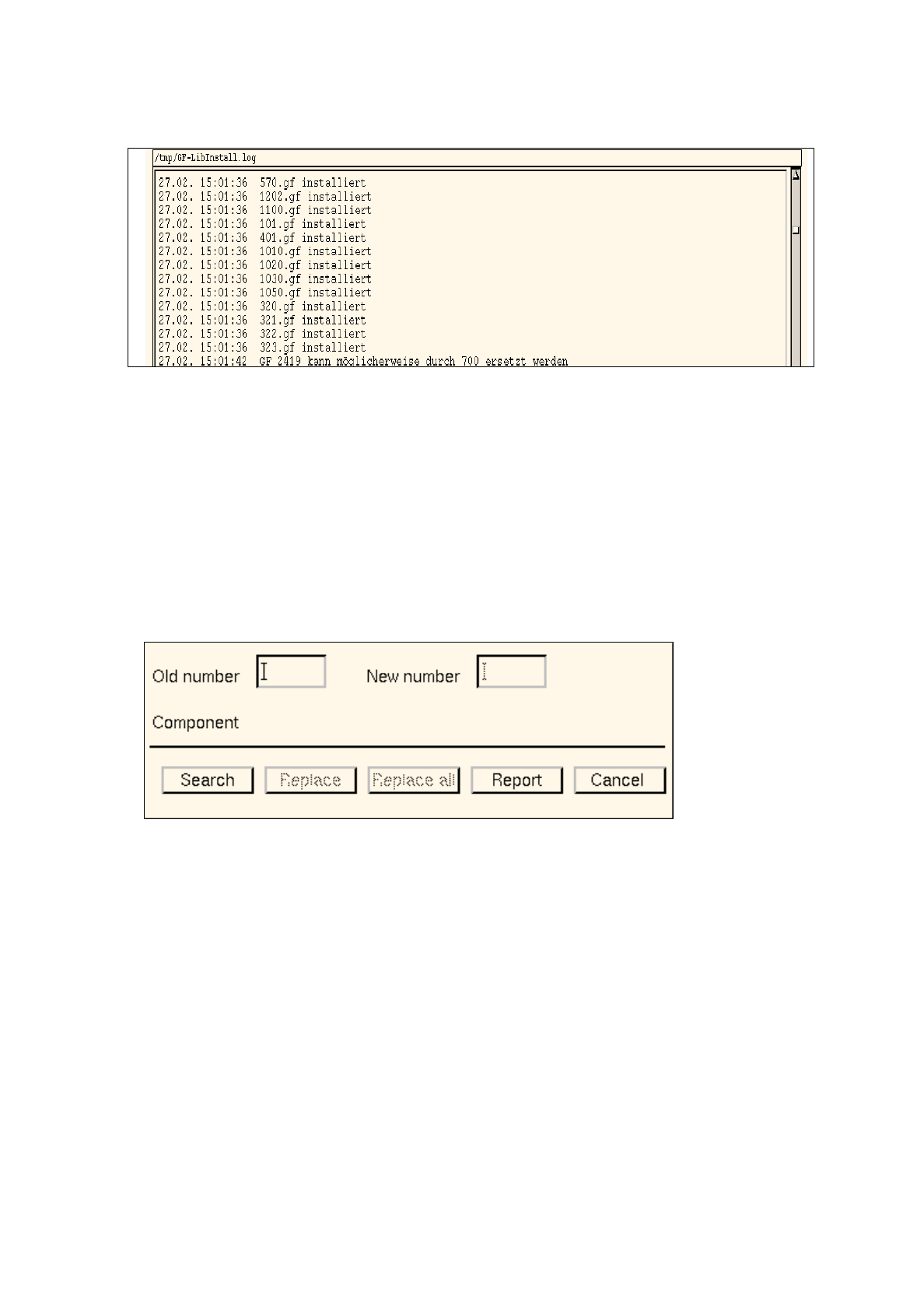
The following dialog box opens.
Procedure:
●
In the "Old number" editing field enter the GF number that is to be replaced.
●
In the "New number" editing field enter the GF number that is to replace the old number.
●
Click on the
Search
button.
The file name of the first component found that is associated with the GF number entered under
"Old number" is displayed next to the "Component" entry. In addition, the comment that may have
been entered in the Component Editor for the component concerned is displayed next to the file
name.
●
Click on the
Replace
button.
The old GF number is replaced with the new GF number in the component file displayed, and the
search for the next matching component is started.
User’s Manual Line Computer UNIX 3 Desktop (Root Window)
Software Version 402.xx Edition 03/97 3.2 Desktop User Interface
3 - 15
Or else:
●
Click on the
Replace all
button.
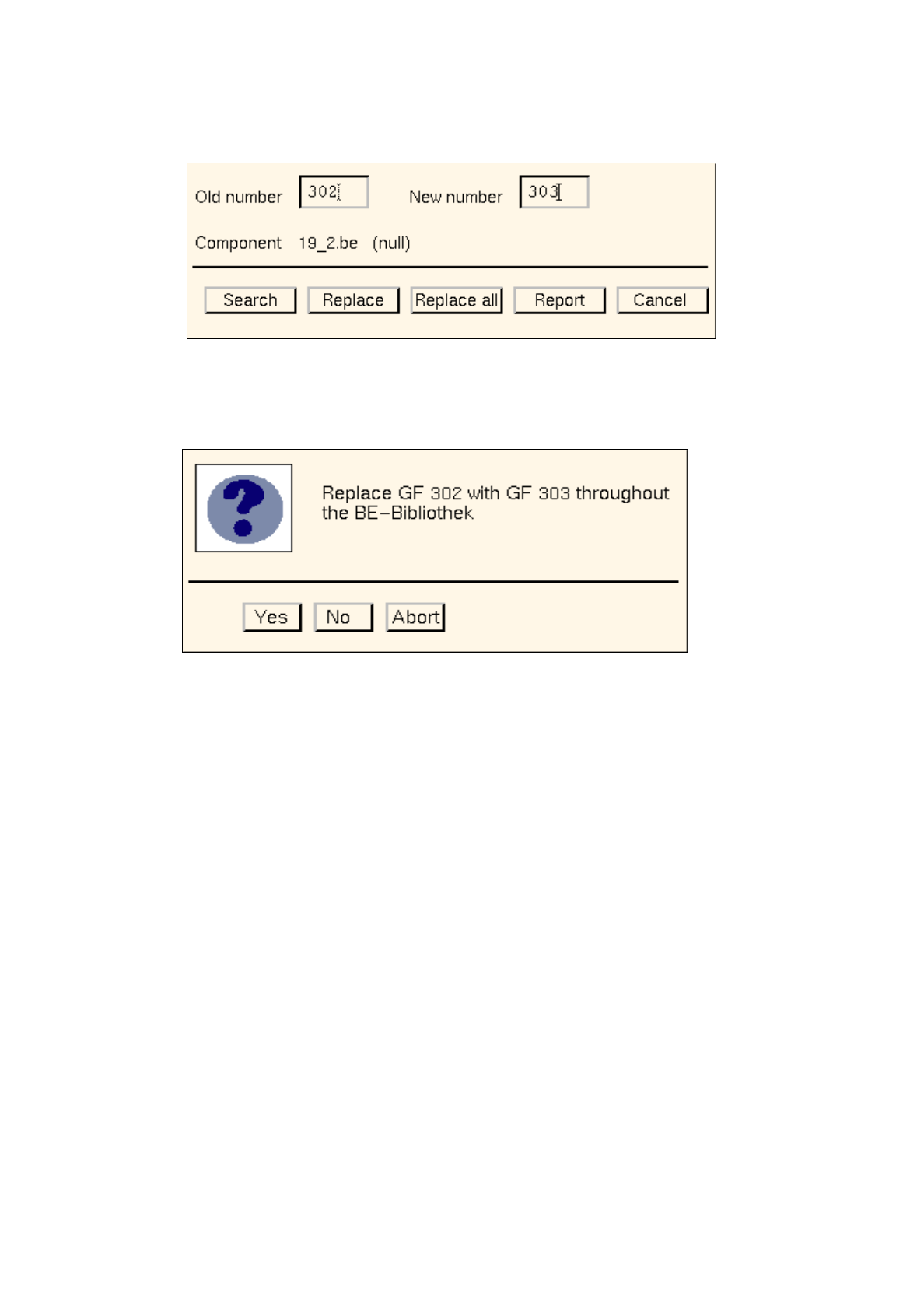
The following dialog box opens.
●
Click on
No
or
Abort
if the action displayed in the dialog box is not to be executed.
●
Click on
Yes
if the action displayed in the dialog box is to be executed.
From the currently found occurrence of the component (component file) onwards, the old GF
number will be replaced with the new GF number in all subsequently found occurrences of the
component (component files).
The
Report
button in the dialog box can be used to display the results of the action.
●
Click on
Report
in the dialog box.
The File Display main window opens.
●
For details on how to continue, refer to page 3 - 13.
●
When all desired replacements have been made, click on
Cancel
in the dialog box.
The window closes.

3 Desktop (Root Window) User’s Manual Line Computer UNIX
3.2 Desktop User Interface Software Version 402.xx Edition 03/97
3 - 16
3.2.1.3 SERVICES Menu
-
Equipment
Serves to open the user interface of the Print and Update Server. It basically serves to manage the dif-
ferent devices. The devices available in the LC system such as printers, diskette and tape drives can
be logged on (activated) or logged off (deactivated).
In addition, it is possible to intitiate the formatting of data carriers from the user interface.
●
Click on SERVICES --> Equipment.
The user interface of the Print and Update Server is opened (see chapt. 4).
-
Station configuration
Serves to open the user interface of the Configuration Editor. The configuration of a selected station
can be defined with the aid of the editor.
●
Click on SERVICES --> Station configuration.
The FSB containing the directory "Master data: Stationen" is opened.
●
Open the directory "Master data: Stationen" by double-clicking.
The list of the configured stations is displayed in the FSB.
●
Select the desired station by double-clicking.
The user interface of the Configuration Editor is opened (see chapt. 12, section 12.1).
-
Data Storage
This option causes the window for switching the file access mode to central or local data storage to be
opened.
●
Click on SERVICES --> Data storage.
The window for switching between the two file access modes is opened (see chapt. 4).
-
Line Configuration
This option is used to open the window for the line configuration. Using the appropriate buttons in
this window, the Line Editor for the configuration of a line or subline can be opened, or the FSB for
the selection of a different production line.
●
Click on SERVICES --> Line configuration.
The "Line configuration" selection window opens.
●
Click, for example, on the Line configuration button.
The FSB containing the "Master data: Anlagen" directory opens.
Select the desired line by double-clicking.
The user interface of the Line Editor for the configuration of the line opens (see chapt. 12,
section 12.2).
-
Line control
Serves to open the user interface of the line control.It enables the user to control the entire line. He
can start and stop the line, disable or enable the input conveyor, enter the conveyor width, reset the
entire line to the initial state (Reset), specify barcode and production strategies.
●
Click on SERVICES --> Line control.
The user interface of the line control is opened (see chapt. 14).