slau358q.pdf - 第14页
Programming MSP Flash Devices Using the MSP Gang Programmer www.ti.com 14 SLAU358Q – September 2011 – Revised October 2019 Submit Documentation Feedback Copyright © 2011–2019, Texas Instruments Incorporated Operation 2.1…

13
SLAU358Q–September 2011–Revised October 2019
Submit Documentation Feedback
Copyright © 2011–2019, Texas Instruments Incorporated
Operation
Chapter 2
SLAU358Q– September 2011 –Revised October 2019
Operation
This chapter describes how to use the MSP Gang Programmer to program target devices. Various modes
of operation, which allow the user to choose the most convenient method of programming, are described.
In addition, this chapter describes the various windows that are used to configure the programming
procedure for a specific target device. The explanations in this chapter assume that the user has properly
installed the MSP Gang Programmer hardware and software as described in Chapter 1.
2.1 Programming MSP Flash Devices Using the MSP Gang Programmer
The MSP Gang Programmer is capable of quickly and reliably programming MSP flash devices using an
RS-232 or USB interface. There are four ways to use the programmer to achieve this task and these
include:
• Interactive
• From Image
• From Script
• Stand Alone
The Interactive mode is selected by default, and is the easiest to get started with, because it requires the
least amount of preparation. After the user has mastered the Interactive mode it can be used to create
images and script files, which can then be used with the From Image and From Script modes,
respectively. Images and scripts are ready-to-go setups than can run with minimal user input. They are
very useful for repetitive programming, for example in a production environment, because they ensure
consistency (because of the re-use of images or scripts, we highly encourage the user to thoroughly test
their images or scripts for correctness before committing them to production). The MSP Gang Programmer
can also be run in Standalone mode to program target devices without a PC. To do this, first create an
image to use for programming, and then save it to internal memory of the MSP Gang Programmer.
Creating images is described in Section 2.1.9.
The following sections describe how to use these modes of operation.
Programming MSP Flash Devices Using the MSP Gang Programmer
www.ti.com
14
SLAU358Q–September 2011–Revised October 2019
Submit Documentation Feedback
Copyright © 2011–2019, Texas Instruments Incorporated
Operation
2.1.1 Programming Using Interactive Mode
Use the following sequence to start the MSP Gang Programmer GUI and program MSP Flash Devices
using the Interactive Mode:
1. Click on the MSP Gang Programmer icon located in the program group that was specified during
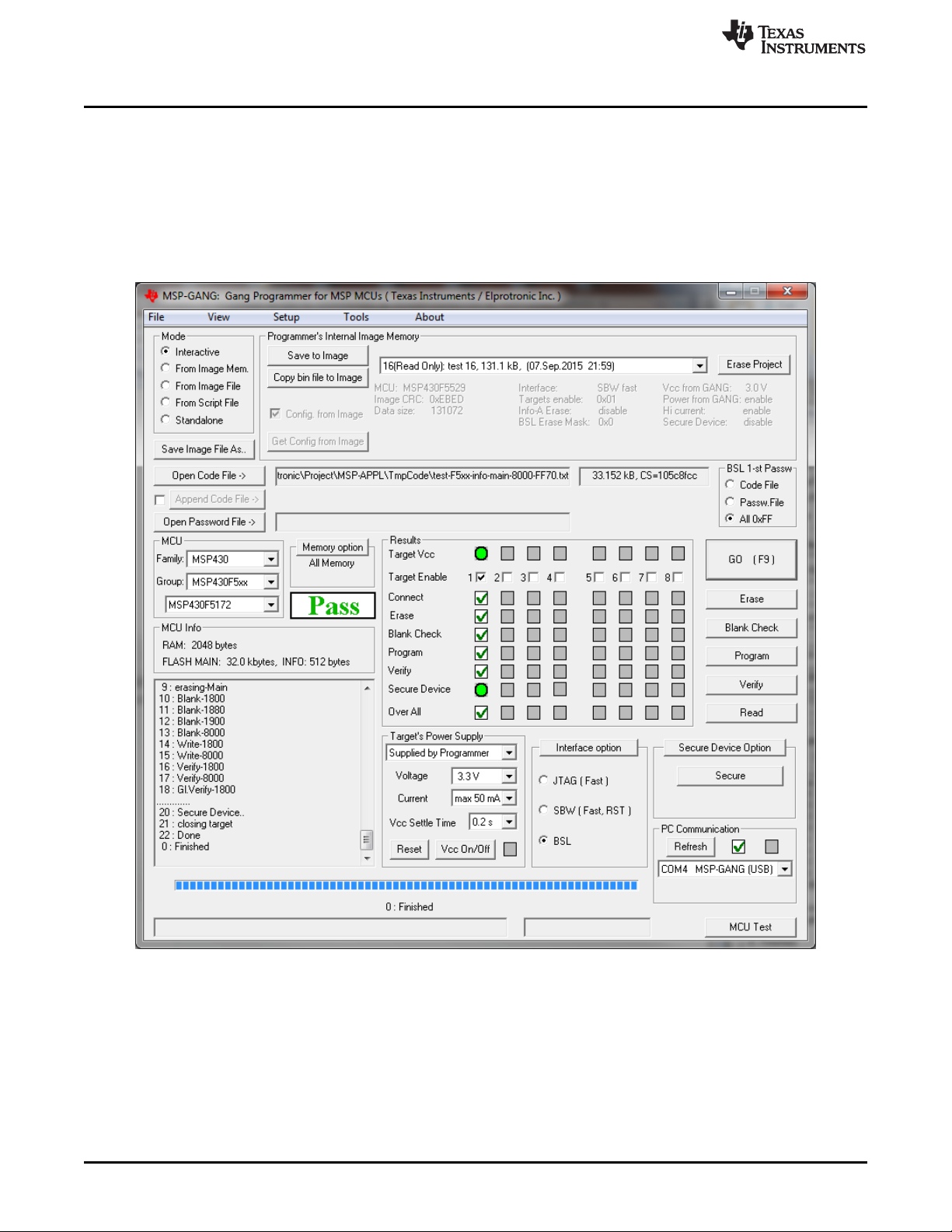
installation. Figure 2-1 shows the MSP Gang Programmer GUI in the Interactive Mode (see the Mode
group in the top left corner). This window is used to select the target microcontroller, code file used for
programming, power supply options, communication interface, and more. This window also shows the
result of programming and any errors, if they occur.
Figure 2-1. Main MSP Gang Programmer Dialog GUI, Interactive Mode
2. Select a target device using the MCU Family, then MCU Group, and then desired MCU Type.
3. Select the code file to be programmed into the devices using the Open Code File button or pulldown
menu: File→Open Code File. The formats supported for the code file are TI (.txt) and Intel (.hex) and
Motorola (.s19, .s28, .s37). Code size and checksum appear on the right side (for details on how the
checksum is calculated, see Section 2.1.13).
4. Optionally add another code file to be programmed into the devices using the Append Code File button
(check the box on the left to enable this option). This feature is useful for updating BSL firmware in 5xx
or 6xx MCUs. The two code files are combined together to create one final code file. If a conflict is

www.ti.com
Programming MSP Flash Devices Using the MSP Gang Programmer
15
SLAU358Q–September 2011–Revised October 2019
Submit Documentation Feedback
Copyright © 2011–2019, Texas Instruments Incorporated
Operation
detected, a warning appears; however, if programming proceeds without changes the second code file
overwrites the conflict area. Code size and checksum appear on the right side.
5. Some MCUs (for example, the MSP430FR57xx) provide a method of disabling JTAG by programming
a password to flash memory. The password should be specified as data to be programmed starting at
0xFF80 and up to 0xFFFF (where 0xFF80 must be 0xAAAA, 0xFF82 must be the size of the password
in words, and 0xFF88-0xFFFF contains the password). The code file must contain password contents
if you intend to lock JTAG using the password feature after programming. If the MCU is already locked
using a previously programmed code file, then you must provide the password section (or entire old
code file) using the Open Password File button if and only if the password section is different.
Functionally, if the MCU is locked by password, the code file’s password section is first used to attempt
to unlock the MCU. If that fails, then the password file’s contents are used to attempt to unlock the
MCU. If both attempts fail, the MCU remains locked and JTAG access fails. Password file contents are
not used to program the MCU.
6. In the Target power group, select the desired V
CC
voltage and select if the target is supplied from the
MSP Gang Programmer or from an external power supply. If targets are supplied by the programmer,
then select the maximum current used by each target, 30 mA or 50 mA.
7. In the Results group, select desired target devices to be programmed. After programming has
concluded, a green checkmark or lights appear for successful operations for each target.
8. In the Interface selector, choose the desired interface (JTAG, SBW, SWD, or BSL) and communication
speed (fast, medium, or slow).
9. In the Memory Options dialog (pulldown menu: Setup→Memory options ) shown in Figure 2-2, select
desired memory space to be programmed. By default, the selected option is All Memory and it is
correct for most programming tasks (Section 2.1.5 describes how to use the memory configuration
window).