slau358q.pdf - 第29页
www.ti.com Programming MSP Flash Devices Using the MSP Gang Programmer 29 SLAU358Q – September 2011 – Revised October 2019 Submit Documentation Feedback Copyright © 2011–2019, Texas Instruments Incorporated Operation The…

Programming MSP Flash Devices Using the MSP Gang Programmer
www.ti.com
28
SLAU358Q–September 2011–Revised October 2019
Submit Documentation Feedback
Copyright © 2011–2019, Texas Instruments Incorporated
Operation
F_RESULTTOFILE – Save result to the result file specified by F_NEWRESULTFILENAME or
F_APPENDRESULTFILENAME. The following data is saved:
Finished task mask: HHHH (16 bits task mask)
Cumulative target mask: HH (8 bits target mask - 0x01-target-1,.. 0x80-target-8);
Requested target mask: HH (8 bits target mask - 0x01-target-1,.. 0x80-target-8);
Connected target mask: HH (8 bits target mask - 0x01-target-1,.. 0x80-target-8);
Erased target mask: HH (8 bits target mask - 0x01-target-1,.. 0x80-target-8);
Blank Check target mask: HH (8 bits target mask - 0x01-target-1,.. 0x80-target-8);
Programmed target mask: HH (8 bits target mask - 0x01-target-1,.. 0x80-target-8);
Verified target mask: HH (8 bits target mask - 0x01-target-1,.. 0x80-target-8);
Secured target mask: HH (8 bits target mask - 0x01-target-1,.. 0x80-target-8);
error_no: error number
VTIO in mV: VTio in mV
Vcc Error target mask: HH (8 bits target mask - 0x01-target-1,.. 0x80-target-8);
Vcc Cumulative Err mask: HH (8 bits target mask - 0x01-target-1,.. 0x80-target-8);
JTAG Init target mask: HH (8 bits target mask - 0x01-target-1,.. 0x80-target-8);
Already Secured mask: HH (8 bits target mask - 0x01-target-1,.. 0x80-target-8);
Wrong MCU ID mask: HH (8 bits target mask - 0x01-target-1,.. 0x80-target-8);
TRACEOFF – Disable tracing.
TRACEON – Enable tracing and log to the Trace-Scr.txt file in the current working directory. This option is
useful for debugging. The trace file contains the sequence of all executed commands from the script file
annotated with line numbers. Line numbers are counted without empty lines and without lines containing
only comments.
END – End of script.

www.ti.com
Programming MSP Flash Devices Using the MSP Gang Programmer
29
SLAU358Q–September 2011–Revised October 2019
Submit Documentation Feedback
Copyright © 2011–2019, Texas Instruments Incorporated
Operation
The following example script executes this sequence of commands:
1. Label START is created.
2. V
CC
from programmer to target device is turned OFF.
3. Message box notifies the user of V
CC
setting and asks for permission to proceed with buttons OK and
CANCEL. The program halts here until a button is pressed.
4. If CANCEL was pressed then GOTO finish label (ends the script).
5. If CANCEL was not pressed (in this case this implies that OK was pressed) then load configuration file
test-A.g430cfg to the MSP Gang Programmer. Configuration file test-A.cfg should be prepared before
running this script using Interactive mode.
6. Message box asks the user to proceed. The program halts until OK is pressed.
7. The MSP Gang Programmer programs the target device using the GO function.
8. Message box asks the user if the test succeeded giving a YES or NO choice.
9. If NO was pressed then GOTO START label (start of script).
10. If NO was not pressed (in this case this implies that YES was pressed) then load configuration file
finalcode.g430cfg to the MSP Gang Programmer.
11. The MSP Gang Programmer programs the target device using the GO function. The new configuration
changes the code file.
12. Script jumps to the beginning using GOTO START. This can be used to wait for the next target device
to be connected.
13. Label finish is created.
14. Script ends.
;=====================================================
; Script file - demo program
;-----------------------------------------------------
>START
F_VCCOFF
MESSAGEBOX OKCANCEL
"VCC if OFF now. Connect the test board."
"When ready press the button:"
" "
"OK - to test the board"
"CANCEL - to exit from program"
IF BUTTONCANCEL GOTO finish
; use file name and FULL PATH or relative path to MSP-Gang.dll file location
F_LOADCFGFILE Examples\Script\test.mspgangproj
MESSAGEBOX OK
"Press OK to download the test program."
F_GO
MESSAGEBOX YESNO
"Press YES when the test finished successfully."
"Press NO when the test failed."
IF BUTTONNO GOTO START
; use file name and FULL PATH or relative path to MSP-Gang.dll file location
F_LOADCFGFILE Examples\Script\finalcode.mspgangproj
F_GO
; wait min 0.5 s before turning Vcc ON again
SLEEP 500
Programming MSP Flash Devices Using the MSP Gang Programmer
www.ti.com
30
SLAU358Q–September 2011–Revised October 2019
Submit Documentation Feedback
Copyright © 2011–2019, Texas Instruments Incorporated
Operation
F_VCCON
SLEEP 10000
GOTO START
>finish
END
;=======================================================
2.1.4 Programming in Standalone Mode
The MSP Gang Programmer supports the Standalone mode of programming target devices. In this mode,
the MSP Gang Programmer can only use images for programming because they contain a complete
configuration and code files necessary for the procedure. If the user has not already created an image
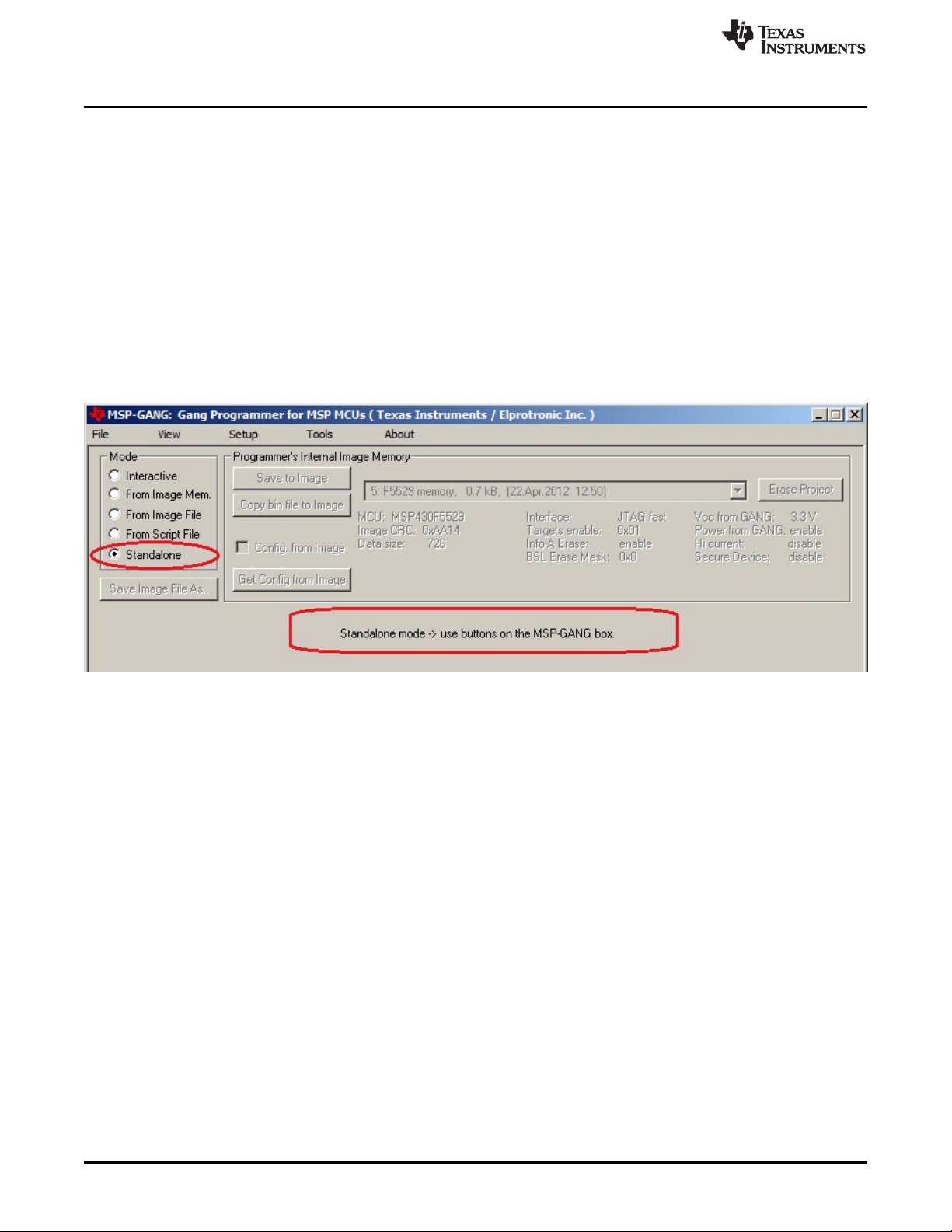
then follow the procedure outlined in Section 2.1.9. When viewed from the GUI, Figure 2-9 shows that all
GUI options are disabled and the MSP Gang Programmer hardware buttons have to be used for
programming.
NOTE: This figure uses the Standalone mode (see the Mode section near the top left corner). All GUI options are
disabled; the MSP Gang Programmer can only be operated using physical controls on the programmer itself.
Standalone mode allows the user to program a target device using an image either from internal memory (up
to 96 different images), or an external SD-Card, without the use of a desktop or laptop computer.
Figure 2-9. Main MSP Gang Programmer Dialog GUI, Standalone Mode
After images have been download to the internal memory or after an SD card with a valid image is
connected to the MSP Gang Programmer, proceed with programming in Standalone mode. Use the arrow
buttons (up and down) and the enter button to select a desired image for programming. A description of
the selected image is displayed on the bottom line, and it is the same description that was created in the
GUI when the Save Image button was pressed (see Figure 2-10).