00192419-02.pdf - 第25页
25 ’ Machine optio ns ’ menu Click on the Machine options butto n in the main view . The Ma chine options con trol box o pens, display ing the o ptions installed an d the config- uration of th e machin e. Activated optio…
24
Operator Guidance
’Main view’ menu (user level: ’operator’)
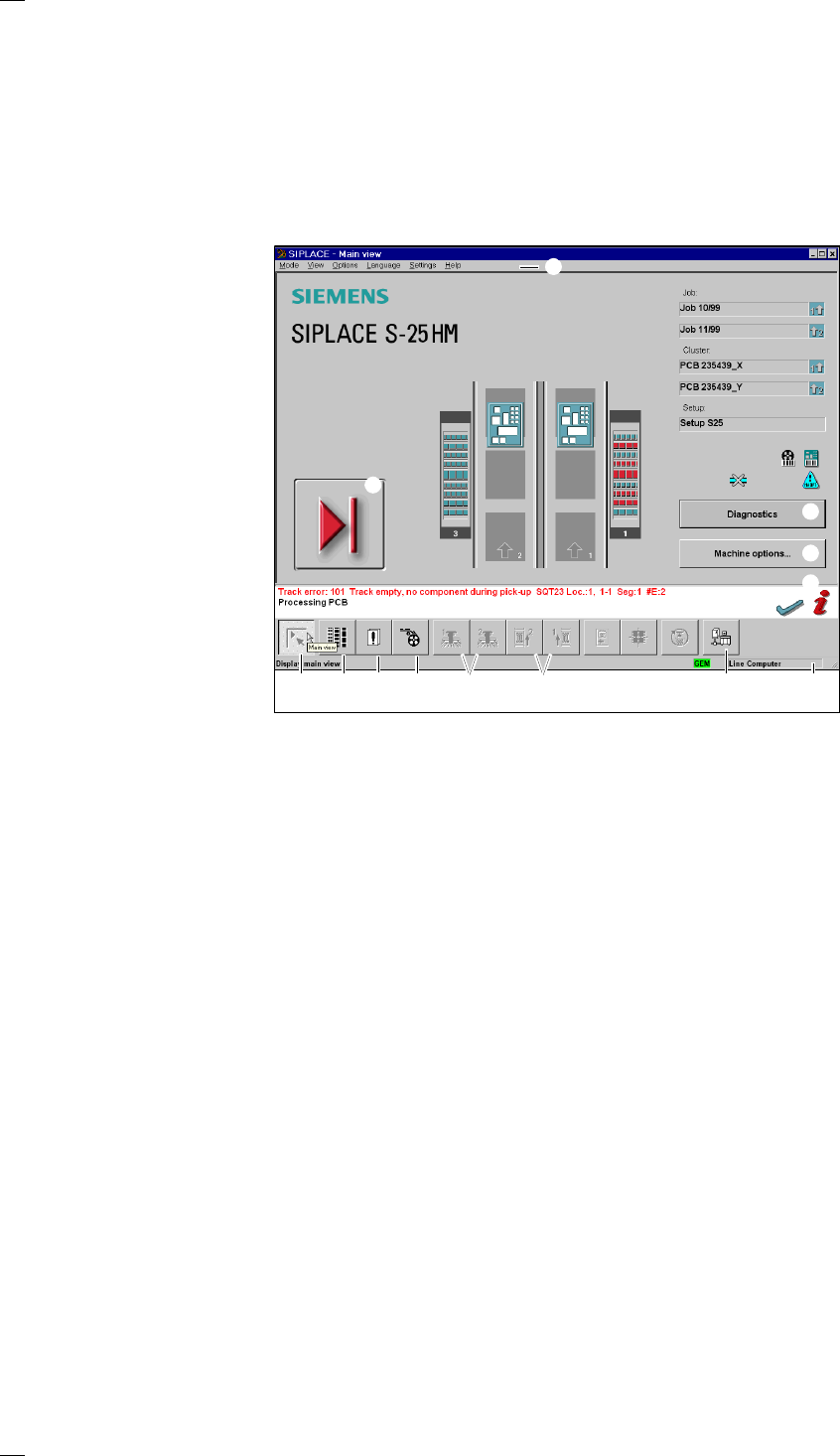
You can control the operation of the machine from the main view. All of the
menus and options accessible to the operator can be accessed from the
main view. Menus to which the operator has no access and options which
have not been activated are grayed out. You can jump directly back to the
main view at any time from a menu. If you have changed any settings, a
query box will be displayed asking you to save or discard the changes.
Buttons for controlling the placement system
a Computer start-up phase, Pause processing, Continue processing, Abort
processing (↑ ’Meaning of the icons’ section on page 14).
s ’Clear error’
Click on this button to clear the error display. The error will still appear in
the error list for reference purposes.
Buttons or icons for calling up menus for controlling the placement
system
d ’Error information’
If an error occurs, you can call up further information on the error in this
sub-menu.
f ’Diagnostics’ (option)
If an error occurs while a PCB is being processed, you can call up the
diagnostics program to help analyze and rectify the error.
g Machine options
h Display main view
j Display setup and component verification with barcode
k Display errors
l PCB feeders
; Single functions (SF) gantries 1 and 2
A Single functions (SF) PCB transport 1 and SF PCB transport 2 (you can-
not access the SF PCB transport 2 menu unless the twin conveyor option
has been installed.)
S GEM status, placement program and terminal service (option)
D Display of the machine‘s operating mode: line computer, GEM host, stand-
alone
F Menu line with pull-down menus
Via these pull-down menus you also have access to all of those functions
and options which you require for machine control.
a
d
f
s
h
g
kl
A
S
D
j
F
;
25
’Machine options’ menu
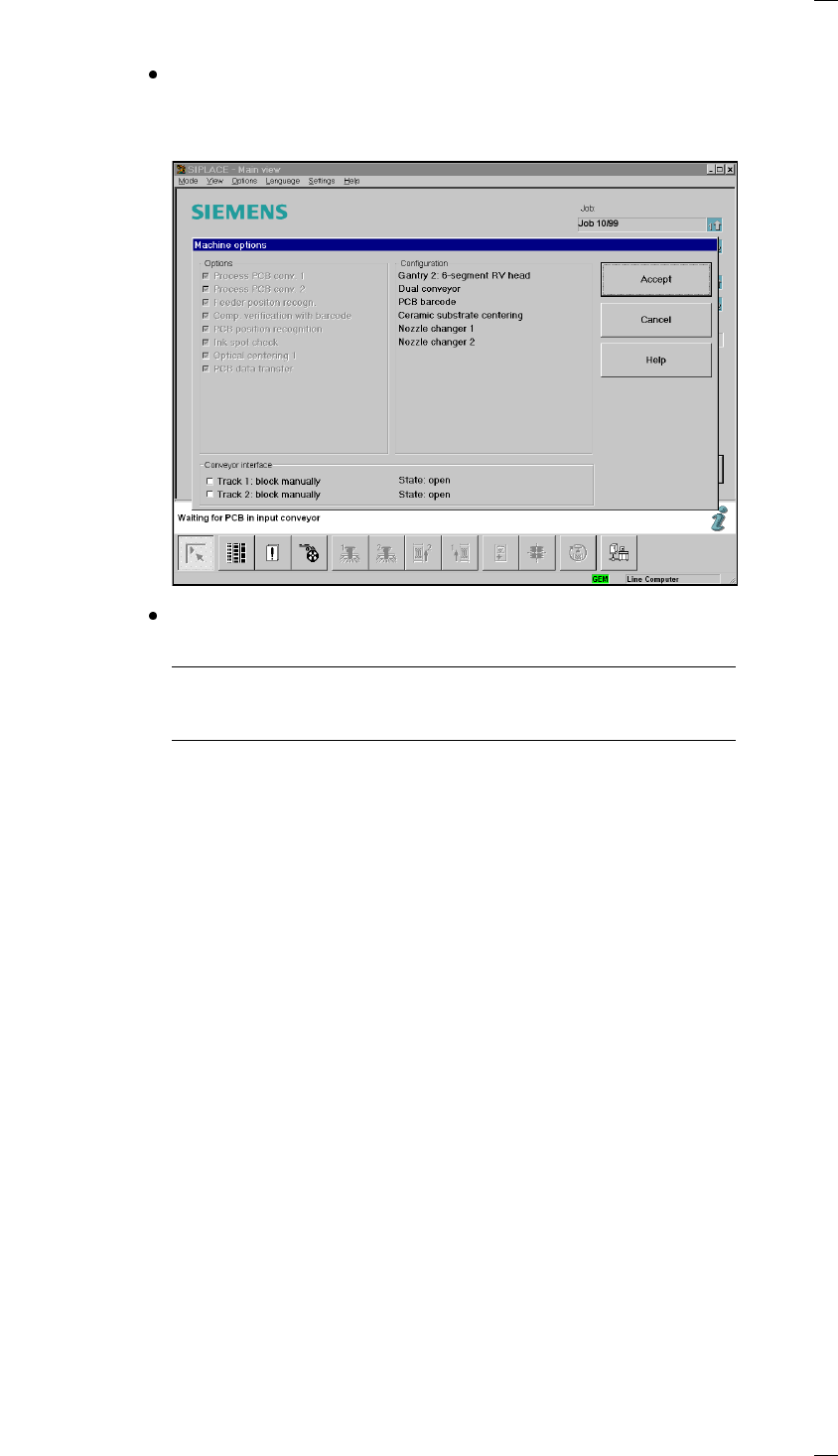
Click on the Machine options button in the main view. The Machine
options control box opens, displaying the options installed and the config-
uration of the machine. Activated options are marked with a check in the
corresponding check boxes.
Press Cancel to leave the menu without saving changes and press Accept
to save the changes.
You should however note that for certain options you will need line engi-
neer access authorization as these options can only be activated or deac-
tivated by persons with that authorization.
26
‘Set-up’ menu
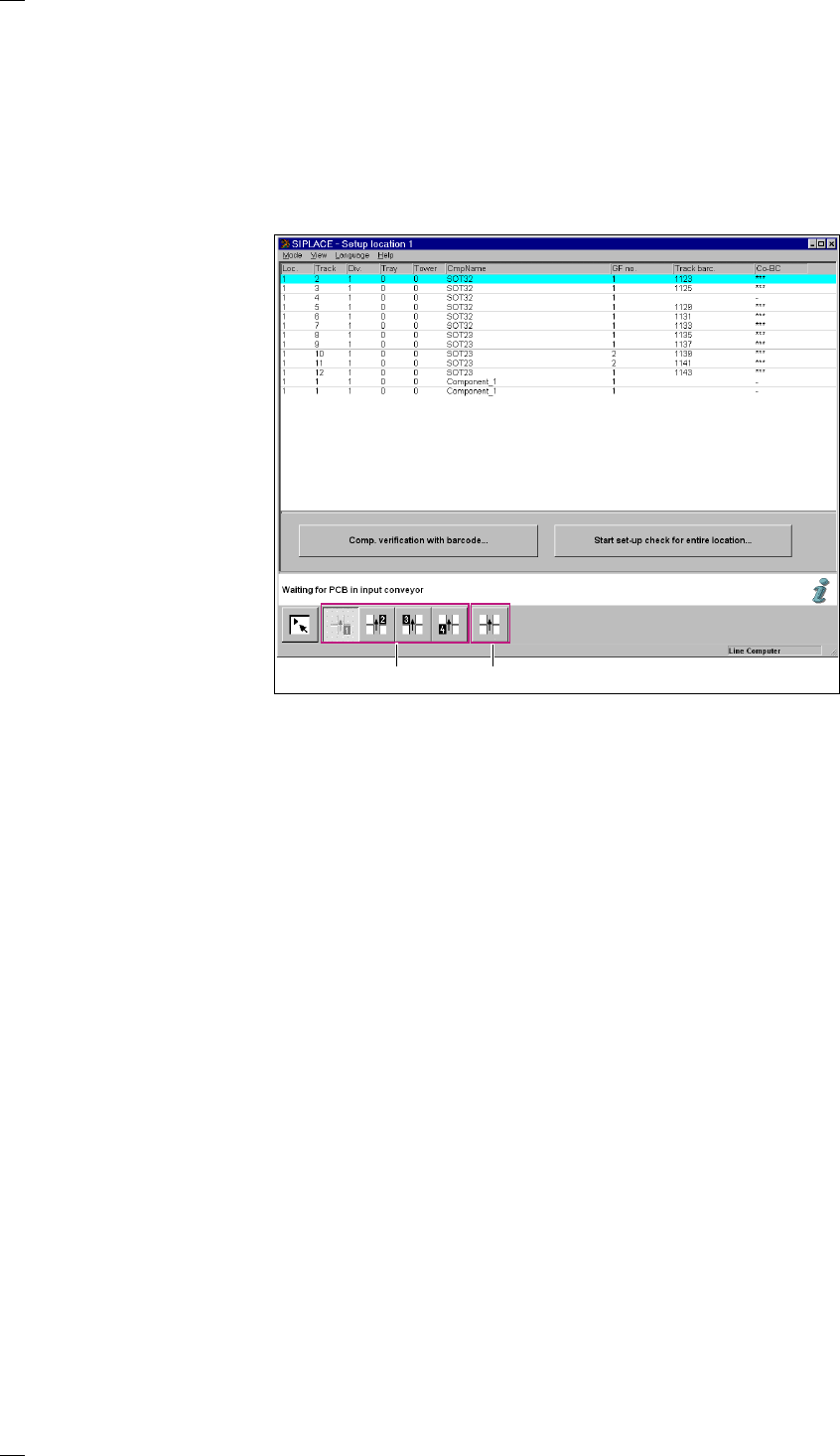
If the cluster and set-up are predefined, you can use this menu to display
the set-up for every location.
If the set-up check with barcode is active, you can set up individual tracks
using the ‘Set-up check with barcode’ menu or check the set-up for all the
tracks at the location using the ‘Start set-up check for entire location’
menu.
You can also move all the gantries to the set-up position from the ‘Table
functions’ submenu.
a Icons for displaying the set-up at locations 1 - 4
Loc. Location number
Track Track number for each component feeder
Div. Feeder division assigned to the component
Level Displays the level number of the component in the MTC (matrix tray
changer). (Only for type S-25 HM machines with the MTC installed).
Tower Displays the tower number on the MTC containing the waffle tray. (Only
for type S-25 HM machines with the MTC installed).
CmpName Name of the component
GF no. Package form number of the component
Track barcode Track barcode of the component
CO-BC Component barcode
If a component barcode has been preset, this column contains *** and the
Set-up check with barcode menu can be accessed. If a minus sign
appears in the column, this means that no barcode has been allocated to
the component. The ‘Set-up check with barcode’ button cannot be used.
s ’Table functions’ icon
a
s