00192419-02.pdf - 第27页
27 ’ Component verifica tion with barcode ’ menu The Compo nent veri fication with b arcode m enu cannot b e accesse d unless you have configured th e Compo nent verificat ion with b arcode option in th e machin e option…
26
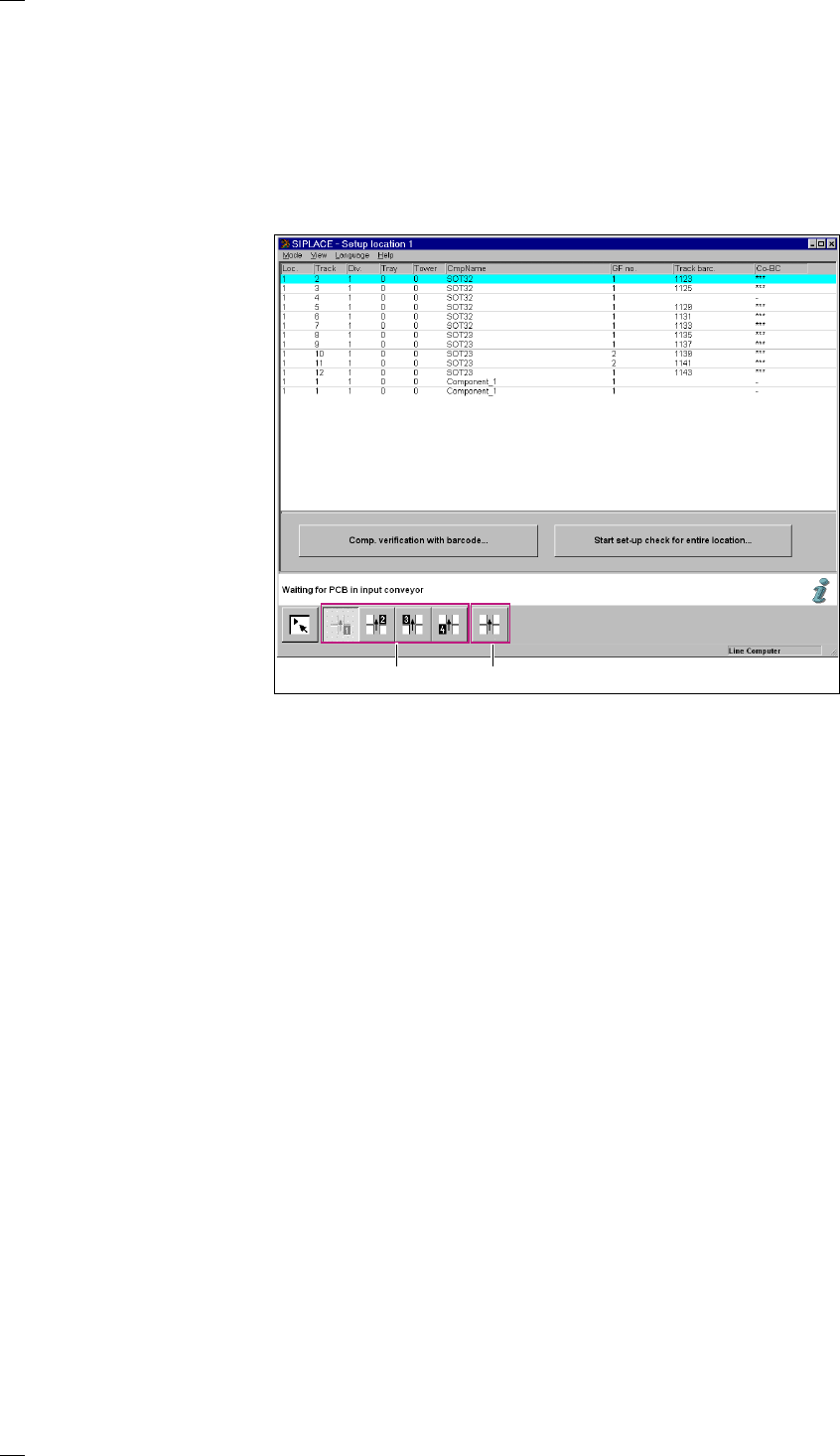
‘Set-up’ menu
If the cluster and set-up are predefined, you can use this menu to display
the set-up for every location.
If the set-up check with barcode is active, you can set up individual tracks
using the ‘Set-up check with barcode’ menu or check the set-up for all the
tracks at the location using the ‘Start set-up check for entire location’
menu.
You can also move all the gantries to the set-up position from the ‘Table
functions’ submenu.
a Icons for displaying the set-up at locations 1 - 4
Loc. Location number
Track Track number for each component feeder
Div. Feeder division assigned to the component
Level Displays the level number of the component in the MTC (matrix tray
changer). (Only for type S-25 HM machines with the MTC installed).
Tower Displays the tower number on the MTC containing the waffle tray. (Only
for type S-25 HM machines with the MTC installed).
CmpName Name of the component
GF no. Package form number of the component
Track barcode Track barcode of the component
CO-BC Component barcode
If a component barcode has been preset, this column contains *** and the
Set-up check with barcode menu can be accessed. If a minus sign
appears in the column, this means that no barcode has been allocated to
the component. The ‘Set-up check with barcode’ button cannot be used.
s ’Table functions’ icon
a
s
27
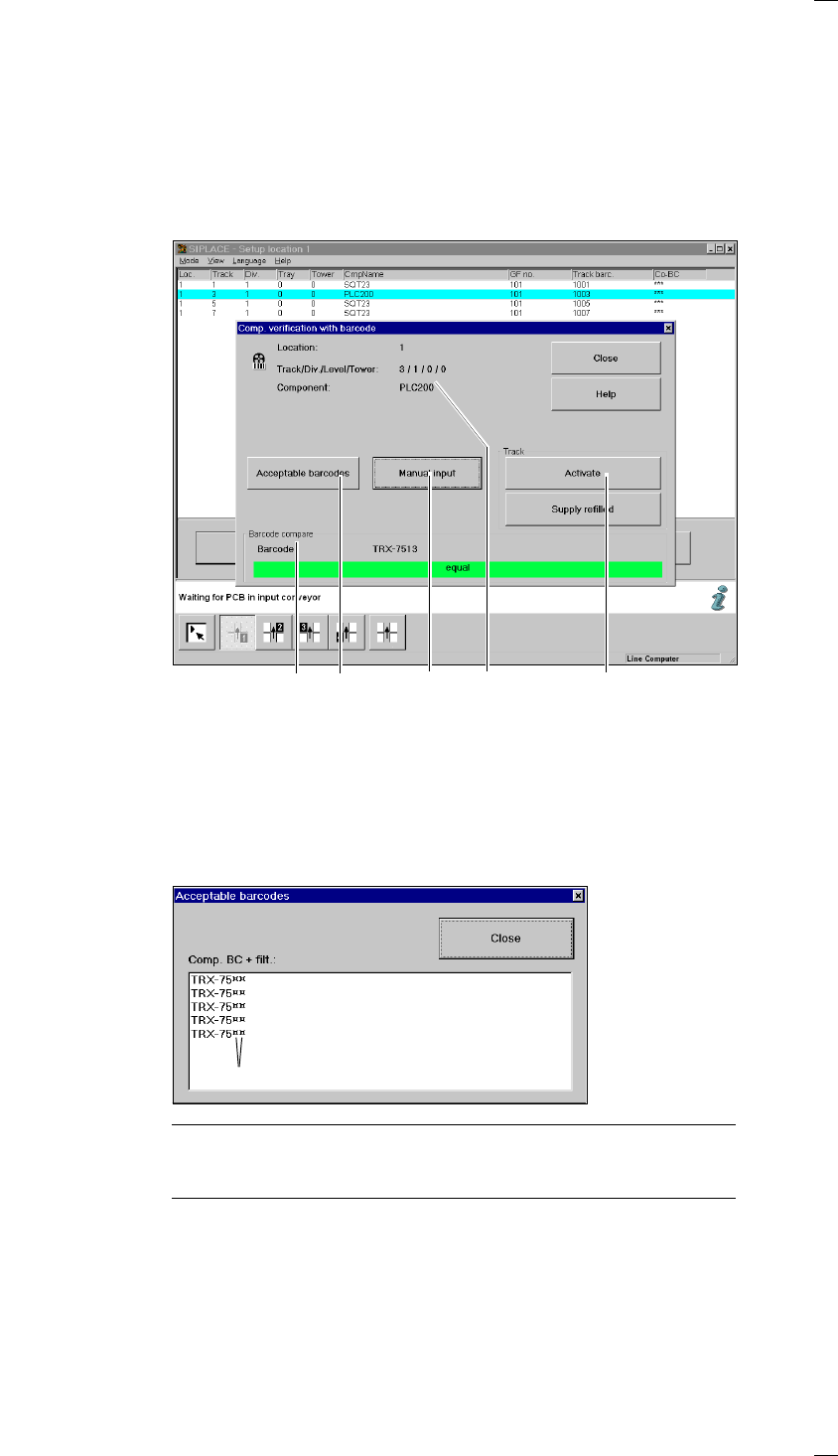
’Component verification with barcode’ menu
The Component verification with barcode menu cannot be accessed
unless you have configured the Component verification with barcode
option in the machine options and a track barcode has been defined for
the component.
The barcode can be
– read off from the reel with the barcode pen or
– entered manually via the Manual input button.
a The data for the selected track are displayed here.
s Manual input
You can enter the barcode manually. The barcode you have entered is
compared with the configured data and the result shown in the Barcode
compare window. The result displayed is either ’same’ or ’different’.
d Acceptable barcodes
When you click on this button a display box will be displayed which con-
tains a list of (currently) 6 acceptable barcodes.
NOTE
If one position in the barcode is an asterisk (*), this position will not be
included in the barcode comparison.
f Compare barcode
The result of the barcode comparison is either same or different.
g ’Track’
Activate
If a track has been deactivated, it can be reactivated by clicking on the
‘Activate’ button or scanning the RETURN barcode on the track barcode
bar.
adfs g
Filter digit
28
Supply refilled
If a track has been deactivated by a ‘Track empty’ error, it can be
reactivated by clicking on the ‘Supply refilled’ button or scanning the
RETURN barcode on the track barcode bar.
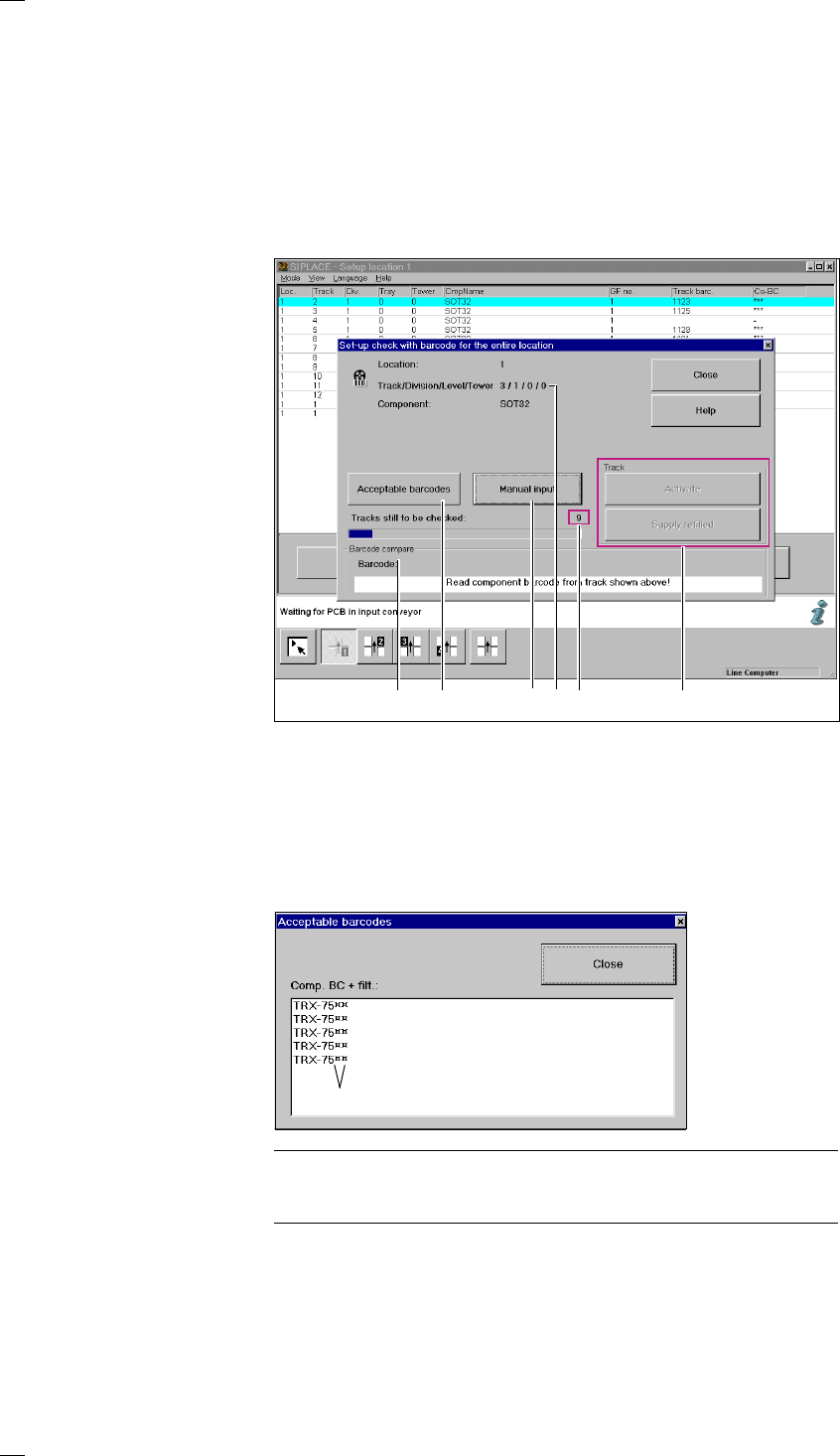
‘Set-up check for entire location’ menu
This menu is used to check the set-up of tracks that are monitored using
barcodes across the entire location. You are prompted to scan the
individual tracks one after another.
a Displays the data for the selected track.
s ’Manual entry’
This option is used to enter the barcode manually. The entered barcode is
compared against the configured data and the result is output in the
‘Barcode compare’ window. The result is ‘equal’ or ‘not equal’.
d ’Acceptable barcodes’
Click on this button to call up a display box containing a list of up to 6
barcodes that are currently acceptable.
PLEASE NOTE
If one of the barcode digits is assigned a star (*), this digit will not be
evaluated during the barcode comparison.
f ’Barcode compare’
This box displays the scanned barcode and the result of the barcode
comparison. You are prompted to scan or enter the barcode for each track
one after another. If the scanned barcode does not agree with the desired
barcode, a red bar labeled ‘Not equal’ appears. Once you have checked
all the tracks, a message box stating ‘Set-up check for entire location
complete’ appears.
adfsg h
Filter digit