00192419-02.pdf - 第49页
49 PCB barcode error (option) If it was not possible to read the b arcode p roperly , the follo wing sele ction and dialog box will b e displayed on the scre en. enter the co rrect bar code using th e keyboa rd, transpor…
48
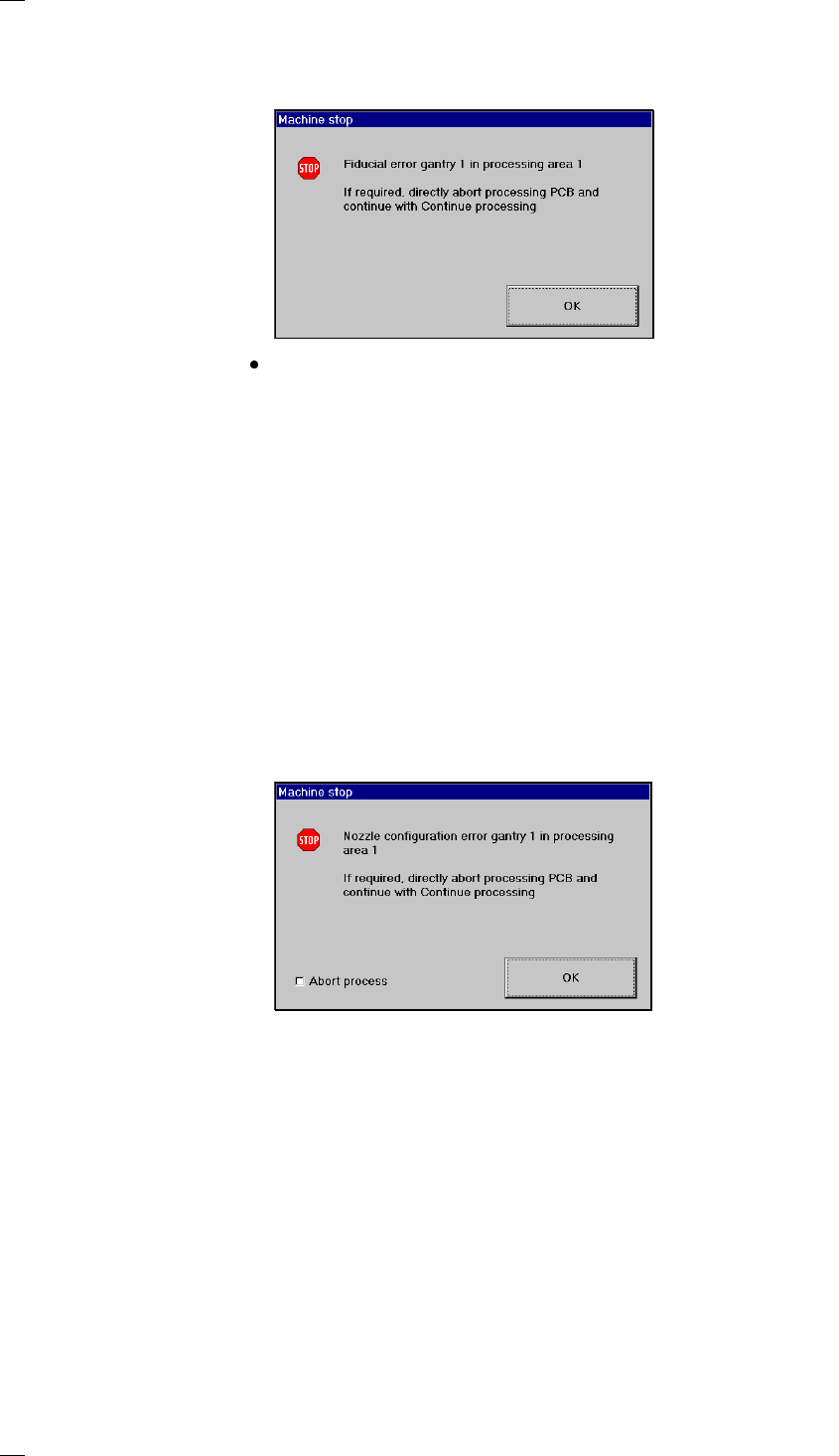
Fiducial errors
This error message will be displayed if it was not possible to find or detect
a fiducial.
Click on OK to acknowledge and then select from the functions displayed:
Abort process. PCB With this function you can abort processing
(see section ’Abort processing PCB’ on page 17).
Continue processing With this function you can continue processing.
Display errors menu With this function you can display the list of the machine errors which have
occurred on the screen.
Single functions Select this menu to correct the error.
Gantry
Resume placement – Transport the board onto the output conveyor.
of PCB without – Replace the board on the input conveyor.
components loss – Transport the board onto the processing conveyor. The board
is stopped there and clamped.
– Now select Continue processing.
Nozzle configuration errors
If an error occurs in connection with the nozzle configuration or if the con-
figuration has to be changed, the warning box Nozzle configuration error
Gantry 1/2 will be displayed on the screen.
Abort process Click on the small 'Abort process' box followed by the OK button to abort
the process.
SF Gantries Select the submenu Nozzle configuration revolver head and
1/2 menu change the nozzle.
When you quit the SF menu, a head reference run and a height reference
run with vacuum test will be carried out.
Continue processing With this function you can continue processing.
49
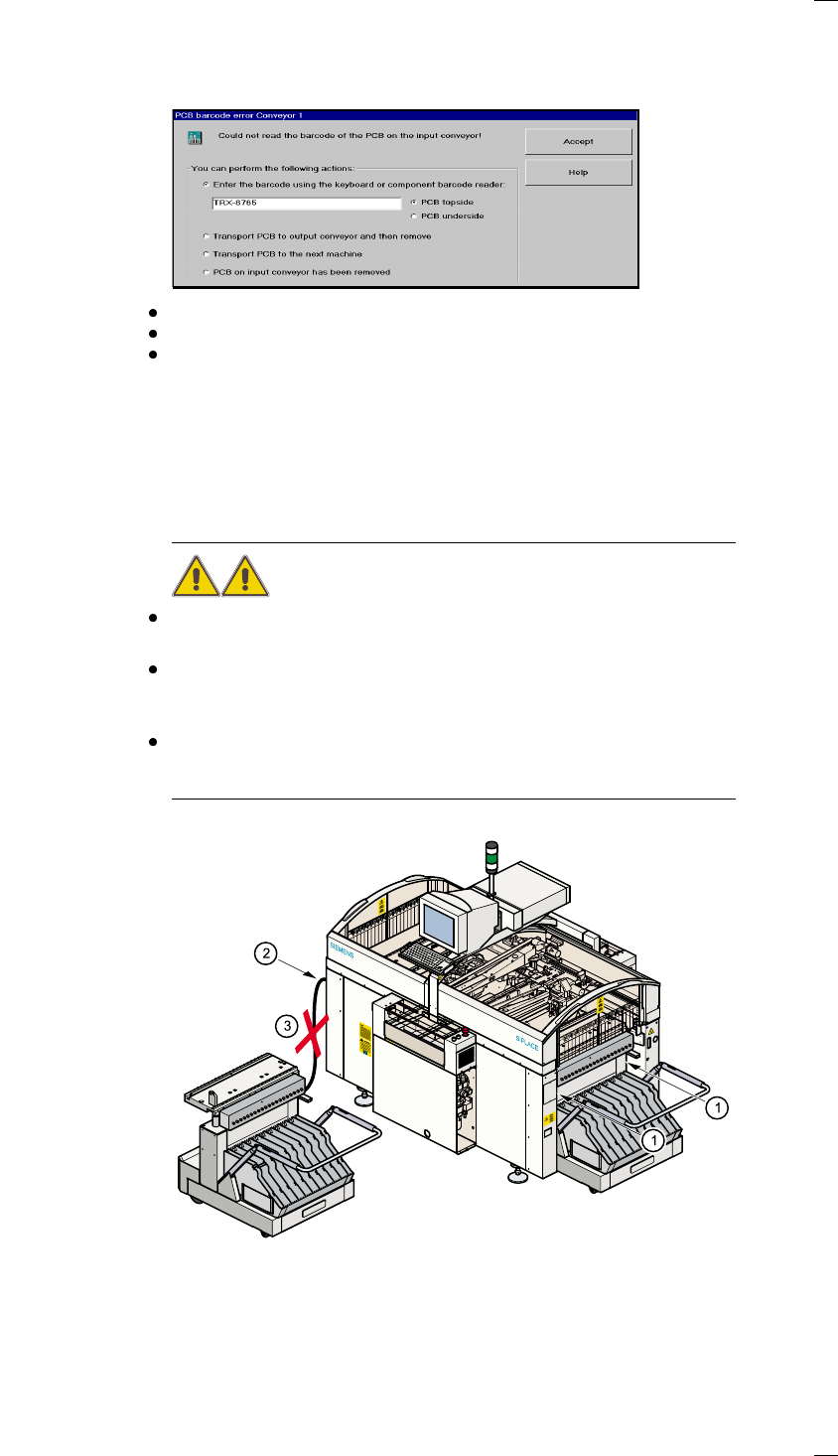
PCB barcode error (option)
If it was not possible to read the barcode properly, the following selection
and dialog box will be displayed on the screen.
enter the correct barcode using the keyboard,
transport the PCB or
remove the PCB from the input conveyor.
Continue processing With this function you can continue processing.
Docking and Undocking the mobile component table
Safety instructions for docking and undocking the mobile component table
WARNING
Never reach into the gap between the component tables and the place-
ment system frame while the machine is running (item 1).
Always check that the component table is docked on the placement sys-
tem before connecting or disconnecting the component table power cable
at the socket on the placement system (item 2).
NEVER connect the component table connecting cable to the socket on
the placement system and then operate the component table via the
external compressed air control unit (item 3).
50
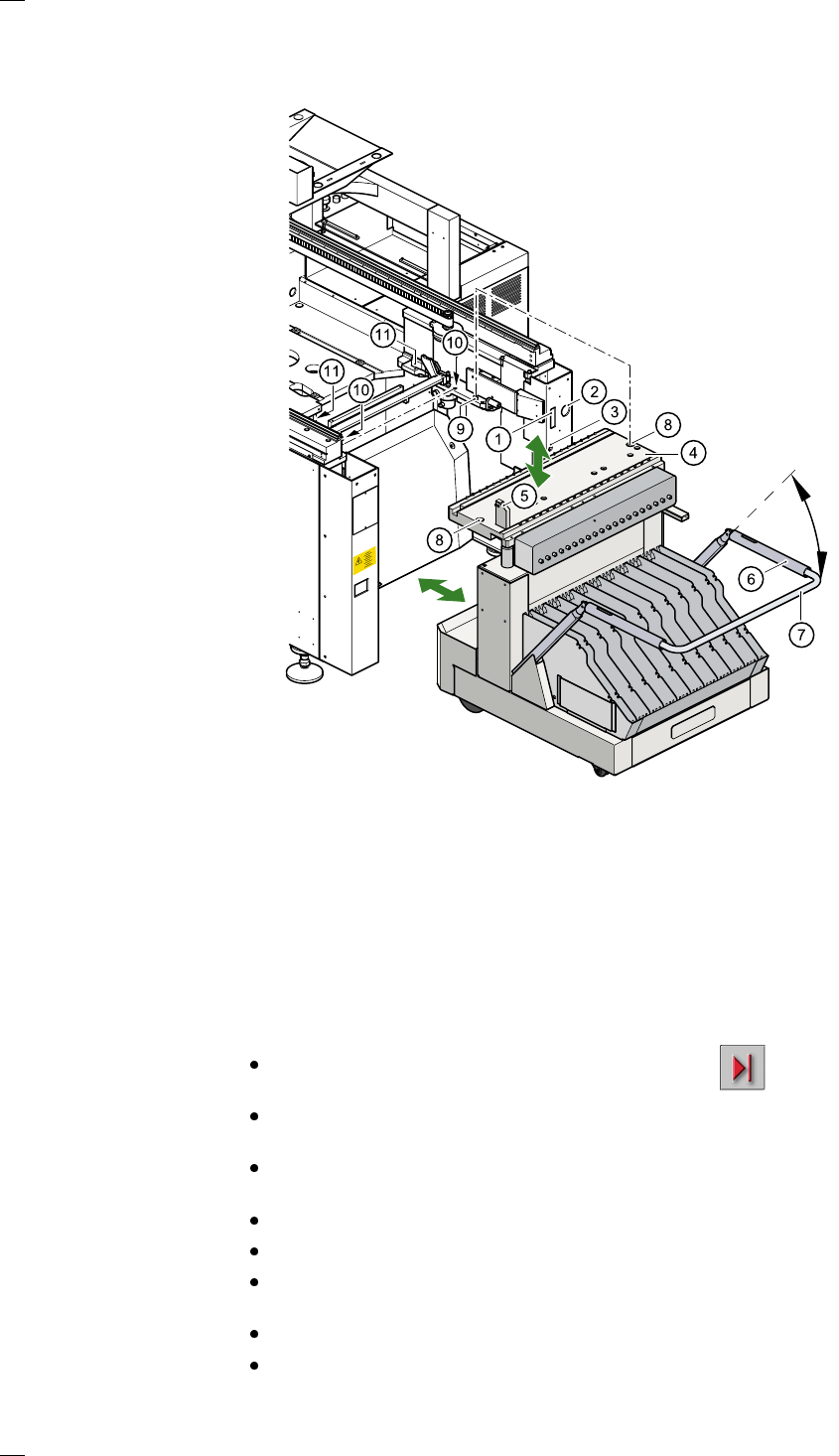
Undocking the component table
a Communication interface connector
s Power supply connector for the component table
d Compressed air connection
f Component table bed
g Button for raising and lowering the component table bed
h Actuating tube
j Fold-down bracket
k Holes for the centering pins
l Centering pins
; Contact surfaces for the slide rails of the component table
A Horizontal tensioners
Click on the
STOP PROCESSING PCB icon in the MAIN VIEW menu.
The PCB in progress will be completed. The icons of the SINGLE FUNC-
TIONS menu will then be activated.
Click on the desired SINGLE FUNCTIONS GANTRY X icon (gantry 1
or 2).
Click on the GANTRY FUNCTIONS icon.
From this menu, click on the GO TO SET-UP POSITION button.
The selected placement head will move across the PCB transport to pre-
vent it being damaged when the component table is changed.
Open protective cover of the selected gantry.
Open the side screens.