OperationInstruction_Vsision XP - 第103页
V ISION XP+ V AC Page 95 5 Software 5.3 The Menu System Operating Instructions V ersion 1.5 Fig. 5-2 5 Sy stem Settin gs / Auth ority Authority If Automat ic Logoff has been a cti- vated, the user is lo gged off auto- ma…
Page 94 VISION XP+ VAC
5 Software
5.3 The Menu System
Operating Instructions
Version 1.5
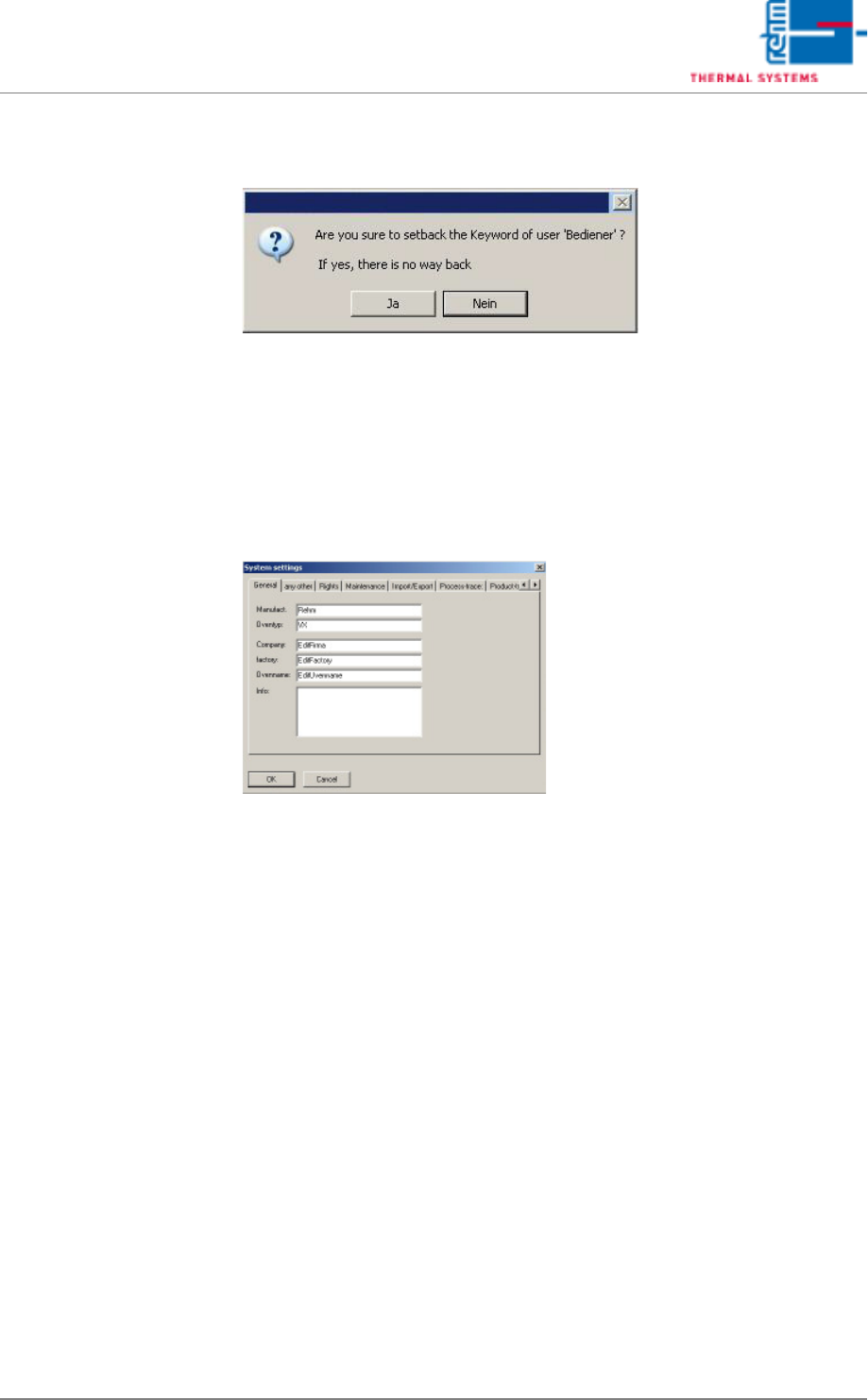
Resetting a Password A security prompt appears after clicking the Reset Password button.
Fig. 5-23 Reset Password Prompt
If the prompt is acknowledged with Yes, the selected user can log on without
a password. However, the user should enter a new password the next time
he logs on.
5.3.4 Settings
Fig. 5-24 System Settings
This window can only be accessed by service personnel from Rehm Ther-
mal Systems or by the administrator.
VISION XP+ VAC Page 95
5 Software
5.3 The Menu System
Operating Instructions
Version 1.5
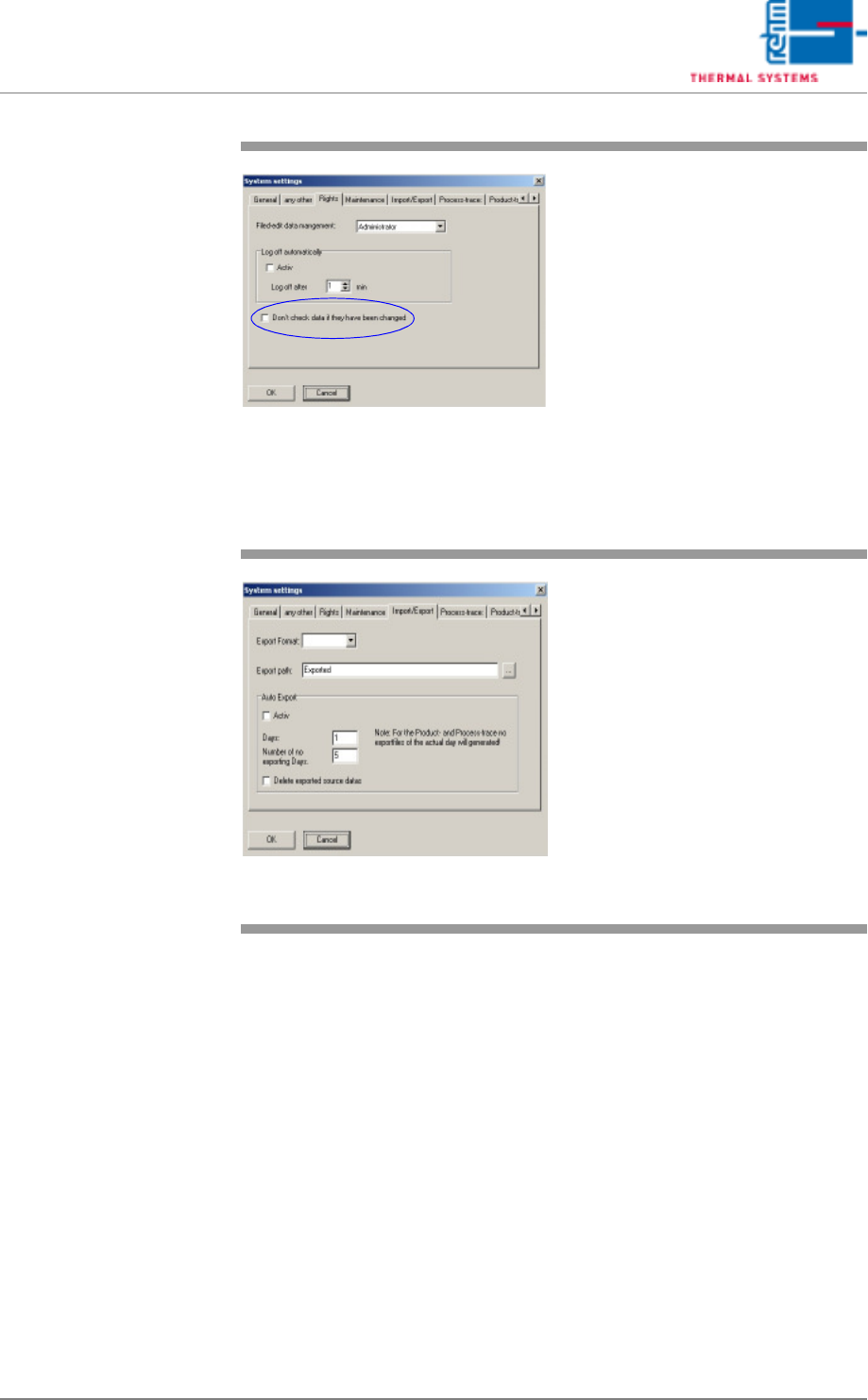
Fig. 5-25 System Settings / Authority
Authority
If Automatic Logoff has been acti-
vated, the user is logged off auto-
matically after the specified time has
elapsed, as long as none of the keys
or the mouse are used during this
time (comparable to screen saver
function).
If Do Not Check Data for Changes
has been activated, no prompt ap-
pears asking whether or not data
should be saved when Rehm soft-
ware is exited, when a new program
is loaded or when a different user
logs on.
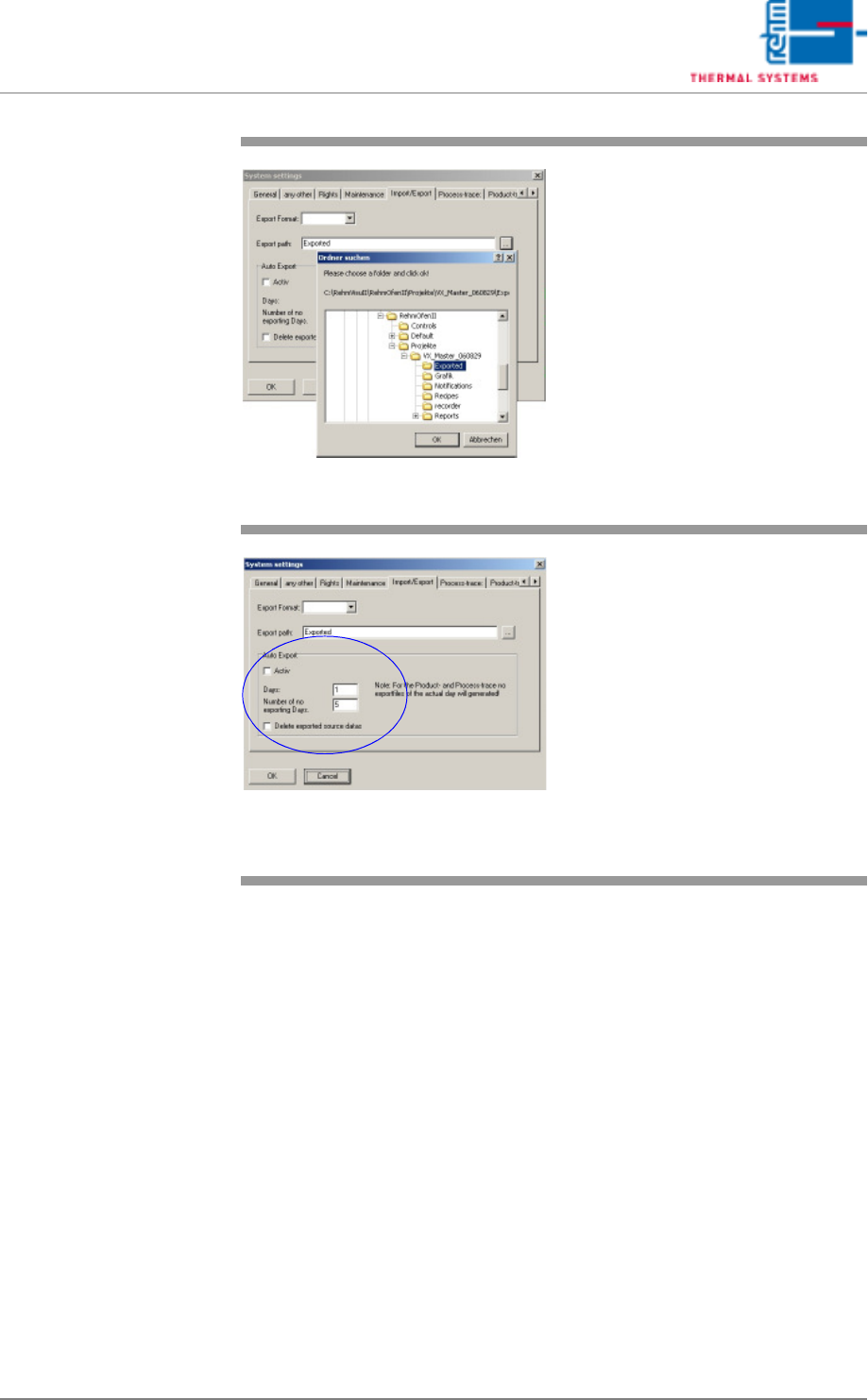
Fig. 5-26 System Settings / Import/Export,
Export Format
Export Format
The standard system only supports
the specific CAB format which is
also supported by the operating sys-
tem.
CAB files can be opened directly
with the Explorer and decom-
pressed. If this is not possible, the
function can be initiated with the fol-
lowing commands: “Start->Run-
>Regsvr32 cabview.dll”.
Page 96 VISION XP+ VAC
5 Software
5.3 The Menu System
Operating Instructions
Version 1.5
Fig. 5-27 System Settings / Import/Export,
Export Path
Export Path
The path is specified here to which
the compressed files are saved.
Fig. 5-28 System Settings / Import/Export,
Automatic Export
Automatic Export
The interval at which the files are
automatically exported is entered
under Days.
The Number of Days Not to be Ex-
ported entry field is used to specify
how old the data must be before
they are exported.
The Delete Exported Source Data
option should be activated in order
to assure that the data are relocat-
ed. Otherwise the data are copied.