OperationInstruction_Vsision XP - 第171页
V ISION XP+ V AC Page 163 6 Rehm Recorder 6.3 Chart Operating Instructions V ersion 1.5 6.3 Chart 6.3.1 View data recording The data recor ding starts with the following view . Pressing the arrow displayed op ens the leg…
Page 162 VISION XP+ VAC
6 Rehm Recorder
6.2 Live mode configuration
Operating Instructions
Version 1.5
The recorder transitions to Viewer mode if a configuration is active. Only
data that is processed by triggers can be viewed.
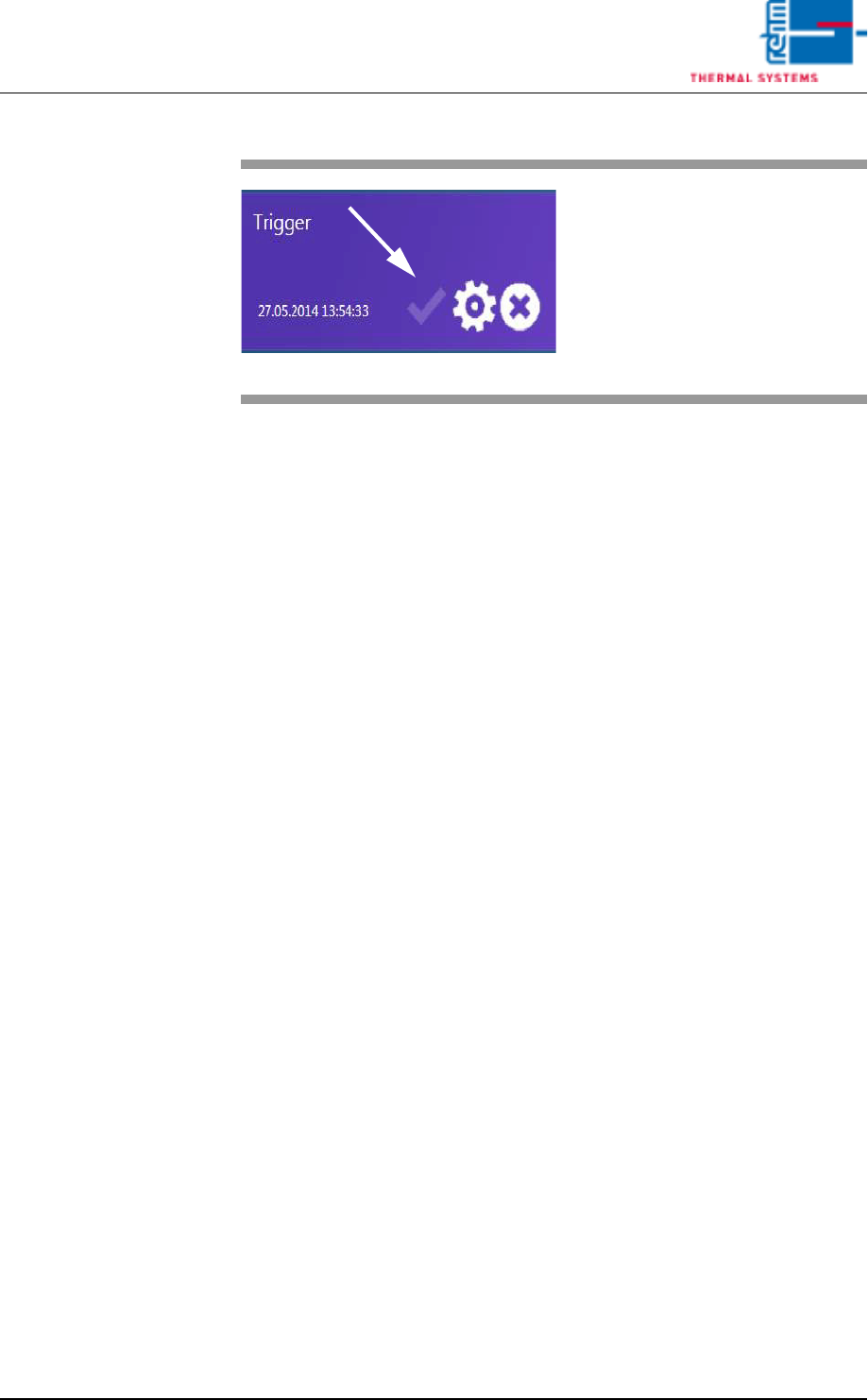
Fig. 6-15 Starting 2
Directly clicking the "Active" button
loads the configuration as the ac-
tive configuration and starts pro-
cessing the start and stop triggers.
VISION XP+ VAC Page 163
6 Rehm Recorder
6.3 Chart
Operating Instructions
Version 1.5
6.3 Chart
6.3.1 View data recording
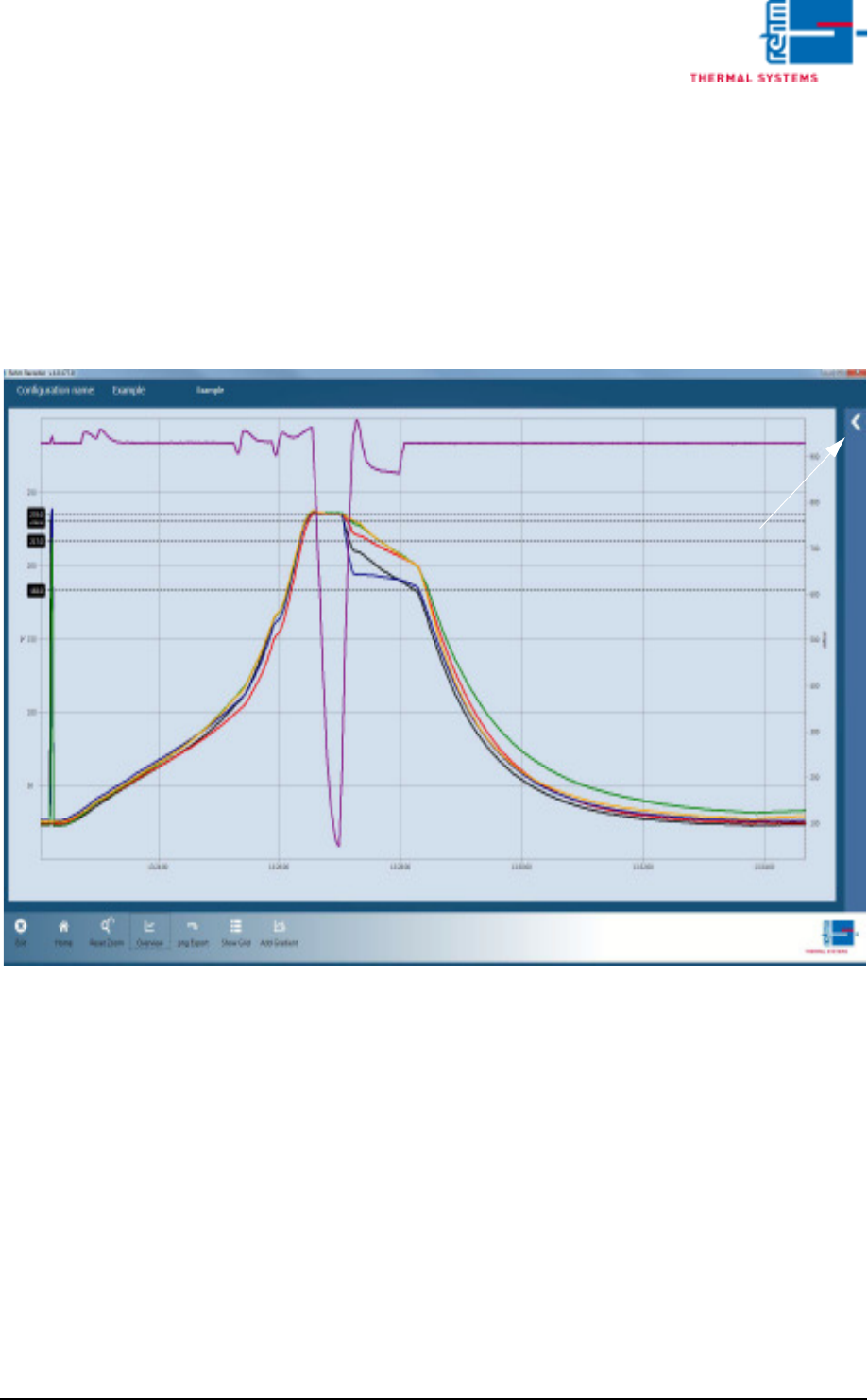
The data recording starts with the following view.
Pressing the arrow displayed opens the legend.
Fig. 6-16 Data recording 1
Page 164 VISION XP+ VAC
6 Rehm Recorder
6.3 Chart
Operating Instructions
Version 1.5
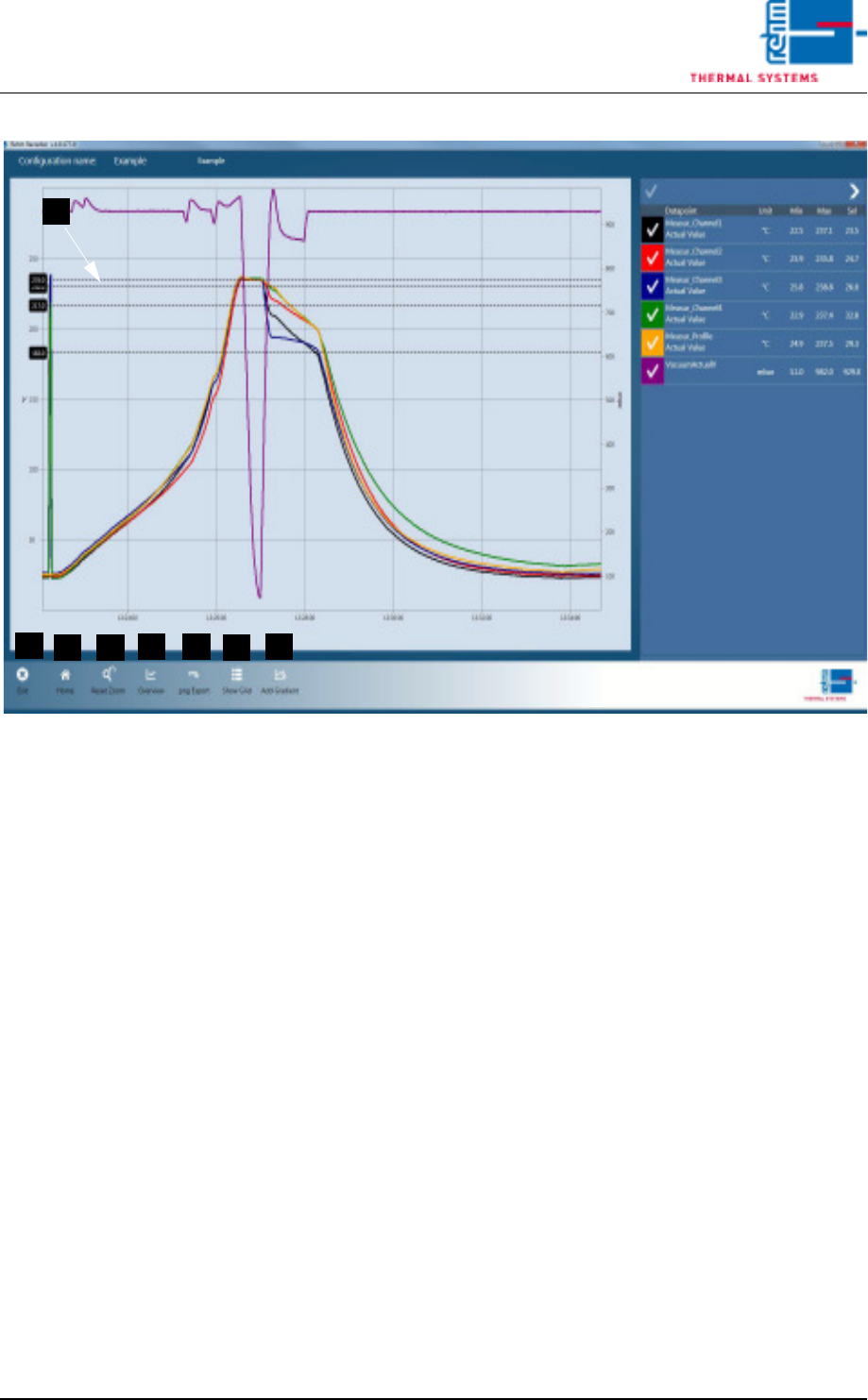
Fig. 6-17 View data recording 1
The legend is expanded out fully. The following buttons are shown:
A) End
The "End" button closes the application.
B) Home
The "Home" button skips the recording when cancel recording is con-
firmed by the user.
C) Reset Zoom
The "Reset zoom" button sets the chart scaling to its original values. The
values stored in the settings are meant by original values.
D) Overview
The entire measurement is shown on the screen.
E) png Export
The "png Export" button exports an image in the current chart to the de-
fault path that is saved in the settings and is in subfolder "ChartExports".
F) Show Grid
The grid display is the tabular view of values.
G) Add Gradient
Adding a gradient shows the two black longwise lines, and the associated
legend in the bottom right of the screen.
H) The black crosslines are the thresholds configured for the data point.
Ticking a data point in the chart hides it.
B
D
C
A
E
F
G
H