OperationInstruction_Vsision XP - 第88页
Page 80 V ISION XP+ V AC 5 Software 5.2 Main Window Operating Instructions V ersion 1.5 Use of Color The utilized colo rs have the followin g meanings: Green:V alues are OK. Orange:V alues are to o low . Red:V alues are …
VISION XP+ VAC Page 79
5 Software
5.1 General Software Buttons and Setting
Operating Instructions
Version 1.5
5 Software
The individual software buttons, program menus and windows are explained
in this chapter. You will be guided through the required entries and software
functions.
Fewer functions may be included depending upon which system is used.
5.1 General Software Buttons and Setting
General Software
Buttons
The buttons listed below appear in numerous windows. The significance of
these buttons and their use is described here.
Fig. 5-1 OK Button
The current selection is acknowledged and/or saved
with the OK button.
Fig. 5-2 Yes Button
The current prompt is closed and the respective
action is executed when the Yes button is clicked.
Fig. 5-3 No Button
The current prompt is closed without executing the
respective action when the No button is clicked.
Fig. 5-4 Cancel Button
The current procedure is cancelled when the Cancel
button is clicked. The respective data are not saved
to memory.
Fig. 5-5 Delete Button
Selected (marked) data, products, programs etc. are
deleted when the Delete button is clicked.
Deletion cannot be undone.
Fig. 5-6 Save Button
Entered values or any other changes are saved to
memory when the Save button is clicked.
Previous entries are overwritten and cannot be
restored if they have not been saved to memory
elsewhere.
Fig. 5-7 Set Button
All setpoints which are visible in the current window
are transferred to the controller when the Set button
is clicked.
Page 80 VISION XP+ VAC
5 Software
5.2 Main Window
Operating Instructions
Version 1.5
Use of Color The utilized colors have the following meanings:
Green:Values are OK.
Orange:Values are too low.
Red:Values are too high.
Pink:The limit value has been reached. The system is shut down.
Blue:Action is required by the operator.
Entering Values Setpoints can be entered directly to the windows.
Setpoints are transferred directly to the controller when the enter key is
activated.
If the cursor is moved to the next entry field with the tab key or the mouse,
values are only displayed at the window. Setpoints do not become active
until the set button is clicked, by means of which they are transmitted to the
controller.
Buttons can be activated with the mouse, or they can be jumped to by
pressing the tab key and activated with the space bar.
5.2 Main Window
The main window and all available options are explained in this chapter.
Fewer functions may be included depending upon which system is used.
The system’s most important functions are integrated into the main window.
The various parameters can be viewed and changed.
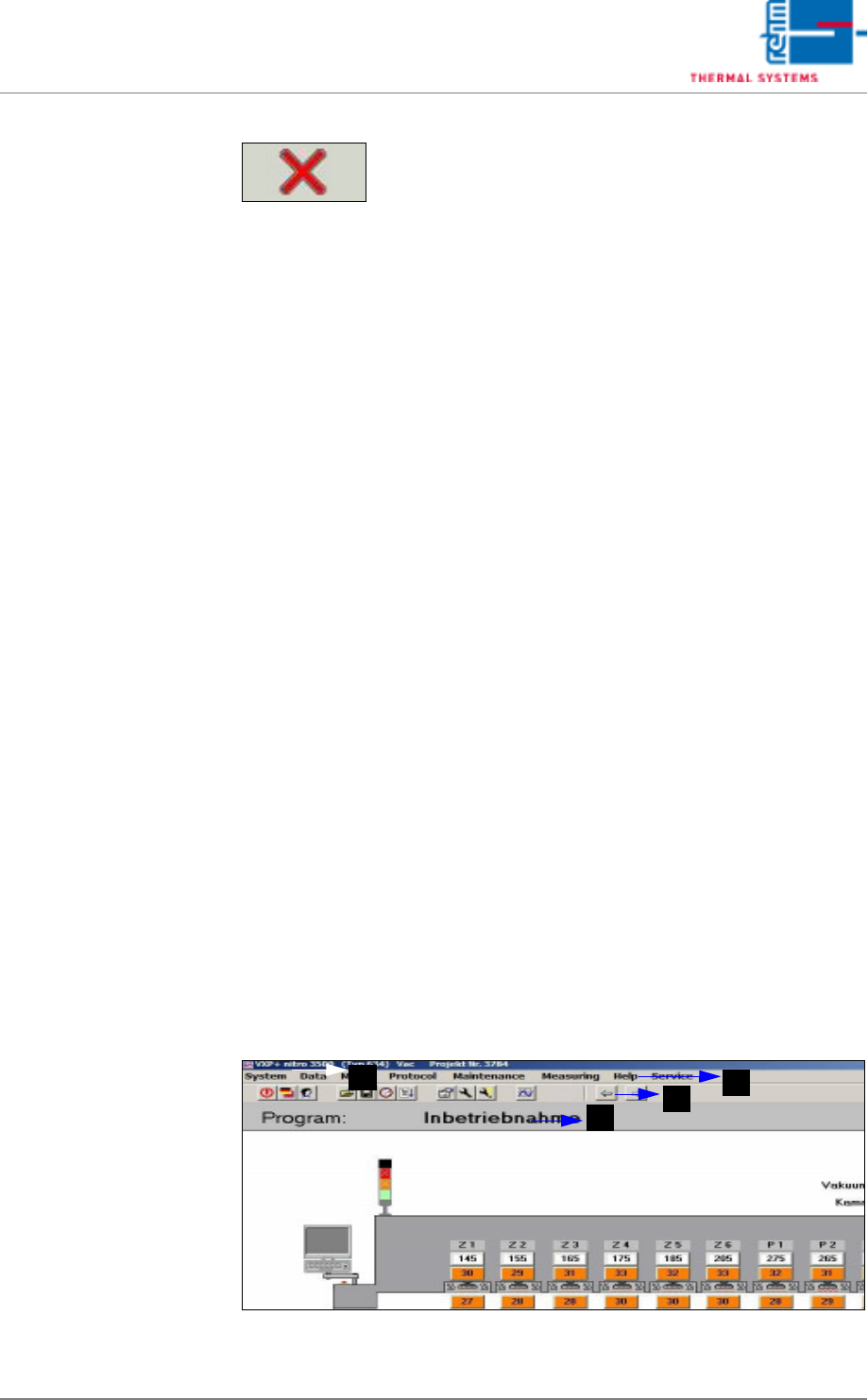
Fig. 5-9 Main Window (excerpt)
Fig. 5-8 Abort Button
The currently active window is closed when the Abort
button is clicked. The respective data are not saved
to memory.
Setpoints which have been entered, but have not yet
been acknowledged with the enter key (on the
keyboard), i.e. have not yet been transferred to the
controller, are lost. If you want to transfer the set-
points before exiting the window, click the
“Set” button first.
B
D
A
C
VISION XP+ VAC Page 81
5 Software
5.2 Main Window
Operating Instructions
Version 1.5
A) Title Bar
The system designation is shown here.
B) Menu Bar
Various menus can be accessed which are required for system
operation.
C) Toolbar
The following actions can be executed by clicking the appropriate icons:
D) The loaded program is displayed here, and optionally the loaded product
as well.
Exit Visu2
Select a language
Log on a new user
Load an existing program/product
Save a program/product or create a new one
Administer the program schedule
Reload system parameters
Display protocol
Display open maintenance tasks
Display pending maintenance tasks
Start the Rehm Recorder
Jump back one window
Jump forward one window