OperationInstruction_Vsision XP - 第99页
V ISION XP+ V AC Page 91 5 Software 5.3 The Menu System Operating Instructions V ersion 1.5 5.3.2 C hanging a Password Fig. 5-2 0 Cha nging a P assword The currentl y logged on opera tor can enter a new pas sword or chan…
Page 90 VISION XP+ VAC
5 Software
5.3 The Menu System
Operating Instructions
Version 1.5
5.3 The Menu System
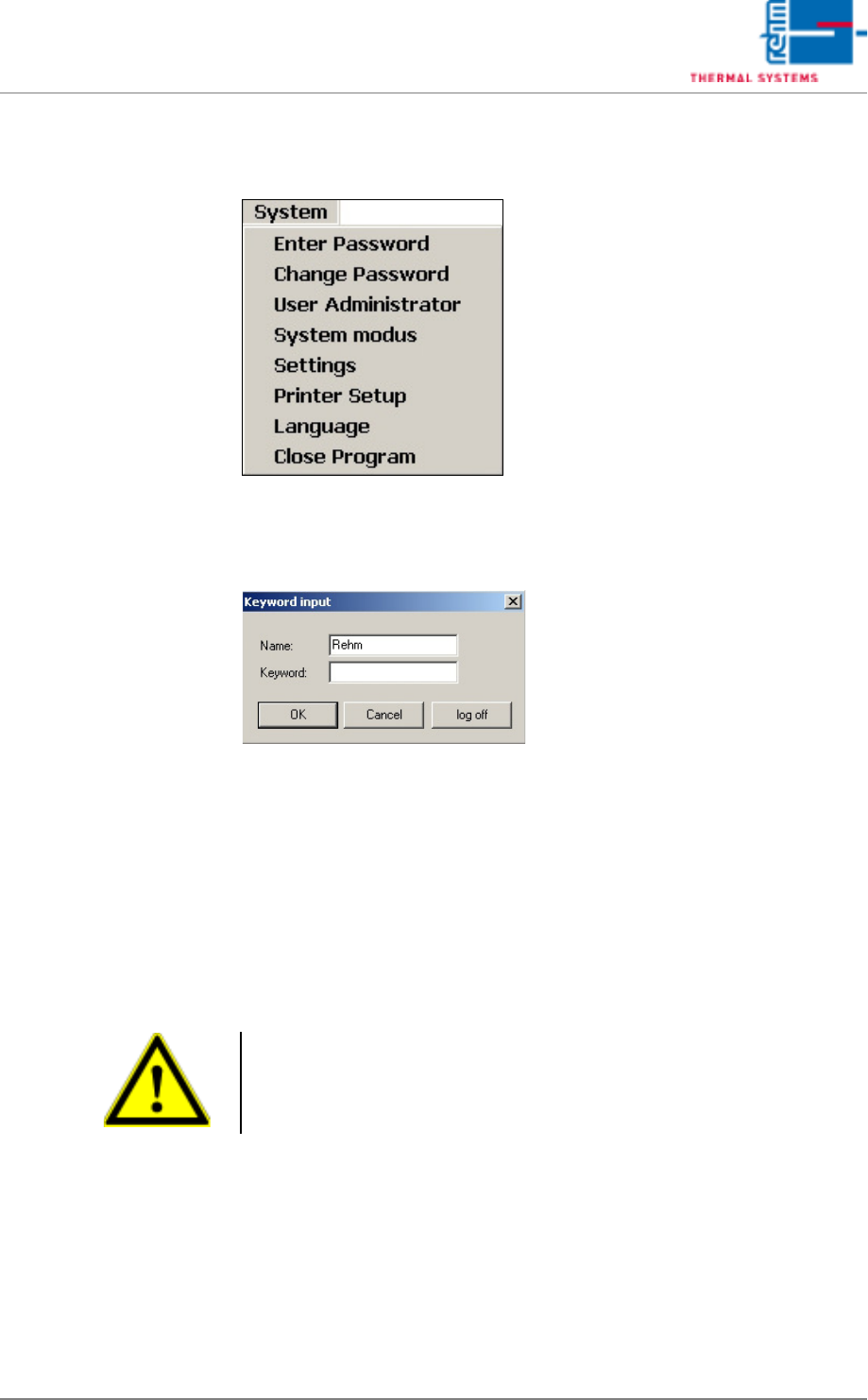
5.3.1 Password Entry
Fig. 5-19 Password Entry
The respective employee can log on to the system’s user interface by filling
in the Name and Password fields, and acknowledging his entry with the OK
button.
The operator can log back off by clicking the Logoff button. The user inter-
face is then disabled.
No more work can be carried out until a valid Name and Password are once
again entered.
Note!
Correct notation, including upper and lower case letters, must be adhered
to when entering Name and Password.
VISION XP+ VAC Page 91
5 Software
5.3 The Menu System
Operating Instructions
Version 1.5
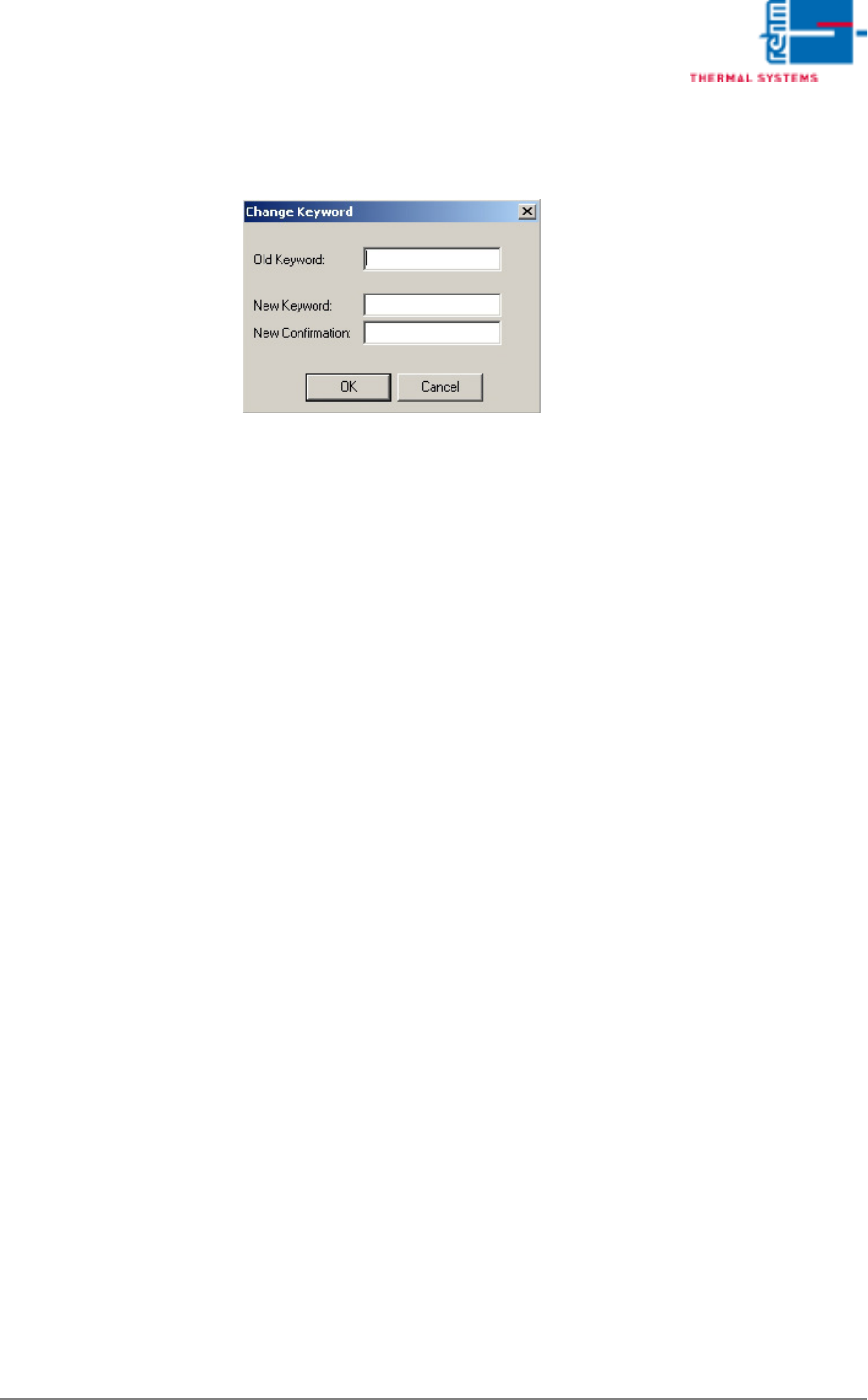
5.3.2 Changing a Password
Fig. 5-20 Changing a Password
The currently logged on operator can enter a new password or change an
existing password in this window. Passwords may not exceed a length of 20
characters. Special characters may be used if desired.
If the operator forgets his password, the administrator can delete it as de-
scribed in the chapter entitled, “Resetting a Password”, on page 94.
After a new user is added, he must enter a password in this window the first
time the system is used.
Page 92 VISION XP+ VAC
5 Software
5.3 The Menu System
Operating Instructions
Version 1.5
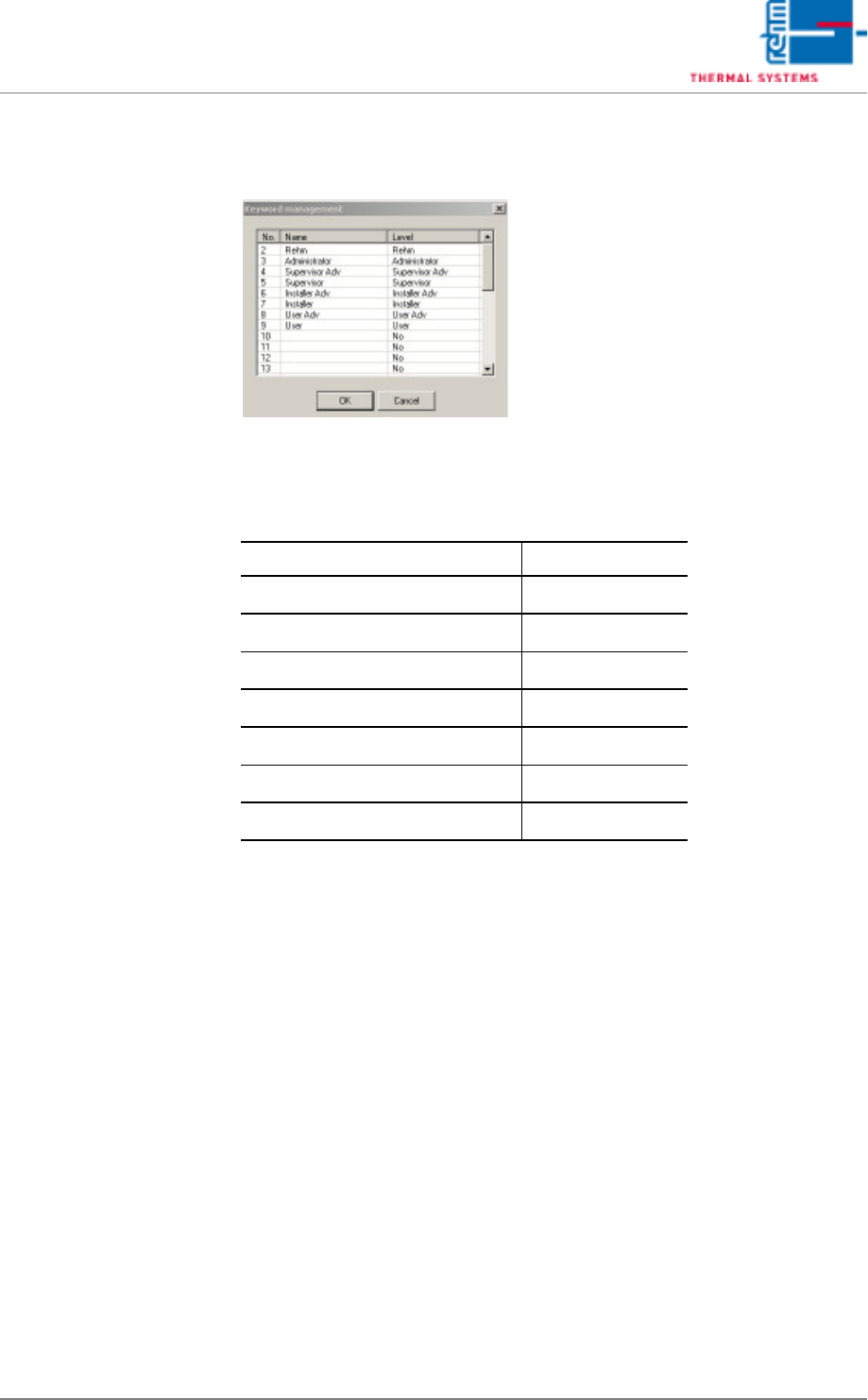
5.3.3 User Administration
Fig. 5-21 Password Administration
User names and their respective levels of authority are displayed in this win-
dow. These settings can only be entered by the administrator.
Preset Users Passwords
Administrator AdmV8
Supervisor Adv SupA
Supervisor Sup
Installer Adv InsA
Installer Ins
User Adv UseA
User Use