SIPLACE S-23 HM - 第114页
3 Introduction and Ba sic Concepts User M anual SIPLACE S -23 HM 3.3 User Interface - Views and Menus Software Version SR.406.xx 02/00 US E dition 114 Switch to o perating syst em ... 3 Y ou use thi s menu item to s witc…
User Manual SIPLACE S-23 HM 3 Introduction and Basic Concepts
Software Version SR.406.xx 02/00 US Edition 3.3 User Interface - Views and Menus
113
Configure SIPLACE connection... 3
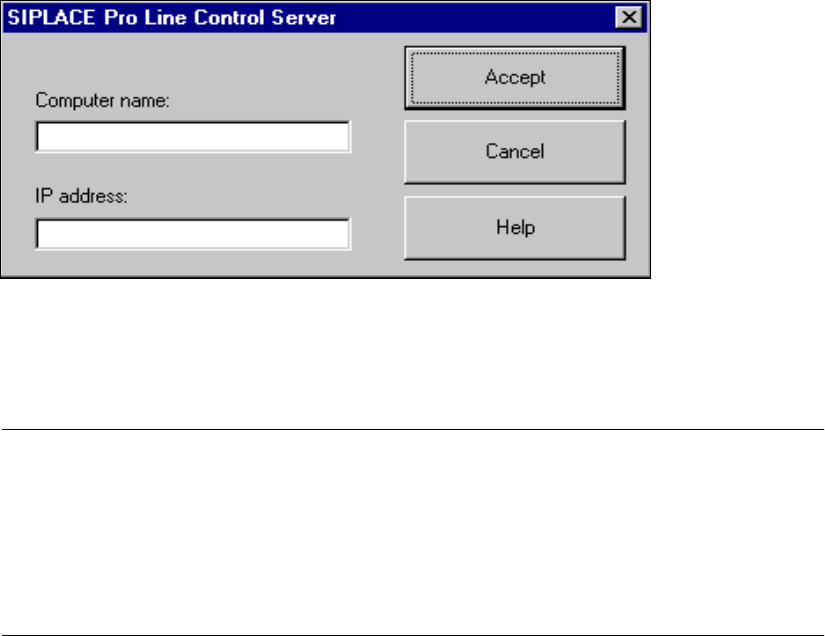
This menu command displays a dialog box in which you can specify which computer is to supply
the current station computer with data. If you do not make an entry, the station computer accepts
the first computer to establish a connection. 3
Å Click the Configure SIPLACE Pro connection... menu command.
The following dialog box appears.
3
Å In the "Computer name" text box, enter the name of the computer on which the relevant SI-
PLACE Pro line control server is installed.
Å In the "IP address" text box, enter the IP address of this computer.
NOTE
To obtain the information you require in order to make these entries, open the "Network" dia-
log box on the computer on which the relevant SIPLACE Pro line control server is installed
(Start -> Settings -> Control Panel -> Network). The computer name is displayed on the
"Identification" tab. You can obtain the IP address on the "Protocols" tab by double-clicking
the TCP/IP protocol in the list of network protocols in order to select it.
Å Click the Accept button.
The entries are accepted, and configuration of the SIPLACE Pro connection is thus completed.
3
3
3 Introduction and Basic Concepts User Manual SIPLACE S-23 HM
3.3 User Interface - Views and Menus Software Version SR.406.xx 02/00 US Edition
114
Switch to operating system ... 3
You use this menu item to switch to the Windows operating system after entering your password.
From here, you can then subsequently return to the SIPLACE user interface. 3
NOTE
This menu option is not available at the "Operator" access level. 3
Å Click the menu item Switch to operating system ...
The Windows user interface is displayed and the SC software continues to run in the
background.
Shut down computer... 3
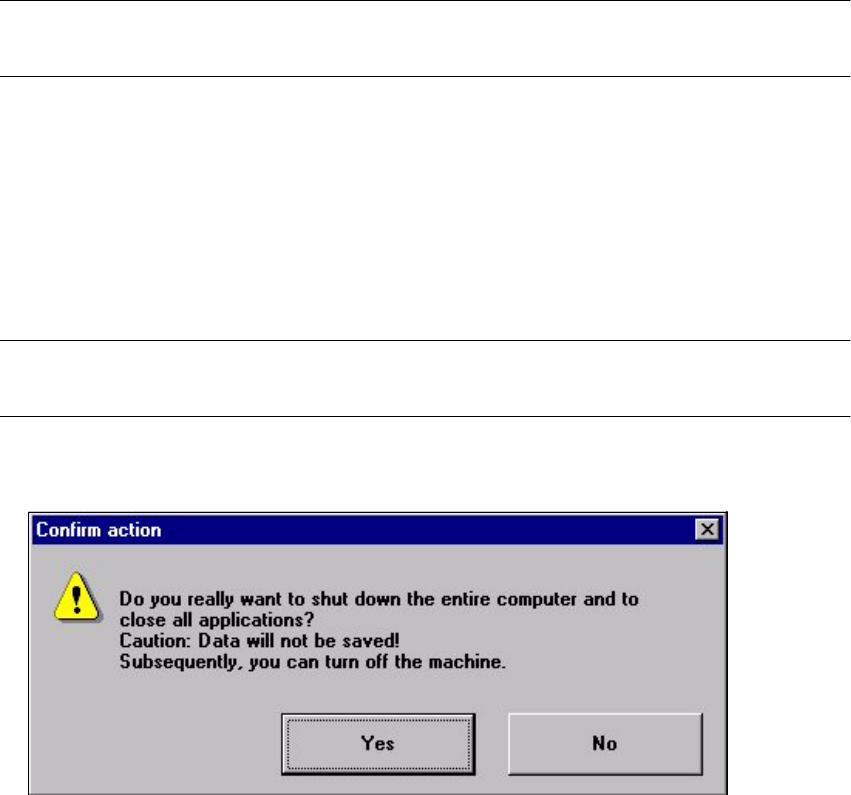
All applications are closed without any files which may have been processed being saved and the
station computer is shut down. 3
NOTE
This menu option is not available at the "Operator" access level. 3
Å Click the menu item Shut down computer...
The following dialog box is opened.
Å Click Yes if you want to terminate your work.
The station computer is shut down.
Å Switch off the machine at the main switch.
User Manual SIPLACE S-23 HM 3 Introduction and Basic Concepts
Software Version SR.406.xx 02/00 US Edition 3.3 User Interface - Views and Menus
115
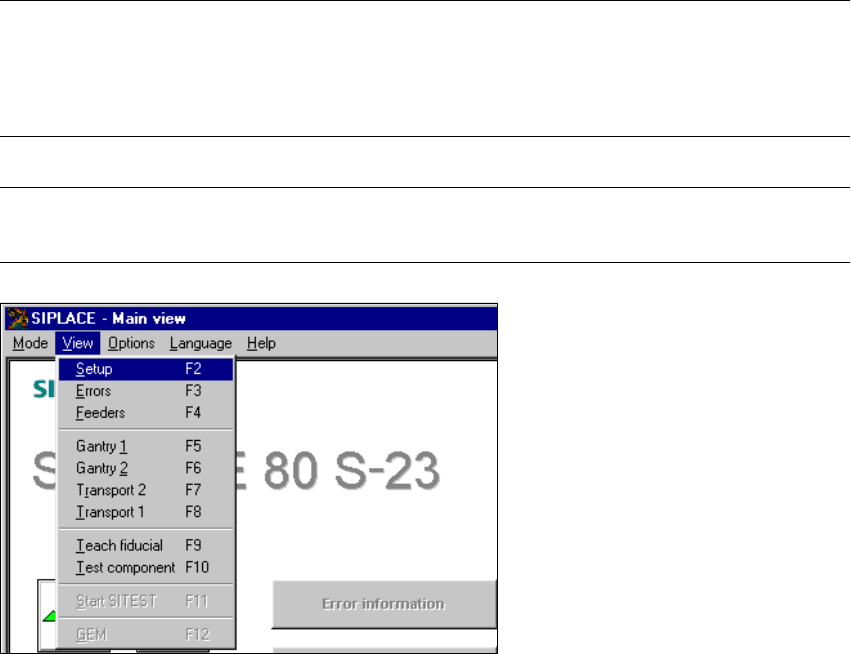
3.3.2.2 "View" Menu
The "View" menu contains the options for calling the placement functions, single functions and
vision functions. It is also used to start the SITEST test program and call the view for running the
GEM functions. 3
Å Click the required menu option.
The screen display is switched to the corresponding view in which you can then call the
necessary functions.
NOTE
All the options in this menu can also be called by clicking the corresponding toolbar button (see
section 3.2.2.2) or by pressing the corresponding function key. If shortcuts have been defined,
these can also be used. 3
NOTE
The 3 menu options below belong to the group of placement functions. 3
3