SIPLACE S-23 HM - 第173页
User Manual SIPLAC E S-23 HM 5 Single Functions Software Version SR.406.xx 02/00 US Edition 5. 3 Single functions, Transport 173 5.3.1 "T ransport functions" screen The trans port functio ns are u sed for c hec…

5 Single Functions User Manual SIPLACE S-23 HM
5.3 Single functions, Transport Software Version SR.406.xx 02/00 US Edition
172
5.3 Single functions, Transport
NOTE
The travel functions of the x or y axis can only be carried out when the machine cover is closed.
To execute this function, press the start button.
As a rule, the gantries only travel slowly. The revolver head is set to travel slowly. 5
Å On the tool bar in the main view, click the symbol which represents the transport you want to
test the functions of (or select the corresponding menu item from the "View" menu, e.g. "Trans-
port 1" for Transport 1).
NOTE
When dual transport is installed and available in the machine configuration, the single func-
tions can be called for either the right-hand transport (Transport 1) or the left-hand transport
(Transport 2). The functions are identical for both right and left. The symbols used to call the
single functions are marked with the number which corresponds to the transport side.
Example for Transport 1 (= right-hand transport or single transport). 5
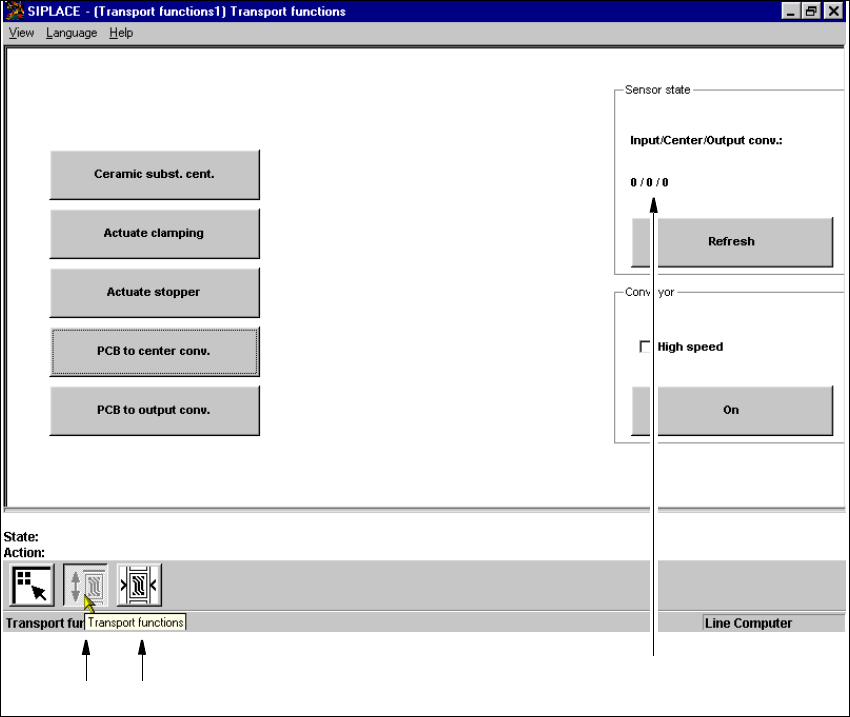
The user interface is switched to the "Transport functions" screen of the selected transport (see
Fig. 5.3 - 1). 5
5
User Manual SIPLACE S-23 HM 5 Single Functions
Software Version SR.406.xx 02/00 US Edition 5.3 Single functions, Transport
173
5.3.1 "Transport functions" screen
The transport functions are used for checking and adjusting the functional modules of the board
conveying systems. 5
5
Fig. 5.3 - 1 "Transport functions" screen
Key to Fig. 5.3 - 1
(1) Functions for the board conveying systems
(2) Functions for adjusting the transport conveyor width
(3) Functions to display state of the ultrasonic sensors
5
5
12
3

5 Single Functions User Manual SIPLACE S-23 HM
5.3 Single functions, Transport Software Version SR.406.xx 02/00 US Edition
174
5.3.1.1 Functions
Ceramic substrate centering 5
NOTE
The ceramic substrate centering function can only be activated if the "Ceramic substrate centering"
option is installed and entered in the machine options. 5
This function is used to check the centering (clamping) of ceramic substrates in the center con-
veyor.
Å Click the PCB to center conv. button.
The ceramic substrate is moved to the center conveyor.
Å Click the Ceramic subst. cent. button.
The ceramic substrate is centered (clamped).
Å Click the Ceramic subst. cent. button again.
The centering is released again.
Actuate clamping 5
This function can be used to check board clamping for the center conveyor. 5
Å Use the PCB to center conv. function to move the board to the center conveyor.
Å Click the Actuate clamping button.
The board is clamped to the center conveyor.
Å Click the Actuate clamping button again.
The clamping is released again.
Actuate stopper 5
This function can be used to check the operation of each stopper as it is extended and then
retracted. The function can be executed either with or without a board.
Å Click the Actuate stopper button in the center conveyor.
The stopper for the center conveyor is extended and then returned to its original position.
PCB to center conv. 5
This function can be used to move a board which is on the input conveyor to the center conveyor,
stop it there and clamp it. 5
Å Click the PCB to center conv. button.
The board currently located on the input conveyor is moved to the center conveyor.