SIPLACE S-23 HM - 第213页
User Manual SIPLAC E S-23 HM 6 Vision functions Software Version SR.406.xx 02/00 US Edition 6. 5 Teach Fiducial 213 Selecti ng the Save f iducial option caus es the station com puter to se nd the new or c hanged fi du- c…
6 Vision functions User Manual SIPLACE S-23 HM
6.5 Teach Fiducial Software Version SR.406.xx 02/00 US Edition
212
NOTE 6
Buttons are active when the text on the button is black (rather than gray). This means that you can
launch the associated function by clicking on the button with the mouse.
The Load fiducial button will, for example, only be active if you have previously clicked on a fidu-
cial in the lists field.
The Change fiducial name button will only be active if you have loaded a fiducial and the Save
fiducial button will only be active if you have either changed the fiducial name or fiducial param-
eters. 6
You can switch from the ’Teach fiducial’ menu to the Main menu at any time in order to start actions
such as "Fill track" etc. The settings in the ’Teach fiducial’ menu will be retained, which means that
the same conditions will be set up when you return to the ’Teach fiducial’ menu. 6
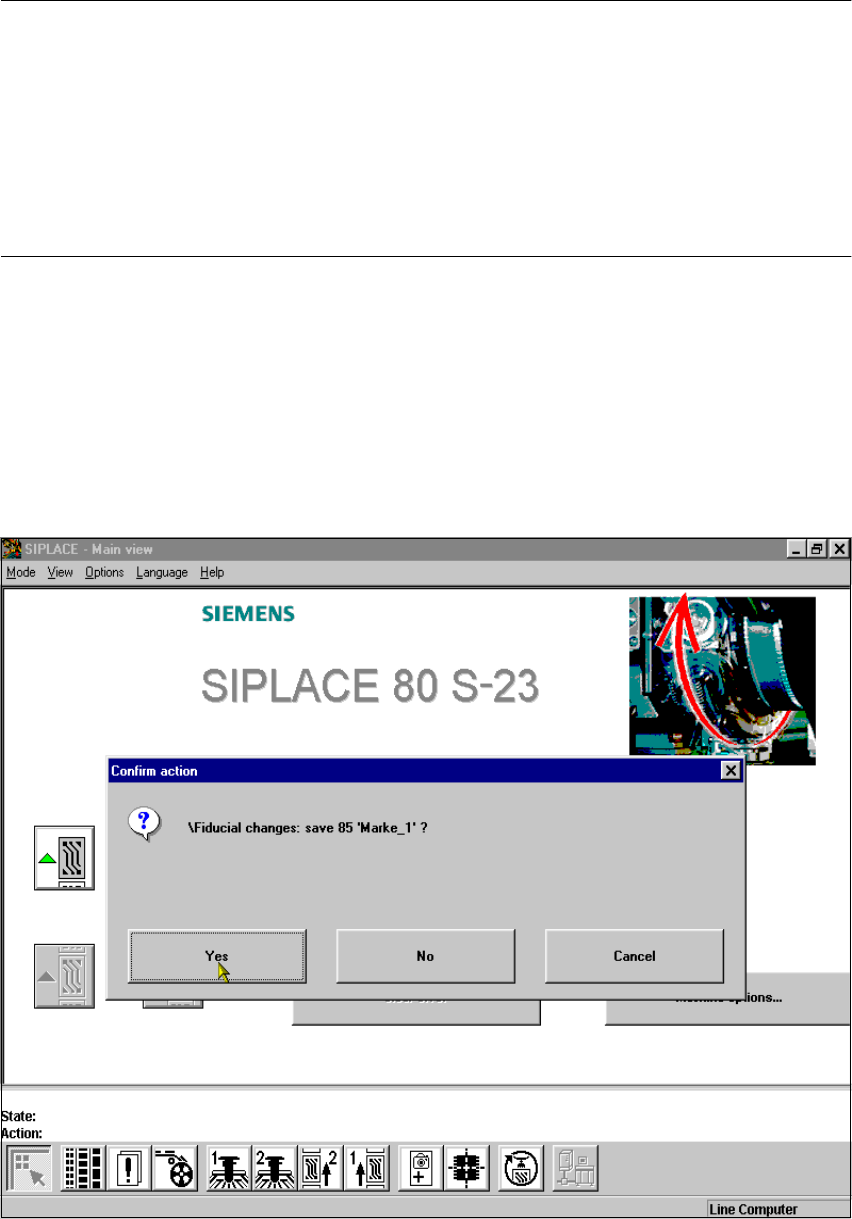
However, if you have changed fiducial data or taught a new fiducial and then switch from the Main
menu to the ’Test component’, ’Single functions’, ’SITEST’ or ’Continue placement’ menu, the
’Save fiducial data’ selection box will appear when you leave the ’Teach fiducial’ option. You can
then either save the modified or new data or delete it. 6
6
Fig. 6.5 - 7 ’Select fiducial’ menu, ’Save fiducial data’ option box
User Manual SIPLACE S-23 HM 6 Vision functions
Software Version SR.406.xx 02/00 US Edition 6.5 Teach Fiducial
213
Selecting the Save fiducial option causes the station computer to send the new or changed fidu-
cial data to the line computer and to update the fiducial numbers list. The fiducial data is also up-
dated in the remaining stations. The transformation tables are held locally in the station computer. 6
6.5.3.1 Select Gantry Option
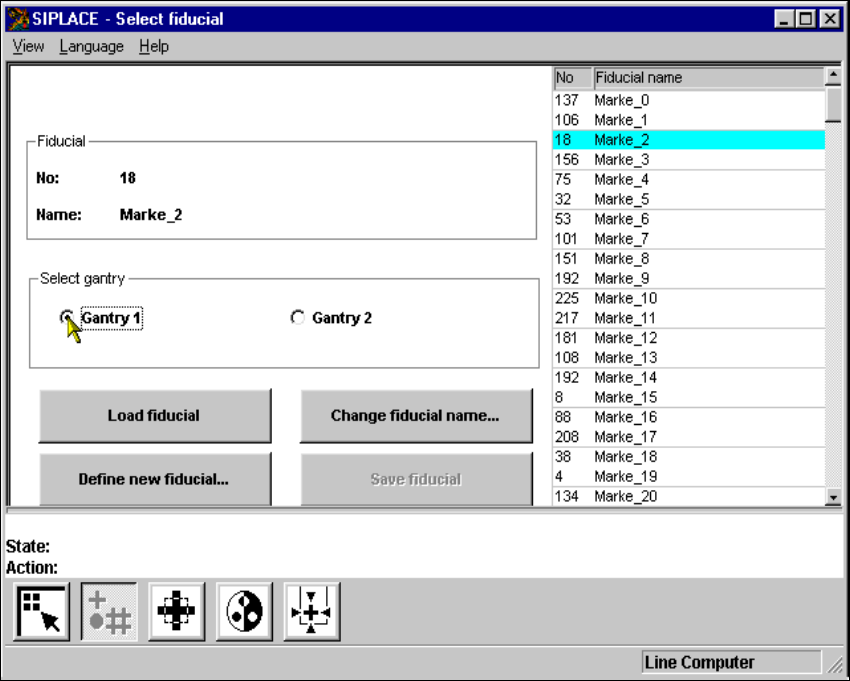
With this option you can use the Gantry 1 or Gantry 2 buttons to choose which gantry to use as
the teaching gantry. The default setting is Gantry 1. 6
Å Position the mouse pointer over the desired gantry.
Å Click on the button. The button of the selected gantry will now turn black.
6
Fig. 6.5 - 8 Select fiducial menu, Select gantry option
6 Vision functions User Manual SIPLACE S-23 HM
6.5 Teach Fiducial Software Version SR.406.xx 02/00 US Edition
214
6.5.3.2 Load Fiducial Option
NOTE 6
When you call the Load fiducial option, the Save fiducial data option box will appear if you had
previously edited a fiducial (see Fig. 6.5 - 7). 6
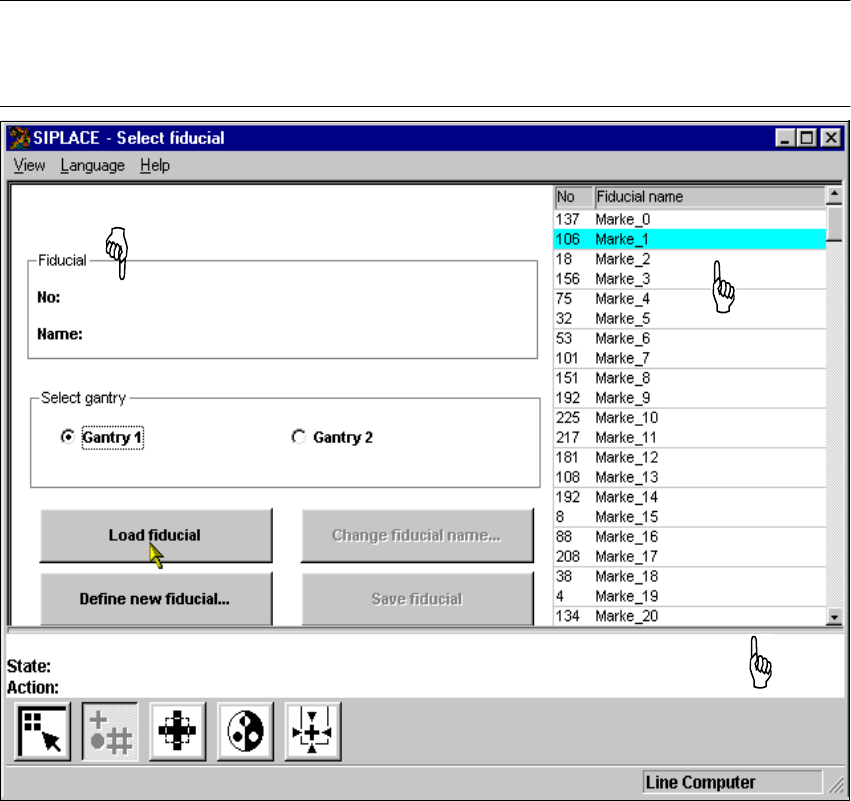
Fig. 6.5 - 9 Select fiducial menu, Load fiducial option
If you wish to save your data, the fiducial data will be transmitted to the line computer. The fiducial
numbers list will also be updated. 6
– From the list field use the mouse pointer to select a particular fiducial. The selected fiducial will
appear against a cyan-colored bar.
– Click on the Load fiducial button. In the Fiducial display field the fiducial name and the fiducial
number will be displayed.
The station computer will request from the line computer the fiducial data of the selected fiducial.
The pattern structure and search area will be transmitted to the machine controller which then
downloads it into the memory of the MVS system. Following this the teaching parameters struc-
ture is initialized in the station computer with the current values. 6
List field
Display field for fiducial number and fiducial name
The selected
fiducial will be
shown against
a cyan-colored bar.