Nordson_EFD_GV_Series_Operating_Manual - 第116页
GV Series Automated Dispensing Systems 116 www.nordsonefd.com info@nordsonefd.com +1-401-431-7000 Sales and service of Nordson EFD dispensing systems are available worldwide. Mark Follow Offset Click Function Double-clic…
GV Series Automated Dispensing Systems
115www.nordsonefd.com info@nordsonefd.com +1-401-431-7000 Sales and service of Nordson EFD dispensing systems are available worldwide.
Appendix A, Command Function Reference
(continued)
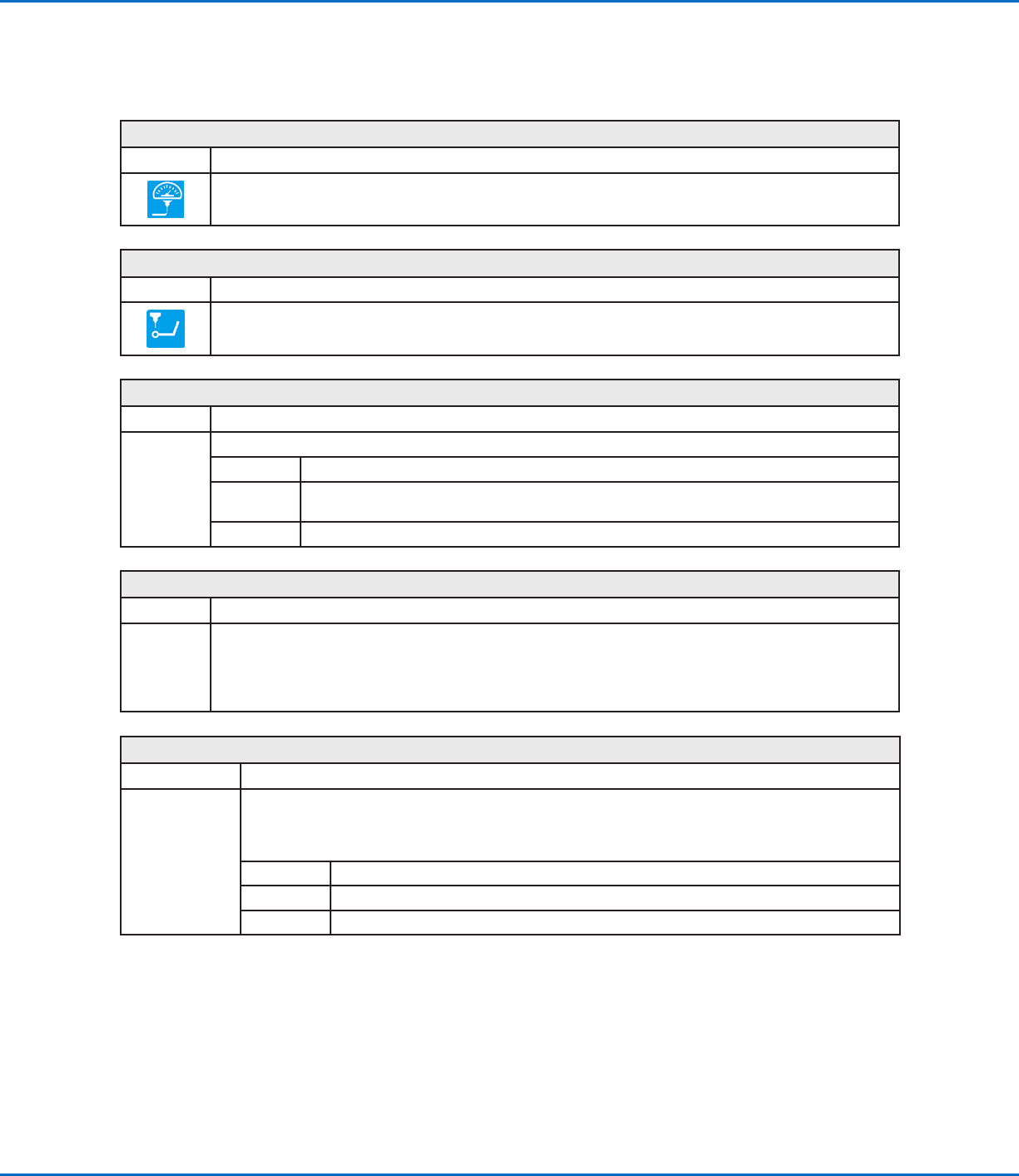
Line Speed
Click Function
Sets the speed (in mm/s) at which the dispensing tip travels at the location in the program where this command
is inserted, thus overriding the default system line speed setting.
Line Start
Click Function
Registers the current XYZ location as a Line Start point for line dispensing.
NOTE: The correct sequence of commands for a line is as follows: (1) Line Start, (2) Line Passing, (3) Line End.
Loop Address
Click Function
Double-click
address and
select from
drop-down
menu
Loops the program back to a specific Address (A) or Label for the number of times set for Count.
Parameter Description
Address The Address (A) or Label number the program jumps to. The jump-to Address (A) or Label must
occur before the current address.
Count The number of times to execute the loop.
Mark Adjust
Click Function
Double-click
address and
select from
drop-down
menu
When used in tandem with the Find Mark command, causes the system to search for the mark specified in the
No. (number) field of the Find Mark command. When the system finds the mark, it checks the XY position of the
workpiece and adjusts the dispensing path accordingly.
Mark Follow
Click Function
Double-click
address and
select from drop-
down menu
When used in tandem with a Find Mark command, causes the system to dispense along a slightly curved
line. For more deeply curved lines, the Mark Follow Offset command is also needed. Refer to “How to Use
Mark Follow to Dispense Along a Curved Line” on page76 for an example of how to use this command in
a program.
Setting Description
1 Turns Mark Follow ON.
0 Turns Mark Follow OFF.
GV Series Automated Dispensing Systems
116 www.nordsonefd.com info@nordsonefd.com +1-401-431-7000 Sales and service of Nordson EFD dispensing systems are available worldwide.
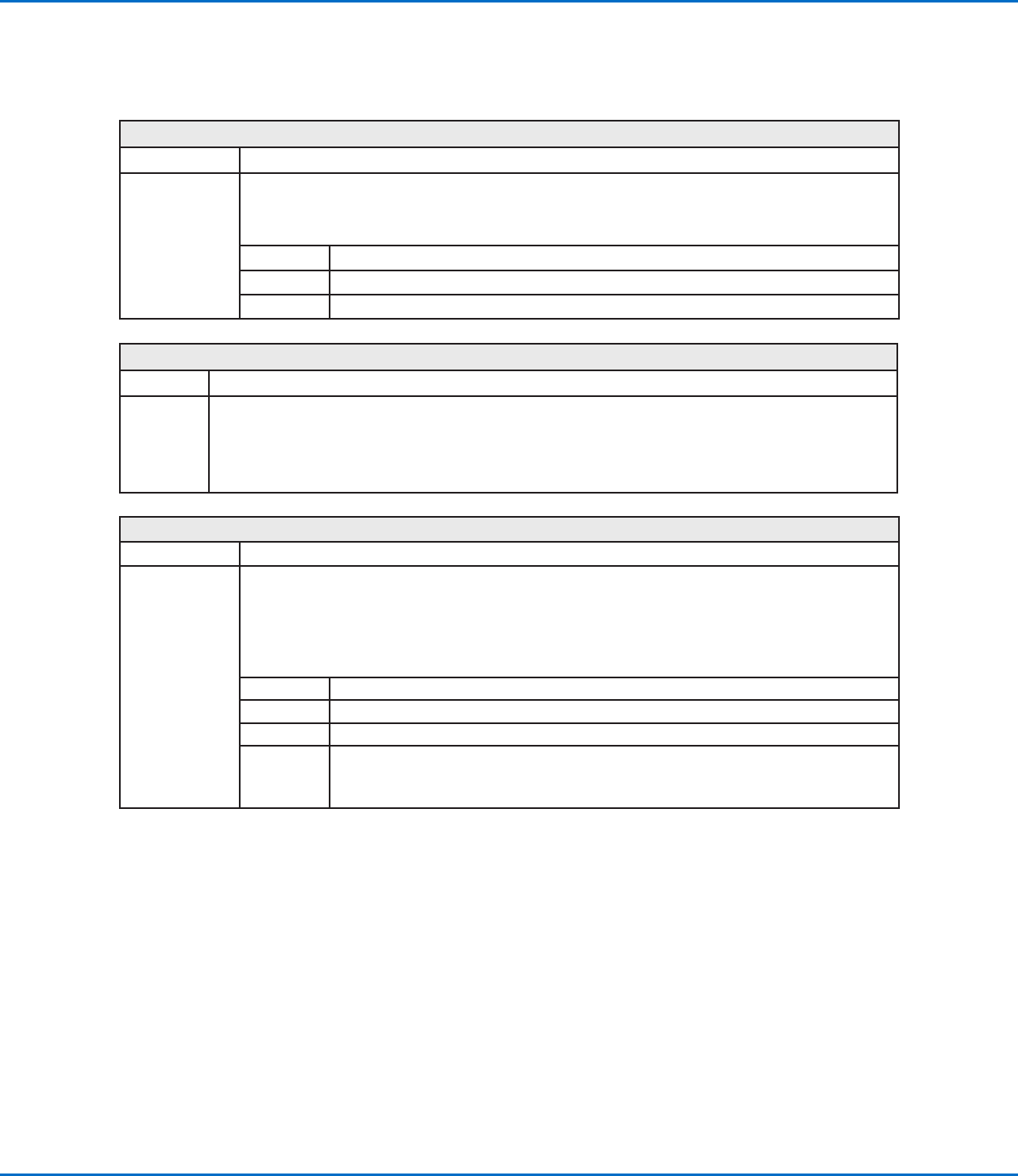
Mark Follow Offset
Click Function
Double-click
address and
select from drop-
down menu
Used in tandem with a Mark Follow command to allow the system to dispense along a deeply curved line;
the offset parameters define how much offset to apply to a series of Line Passing commands. Refer to
“How to Use Mark Follow to Dispense Along a Curved Line” on page76 for an example of how to use this
command in a program.
Setting Description
X Distance (in mm) of the offset in the X direction
Y Distance (in mm) of the offset in the Y direction
Multi Needle
Click Function
Double-click
address and
select from
drop-down
menu
In multiple dispenser installations, specifies the dispenser (called Needle Number) to execute the commands that
follow this command. Currently up to four dispensers can be installed, so the Needle Number parameter can be
1–4.
NOTE: For this function to operate correctly, the additional dispensers must be installed and set up. Refer to
“AppendixE, Multi-Needle Setup and Use” on page137.
Needle XY Adjust
Click Function
Double-click
address and
select from drop-
down menu
Causes the system to perform a Needle XY Adjust (check the camera-to-tip offset) and, based on the result,
to take action as specified by the parameter settings.
NOTE: To perform the Needle XY adjust, the robot moves the dispensing tip to the Set Needle position and
dispenses a dot of fluid, then moves the camera over the fluid dot and compares the alignment of the dot
with the corresponding mark image saved in the Mark Library. The Set Needle position and mark image
were established during the Robot Initial Setup process.
Parameter Description
X range Sets the maximum offset allowed for the X axis.
Y range Set the maximum offset allowed for the Y axis.
0.Ask,
1.Continue
0. Ask The system asks if you want to update the camera-to-tip offset.
1.Continue The system automatically accepts the camera-to-tip offset (unless out of
range) and then continues to the next command.
Appendix A, Command Function Reference
(continued)
GV Series Automated Dispensing Systems
117www.nordsonefd.com info@nordsonefd.com +1-401-431-7000 Sales and service of Nordson EFD dispensing systems are available worldwide.
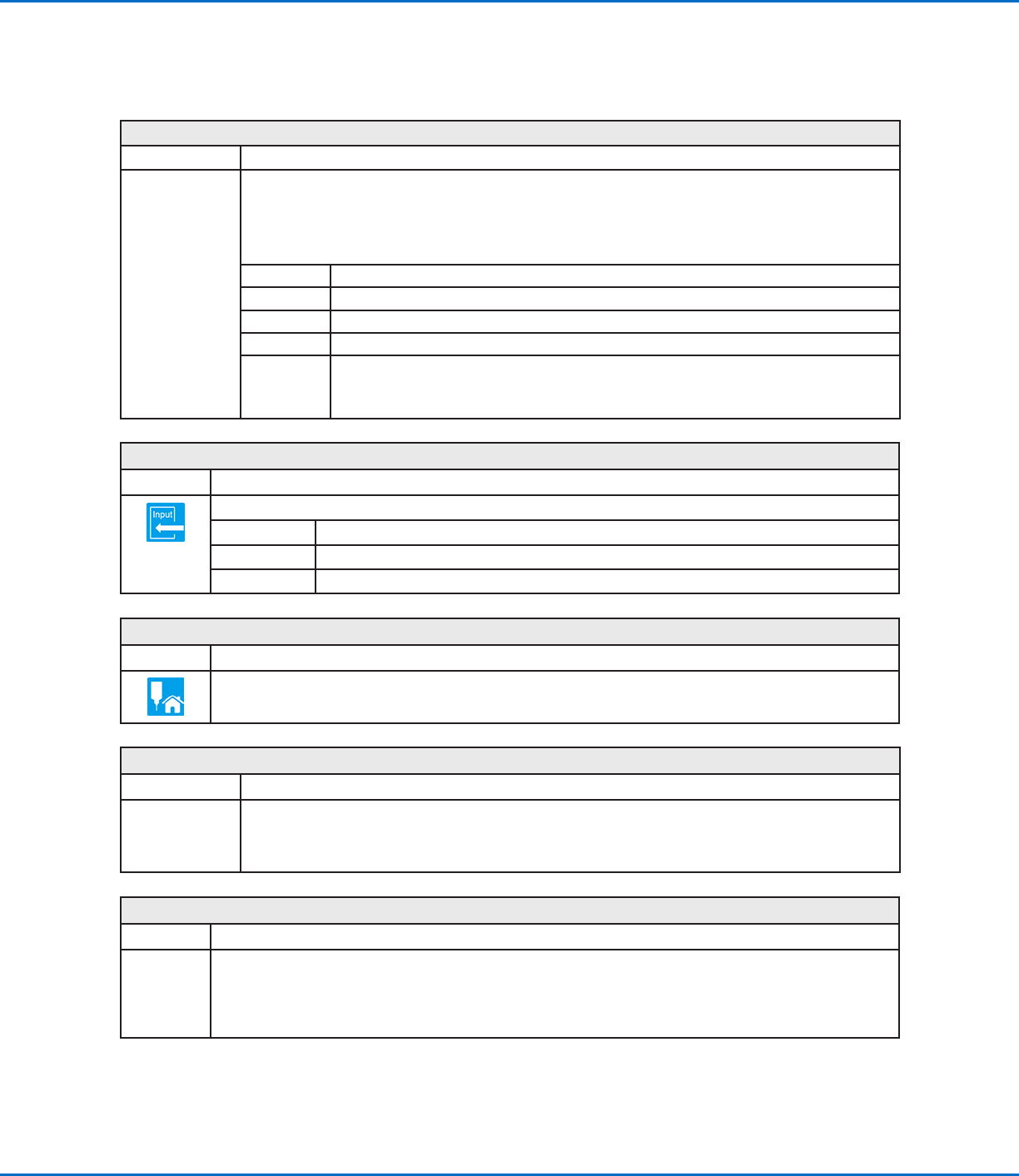
Needle Z Detect
Click Function
Double-click
address and
select from drop-
down menu
Causes the system to perform a Needle Z Detect (check the tip-to-workpiece offset) and, based on the
result, to take action as specified by the parameter settings.
NOTE: To perform the Needle Z Detect, the robot moves the dispensing tip over the tip detector and lowers
it until it touches the sensor. The tip detection settings were established during the Robot Initial Setup
process.
Parameter Description
X range Sets the maximum offset allowed for the X axis.
Y range Sets the maximum offset allowed for the Y axis.
Z range Sets the maximum offset allowed for the Z axis.
0.Ask,
1.Continue
0. Ask The system asks if you want to update the camera-to-tip offset.
1.Continue The system automatically accepts the camera-to-tip offset (unless out of
range) and then continues to the next command.
Output
Click Function
Causes the program to send an output signal from the specified output port.
Parameter Description
Port(1~8) Sets the output port number.
0 Off, 1 On Turns the output OFF or ON.
Park Position
Click Function
Moves the dispensing tip to the park position specified by the Park Position settings on the System Setup
screen.
PicoTouch Parameter Update
Click Function
Double-click
address and
select from drop-
down menu
Opens the specified *.pico file name and implements the parameter settings contained in the file. Refer to
“How to Adjust PICO Parameters Using DispenseMotion” on page84 for detailed procedures for using
this command.
Ptp (Point to point) Speed
Click Function
Double-click
address and
select from
drop-down
menu
Sets the acceleration (as a percentage) of the robot from point to point at the location in the program where this
command is inserted, thus overriding the default system point-to-point speed setting.
Appendix A, Command Function Reference
(continued)