Nordson_EFD_GV_Series_Operating_Manual - 第118页
GV Series Automated Dispensing Systems 118 www.nordsonefd.com info@nordsonefd.com +1-401-431-7000 Sales and service of Nordson EFD dispensing systems are available worldwide. QA Capture Click Function Double-click addres…
GV Series Automated Dispensing Systems
117www.nordsonefd.com info@nordsonefd.com +1-401-431-7000 Sales and service of Nordson EFD dispensing systems are available worldwide.
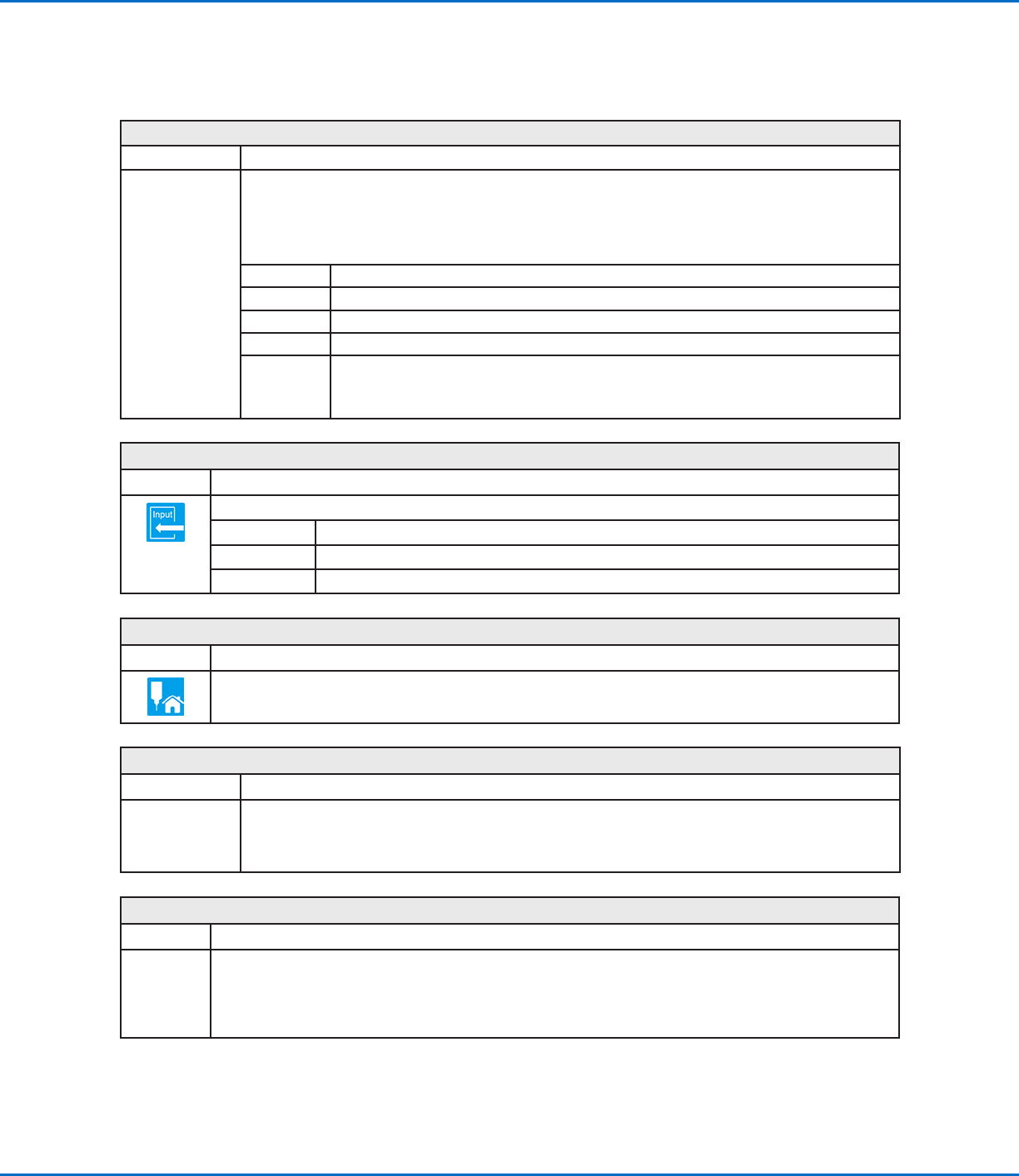
Needle Z Detect
Click Function
Double-click
address and
select from drop-
down menu
Causes the system to perform a Needle Z Detect (check the tip-to-workpiece offset) and, based on the
result, to take action as specified by the parameter settings.
NOTE: To perform the Needle Z Detect, the robot moves the dispensing tip over the tip detector and lowers
it until it touches the sensor. The tip detection settings were established during the Robot Initial Setup
process.
Parameter Description
X range Sets the maximum offset allowed for the X axis.
Y range Sets the maximum offset allowed for the Y axis.
Z range Sets the maximum offset allowed for the Z axis.
0.Ask,
1.Continue
0. Ask The system asks if you want to update the camera-to-tip offset.
1.Continue The system automatically accepts the camera-to-tip offset (unless out of
range) and then continues to the next command.
Output
Click Function
Causes the program to send an output signal from the specified output port.
Parameter Description
Port(1~8) Sets the output port number.
0 Off, 1 On Turns the output OFF or ON.
Park Position
Click Function
Moves the dispensing tip to the park position specified by the Park Position settings on the System Setup
screen.
PicoTouch Parameter Update
Click Function
Double-click
address and
select from drop-
down menu
Opens the specified *.pico file name and implements the parameter settings contained in the file. Refer to
“How to Adjust PICO Parameters Using DispenseMotion” on page84 for detailed procedures for using
this command.
Ptp (Point to point) Speed
Click Function
Double-click
address and
select from
drop-down
menu
Sets the acceleration (as a percentage) of the robot from point to point at the location in the program where this
command is inserted, thus overriding the default system point-to-point speed setting.
Appendix A, Command Function Reference
(continued)
GV Series Automated Dispensing Systems
118 www.nordsonefd.com info@nordsonefd.com +1-401-431-7000 Sales and service of Nordson EFD dispensing systems are available worldwide.
QA Capture
Click Function
Double-click
address and
select from
drop-down
menu
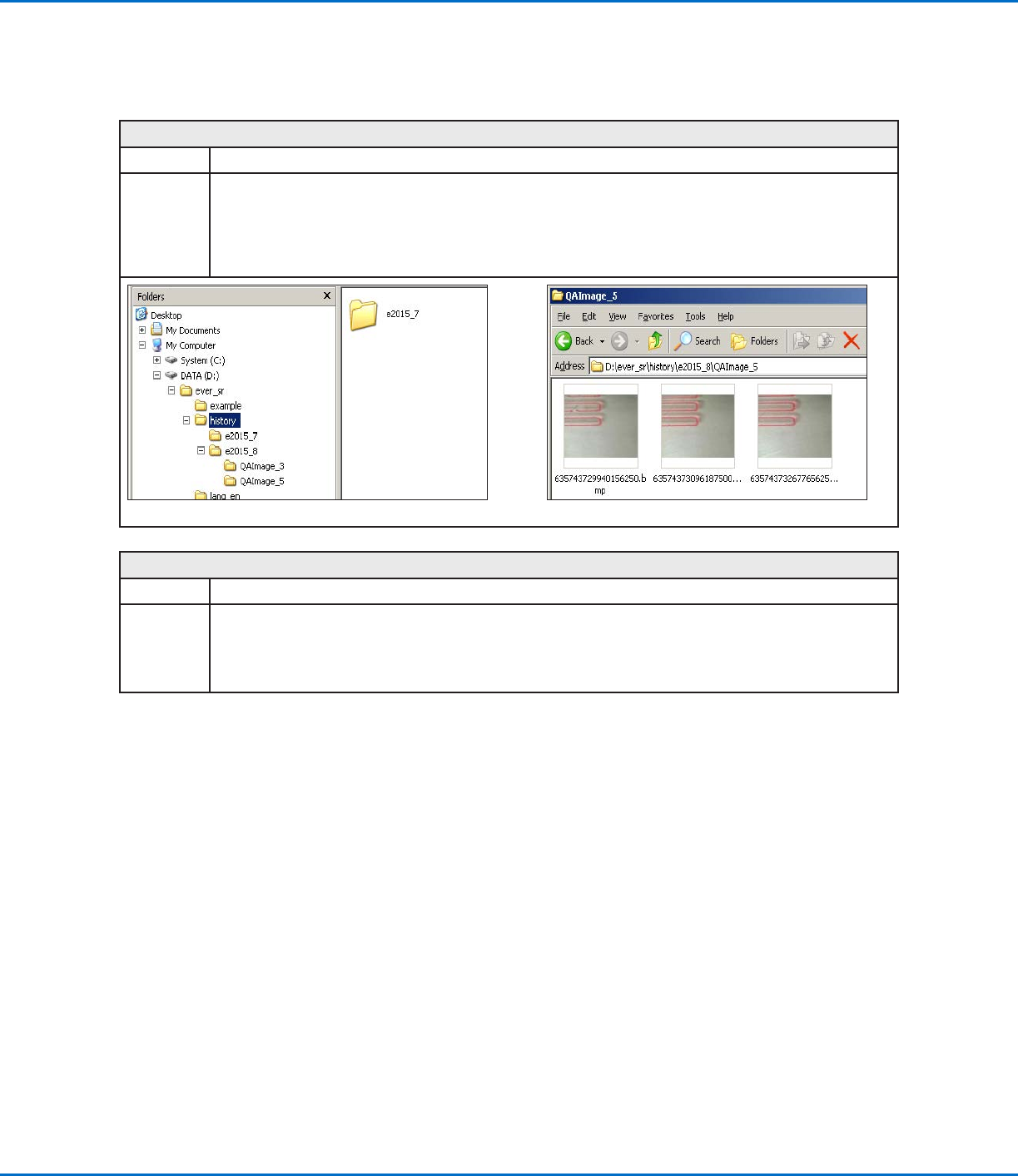
Saves the image seen by the camera at the XYZ coordinates specified for the command. Images are saved
under D:\ever_sr\history.
Each time a QA Capture command is executed, the system creates a subdirectory (under D:\ever_sr\history) that
is named for the day the command was executed. The file path for the saved QA images is:
D:\ever_sr\history \eXXXX_YY\QAImage_ZZ, where XXXX = year, YY = month, and ZZ = day of month
Directory structure created by the QA Capture command Example of saved QA Capture images
Rectangle Adjust
Click Function
Double-click
address and
select from
drop-down
menu
This command is not used on GV Series systems.
Appendix A, Command Function Reference
(continued)
GV Series Automated Dispensing Systems
119www.nordsonefd.com info@nordsonefd.com +1-401-431-7000 Sales and service of Nordson EFD dispensing systems are available worldwide.
Set
Click Function
Double-click
address and
select from drop-
down menu
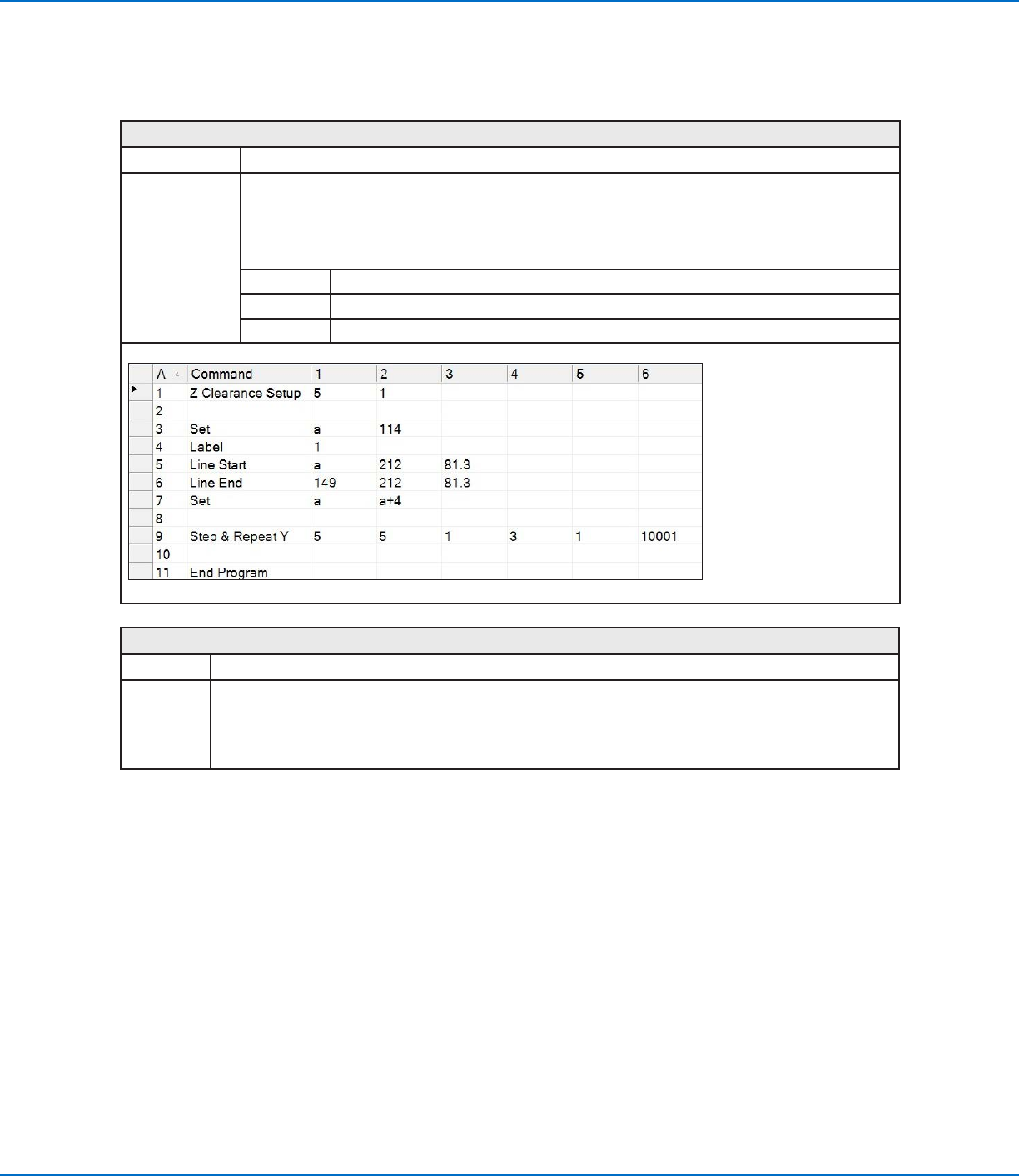
Allows a numeric value to be assigned to a symbol or character; once assigned, the symbol or character
can be used in a program in place of the numeric value. A set command can also be used to cause the
system to increase or decrease a coordinate by the assigned numeric value.
NOTE: Unlike the Var command (included later in this section), Set cannot be used with a Find Mark or
Fiducial Mark command.
Parameter Description
Symbol Enter the symbol or character that will represent the assigned Value
Value Enter the numeric value that the symbol or character represents
Example of a program that includes a Set command
Setup Dispense Port
Click Function
Double-click
address and
select from
drop-down
menu
Allows you to turn on multiple output ports at the same time. For example, to turn on ports 1, 2, and 3, enter
“1.2.3” (with periods between the port numbers, no spaces). The default setting is port 0.
Appendix A, Command Function Reference
(continued)