Nordson_EFD_GV_Series_Operating_Manual - 第119页
GV Series Automated Dispensing Systems 119 www.nordsonefd.com info@nordsonefd.com +1-401-431-7000 Sales and service of Nordson EFD dispensing systems are available worldwide. Set Click Function Double-click address and s…
GV Series Automated Dispensing Systems
118 www.nordsonefd.com info@nordsonefd.com +1-401-431-7000 Sales and service of Nordson EFD dispensing systems are available worldwide.
QA Capture
Click Function
Double-click
address and
select from
drop-down
menu
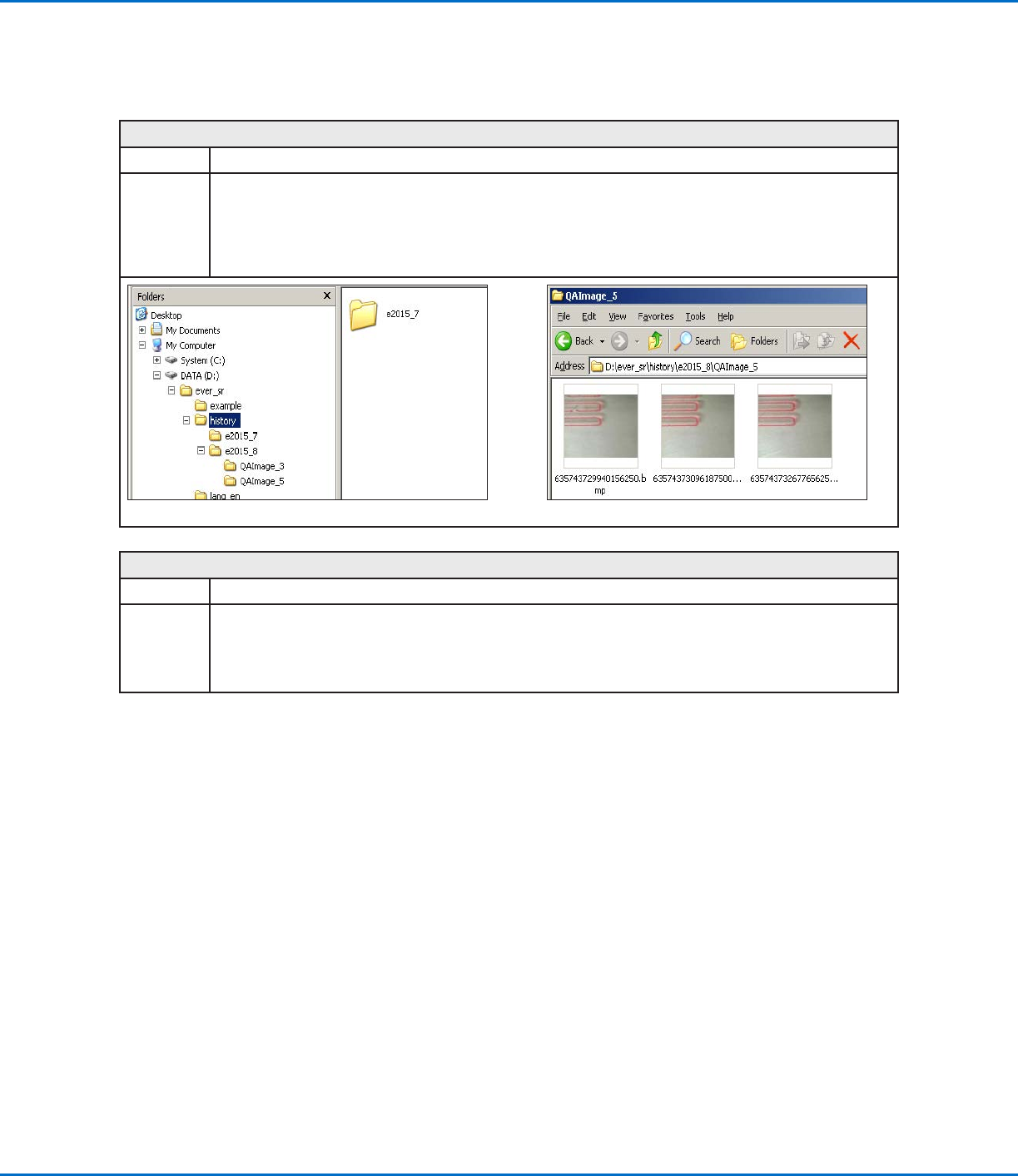
Saves the image seen by the camera at the XYZ coordinates specified for the command. Images are saved
under D:\ever_sr\history.
Each time a QA Capture command is executed, the system creates a subdirectory (under D:\ever_sr\history) that
is named for the day the command was executed. The file path for the saved QA images is:
D:\ever_sr\history \eXXXX_YY\QAImage_ZZ, where XXXX = year, YY = month, and ZZ = day of month
Directory structure created by the QA Capture command Example of saved QA Capture images
Rectangle Adjust
Click Function
Double-click
address and
select from
drop-down
menu
This command is not used on GV Series systems.
Appendix A, Command Function Reference
(continued)
GV Series Automated Dispensing Systems
119www.nordsonefd.com info@nordsonefd.com +1-401-431-7000 Sales and service of Nordson EFD dispensing systems are available worldwide.
Set
Click Function
Double-click
address and
select from drop-
down menu
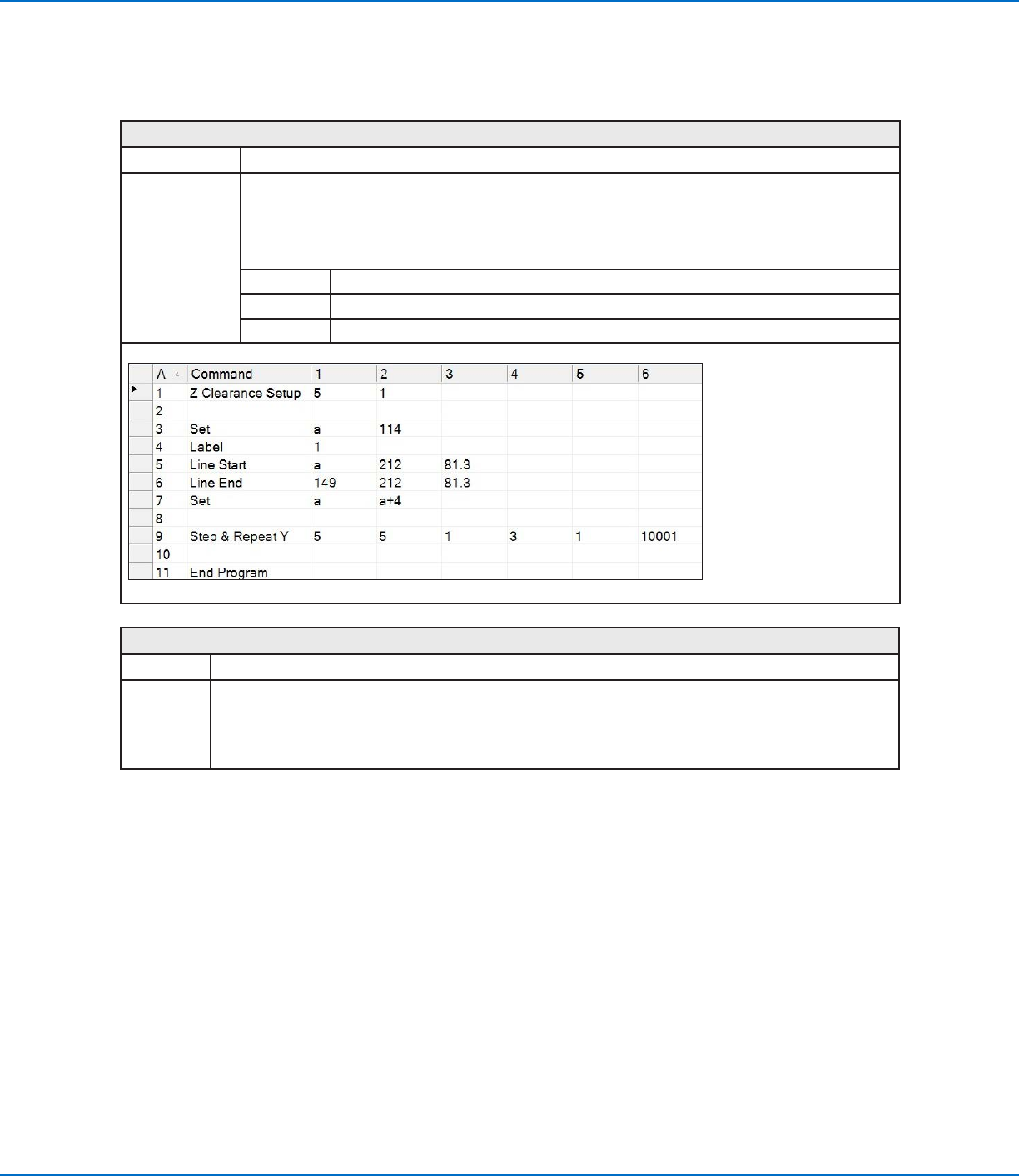
Allows a numeric value to be assigned to a symbol or character; once assigned, the symbol or character
can be used in a program in place of the numeric value. A set command can also be used to cause the
system to increase or decrease a coordinate by the assigned numeric value.
NOTE: Unlike the Var command (included later in this section), Set cannot be used with a Find Mark or
Fiducial Mark command.
Parameter Description
Symbol Enter the symbol or character that will represent the assigned Value
Value Enter the numeric value that the symbol or character represents
Example of a program that includes a Set command
Setup Dispense Port
Click Function
Double-click
address and
select from
drop-down
menu
Allows you to turn on multiple output ports at the same time. For example, to turn on ports 1, 2, and 3, enter
“1.2.3” (with periods between the port numbers, no spaces). The default setting is port 0.
Appendix A, Command Function Reference
(continued)
GV Series Automated Dispensing Systems
120 www.nordsonefd.com info@nordsonefd.com +1-401-431-7000 Sales and service of Nordson EFD dispensing systems are available worldwide.
Appendix A, Command Function Reference
(continued)
Step & Repeat X
Click Function
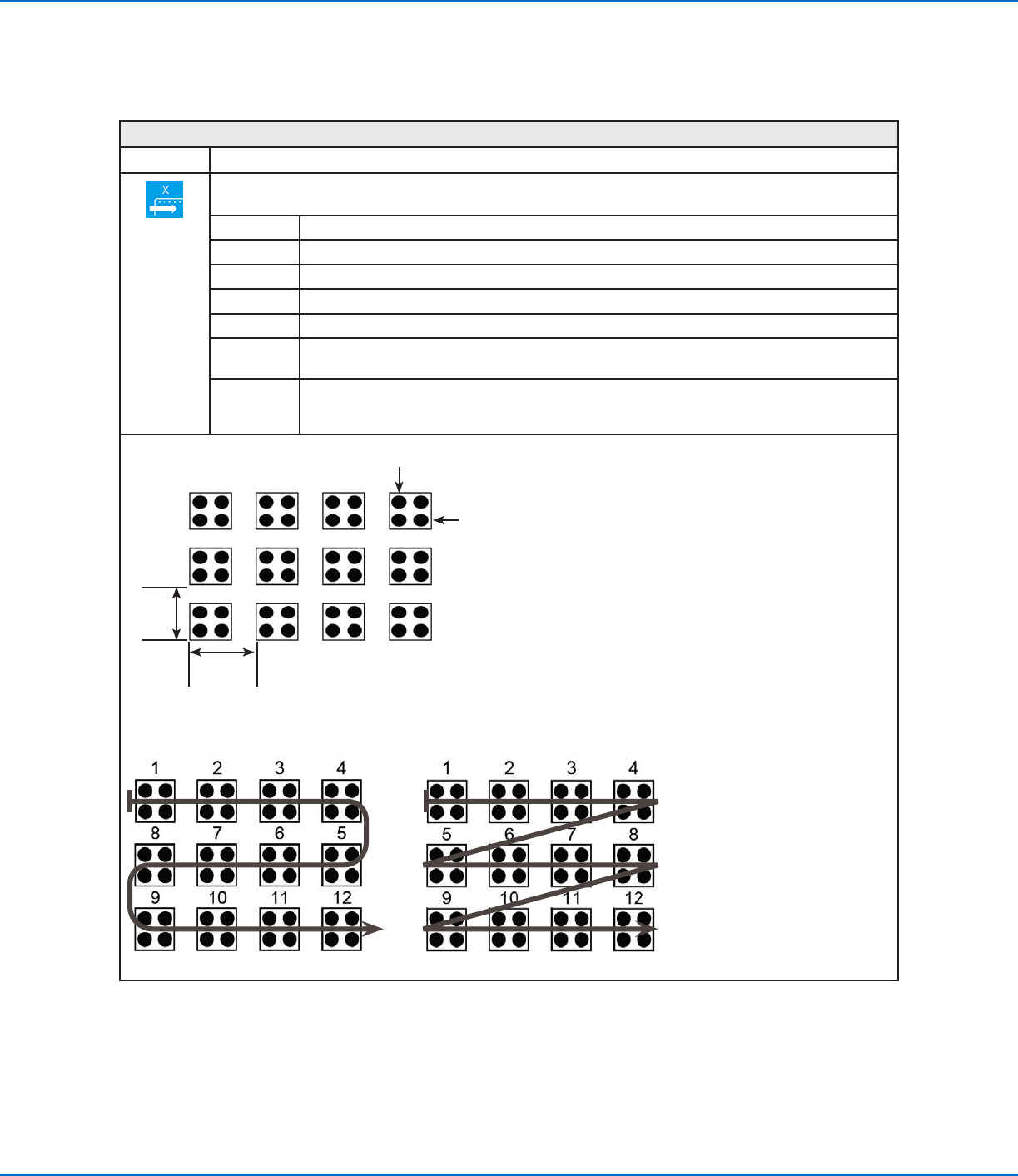
Enables the repeat of the dispensing pattern onto many identical workpieces that are mounted on a fixture plate
and aligned in rows and columns.
Parameter Description (see illustrations below)
X Offset The distance (in mm) between each workpiece in the X direction.
Y Offset The distance (in mm) between each workpiece in the Y direction.
Columns (X) The number of columns in the X direction.
Rows (Y) The number of rows in the Y direction.
1.S Path or
2.N Path
The path of pattern travel. Select “1.S Path” for an S-shaped pattern or “2.N Path” for an
N-shaped pattern.
Label
(default) or
Address
The label or address where the Step & Repeat X command begins.
X Offset
(in mm)
Y Offset
(in mm)
Row (Y)
Column (X)
Example of X and Y offsets in a Step & Repeat command
Step & Repeat X, S Path Step & Repeat X, N Path
Difference between the “1.S Path” and “2.N Path” selections