Nordson_EFD_GV_Series_Operating_Manual - 第123页
GV Series Automated Dispensing Systems 123 www.nordsonefd.com info@nordsonefd.com +1-401-431-7000 Sales and service of Nordson EFD dispensing systems are available worldwide. Wait Point Click Function Registers a Wait Po…
GV Series Automated Dispensing Systems
122 www.nordsonefd.com info@nordsonefd.com +1-401-431-7000 Sales and service of Nordson EFD dispensing systems are available worldwide.
Appendix A, Command Function Reference
(continued)
Stop Point
Click Function
Registers a Stop Point at the current XYZ location. When this command occurs, the dispensing tip moves to the
registered location and waits until the START or CONTINUE button is pressed.
Trig Mark
Click Function
Double-click
address and
select from
drop-down
menu
This command is not used on GV Series systems.
Var
Click Function
Double-click
address and
select from drop-
down menu
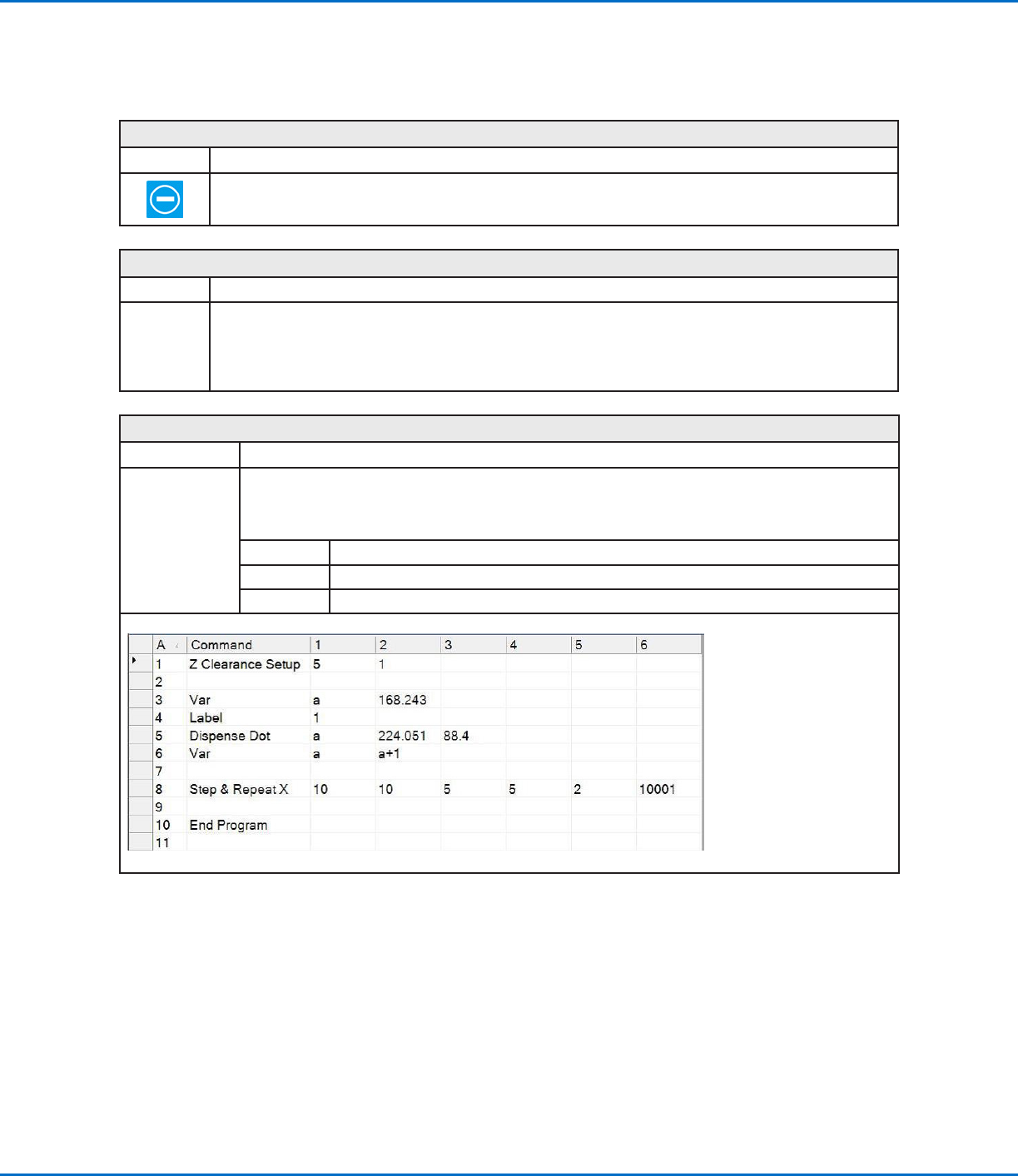
Allows a numeric value to be assigned to a symbol or character; once assigned, the symbol or character
can be used in a program in place of the numeric value. A set command can also be used to cause the
system to increase or decrease a coordinate by the assigned numeric value. Var can be used with the Find
Mark and Fiducial Mark commands.
Parameter Description
Symbol Enter the symbol or character that will represent the assigned Value
Value Enter the numeric value that the symbol or character represents
Example of a program that includes a Var command
GV Series Automated Dispensing Systems
123www.nordsonefd.com info@nordsonefd.com +1-401-431-7000 Sales and service of Nordson EFD dispensing systems are available worldwide.
Wait Point
Click Function
Registers a Wait Point to occur immediately after the previous command. When this command occurs, the
dispensing tip waits at the end point of the previous command for the specified Wait Time (in seconds).
Z Clearance Setup
Click Function
Specifies the height to which the dispensing tip raises after each dispense command. The purpose of Z
Clearance is to raise the tip high enough so that it clears all obstacles as it moves from one point to another.
If there are no obstacles between any of the points, a small Z Clearance value, such as 5mm, can be used to
minimize the program cycle time.
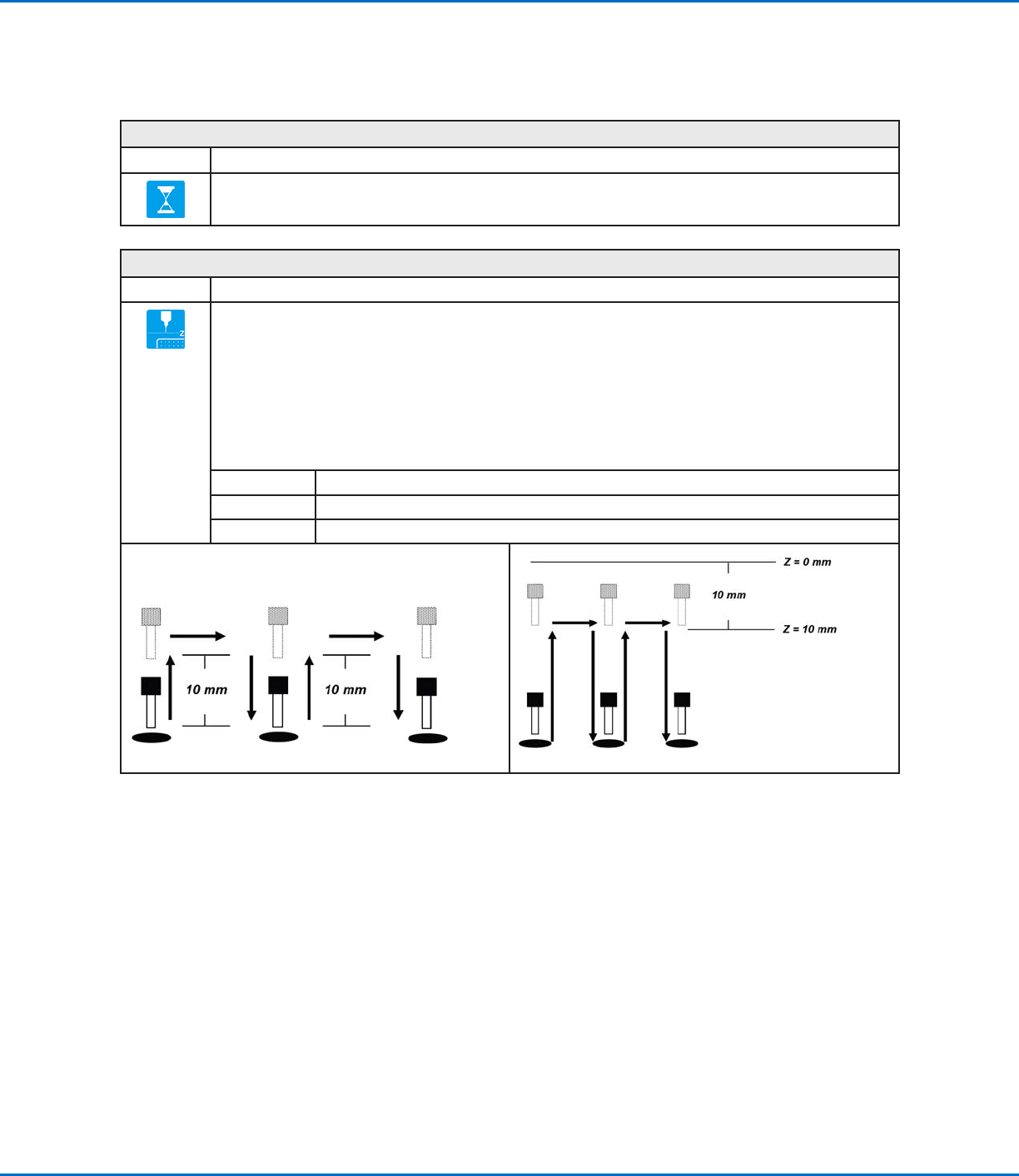
Z Clearance is further defined as an absolute value (0) or a relative value (1) . When specified as a relative value,
it is the distance the tip raises relative to the taught point location. When it is specified as an absolute value, it is
the distance from the Z axis zero position to which the tip raises regardless of the Z-axis value of the taught point
location.
Nordson EFD recommends inserting a Z Clearance command at the beginning of a program.
Parameter Description (see illustrations below)
Value The distance (in mm) the tip raises after dispensing.
0(Abs), 1(Rel) How the tip raises: 0(Abs) = absolute, 1(Rel) = relative.
Z Clearance = 10 mm relative Z Clearance = 10 mm absolute
Appendix A, Command Function Reference
(continued)
GV Series Automated Dispensing Systems
124 www.nordsonefd.com info@nordsonefd.com +1-401-431-7000 Sales and service of Nordson EFD dispensing systems are available worldwide.
AppendixB, Non-Wizard Setup Procedures
All setup and calibration procedures are guided by the Robot Initial Setup wizard, which should be used after any
system change, including tip change-out. However, the procedures in this appendix can be performed individually
and are provided here for your reference as needed.
Setting the Camera Scale
#
Click Step Reference Image
1
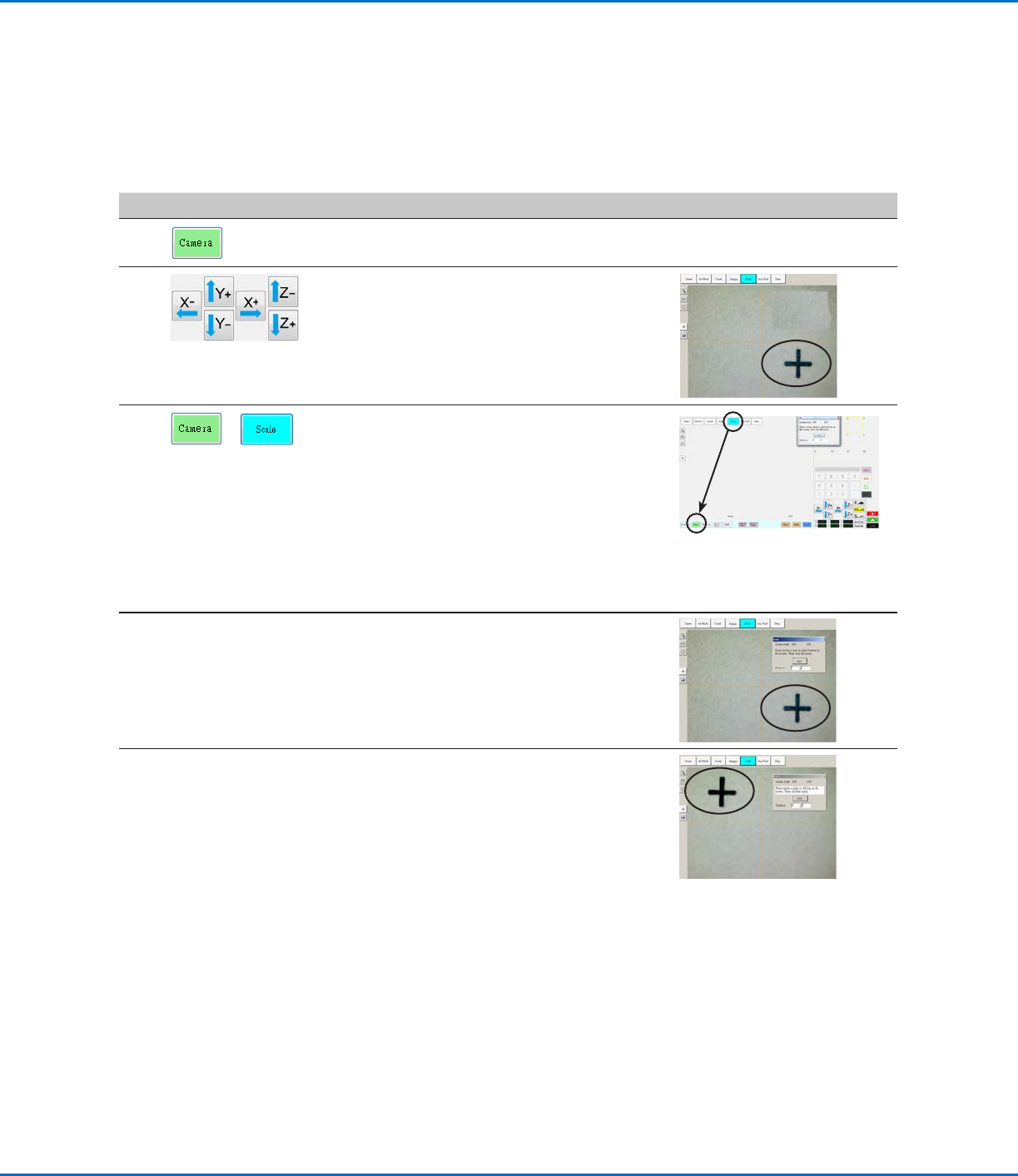
• Click the CAMERA tab.
2
• Jog the camera to a point of reference that
is located on the lower right corner of the
workpiece.
• Bring the image into focus. Refer to
“Camera” on page18 as needed for
instructions on focusing the camera.
3
>
• Click the CAMERA tab and then click
SCALE.
The Scale window opens.
NOTE: When the camera views an object, it
converts the pixels to a true measurement.
For the camera to make this conversion
accurately, you must “teach” the camera
what the size of an object is in comparison
to pixels per inch by setting the camera
scale.
4
• Choose a point of reference on the
workpiece and jog the camera so that the
reference point is located in the lower right
quadrant of the camera screen, then click
the point.
5
• Jog the camera again until the same
reference point is located in the upper left
quadrant of the camera screen, then click
the point.
The camera scale is now set.