Nordson_EFD_GV_Series_Operating_Manual - 第140页
GV Series Automated Dispensing Systems 140 www.nordsonefd.com info@nordsonefd.com +1-401-431-7000 Sales and service of Nordson EFD dispensing systems are available worldwide. Appendix E, Multi-Needle Setup and Use (conti…
GV Series Automated Dispensing Systems
139www.nordsonefd.com info@nordsonefd.com +1-401-431-7000 Sales and service of Nordson EFD dispensing systems are available worldwide.
Appendix E, Multi-Needle Setup and Use (continued)
To Set the Camera-to-Tip Offsets for Multiple Dispensers (continued)
# Click Step Reference Image
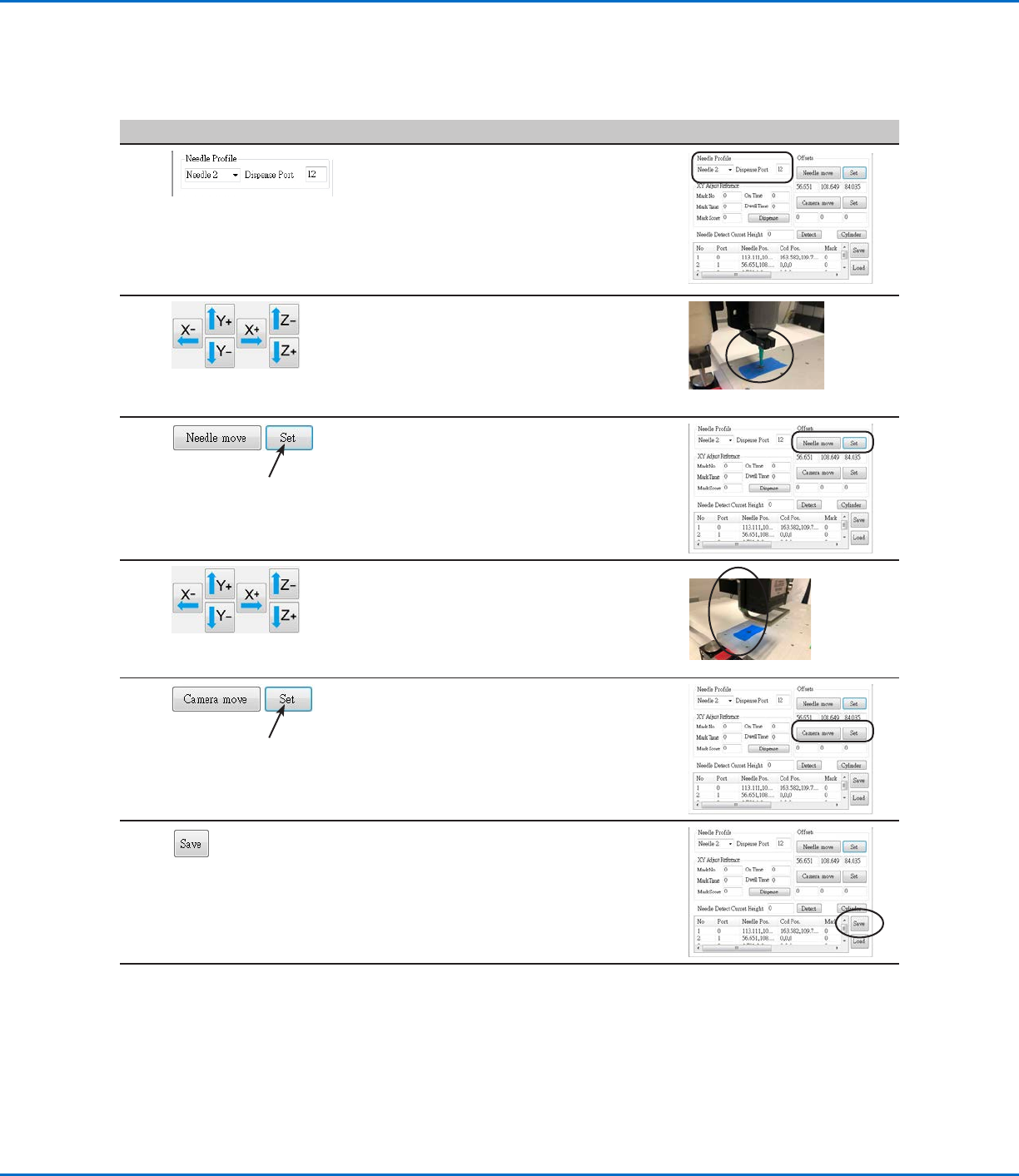
9
• Enter the following information for NEEDLE
PROFILE:
- Dispenser number (in this example,
Needle2 for Dispenser 2)
- Port that the dispenser is connected to
(in this example, Dispense Port 12 for
Dispenser 2)
10
• Use the jog keys to position the second tip
over the crosshair target (on either the tip
detector or the one you created).
• Jog the tip down until it as close to the
crosshair target as possible without touching
the target.
11
• Click SET next to Needle Move.
This sets the XYZ coordinates for the
dispense calibration point. The system enters
the dispensing tip coordinates in the fields
under Needle Move and Set.
12
• Jog the camera until the camera crosshairs
are centered over the crosshair target
and then
focus the camera until the image of the
crosshair target is clear.
13
• Click SET next to Camera Move.
This sets the camera position. The system
enters the camera coordinates in the fields
under Camera Move and Set.
14
• Click SAVE.
The system populates the Needle 2 data
fields.
The system is now set up for multiple
dispenser operation. Continue to the
next procedure in this section to use this
capability.
GV Series Automated Dispensing Systems
140 www.nordsonefd.com info@nordsonefd.com +1-401-431-7000 Sales and service of Nordson EFD dispensing systems are available worldwide.
Appendix E, Multi-Needle Setup and Use (continued)
To Use the Multi Needle Command in a Program
PREREQUISITES
The system is properly set up. Refer to “Setting Up and Calibrating the System (Required)” on page48.
The additional dispensers are installed and set up and the Multi Needle capability is enabled. Refer to “To Enable
Multi-Needles Dispensing” on page137 and to “To Set the Camera-to-Tip Offsets for Multiple Dispensers” on
page137.
A test workpiece is positioned on the fixture plate or work surface.
NOTE: This procedure explains the programming process for two dispensers. Repeat steps as needed to add
commands for additional dispensers (up to four dispensers can be installed).
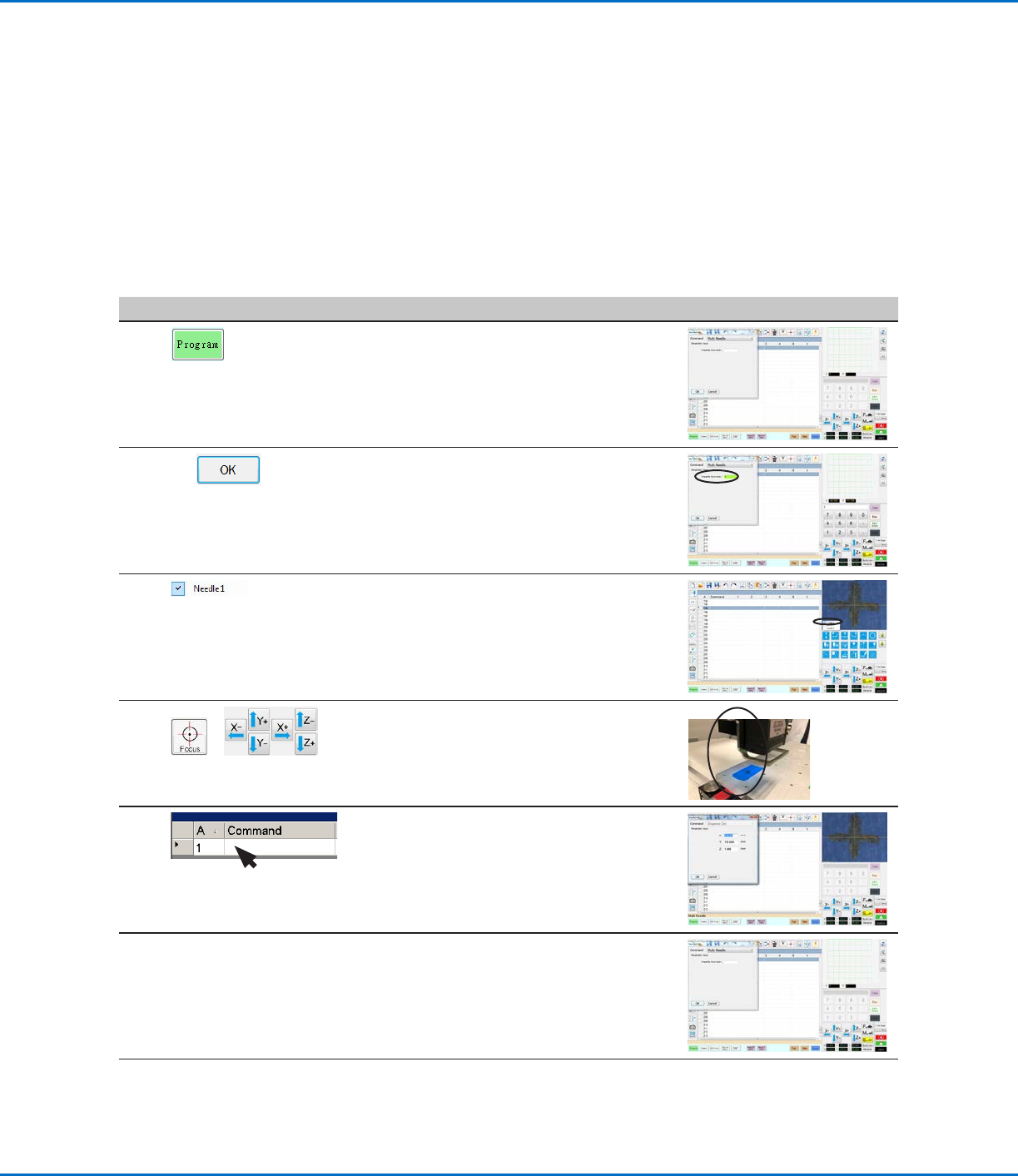
# Click Step Reference Image
1
> MULTI NEEDLE
• Click the PROGRAM tab
• Double-click the address row where you
want to insert a Multi Needle command and
select MULTI NEEDLE.
2
1 >
• Enter the number of the dispenser to
dispense from at this point in the program (in
this example, Dispenser 1).
• Click OK to save.
3
• In the Secondary View screen, right click and
check the NEEDLE 1 checkbox.
4
>
• Click the FOCUS icon to focus the camera.
• Jog the camera until the camera crosshairs
are centered over the desired target on the
workpiece.
5
• Insert the required commands for
Dispenser1 (for example, create dispense
dots or lines).
6
MULTI NEEDLE
• Double-click the address row where you
want to insert the second Multi Needle
command and select MULTI NEEDLE.
Continued on next page
GV Series Automated Dispensing Systems
141www.nordsonefd.com info@nordsonefd.com +1-401-431-7000 Sales and service of Nordson EFD dispensing systems are available worldwide.
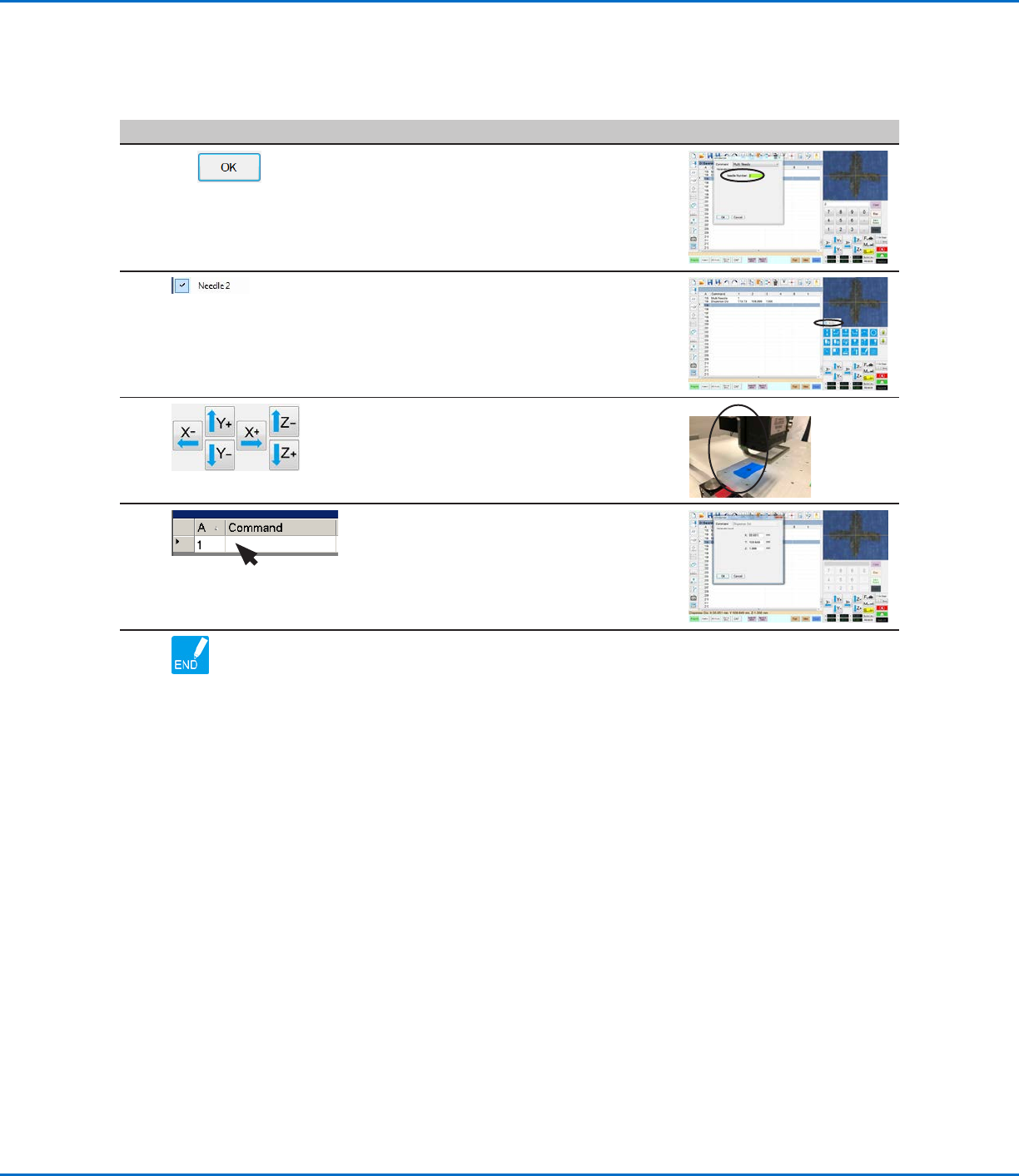
# Click Step Reference Image
7
2 >
• Enter the number of the dispenser to
dispense from at this point in the program (in
this example, Dispenser 2).
• Click OK to save.
8
• In the Secondary View screen, right click and
check the NEEDLE 2 checkbox.
9
• Click the FOCUS icon to focus the camera.
• Jog the camera until the camera crosshairs
are centered over the desired target on the
workpiece.
10
• Insert the required commands for
Dispenser2 (for example, create arc or fills).
11
• Click END PROGRAM to end the program.
The system will dispense from Dispenser 1
or Dispenser 2 as programmed.
Appendix E, Multi-Needle Setup and Use (continued)
To Use the Multi Needle Command in a Program (continued)