Nordson_EFD_GV_Series_Operating_Manual - 第148页
GV Series Automated Dispensing Systems 148 www.nordsonefd.com info@nordsonefd.com +1-401-431-7000 Sales and service of Nordson EFD dispensing systems are available worldwide. AppendixH, System Setup for Installing Softw…
GV Series Automated Dispensing Systems
147www.nordsonefd.com info@nordsonefd.com +1-401-431-7000 Sales and service of Nordson EFD dispensing systems are available worldwide.
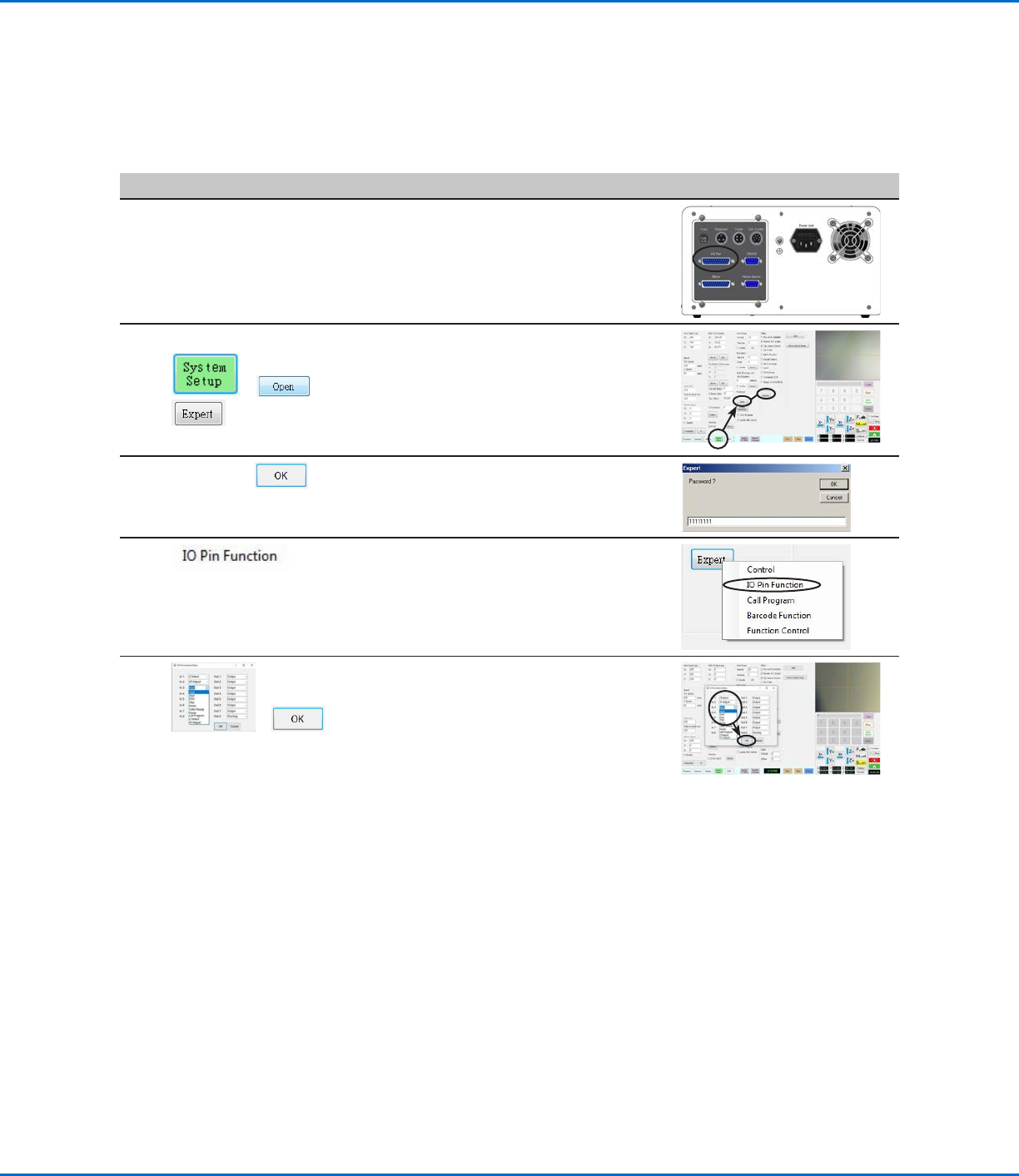
To Reconfigure Inputs / Outputs
PREREQUISITES
The system is properly set up. Refer to “Setting Up and Calibrating the System (Required)” on page48.
#
Click Step Reference Image
1
• Connect the signal wiring to the I/O
Port on the back of the GV operation
box.
2
> >
• Click SYSTEM SETUP > OPEN >
EXPERT.
3
11111111 >
• Enter 11111111, then click OK.
4
• Click IO PIN FUNCTION.
5
>
• Click the input or output to configure,
then select the configuration from the
drop-down menu. Refer to “IO Pin
Function Configurations” on page146
for a description of the configuration
selections.
• Click OK.
Appendix G, I/O Pin Function Setup (continued)
GV Series Automated Dispensing Systems
148 www.nordsonefd.com info@nordsonefd.com +1-401-431-7000 Sales and service of Nordson EFD dispensing systems are available worldwide.
AppendixH, System Setup for Installing Software
Updates
To prevent damage to the DispenseMotion software, the C drive of the DispenseMotion controller is factory-
locked. It may be necessary to unlock the C drive to allow large updates to the DispenseMotion software to be fully
installed. Follow this procedure to check the status of the C drive and to disable this feature if needed.
NOTE: You can request the latest DispenseMotion software at www.nordsonefd.com/DispenseMotion.
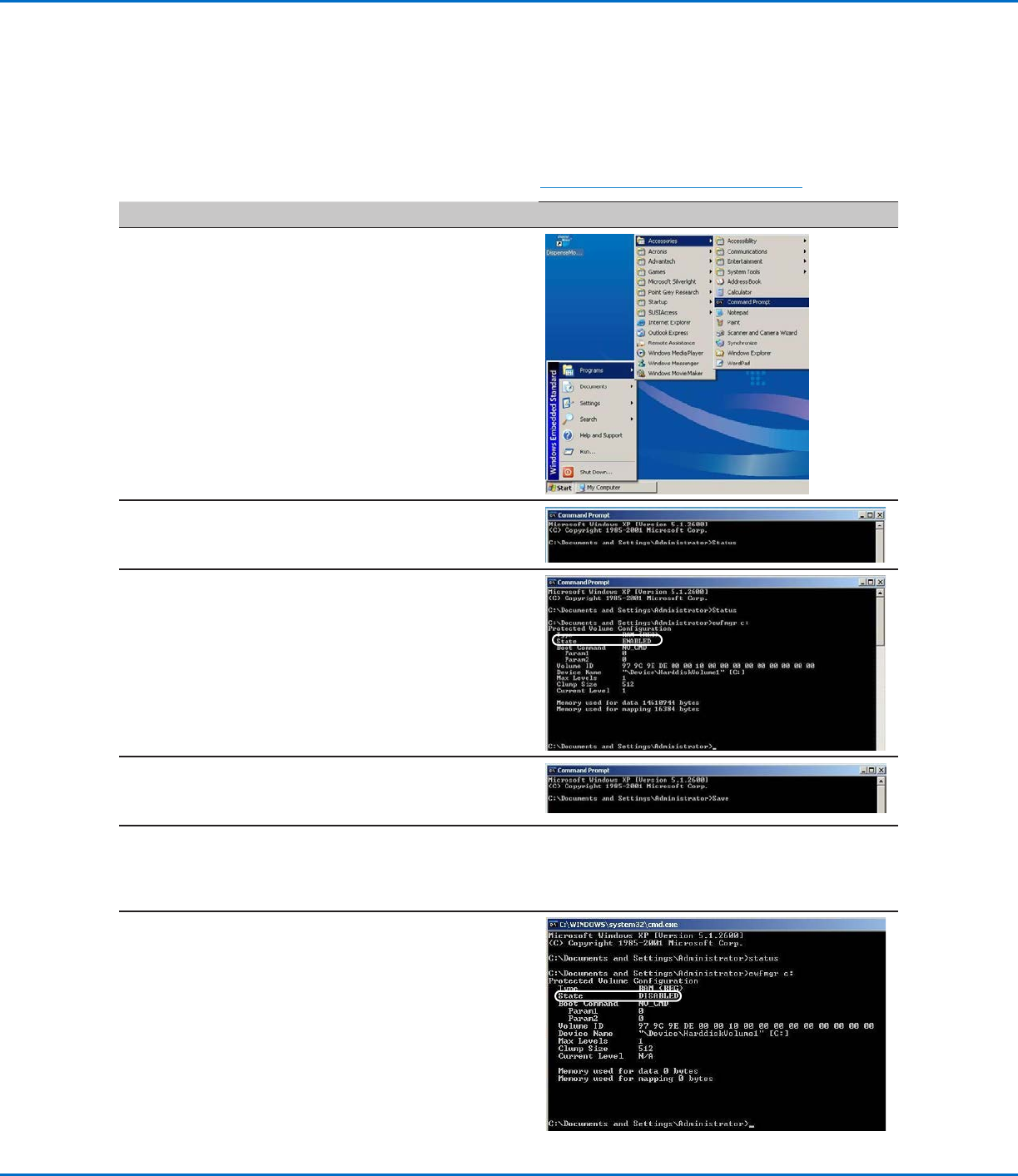
# Step Reference Image
1
• Click Start > Programs > Accessories > Command
Prompt.
2
• At the command prompt, type STATUS and press
the enter key.
3
• Next to State, the system displays either ENABLED
or DISABLED. If the State is DISABLED, then the
DispenseMotion controller is configured correctly
for updates. Skip to the end of this procedure.
• If the State is ENABLED, type DISABLE and press
the enter key.
4
• Type SAVE and press the enter key.
5
• Click START > RESTART and allow the system to
reboot for the change to take effect.
• After the DispenseMotion controller reboots, open
the Command Prompt window again.
6
• Type STATUS and press the enter key.
If the main drive is unlocked, the State shows
DISABLED.
You can now install DispenseMotion software
updates or other needed software. To lock the main
drive after installing software, open the Command
Prompt window, type ENABLE > SAVE, and then
reboot the system.

GV Series Automated Dispensing Systems
149www.nordsonefd.com info@nordsonefd.com +1-401-431-7000 Sales and service of Nordson EFD dispensing systems are available worldwide.
Notes