Nordson_EFD_GV_Series_Operating_Manual - 第31页
GV Series Automated Dispensing Systems 31 www.nordsonefd.com info@nordsonefd.com +1-401-431-7000 Sales and service of Nordson EFD dispensing systems are available worldwide. Primary V iew Screen and T ab Bar The Primary …
GV Series Automated Dispensing Systems
30 www.nordsonefd.com info@nordsonefd.com +1-401-431-7000 Sales and service of Nordson EFD dispensing systems are available worldwide.
Command Windows
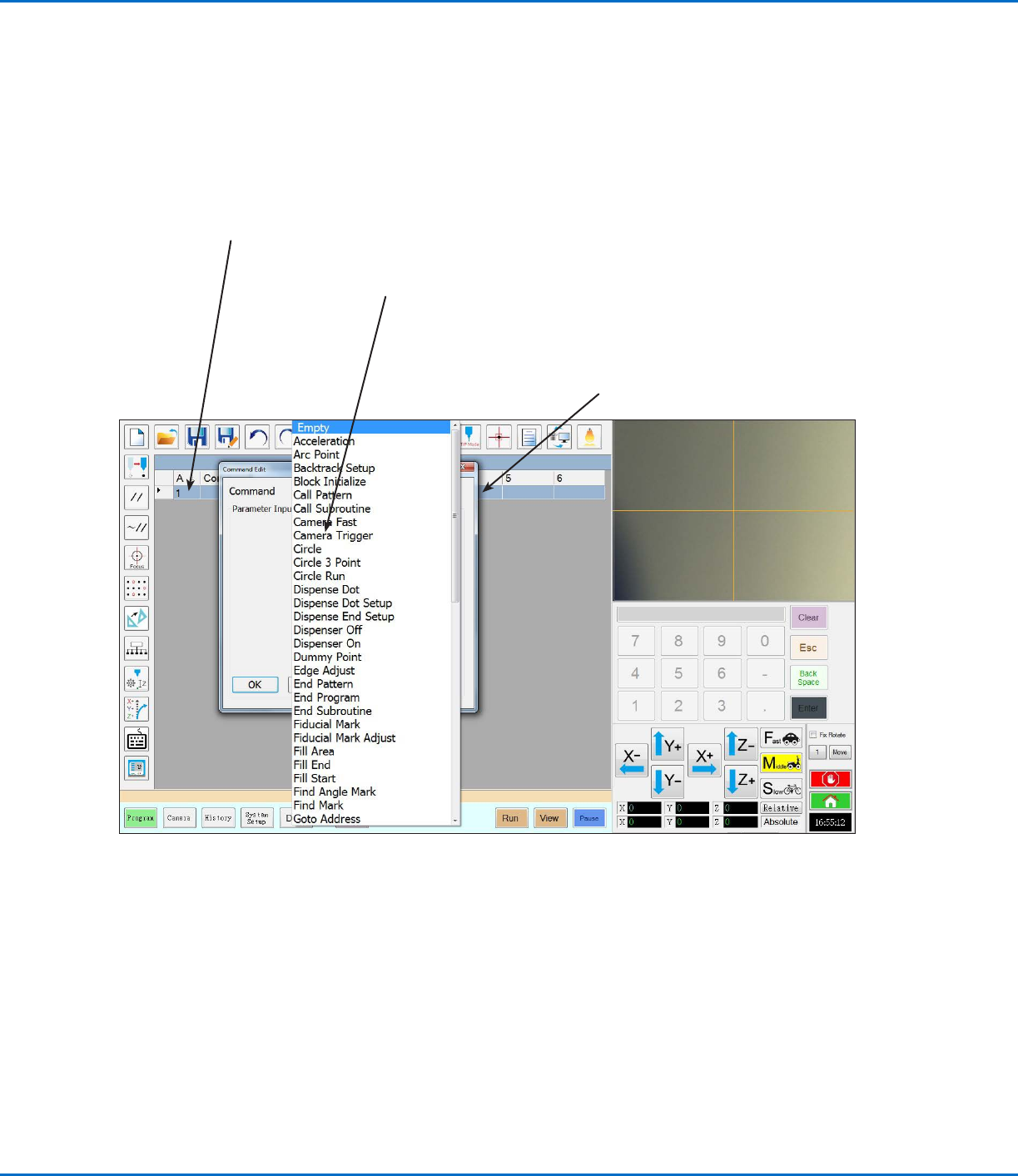
When you double-click a command address line on the Program screen, a drop-down menu of all available
commands appears. Select any command to open the window for that command. Each command window contains
the parameters, if any, that can be set for the command. Refer to “AppendixA, Command Function Reference” on
page98 for detailed information on all commands and associated parameters.
Command window: Enter parameters for
the command in this window. Refer to
“AppendixA, Command Function Reference”
on page 98 for detailed information on all
commands.
Command address (A):
Double-click to open the
command drop-down menu.
Command edit drop-down menu:
Click a command to open its
command window.
GV Series Automated Dispensing Systems
31www.nordsonefd.com info@nordsonefd.com +1-401-431-7000 Sales and service of Nordson EFD dispensing systems are available worldwide.
Primary View Screen and Tab Bar
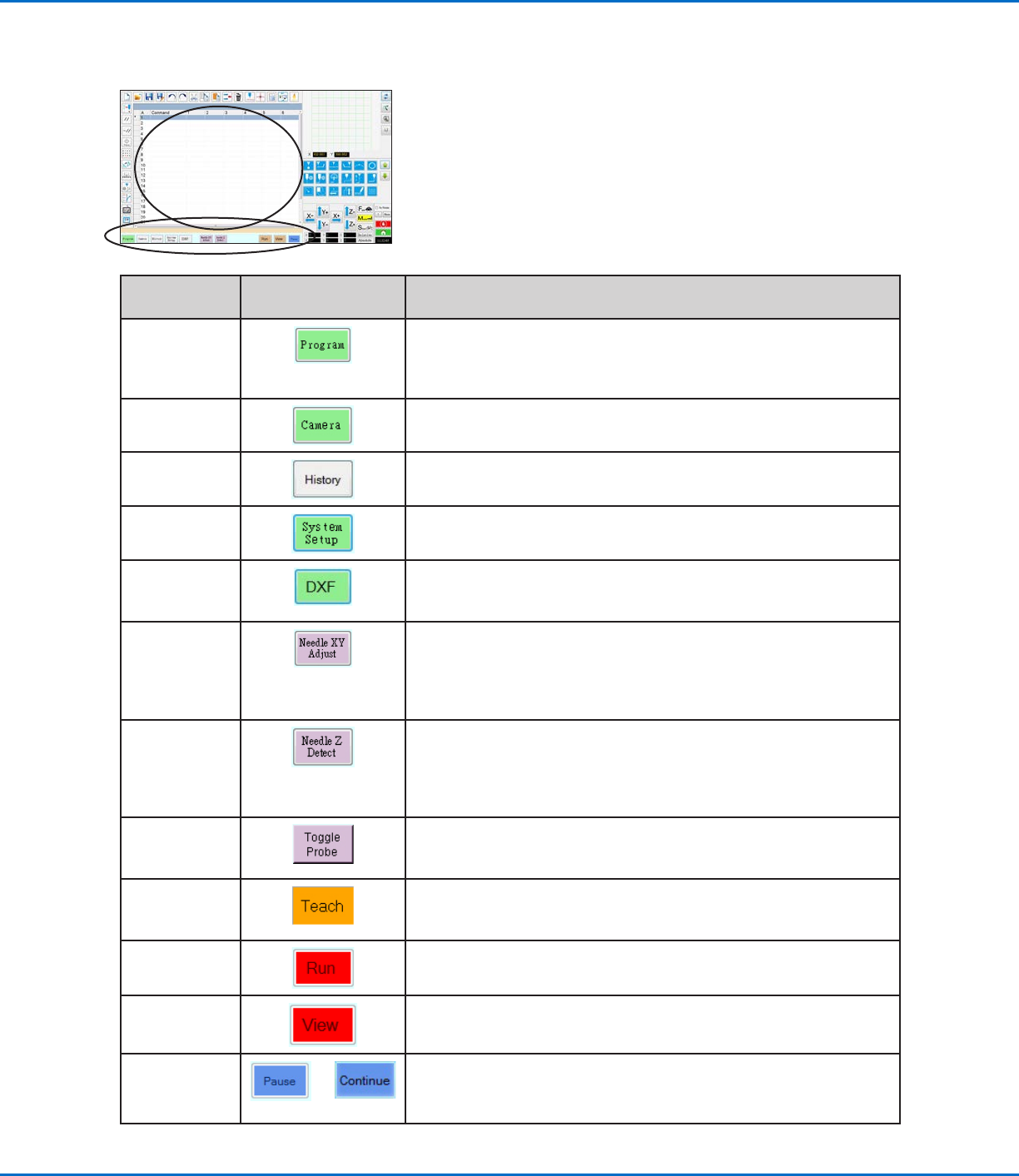
The Primary View screen changes depending on the selected tab. All the tabs are visible at all times.
Tab Name
Tab Color When
Selected
Function
Program
Shows the command view; used to create programs. Right-clicking
on this screen provides quick access to commonly used programming
functions. Refer to “Primary View Screen Right-Click Functions” on
page32 for details.
Camera
Shows the actual camera view; used to perform all camera-related
functions.
History
Shows a time-line of different commands.
System Setup Shows the settings screen; used to view or change system-level
settings or parameters.
DXF
Allows you to load drawings in DXF format into the DispenseMotion
software. Refer to “AppendixC, DXF File Import” on page127 for
more information.
Needle XY
Adjust
Automatically checks and adjusts the XY offsets without touching the
tip to any surface. This button is present only when Needle XY Adjust
is enabled on the System Setup screen. The system must be properly
setup as described under “Setting Up and Calibrating the System
(Required)” on page48.
Needle Z
Detect
Automatically checks and adjusts the tip-to-workpiece offset (Z
clearance) then performs a Needle XY Adjust. This button is present
only when Tip Detect Device is enabled on the System Setup screen.
The system must be properly setup as described under “Setting Up
and Calibrating the System (Required)” on page48.
Toggle Probe
When the optional height sensor is installed, lowers or raises the height
sensor probe. Refer to “AppendixF, Height Sensor Setup and Use” on
page142 for all information related to the optional height sensor.
Teach
When the optional start / stop box is connected, this indicator appears
on the tab bar and flashes when the robot is in the safety bypass mode.
When the Teach indication is present, the Run button is disabled.
Run
Runs the selected program.
View Runs the selected program without dispensing and also centers the
camera on the dispense path.
Pause or
Continue
or
Pauses the program that is currently running. When you click on Pause,
the button changes to Continue.
Click Continue to stop the pause.
GV Series Automated Dispensing Systems
32 www.nordsonefd.com info@nordsonefd.com +1-401-431-7000 Sales and service of Nordson EFD dispensing systems are available worldwide.
Primary View Screen Right-Click Functions
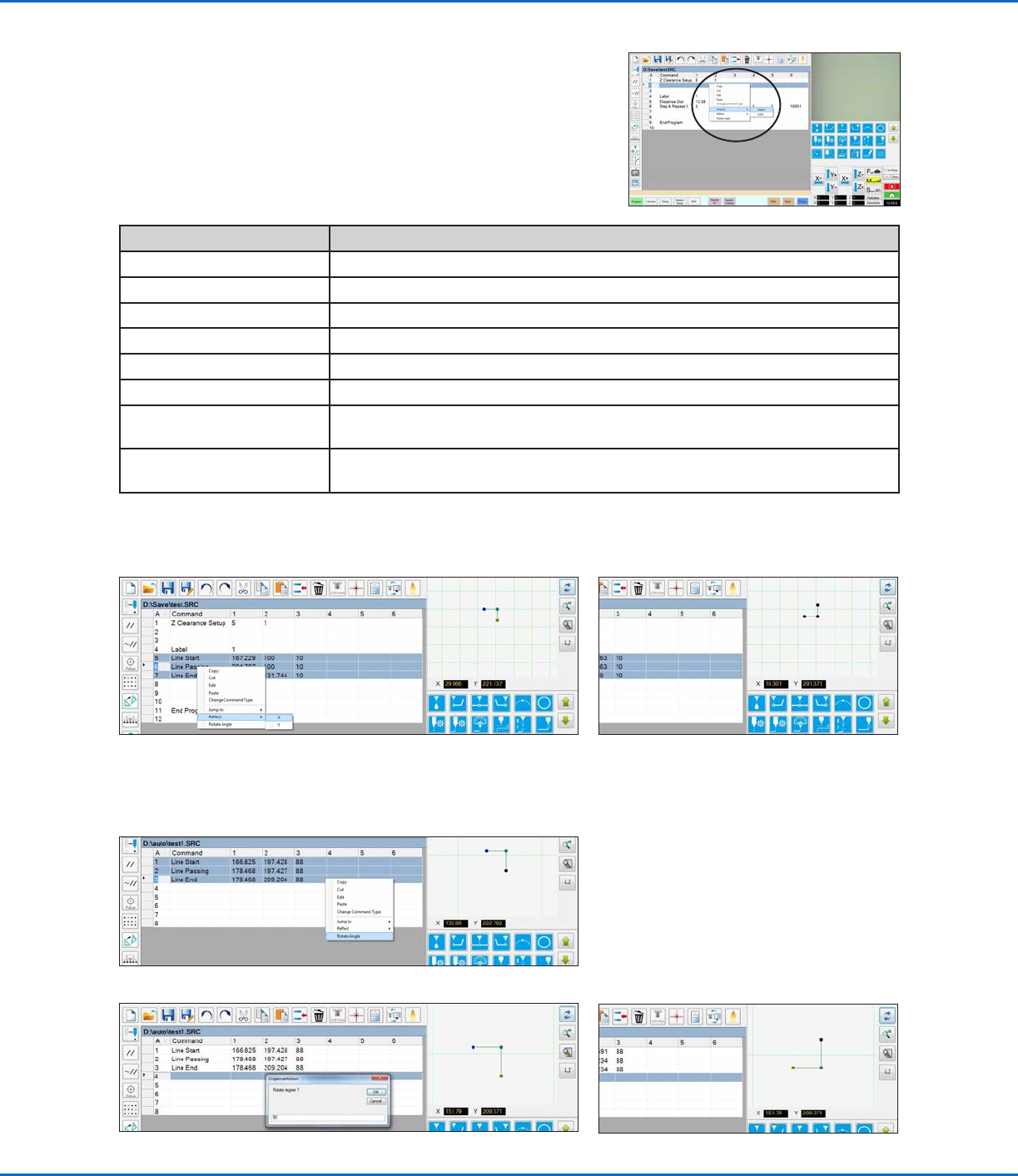
When the Program tab is selected, all the commands for the open
dispense program are shown. Right-click on one or more selected
commands to open a right-click menu. The functions shown below can
be used on the selected commands.
Item Function
Copy Copies the selected command
Cut Copies and then deletes the selected command
Edit Opens the edit window for the selected command
Paste Pastes a cut or copied command into the selected command address
Change Command Type Changes the selected command to a different command type
Jump To Jumps to a specific Address command or Label command
Reflect Flips the selected commands along the X or Y axis, thus creating a mirror image.
An example is provided below.
Rotate Angle Rotates the selected commands by a specified number of degrees. An example is
provided below.
How to Reflect (Mirror) a Pattern
1. Select the lines to reflect, right-click to select REFLECT X or Y
2. The system mirrors the selected pattern
How to Rotate a Pattern
1. Select the lines to rotate, then right-click and select ROTATE ANGLE
2. Enter the desired degrees of rotation
3. The system rotates the selected pattern