Nordson_EFD_GV_Series_Operating_Manual - 第78页
GV Series Automated Dispensing Systems 78 www.nordsonefd.com info@nordsonefd.com +1-401-431-7000 Sales and service of Nordson EFD dispensing systems are available worldwide. How to Use Mark Follow to Dispense Along a Cur…
GV Series Automated Dispensing Systems
77www.nordsonefd.com info@nordsonefd.com +1-401-431-7000 Sales and service of Nordson EFD dispensing systems are available worldwide.
# Click Step Reference Image
5
>
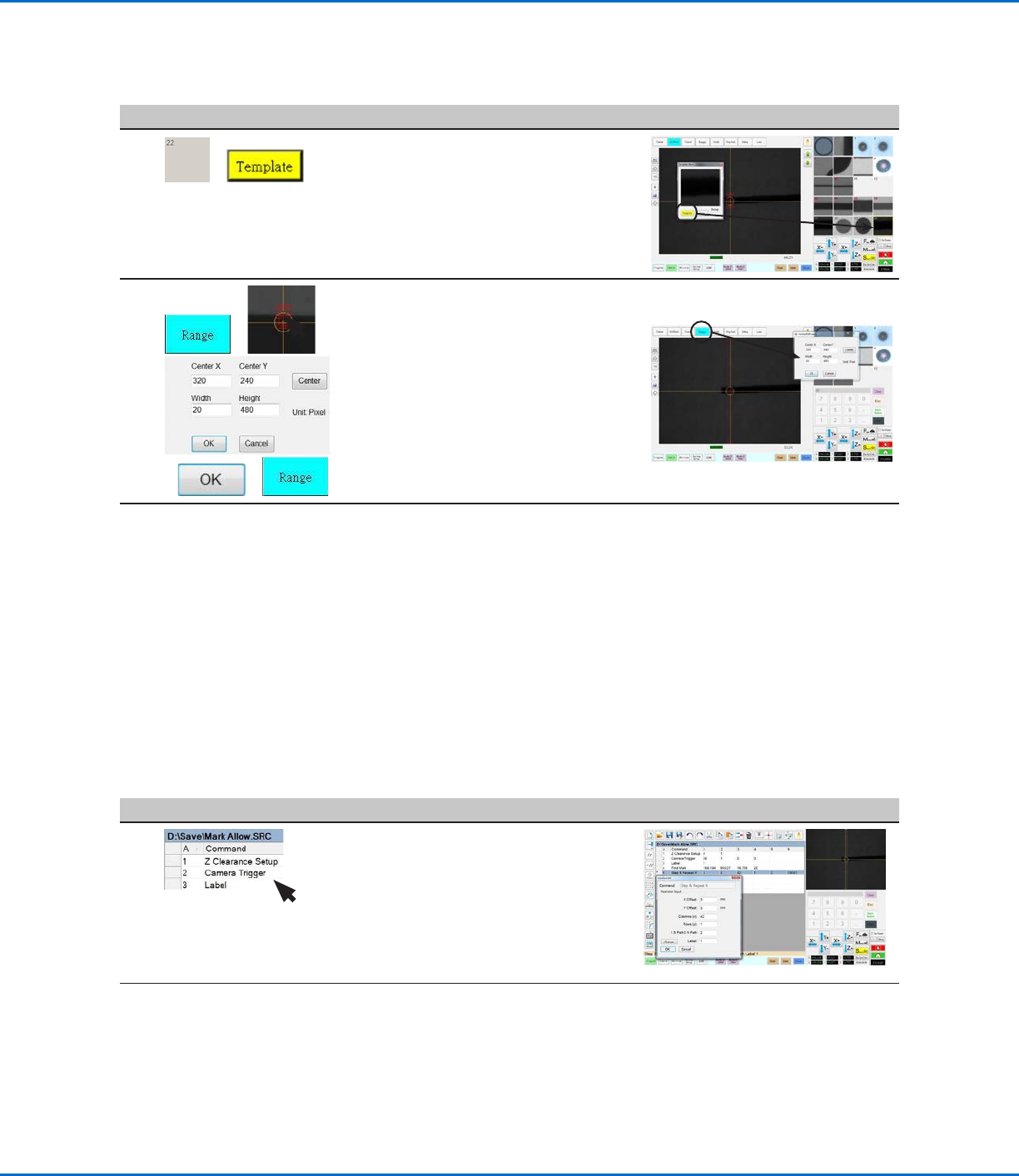
• Click a socket in the Mark Library to
save the mark, then click TEMPLATE
when the Template Match window
appears.
• Make a note of the Mark No.
6
> >
> >
• Click RANGE to set where the system
searches for the mark.
• Double-click the crosshairs in the center
of the mark and enter Width and Height
values.
NOTE: The Width value must be the
same as the Width specified previously
(20 in this example).
• Click OK.
• Click RANGE again to save.
7
• Continue to the next procedure, “To Use
Mark Follow and / or Mark Follow Adjust
in a Program”.
To Use Mark Follow and / or Mark Follow Adjust in a Program
In this example, the Step & Repeat X command is used to cause the system to dispense along the curved line.
PREREQUISITES
You have completed “To Create a Mark Image for a Curved Line” on page76.
# Click Step Reference Image
1
• Insert the beginning commands for the
program. Refer to “Example program
using Find Mark, Mark Follow, and
Mark Follow Adjust commands” on
page81 for the complete example
program.
NOTE: The Camera Trigger command
can be used if needed.
Continued on next page
How to Use Mark Follow to Dispense Along a Curved Line (continued)
To Create a Mark Image for a Curved Line (continued)
GV Series Automated Dispensing Systems
78 www.nordsonefd.com info@nordsonefd.com +1-401-431-7000 Sales and service of Nordson EFD dispensing systems are available worldwide.
How to Use Mark Follow to Dispense Along a Curved Line (continued)
To Use Mark Follow and / or Mark Follow Adjust in a Program (continued)
# Click Step Reference Image
2
>
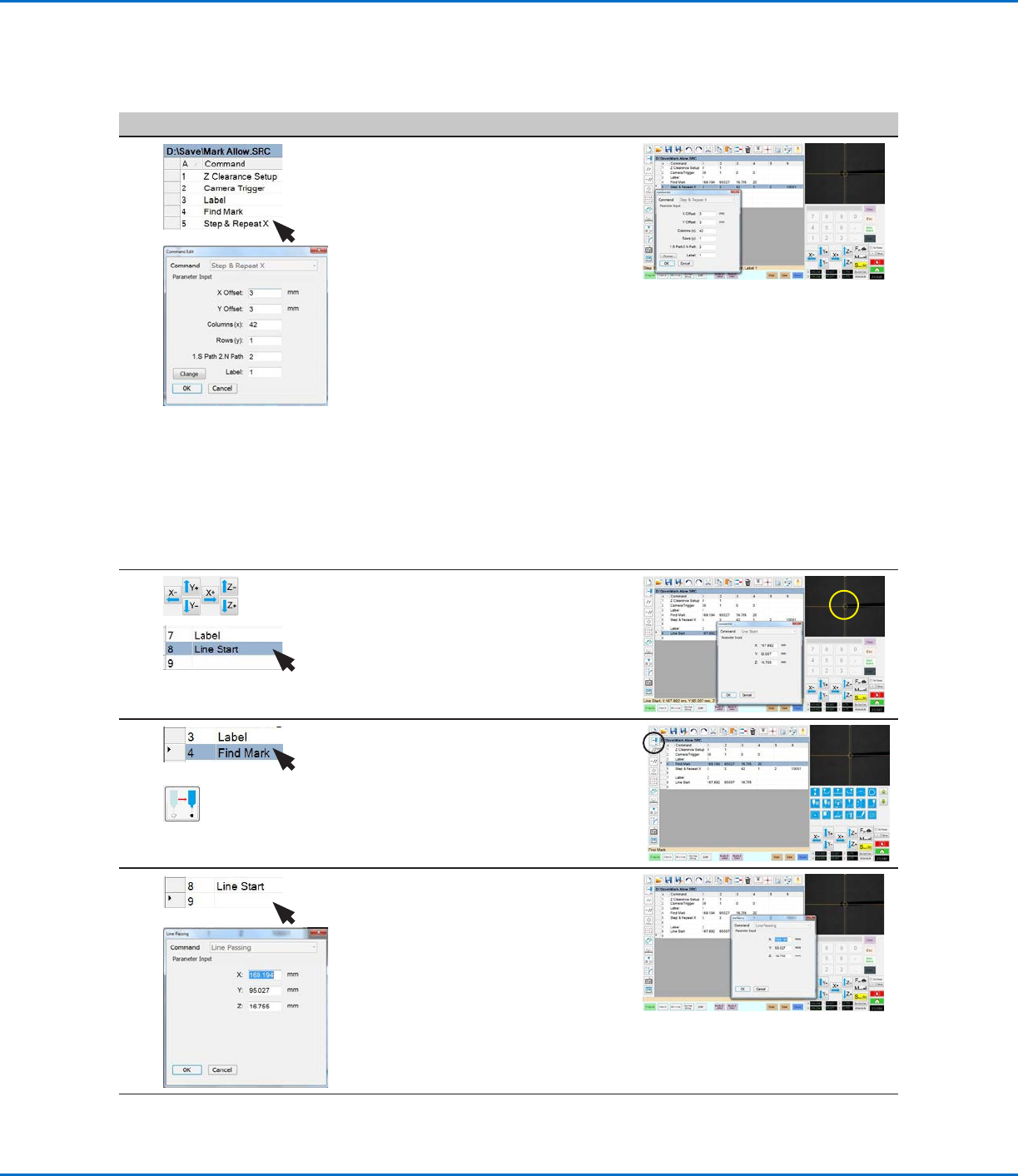
• Insert a Find Mark command for the
mark you created in the previous
procedure. Be sure to enter the Mark
No.
• Insert a Step & Repeat X command and
specify the parameters for this example:
- The values for XOFFSET and
YOFFSET represent the length and
orientation (horizontal or vertical) of
the line.
- The value for COLUMNS (X) sets how
many times you want the camera to
view the line and make adjustments.
- For ROW, enter 1.
- For LABEL, enter 1.
NOTE: The XOffset value multiplied
by the number of Columns cannot be
greater than the total length of the line.
Because there is only one row, the
S.Path / N. Path parameter does not
have an effect.
3
>
• Jog the camera to the left side of the
curved line and then enter a Line Start
command.
4
>
• Select the Find Mark command created
previously (line 4 in this example).
• Click MOVE.
5
>
• In the next empty address (line 9 in
this example), insert a Line Passing
command.
• Enter the same coordinates used in
the Find Mark command (line 4 in this
example).
Continued on next page
GV Series Automated Dispensing Systems
79www.nordsonefd.com info@nordsonefd.com +1-401-431-7000 Sales and service of Nordson EFD dispensing systems are available worldwide.
How to Use Mark Follow to Dispense Along a Curved Line (continued)
To Use Mark Follow and / or Mark Follow Adjust in a Program (continued)
# Click Step Reference Image
6
>
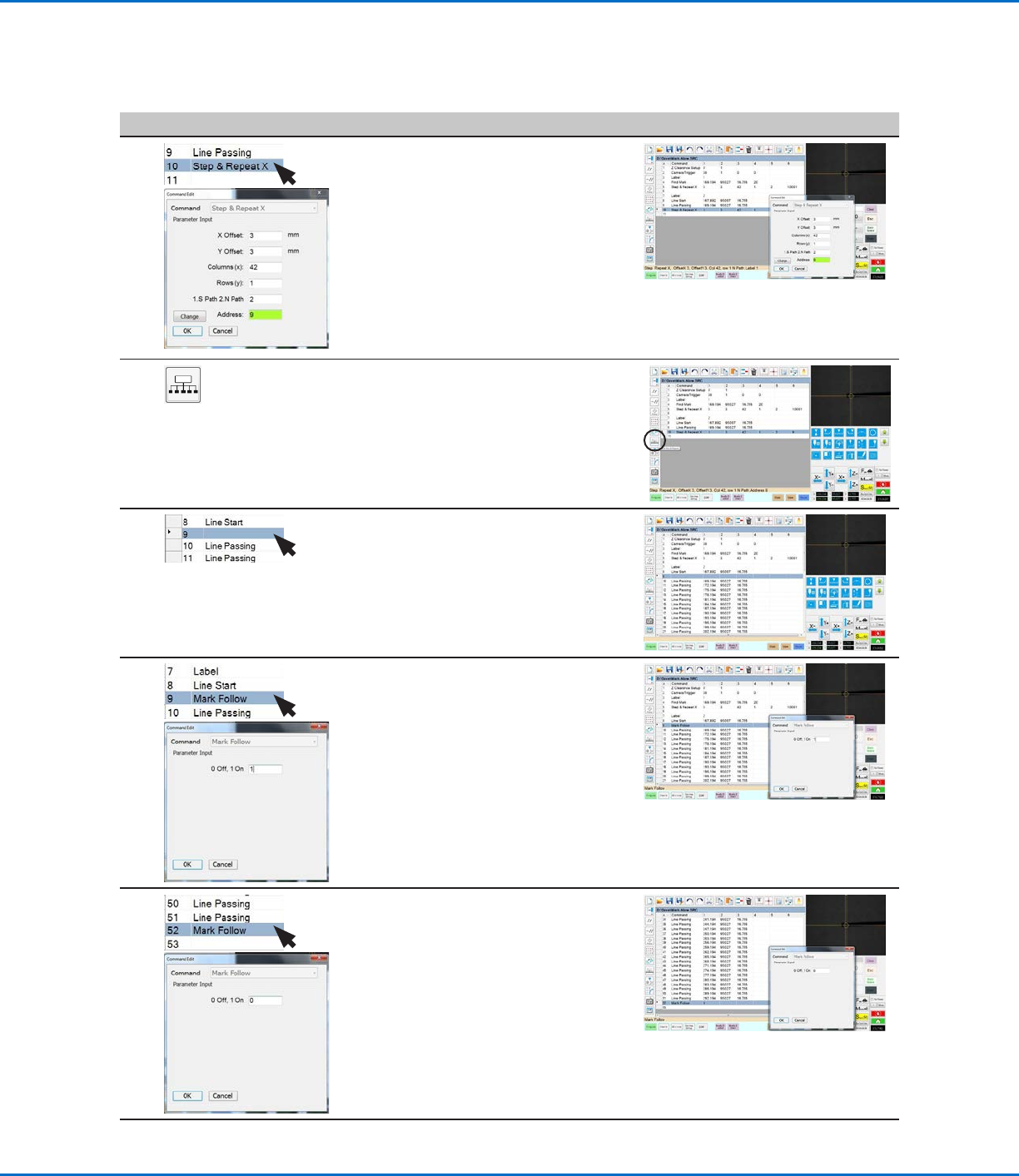
• In the next empty address (line 10 in
this example), insert a second Step &
Repeat X command.
NOTE: This Step & Repeat command is
the same as the previous Step & Repeat
command (Line 5 in this example),
except for the Label.
• Change the last parameter from Label
to Address and enter the address of the
first Line Passing command (line 9 in
this example).
7
• Click EXTEND STEP & REPEAT.
The system extends the Step & Repeat
X command by adding Line Passing
commands for many line passing points
along the line.
8
• Insert a blank address after the Line
Start command (line 8 in this example).
9
>
• In the blank address, insert a MARK
FOLLOW command.
• Enter 1 to set the command to ON.
10
>
• After the last Line Passing command
(line 51 in this example), insert another
MARK FOLLOW command.
• Enter 0 to set the command to OFF.
Continued on next page