Nordson_EFD_GV_Series_Operating_Manual - 第80页
GV Series Automated Dispensing Systems 80 www.nordsonefd.com info@nordsonefd.com +1-401-431-7000 Sales and service of Nordson EFD dispensing systems are available worldwide. # Click Step Reference Image 11 > • Jog the…
GV Series Automated Dispensing Systems
79www.nordsonefd.com info@nordsonefd.com +1-401-431-7000 Sales and service of Nordson EFD dispensing systems are available worldwide.
How to Use Mark Follow to Dispense Along a Curved Line (continued)
To Use Mark Follow and / or Mark Follow Adjust in a Program (continued)
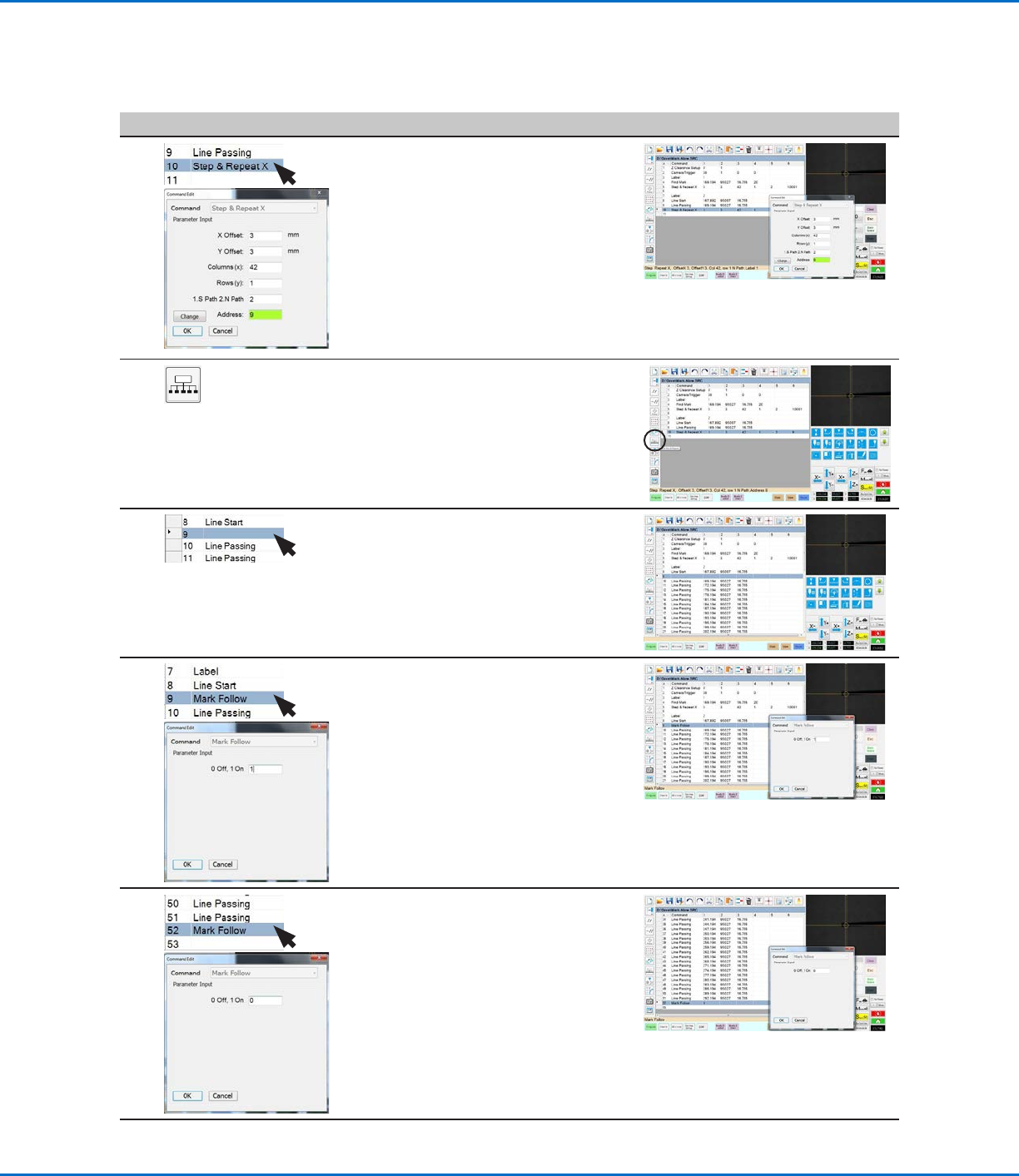
# Click Step Reference Image
6
>
• In the next empty address (line 10 in
this example), insert a second Step &
Repeat X command.
NOTE: This Step & Repeat command is
the same as the previous Step & Repeat
command (Line 5 in this example),
except for the Label.
• Change the last parameter from Label
to Address and enter the address of the
first Line Passing command (line 9 in
this example).
7
• Click EXTEND STEP & REPEAT.
The system extends the Step & Repeat
X command by adding Line Passing
commands for many line passing points
along the line.
8
• Insert a blank address after the Line
Start command (line 8 in this example).
9
>
• In the blank address, insert a MARK
FOLLOW command.
• Enter 1 to set the command to ON.
10
>
• After the last Line Passing command
(line 51 in this example), insert another
MARK FOLLOW command.
• Enter 0 to set the command to OFF.
Continued on next page
GV Series Automated Dispensing Systems
80 www.nordsonefd.com info@nordsonefd.com +1-401-431-7000 Sales and service of Nordson EFD dispensing systems are available worldwide.
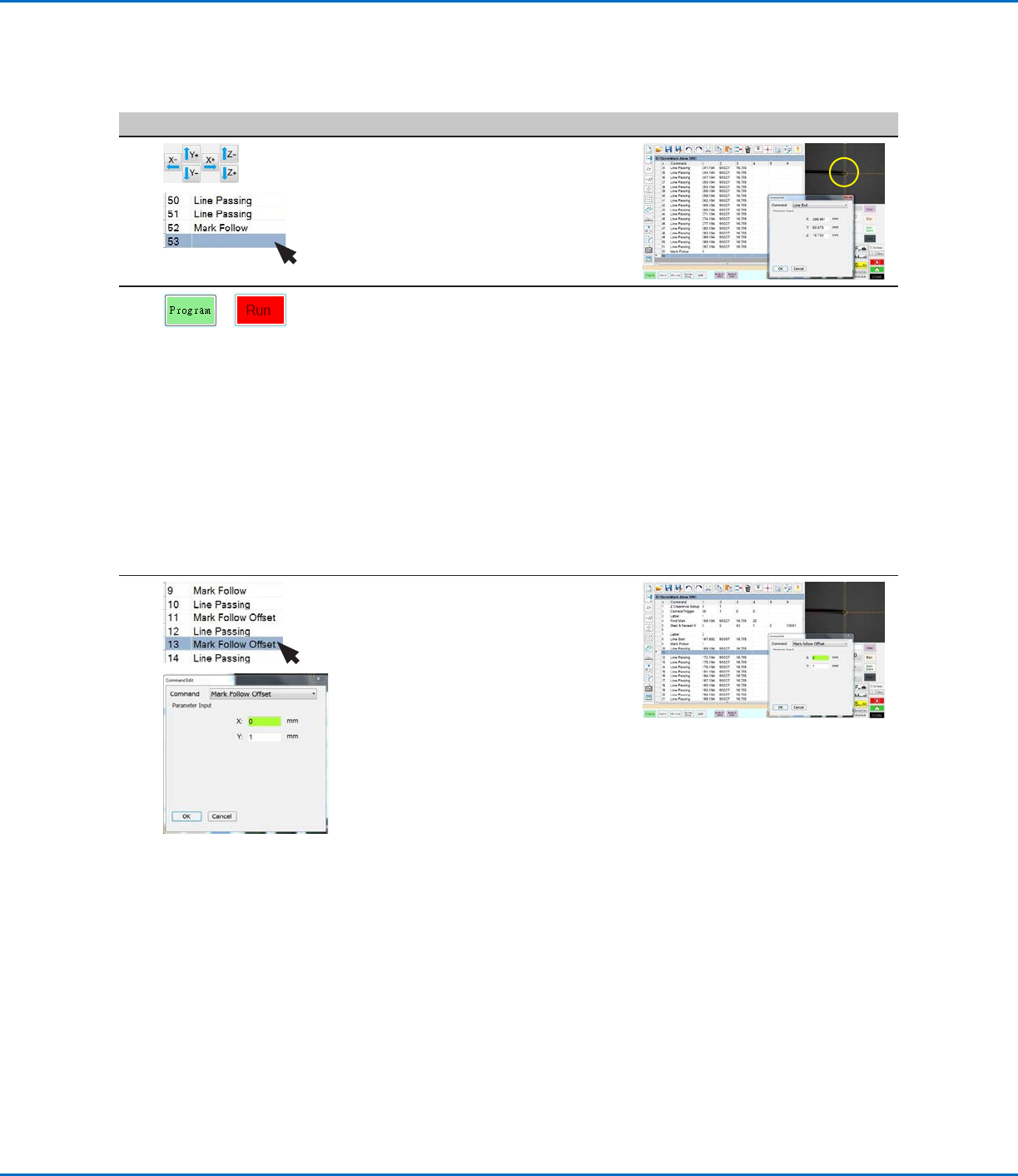
# Click Step Reference Image
11
>
• Jog the camera to the right side of the
curved line and then insert a LINE END
command.
• Insert an END PROGRAM command.
12
>
• Return to PROGRAM screen and then click RUN to test the program.
The system should go to the Find Mark image created for this program,
then perform the Step & RepeatX command in the X direction 42 times, at
an interval of 3mm each time. Each Step & RepeatX command aligns itself
with the center of the line. Once done, the system dispenses along the line,
following the curve.
NOTES:
- Click VIEW if you want to view the pattern before running it.
- Because the line for this example is fairly straight, this program works
at this point using only a Mark Follow command. For deeper curves, the
Mark Follow Offset command is needed. Continue to the next step for an
explanation of how to use the Mark Follow Offset command for deeper
curves.
13
>
If needed for a line with a deeper curve:
• Insert a MARK FOLLOW OFFSET
command and enter X or Y offset values
to be applied to all commands below it.
• Insert additional MARK FOLLOW
OFFSET commands as needed to
obtain the desired dispense result.
NOTES:
- To remove the effect of a Mark Follow
Offset command, enter another Mark
Follow Offset command with the X
and Y values set to 0.
- If you are testing this example using
a slight curve, you might need to
recreate it using a deeper curve.
How to Use Mark Follow to Dispense Along a Curved Line (continued)
To Use Mark Follow and / or Mark Follow Adjust in a Program (continued)
GV Series Automated Dispensing Systems
81www.nordsonefd.com info@nordsonefd.com +1-401-431-7000 Sales and service of Nordson EFD dispensing systems are available worldwide.
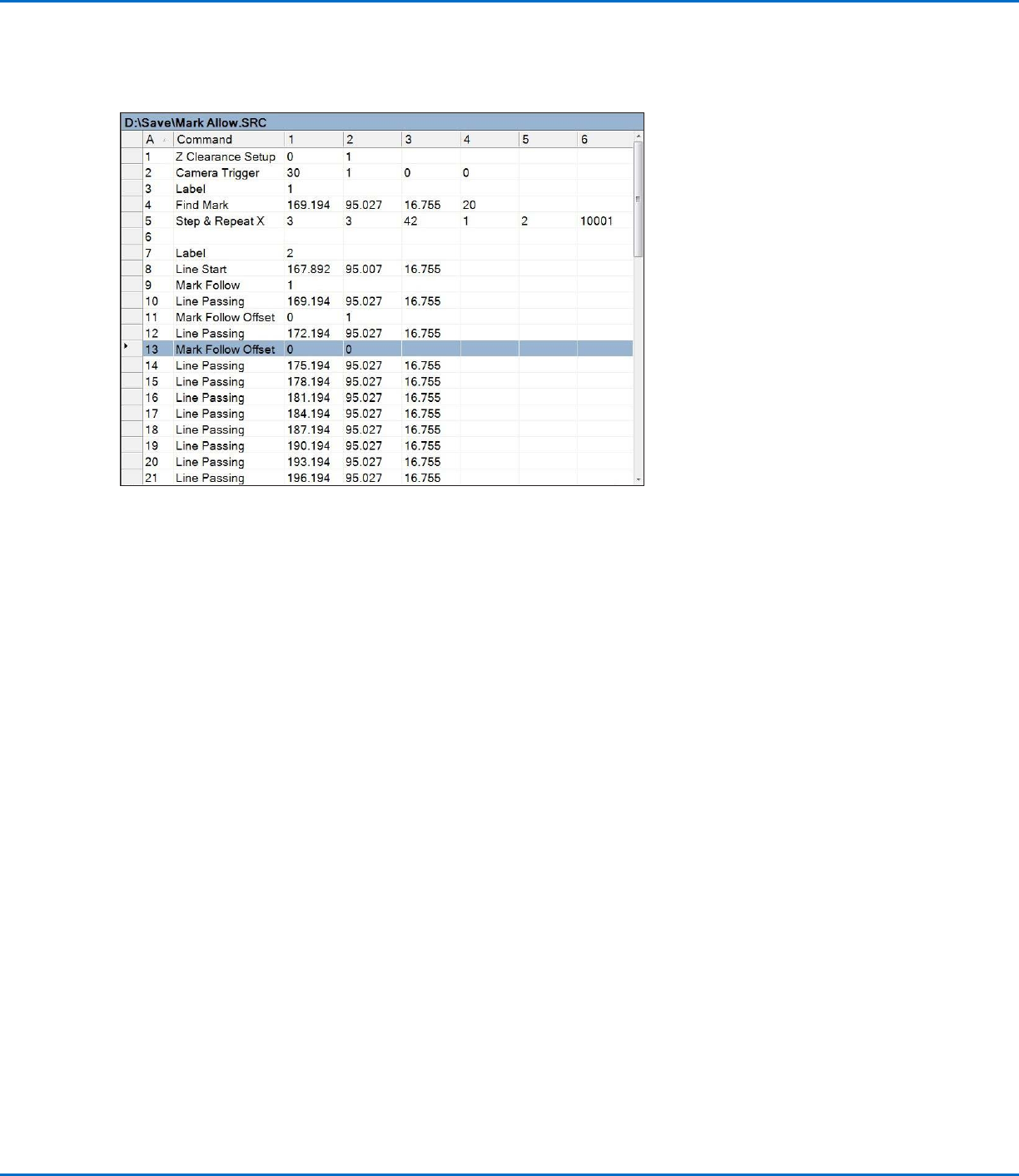
Example program using Find Mark, Mark Follow, and Mark Follow Adjust commands
How to Use Mark Follow to Dispense Along a Curved Line (continued)
To Use Mark Follow and / or Mark Follow Adjust in a Program (continued)