00198168-02_Technical_Training_TX-Series_EN.pdf - 第250页
10 Station Software Overviews 10.7 Maintenance GUI 250 Technical Training SIPLACE TX-Series 10/2016 10.7.4.1 Power Supply Diagnostics GUI The diagnostics function can be accessed as follows: 1. Click on to the maintenanc…
10 Station Software Overviews
10.7 Maintenance GUI
Technical Training SIPLACE TX-Series 10/2016 249
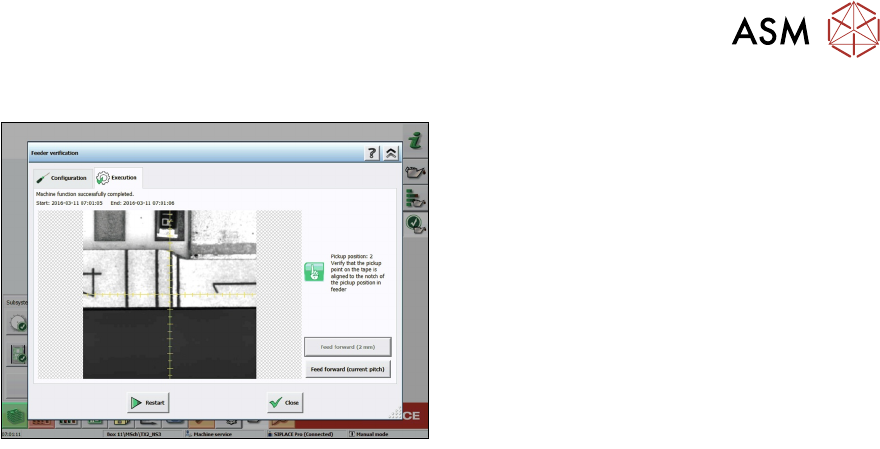
Verification – Feeder Verification
This function is to verify the feeder pick up
position at the machine.
The machine takes a picture of the real pickup
position without offsets, so that the user can see
if the drive system matches the pickup position.
10 Station Software Overviews
10.7 Maintenance GUI
250 Technical Training SIPLACE TX-Series 10/2016
10.7.4.1 Power Supply Diagnostics GUI
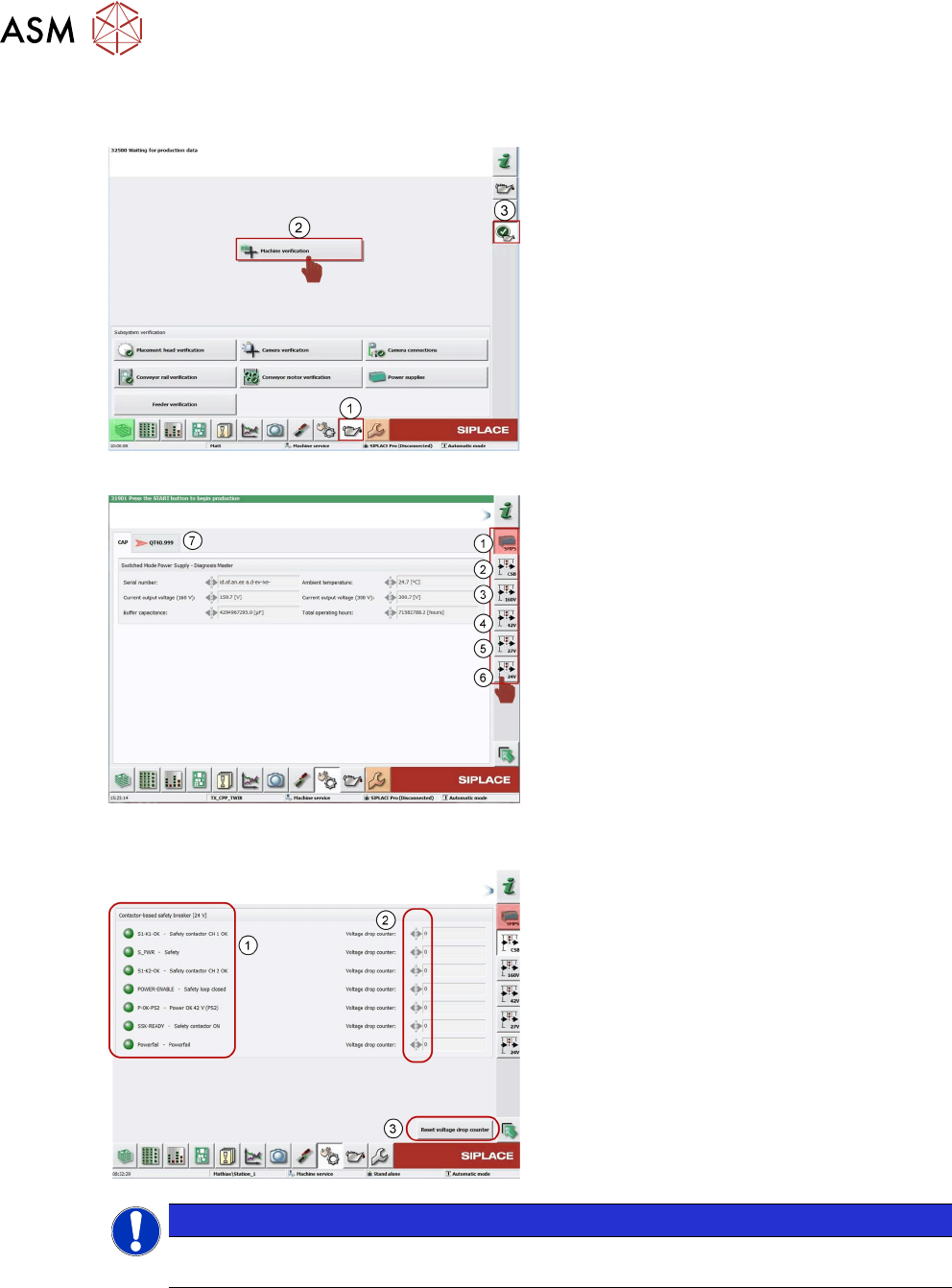
The diagnostics function can be accessed as follows:
1. Click on to the maintenance GUI icon
2. Click on Verification icon
3. Click on the "Power supply" button and the
main menu opens
This window shows the diagnostics data main view:
1. Main view SMPS data from PS1 and CAP1
2. CSB shows the status of all safety signals
from the safety breaker
3. Data for the 160 VDC
4. Data for the 42 VDC
5. Data for the 28 VDC
6. Data for the 24 VDC
7. Data for PS1 and CAP1
If the start button has not yet been pressed, there is no switched voltage present here yet and the
switched voltages icons are highlighted red:
1. Overview voltages status
2. Number of voltage drops since last reset
3. Reset voltage drop counter
NOTICE
All signals or voltages which are interrupted when pressing the emergency stop button or
opening the machine covers will be counted by the voltage drop counter.
10 Station Software Overviews
10.8 Embedded software (eSW) download
Technical Training SIPLACE TX-Series 10/2016 251
10.8 Embedded software (eSW) download
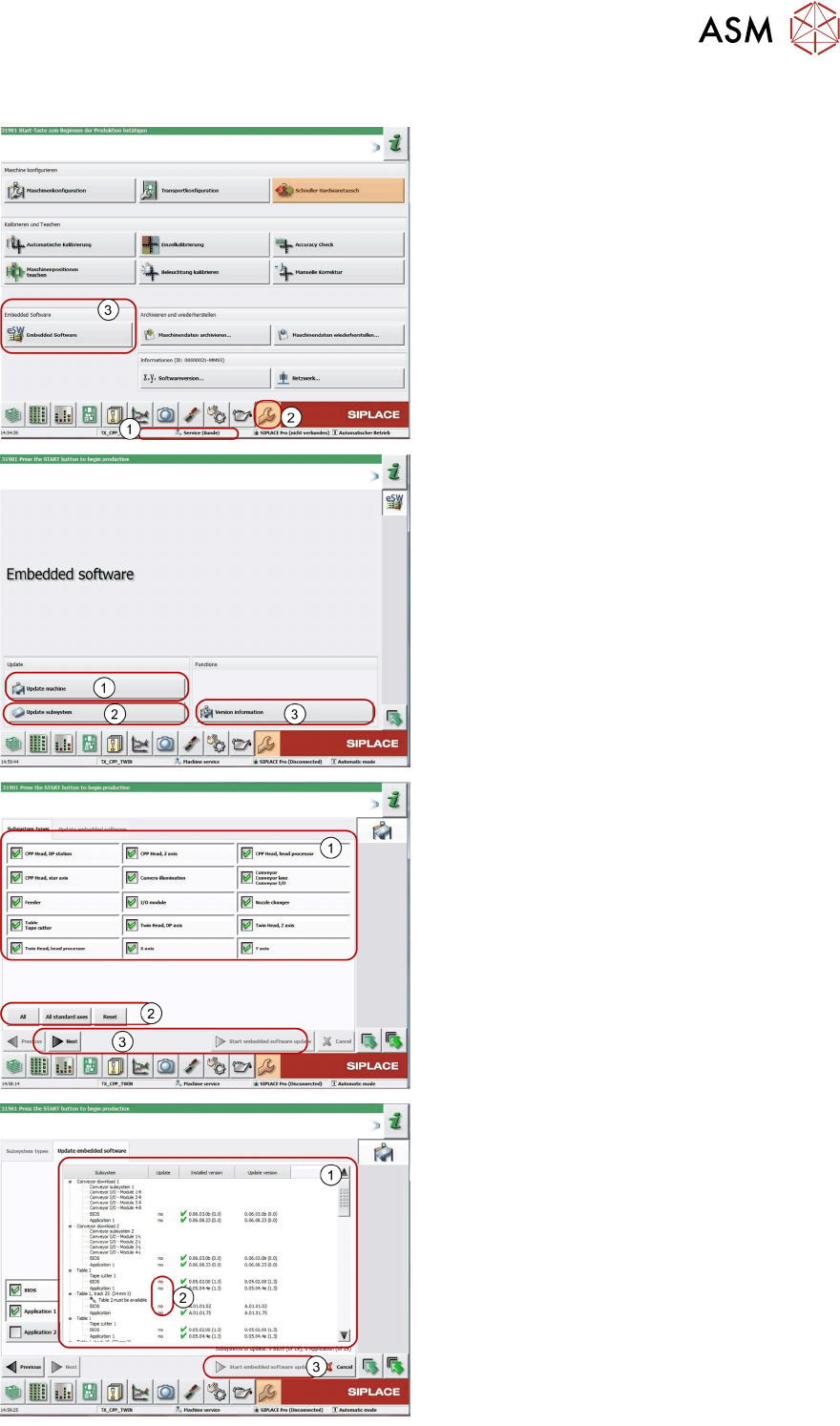
1. The function Embedded software
Download can be performed with the
operation levels Machine Service.
2. Switch over to the Service menu.
3. Select the button Embedded Software.
1. Select Update machine to check the
entire machine and to perform an eSW
download for multiple subsystems.
2. Select Update Subsystem to select and
check one subsystem, to perform an eSW
download.
3. Select Version information to view all
versions of the subsystems, BIOS and
application.
1. Selection button, machine part to be
checked.
2. Click Reset.
3. Click Next to continue and to view the
currently installed and available versions.
1. This area displays the status of the
individual subsystems.
2. This column displays update information
about the number of subsystems which still
have to be downloaded.
3. Start embedded software update starts
the download.