00193891-0702_AI_LP_Barcode_DE+EN.pdf - 第230页
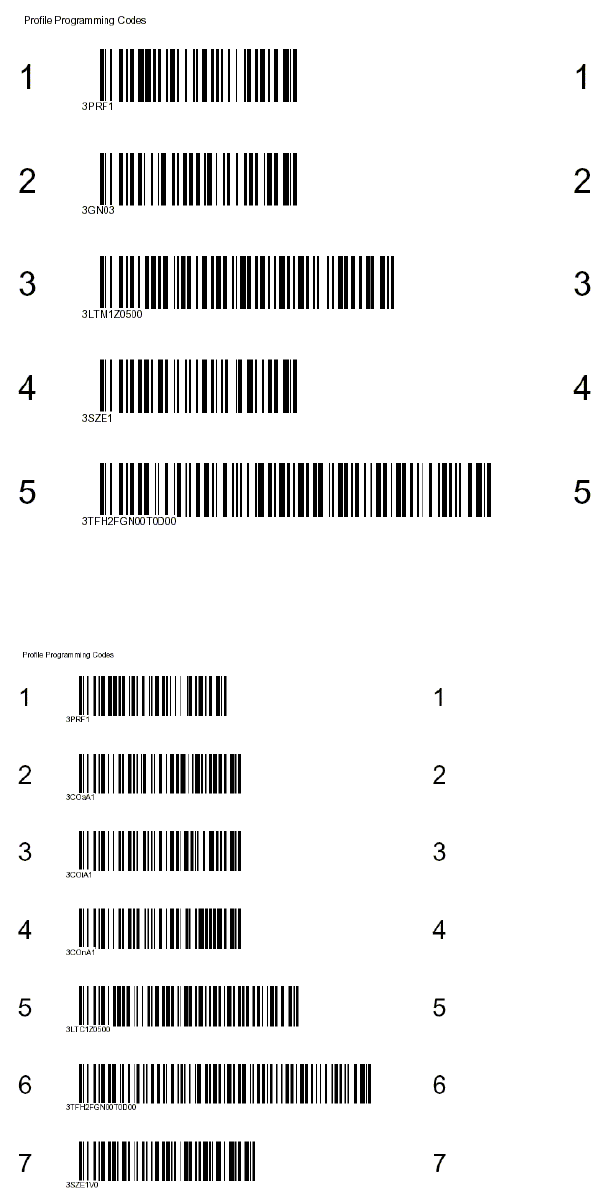
2 PCB barcode scanner assembly instructions SIPLACE 2.11 PCB barcode scanner configuration 10/2009 Edition 230 Fig. 2.1 1 - 19 1D barcode configuration for device 3 CL V42x (c onveyor track 2 above) 2 : S tick the printe…
SIPLACE 2 PCB barcode scanner assembly instructions
10/2009 Edition 2.11 PCB barcode scanner configuration
229
Fig. 2.11 - 17 1D barcode configuration for device 3 CLV41x (conveyor track 2 above)
Examples for CLV42x: 2
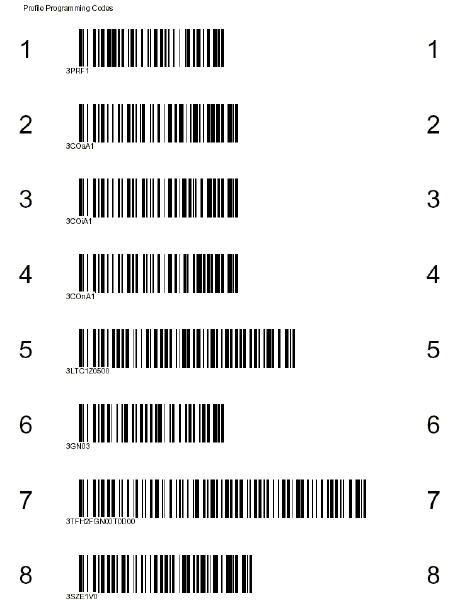
Fig. 2.11 - 18 1D barcode configuration for device 1 CLV42x (conveyor track 1 above)
2 PCB barcode scanner assembly instructions SIPLACE
2.11 PCB barcode scanner configuration 10/2009 Edition
230
Fig. 2.11 - 19 1D barcode configuration for device 3 CLV42x (conveyor track 2 above)
2
: Stick the printed labels on the master plate in the retrofit kit.
: Configure the PCB barcode scanner for the st
ation in Sitest machine configuration.
: Boot up the station. Approx. five seconds after you
switch on the station, switch on the PCB
barcode scanner.
: Push PCB barcode label no. 1 over the first PCB barcode scanner. If the PCB barcode scanner
reads
it, it will beep twice to confirm.
: Shut down the operating system and switch the station off and on again.
: Push the next PCB barcode label over the second PCB barcode scanner.
: Repeat this procedure until all the PCB barcode scanners have been programmed in this way.
: Test that the PCB barcode scanner is working correctly under Conveyor in Sitest and select
Re
ad barcode with conveyor.
: If the barcode is not read, you
will have to reconfigure the barcode scanner.
SIPLACE 2 PCB barcode scanner assembly instructions
10/2009 Edition 2.11 PCB barcode scanner configuration
231
2.11.7 Settings on the 2D barcode scanner
The 2D barcode scanner ICR 850 is configured using the CLV software (version 4.1) from SICK.
An online connection to the 2D barcode scanner is required.
NOTE:
The CLV software can be downloaded from the download center or from the Internet at
www.sick.de.
2.11.7.1 Configuring barcodes on the 2D barcode scanner
NOTE:
The 2D barcode scanner can read both 1D and 2D barcodes.
: Install the CLV software by running CLVsetup.exe.
: The installation is dialog-driven
. Remember to select the unit " Inch or metric".
: Before you start the CLV program, connect to the 2D barcode scanner using a network cable
(twiste
d pair, cross-over).
2.11.7.2 Setting the network address
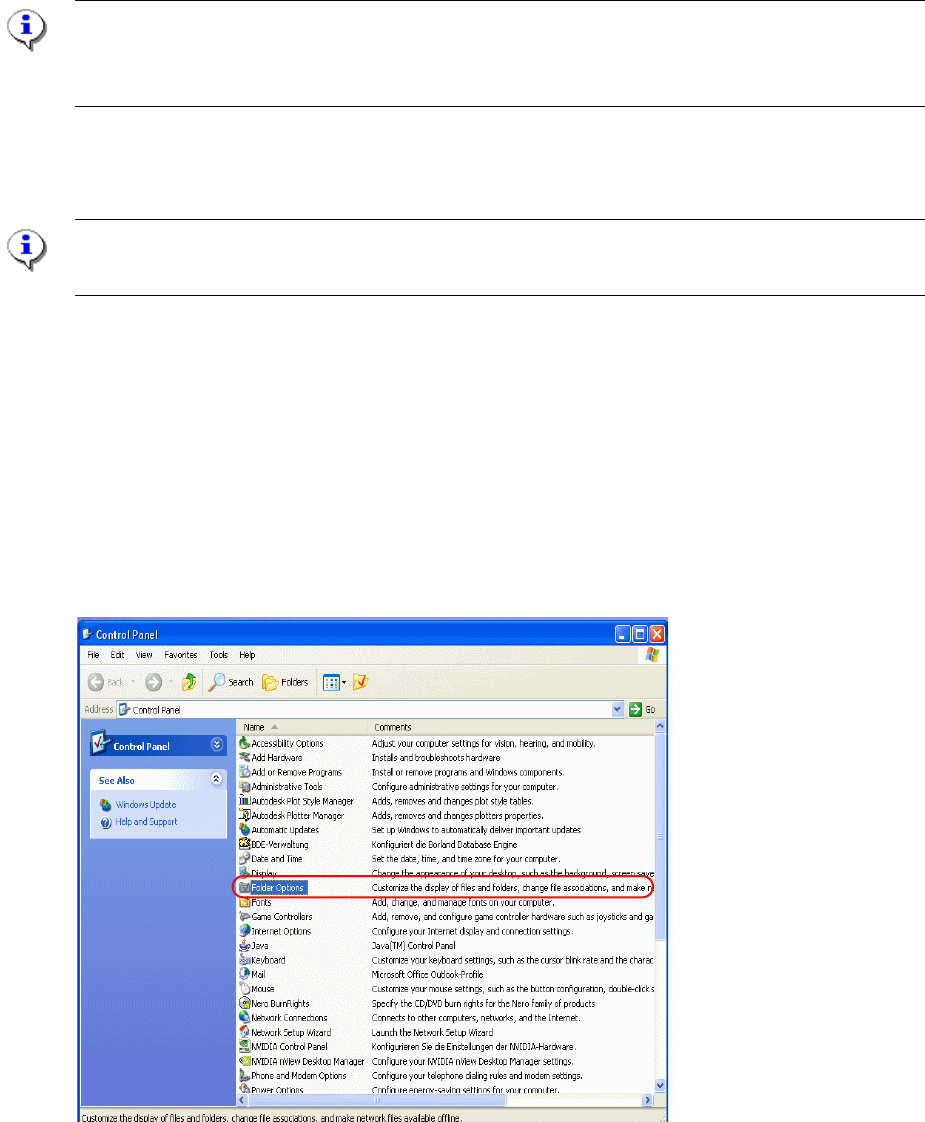
: Select Start --> Settings --> Control Panel and click on "Network and Dial up connection"