00193891-0702_AI_LP_Barcode_DE+EN.pdf - 第232页
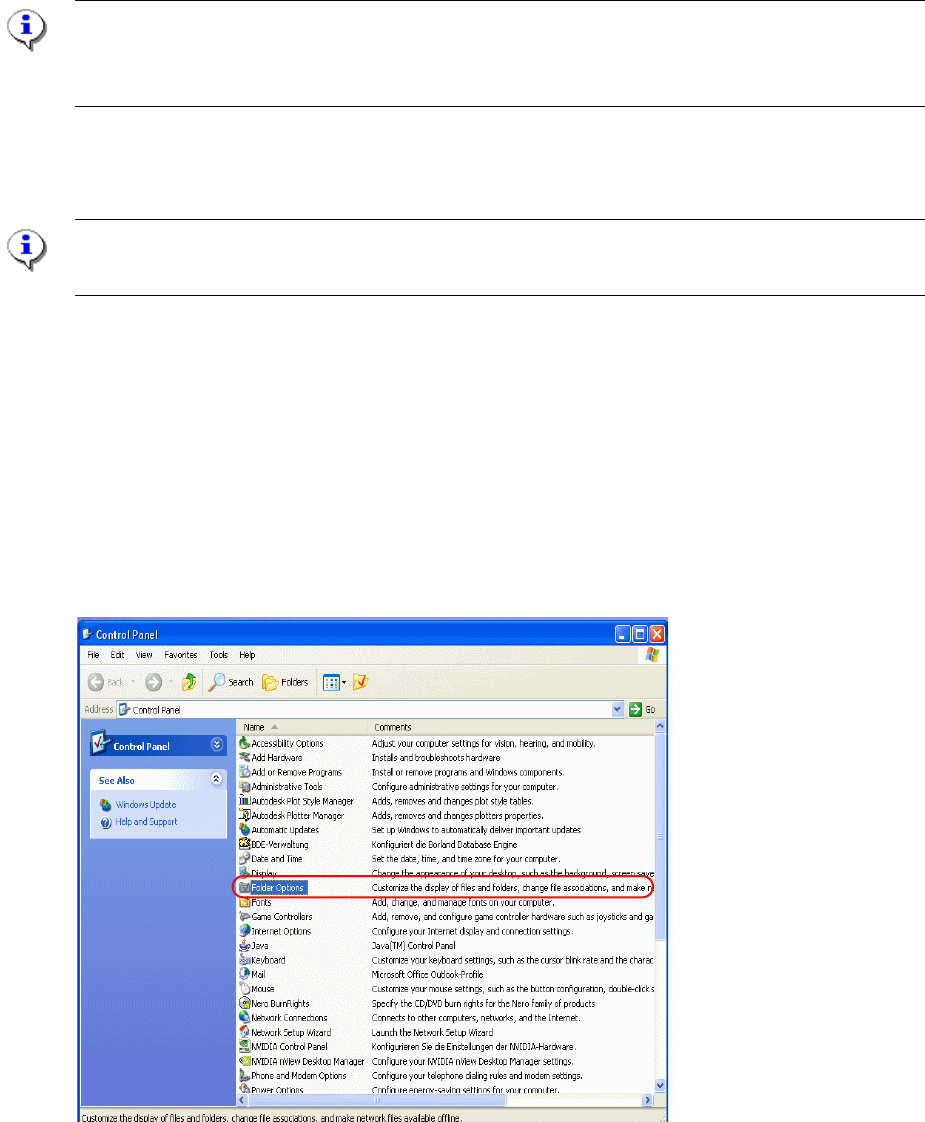
2 PCB barcode scanner assembly instructions SIPLACE 2.11 PCB barcode scanner configuration 10/2009 Edition 232 Fig. 2.1 1 - 20 "Network and Dial up connection" : Double-click to select Local Area Connecti on. :…
SIPLACE 2 PCB barcode scanner assembly instructions
10/2009 Edition 2.11 PCB barcode scanner configuration
231
2.11.7 Settings on the 2D barcode scanner
The 2D barcode scanner ICR 850 is configured using the CLV software (version 4.1) from SICK.
An online connection to the 2D barcode scanner is required.
NOTE:
The CLV software can be downloaded from the download center or from the Internet at
www.sick.de.
2.11.7.1 Configuring barcodes on the 2D barcode scanner
NOTE:
The 2D barcode scanner can read both 1D and 2D barcodes.
: Install the CLV software by running CLVsetup.exe.
: The installation is dialog-driven
. Remember to select the unit " Inch or metric".
: Before you start the CLV program, connect to the 2D barcode scanner using a network cable
(twiste
d pair, cross-over).
2.11.7.2 Setting the network address
: Select Start --> Settings --> Control Panel and click on "Network and Dial up connection"
2 PCB barcode scanner assembly instructions SIPLACE
2.11 PCB barcode scanner configuration 10/2009 Edition
232
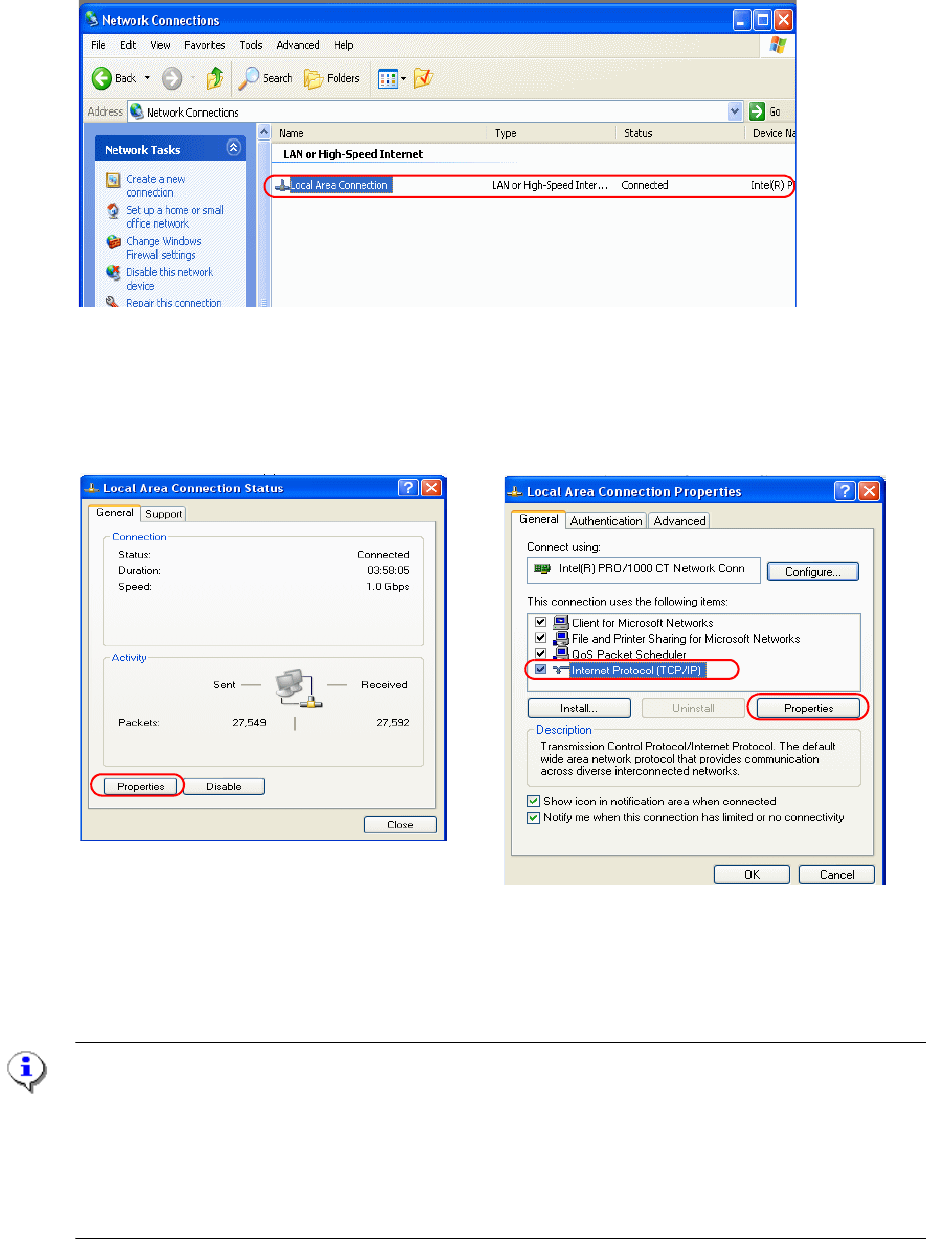
Fig. 2.11 - 20 "Network and Dial up connection"
: Double-click to select Local Area Connection.
: Select it from the Properties window on the left.
Fig. 2.11 - 21 Set up the network
: Select "Internet Protocol (TCP/IP)" from the right-hand window and then "Properties".
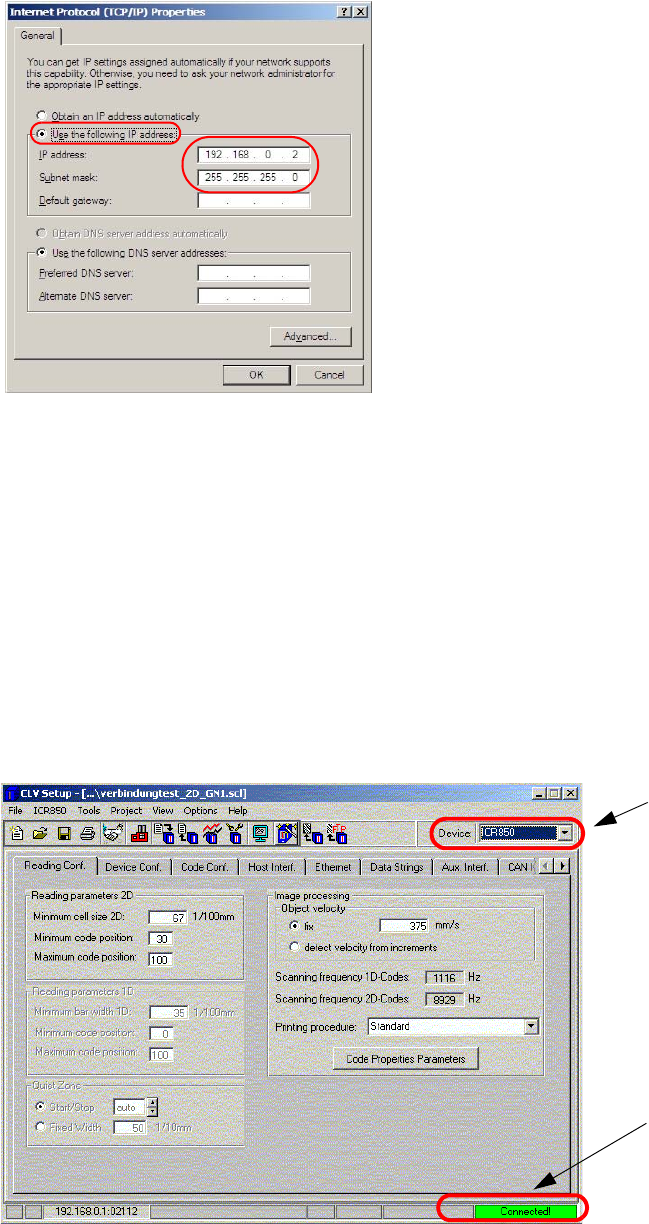
: The following window appears:
NOTE
The 2 D barcode has the following default settings
IP Address: 192.168.0.1
IP Mask (subnet mask): 255.255.255.0
IP Port: 2112
Data transfer speed: 10MBit/s (cannot be changed)
SIPLACE 2 PCB barcode scanner assembly instructions
10/2009 Edition 2.11 PCB barcode scanner configuration
233
Fig. 2.11 - 22 Enter IP address
: Enter the IP address and subnet mask as illustrated above.
: Click on OK to confirm all the dialogs.
If you
now used a DOS (command prompt) window to pi
ng the 2D barcode, it should be success-
ful.
2.11.7.3 Starting the CLV program
: Start the CLV program using Start--> Programs--> CLV Setup --> CLV Setup V4.1 .
: Select the type of barcode scanner at the top right.
Selecting the barcode
scanner type
When you start the
CLV software for the
first time, the status is
"No connection"
Fig. 2.11 - 23 Start the CLV software