00193891-0702_AI_LP_Barcode_DE+EN.pdf - 第237页
SIPLACE 2 PCB barcode scanner assembly instructions 10/2009 Edition 2.11 PCB barcode scanner configuration 237 2.1 1.7.6 Setting the focus height: Now place a PCB with the "adjustment barcod e" st uck on beneat…
2 PCB barcode scanner assembly instructions SIPLACE
2.11 PCB barcode scanner configuration 10/2009 Edition
236
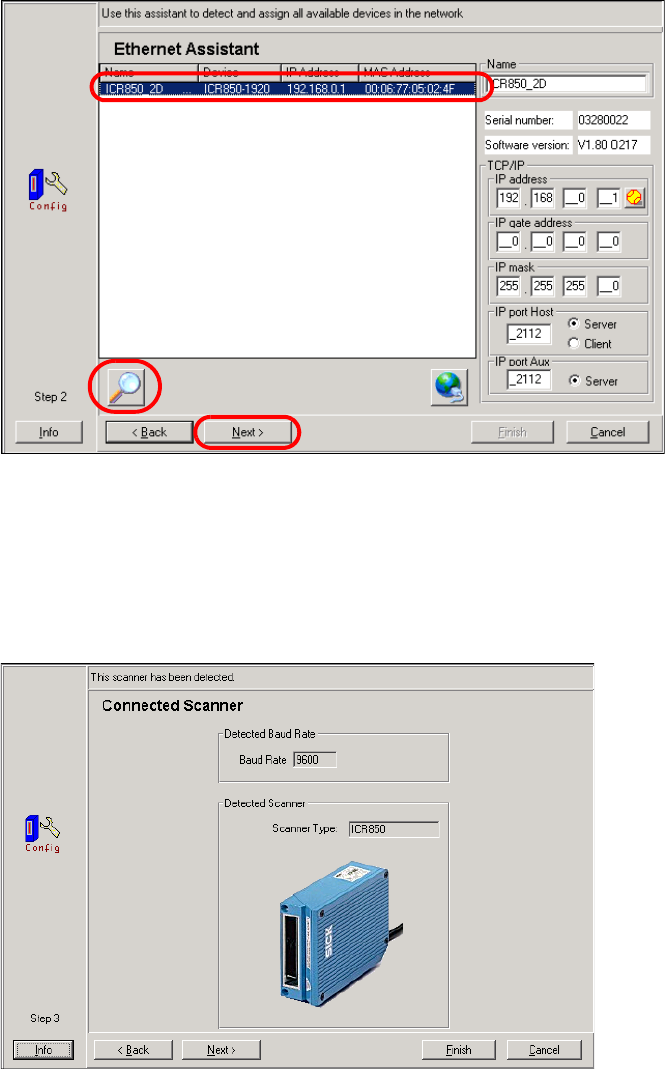
: Select "TCP/IP" as the protocol for establishing a connection.
: The software will then attempt to find all the barcode s
canners on the network and will list them
in the following dialog.
Fig. 2.11 - 27 Step 2 in the CLV Assistant
: Select the barcode scanner (Scanner Type) that you wish to configure.
: Click on the button at the bottom left to browse the network for barcode scanners again.
: A picture of the die scanner then appears.
Fig. 2.11 - 28 Step 3 in the CLV Assistant
: Click on "Next".
SIPLACE 2 PCB barcode scanner assembly instructions
10/2009 Edition 2.11 PCB barcode scanner configuration
237
2.11.7.6 Setting the focus height:
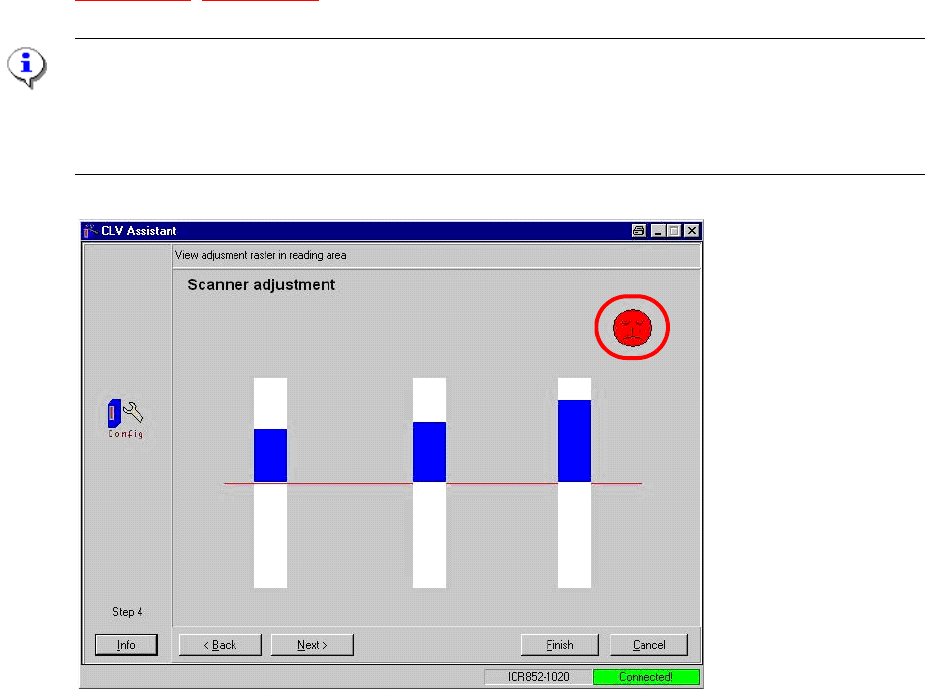
Now place a PCB with the "adjustment barcode" stuck on beneath the barcode scanner. The bar-
code scanner attempts to determine the distance between
the barcode lines and thus calculate
the current focus height. This is then displayed graphically and will have to be set mechanical (see
Fig. 2.11 - 29, Fig. 2.11 - 30 below).
PLEASE NOTE
The adjustment barcode for the focus heigh
t is not currently available.
You will have to check the focus height using the mechanical adjusting gauge.
Click on "Next" to skip this setting.
Fig. 2.11 - 29 Focus height not set correctly.
2 PCB barcode scanner assembly instructions SIPLACE
2.11 PCB barcode scanner configuration 10/2009 Edition
238
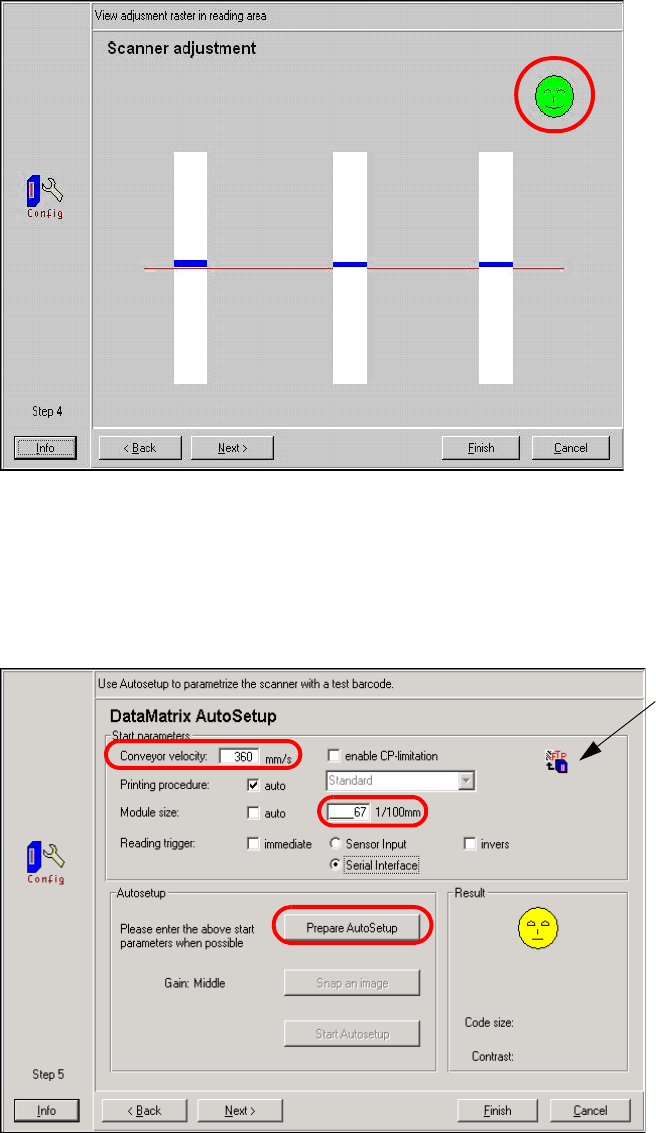
Fig. 2.11 - 30 Focus height set correctly
: Click on "Next".
2.11.7.7 DataMatrix AutoSetup for automatically teaching a 2D barcode:
FTP program button
The FTP program is
used to record im-
ages of unscanned
barcodes, for exam-
ple, and analyze the
errors during start-up
or production
(See Requesting im-
ages during produc-
tion).
Fig. 2.11 - 31 Step 5 in the CLV Assistant
: Enter the conveyor velocity and the size of a matrix dot (module size).