00193891-0702_AI_LP_Barcode_DE+EN.pdf - 第252页
2 PCB barcode scanner assembly instructions SIPLACE 2.11 PCB barcode scanner configuration 10/2009 Edition 252 2.1 1.7.13 Communication Monitor : Open the Communication Monitor fr om the Vie w menu. : On the "Host I…
SIPLACE 2 PCB barcode scanner assembly instructions
10/2009 Edition 2.11 PCB barcode scanner configuration
251
: Select Options and activate the "Wait on external trigger" radio button..
: Enter the value 4096
in the "Number of rows" box.
: Click on OK to confirm your input and
select the "Receive image" button.
: Start Sitest --> PCB Conveyor Functions --> Functions
: Place a PCB with th
e configured 2D barcode on the input belt.
The barcode should be approx. 1 cm in front of the scanning beam.
: Click on the "Scan barcode with conveyor" button on
the Sitest user interface.
The PCB is transported and the barcode is scanned.
PLEASE NOTE:
A "Could not perform function" error message appears in SITEST.
Reason: The "Snap an image" function simply saves the image - no barcode information is read.
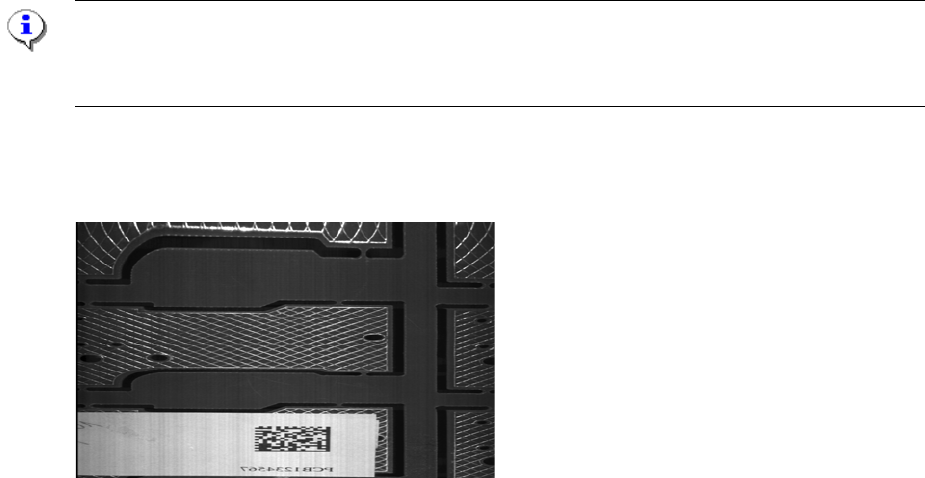
The following image should be output. If the image appears stretched, squashed or out-of-focus,
check the object velocity, focus height and contrast settings..
Fig. 2.11 - 45 Output image of the "DEMO" barcode
2
2
2
2
2
2
2
2
2 PCB barcode scanner assembly instructions SIPLACE
2.11 PCB barcode scanner configuration 10/2009 Edition
252
2.11.7.13 Communication Monitor
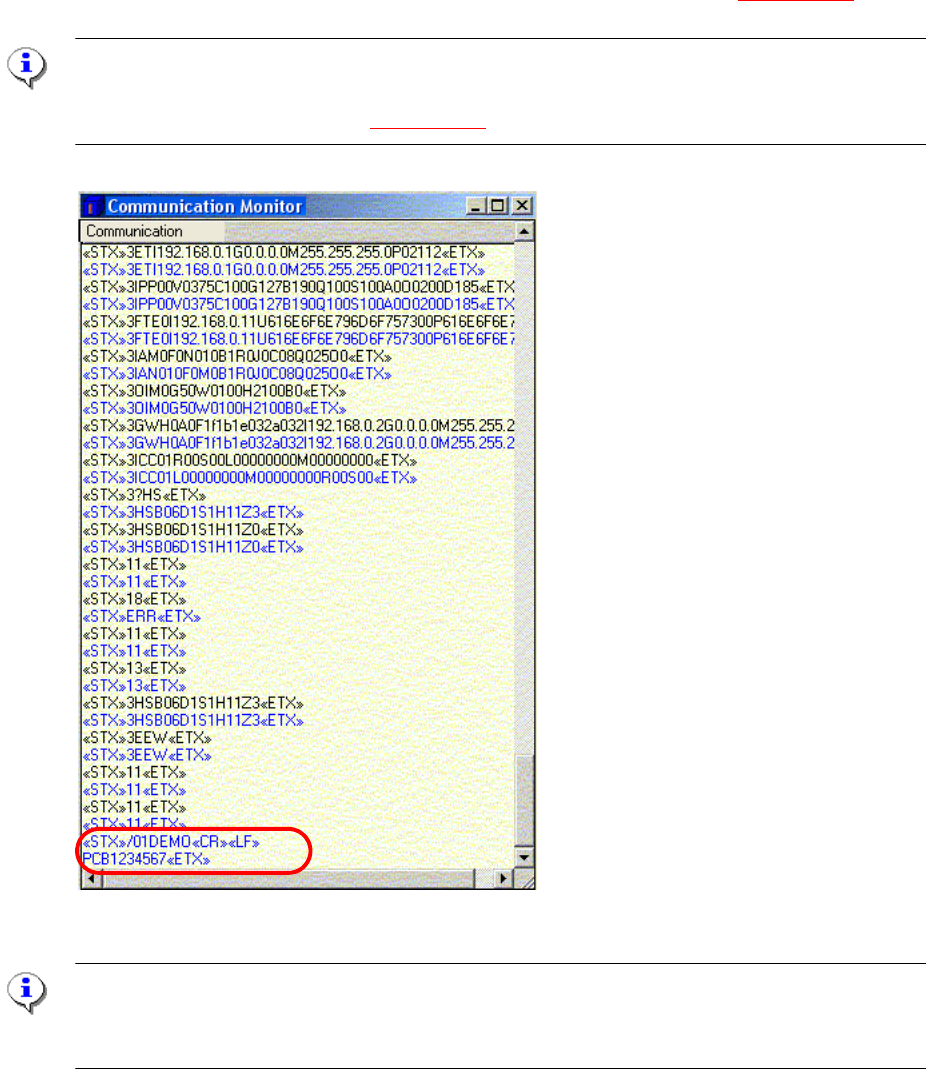
: Open the Communication Monitor from the View menu.
: On the "Host Interf
ace" tab, set the destination for the result string to Ethernet so that the scan-
ning result is displayed in the Communication Monitor.
The scanned barcode appears in clear text in the Communication Monitor (
Fig. 2.11 - 46).
PLEASE NOTE:
During the start-up phase, the "Ethernet" function can be activated in order to display the result in
the Communication Monitor (see Fig. 2.11 - 41)
Fig. 2.11 - 46 Communication Monitor with the scanned barcode
PLEASE Note:
When you close the Communication Monitor, the "Destination of
the result string" must be reset
to "Asynch. Host Interface" on the "Host Interface" tab.
SIPLACE 2 PCB barcode scanner assembly instructions
10/2009 Edition 2.11 PCB barcode scanner configuration
253
2.11.7.14 Option : Acquiring an image during the start-up phase or production
This option allows you to save an image of a barcode for later analysis, even if you do not read
the barcode.
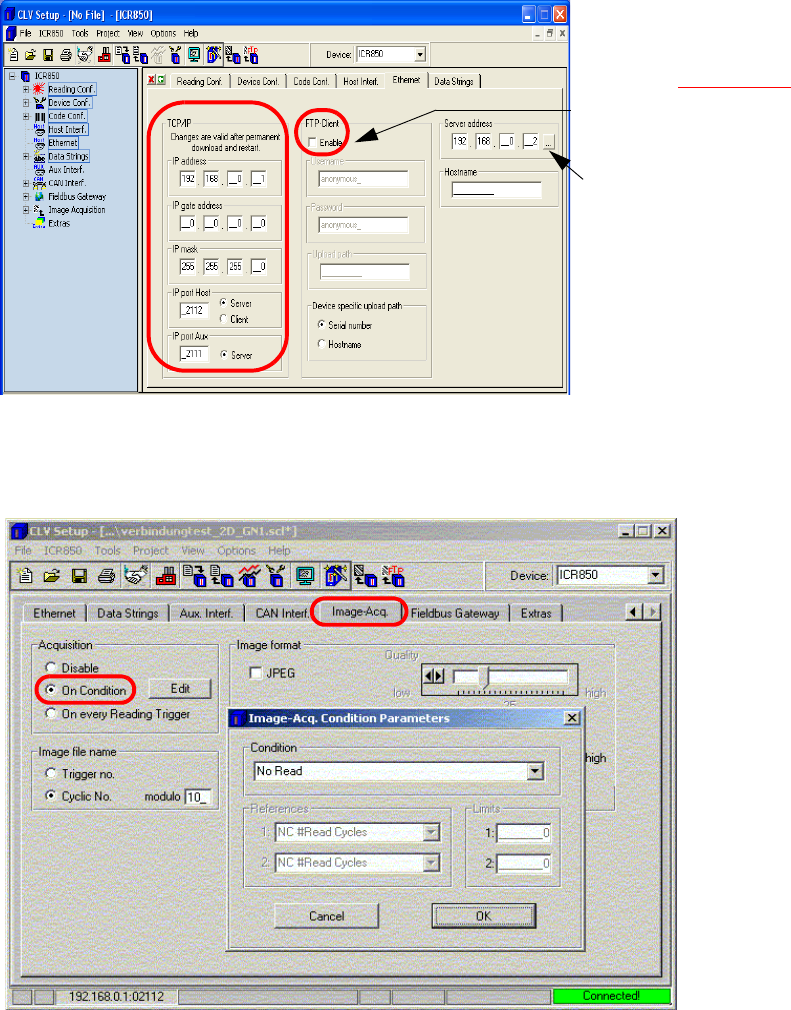
: On the "Ethernet" tab, check the settings for
communication with the 2D barcode scanner.
If you wish to use the "Output
image during production"
option (see Fig. 2.11 - 48
), you
must activate the FTP client.
Enter the server address (IP
address) of the connected
computer.
Fig. 2.11 - 47 Working with ftp client
: Define the conditions under which an image should be acquired.
Fig. 2.11 - 48 Image acquiring