SiplaceProInstall_eng.pdf - 第46页
Ins t a lla tion Manua l 5 I nst alla tio n of S IPLACE Pro Lang uage P ack SIPLACE Pro 7 .0 Ed ition 05 /200 9 US 44 5 F ig. 5 - 6 " In stall Sh ield Wiz ard Co mple te " di alog box Æ Click Fi nish . Wh en s …
5 Installation of SIPLACE Pro Language Pack IInstallation Manual
Edition 05/2009 US SIPLACE Pro 7.0
43
5
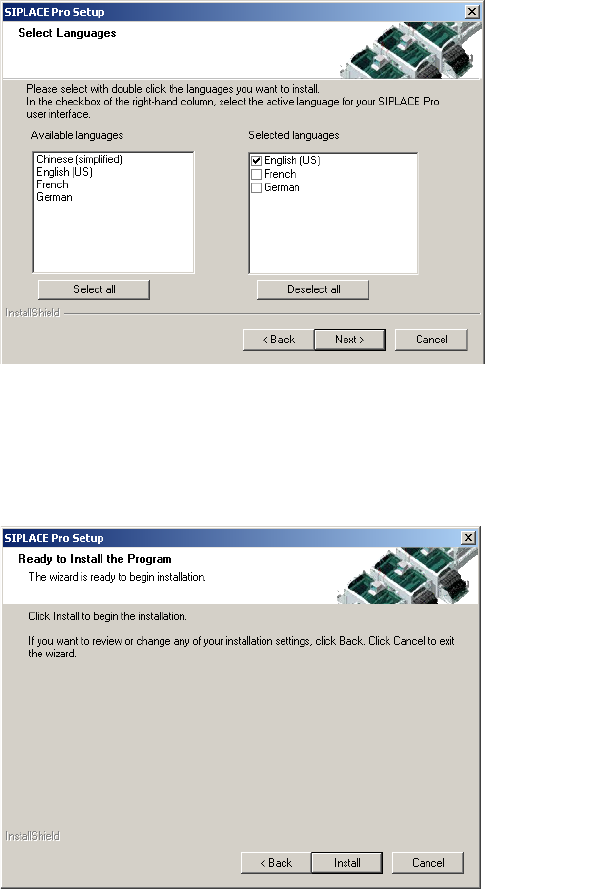
Fig. 5 - 4 "Select Languages" dialog box
Æ Click Next.
You are prompted to the following dialog box. The "Ready to Install the Program" dialog box gives
you a last chance to alter the information you have entered during the previous steps. 5
5
Fig. 5 - 5 "Ready to install the Program" dialog box
Æ Click Install.
Æ If you want to alter one or more details, click the Back button until you get back to the dialog
box in question.
Installation Manual 5 Installation of SIPLACE Pro Language Pack
SIPLACE Pro 7.0 Edition 05/2009 US
44
5
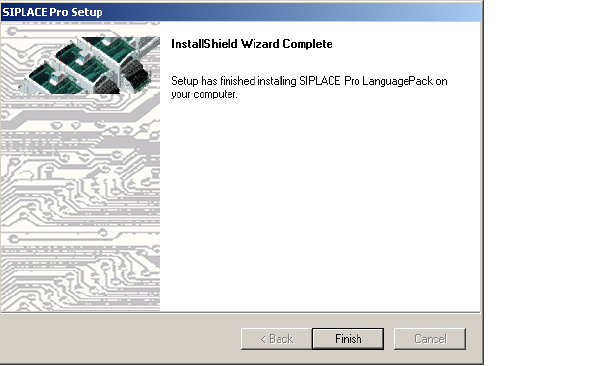
Fig. 5 - 6 "InstallShield Wizard Complete" dialog box
Æ Click Finish.
When setup has completed, you will have English, German and the language(s) you selected
available in the SIPLACE Pro applications. 5
You can switch to the other language(s) by opening in SIPLACE Pro:
- the Desk and going to Tools -> Change language or by opening
- the Line Control GUI and going to Options, Languages. 5
5.2 Compatibility of SIPLACE Pro Language Packs
5.2.1 Version handling
Before installing the Language Pack SIPLACE Pro checks if the Language Pack version and the 5
SIPLACE Pro basic version are compatible. The following use cases are possible. 5
5 Installation of SIPLACE Pro Language Pack IInstallation Manual
Edition 05/2009 US SIPLACE Pro 7.0
45
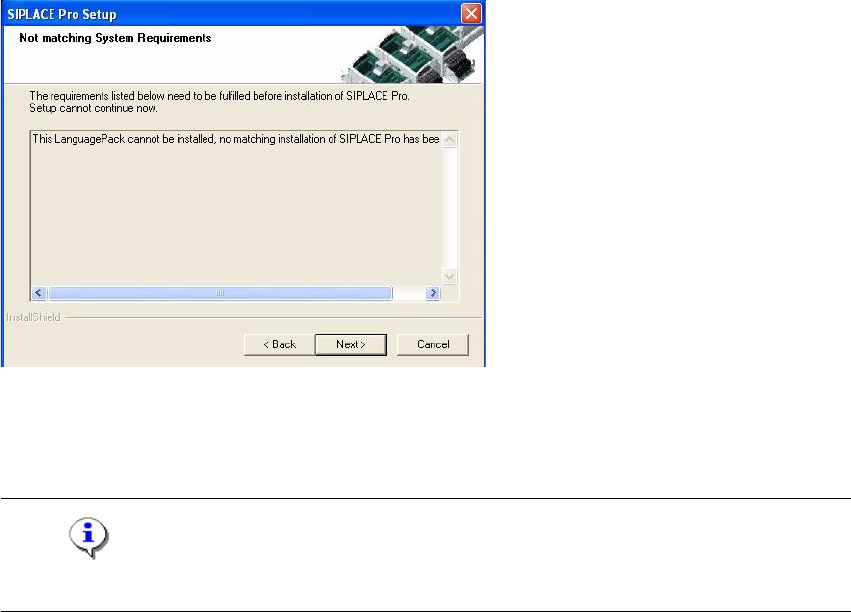
Case A: 5
Language Pack version is not compatible to the basic SIPLACE Pro installation. 5
5
Fig. 5 - 7 Non compatible Language Pack
Solution: Make sure that you have installed the compatible basic SIPLACE Pro version or that
you install the language pack version that is compatible to the basic product version. 5
Note
This dialog is displayed also if you have no SIPLACE Pro installed at all. 5