2500_Users_Manual-.pdf - 第102页
Tasks and Kits < Fl=Help 2500 iMport Task/Kit. . . s < FZ=Uie“ > TaskLink ProMaster Tawkw/Kitw defined in ASCII file Edit Task/Kit. . . Duplicate Task/Kit. . . ReMove Task/Kit. . . Help Copyright 1394 Data I/O C…
First_task_name
Second_task_name
First_kit_name
First_task_name
Second_task_name
First_kit_name
Not_current_file::Second_kit_name
↵
Tasks
and
Kits
The
requirements
for
user-created
messages
are
described
below:
•
Message
file
must
be
an
ASCII
text
file.
Save
the
file
as
an
unformatted
text
file.
•
Message
file
must
be
called
tl.msg.
TaskLink
looks
for
a
file
with
this
name.
The
maximum
line
length
in
this
file
is
66
characters.
•
Each
message
number
must
begin
with
a
tilde
(~),
followed
by
four
digits
as
in
the
following
example:
0023.
The
tilde
and
four-digit
number
must
be
on
a
line
by
themselves.
The
message
that
will
be
displayed
includes
all
the
text
after
the
tilde
and
message
number,
and
before
the
next
tilde
in
the
file.
•
Spacing
and
formatting
is
maintained
(WYSIWYG)
unless
you
use
\b
(for
bold).
The
\b
does
not
appear
on
the
screen
and
all
characters
move
to
the
left
two
spaces
for
every
\b
in
the
line.
Creating
Task/Kit
Batch
Files
You
can
create
an
ASCII
batch
file
that
allows
you
to
run
any
combination
of
Tasks
and
Kits
in
the
order
defined
in
the
file.
TaskLink
reads
the
batch
file,
searches
the
current
Task
Database
file
(last
file
used)
for
the
Task/
Kit,
and
runs
it
using
the
normal
screens.
Each
line
in
the
batch
file
(unformatted
ASCII
text
file)
is
only
required
to
have
the
name
of
an
existing
Task
or
Kit.
A
sample
file
would
look
like
this:
If
an
optional
Task
Database
file
name
is
entered
before
the
Task/Kit
name
and
is
terminated
by
a
double
colon
TaskLink
looks
for
the
Task
in
the
specified
Database
file.
The
fourth
line
in
the
same
sample
file
below
directs
TaskLink
to
look
in
a
Database
file
called
Not_current_file
to
find
a
Kit
called
Second
kit
name.
Note:
Do
not
use
two
consecutive
colons
in
Task
or
Kit
names
if
you
plan
to
use
those
Tasks/Kits
in
batch
files.
To
run
a
batch
file
in
administrator
mode,
select
Tasks
from
the
Main
menu.
Choose
a
batch
file
from
the
list
displayed,
and
press
.
3-38
ProMaster
2500
User
Manual
Tasks
and
Kits
<
Fl=Help
2500
iMport
Task/Kit.
.
.
s
<
FZ=Uie“
>
TaskLink
ProMaster
Tawkw/Kitw
defined
in
ASCII
file
Edit
Task/Kit.
..
Duplicate
Task/Kit.
..
ReMove
Task/Kit.
.
.
Help
Copyright
1394
Data
I/O
Corp.
Tasks
Utilities
Options
Exit!
Run
Task/Kit.
.
.
人
T
Run
Task/Kit
Batch
File.
..
Add
Task.
..
Add
Kit.
.
.
TaskLink
Setup
Data
Program
7
7
Ilie
Some
Task
Data
Source
SuMcheck
Device
Process
Notes
To
run
a
batch
file
in
operator
mode,
enter:
tl
-bBatchfile_naine
where
-b
starts
the
batch
file
mode
and
batchfile_name
is
any
valid
DOS
file
name.
TaskLink
does
not
require
any
specific
file
extension
for
batch
files.
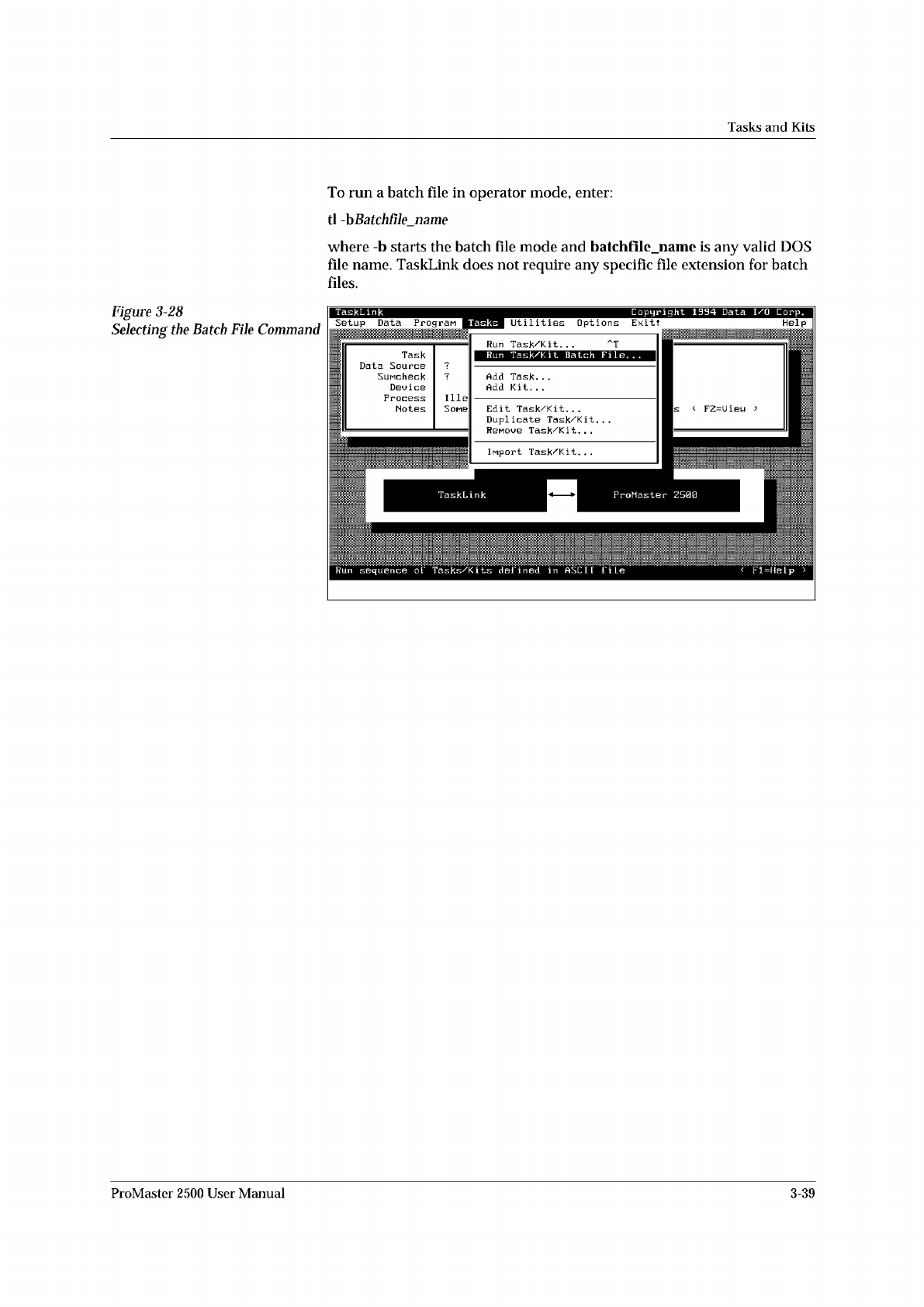
Figure
3-28
Selecting
the
Batch
File
Command
ProMaster
2500
User
Manual
3-39
Tasks
and
Kits
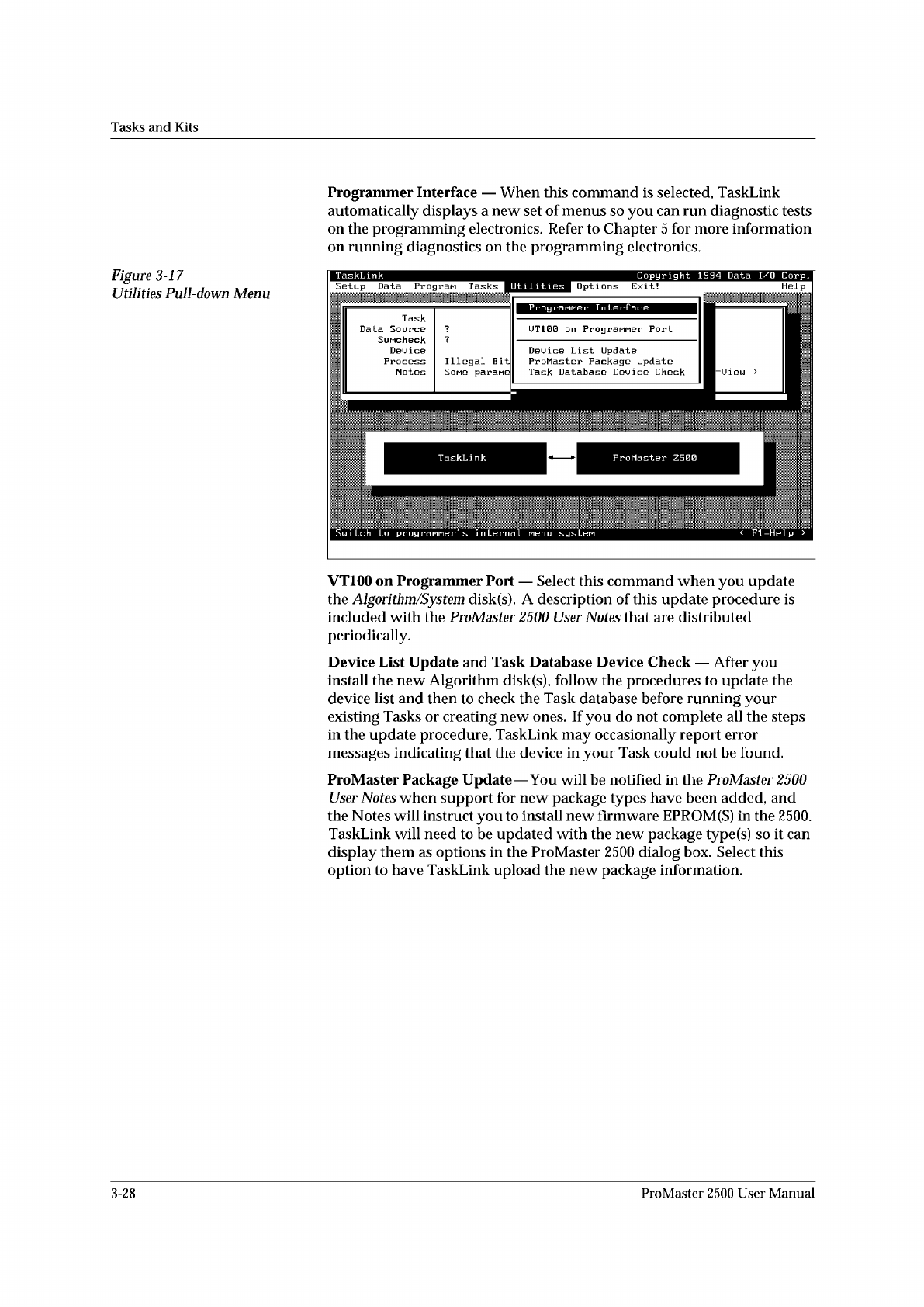
Figure
3-17
Utilities
Pull-down
Menu
Programmer
Interface
—
When
this
command
is
selected,
TaskLink
automatically
displays
a
new
set
of
menus
so
you
can
run
diagnostic
tests
on
the
programming
electronics.
Refer
to
Chapter
5
for
more
information
on
running
diagnostics
on
the
programming
electronics.
VT100
on
Programmer
Port
—
Select
this
command
when
you
update
the
Algori
thm/System
disk(s).
A
description
of
this
update
procedure
is
included
with
the
ProMaster
2500
User
Notes
that
are
distributed
periodically.
Device
List
Update
and
Task
Database
Device
Check
—
After
you
install
the
new
Algorithm
disk(s),
follow
the
procedures
to
update
the
device
list
and
then
to
check
the
Task
database
before
running
your
existing
Tasks
or
creating
new
ones.
If
you
do
not
complete
all
the
steps
in
the
update
procedure,
TaskLink
may
occasionally
report
error
messages
indicating
that
the
device
in
your
Task
could
not
be
found.
ProMaster
Package
Update
—
You
will
be
notified
in
the
ProMaster
2500
User
Notes
when
support
for
new
package
types
have
been
added,
and
the
Notes
will
instruct
you
to
install
new
firmware
EPROM
(S)
in
the
2500.
TaskLink
will
need
to
be
updated
with
the
new
package
type(s)
so
it
can
display
them
as
options
in
the
ProMaster
2500
dialog
box.
Select
this
option
to
have
TaskLink
upload
the
new
package
information.
3-28
ProMaster
2500
User
Manual