2500_Users_Manual-.pdf - 第112页
1767-1 FRONT OF 2500 SPA PINS PROGRAMMING MODULE PROGRAMMING STATION X2 X4 3 X ALIGNMENT PIN (1 of 4) VIEW FROM THE SIDE FRONT OF 2500 BEAM CHUCK PROGRAMMING MODULE Operation Installing a Programming Module Install the n…
*
)
1670-1
X1
X3
X2 X4
X1
X3
X2 X4
X1
X3
X2 X4
28C
28E
28D 28B
PLCC 28-5
PLCC 28-1 PLCC 28-2 PLCC 28-3 PLCC 28-4
28A 28A
X1
X3
X2 X4
28B 28A
X1
X3
X2 X4
28A
28A
= NO CONFIGURATION BLOCK
Operation
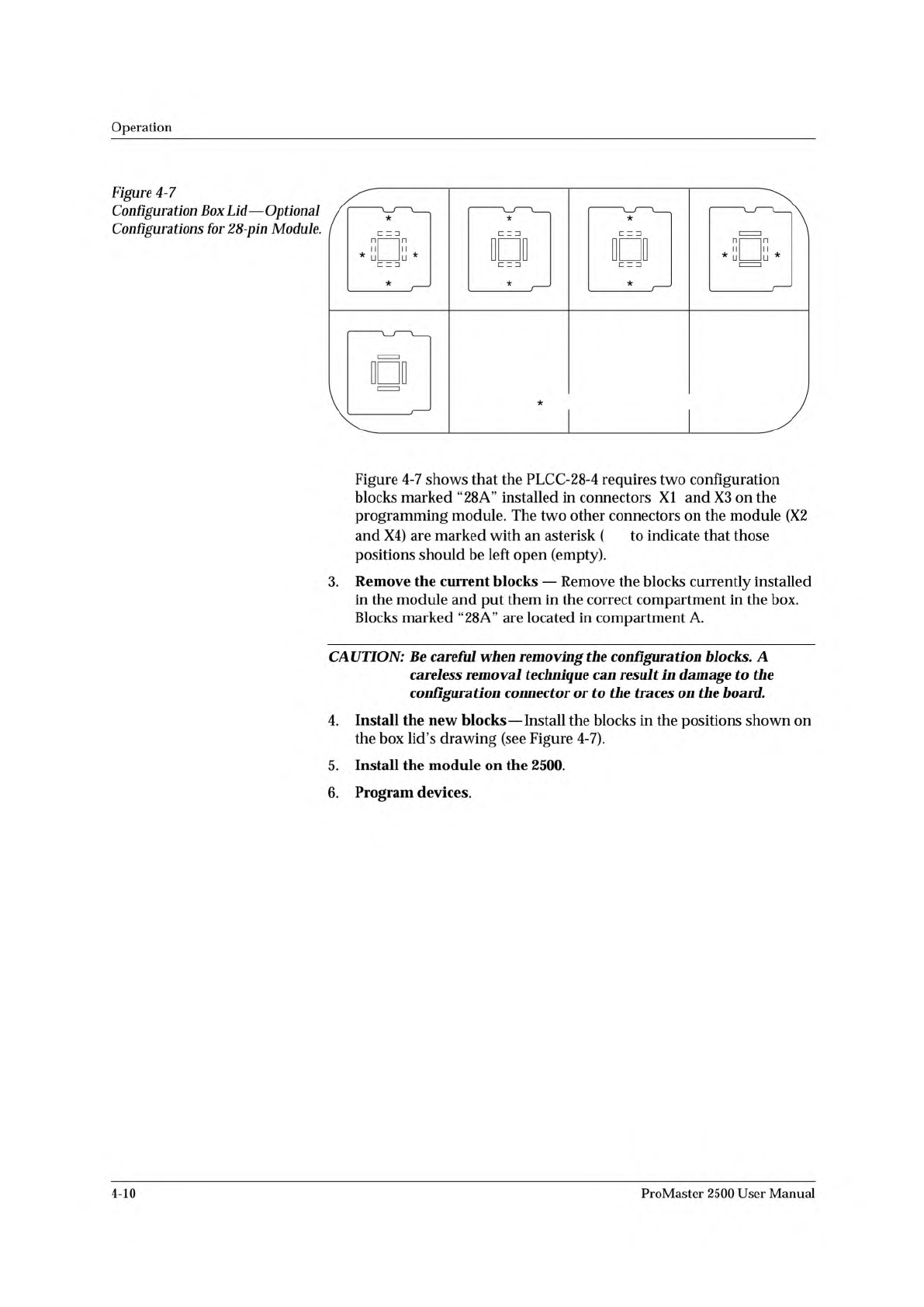
Figure
4-7
Configuration
Box
Lid
—
Optional
Configurations
for
28-pin
Module.
Figure
4-7
shows
that
the
PLCC-28-4
requires
two
configuration
blocks
marked
“28
A”
installed
in
connectors
XI
and
X3
on
the
programming
module.
The
two
other
connectors
on
the
module
(X2
and
X4)
are
marked
with
an
asterisk
(
to
indicate
that
those
positions
should
be
left
open
(empty).
3.
Remove
the
current
blocks
—
Remove
the
blocks
currently
installed
in
the
module
and
put
them
in
the
correct
compartment
in
the
box.
Blocks
marked
“28A”
are
located
in
compartment
A.
CAUTION:
Be
careful
when
removing
the
configuration
blocks.
A
careless
removal
technique
can
result
加
damage
to
the
configuration
connector
or
to
the
traces
on
the
board.
4.
Install
the
new
blocks
—
Install
the
blocks
in
the
positions
shown
on
the
box
lid's
drawing
(see
Figure
4-7).
5.
Install
the
module
on
the
2500.
6.
Program
devices.
4-10
ProMaster
2500
User
Manual
1767-1
FRONT OF 2500
SPA PINS
PROGRAMMING
MODULE
PROGRAMMING STATION
X2
X4
3
X
ALIGNMENT
PIN (1 of 4)
VIEW FROM THE SIDE
FRONT
OF 2500
BEAM
CHUCK
PROGRAMMING
MODULE
Operation
Installing
a
Programming
Module
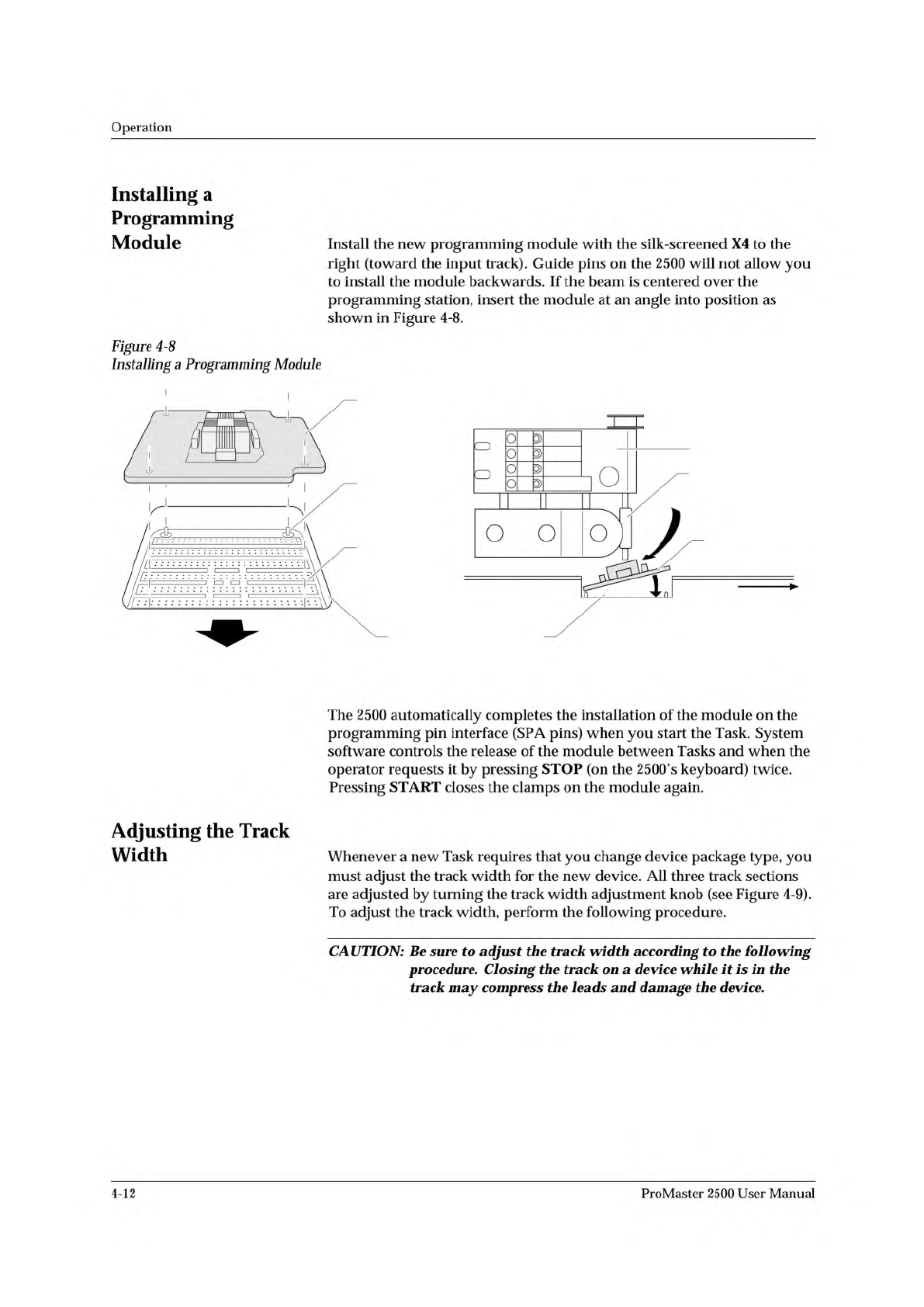
Install
the
new
programming
module
with
the
silk-screened
X4
to
the
right
(toward
the
input
track).
Guide
pins
on
the
2500
will
not
allow
you
to
install
the
module
backwards.
If
the
beam
is
centered
over
the
programming
station,
insert
the
module
at
an
angle
into
position
as
shown
in
Figure
4-8.
Figure
4-8
Installing
a
Programming
Module
Adjusting
the
Track
Width
The
2500
automatically
completes
the
installation
of
the
module
on
the
programming
pin
interface
(SPA
pins)
when
you
start
the
Task.
System
software
controls
the
release
of
the
module
between
Tasks
and
when
the
operator
requests
it
by
pressing
STOP
(on
the
2500's
keyboard)
twice.
Pressing
START
closes
the
clamps
on
the
module
again.
Whenever
a
new
Task
requires
that
you
change
device
package
type,
you
must
adjust
the
track
width
for
the
new
device.
All
three
track
sections
are
adjusted
by
turning
the
track
width
adjustment
knob
(see
Figure
4-9).
To
adjust
the
track
width,
perform
the
following
procedure.
CAUTION:
Be
sure
to
adjust
the
track
width
according
to
the
following
procedure.
Closing
the
track
on
a
device
while
it
is
in
the
track
may
compress
the
leads
and
damage
the
device.
4-12
ProMaster
2500
User
Manual
First_task_name
Second_task_name
First_kit_name
First_task_name
Second_task_name
First_kit_name
Not_current_file::Second_kit_name
↵
Tasks
and
Kits
The
requirements
for
user-created
messages
are
described
below:
•
Message
file
must
be
an
ASCII
text
file.
Save
the
file
as
an
unformatted
text
file.
•
Message
file
must
be
called
tl.msg.
TaskLink
looks
for
a
file
with
this
name.
The
maximum
line
length
in
this
file
is
66
characters.
•
Each
message
number
must
begin
with
a
tilde
(~),
followed
by
four
digits
as
in
the
following
example:
0023.
The
tilde
and
four-digit
number
must
be
on
a
line
by
themselves.
The
message
that
will
be
displayed
includes
all
the
text
after
the
tilde
and
message
number,
and
before
the
next
tilde
in
the
file.
•
Spacing
and
formatting
is
maintained
(WYSIWYG)
unless
you
use
\b
(for
bold).
The
\b
does
not
appear
on
the
screen
and
all
characters
move
to
the
left
two
spaces
for
every
\b
in
the
line.
Creating
Task/Kit
Batch
Files
You
can
create
an
ASCII
batch
file
that
allows
you
to
run
any
combination
of
Tasks
and
Kits
in
the
order
defined
in
the
file.
TaskLink
reads
the
batch
file,
searches
the
current
Task
Database
file
(last
file
used)
for
the
Task/
Kit,
and
runs
it
using
the
normal
screens.
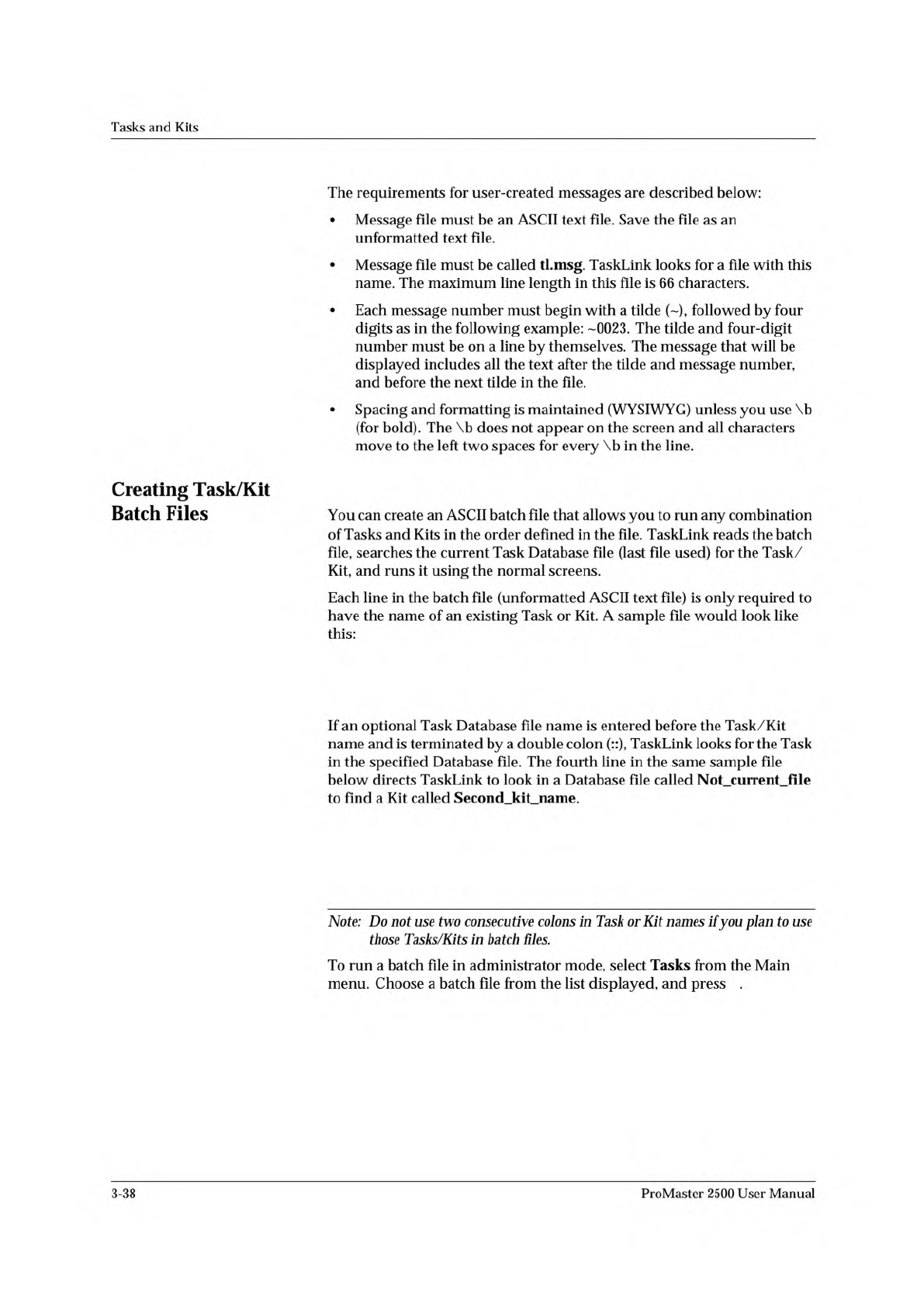
Each
line
in
the
batch
file
(unformatted
ASCII
text
file)
is
only
required
to
have
the
name
of
an
existing
Task
or
Kit.
A
sample
file
would
look
like
this:
If
an
optional
Task
Database
file
name
is
entered
before
the
Task/Kit
name
and
is
terminated
by
a
double
colon
TaskLink
looks
for
the
Task
in
the
specified
Database
file.
The
fourth
line
in
the
same
sample
file
below
directs
TaskLink
to
look
in
a
Database
file
called
Not_current_file
to
find
a
Kit
called
Second
kit
name.
Note:
Do
not
use
two
consecutive
colons
in
Task
or
Kit
names
if
you
plan
to
use
those
Tasks/Kits
in
batch
files.
To
run
a
batch
file
in
administrator
mode,
select
Tasks
from
the
Main
menu.
Choose
a
batch
file
from
the
list
displayed,
and
press
.
3-38
ProMaster
2500
User
Manual