2500_Users_Manual-.pdf - 第128页
→ ° ← PROGRAM/TEST ONLY USE ARROW KEYS TO ALIGN BEAM WITH DEVICE CENTER. PRESS [D] TO LOWER BEAM. PRESS START TO CONTINUE. 1859-2 X 4 X 1 X 3 FRONT OF 2500 Operation Check Front-to-back Position Figure 4-24 Checking the …
PIN 1
1858-1
FRONT PANEL
ARROW KEYS
X2
X4
3
X
Operation
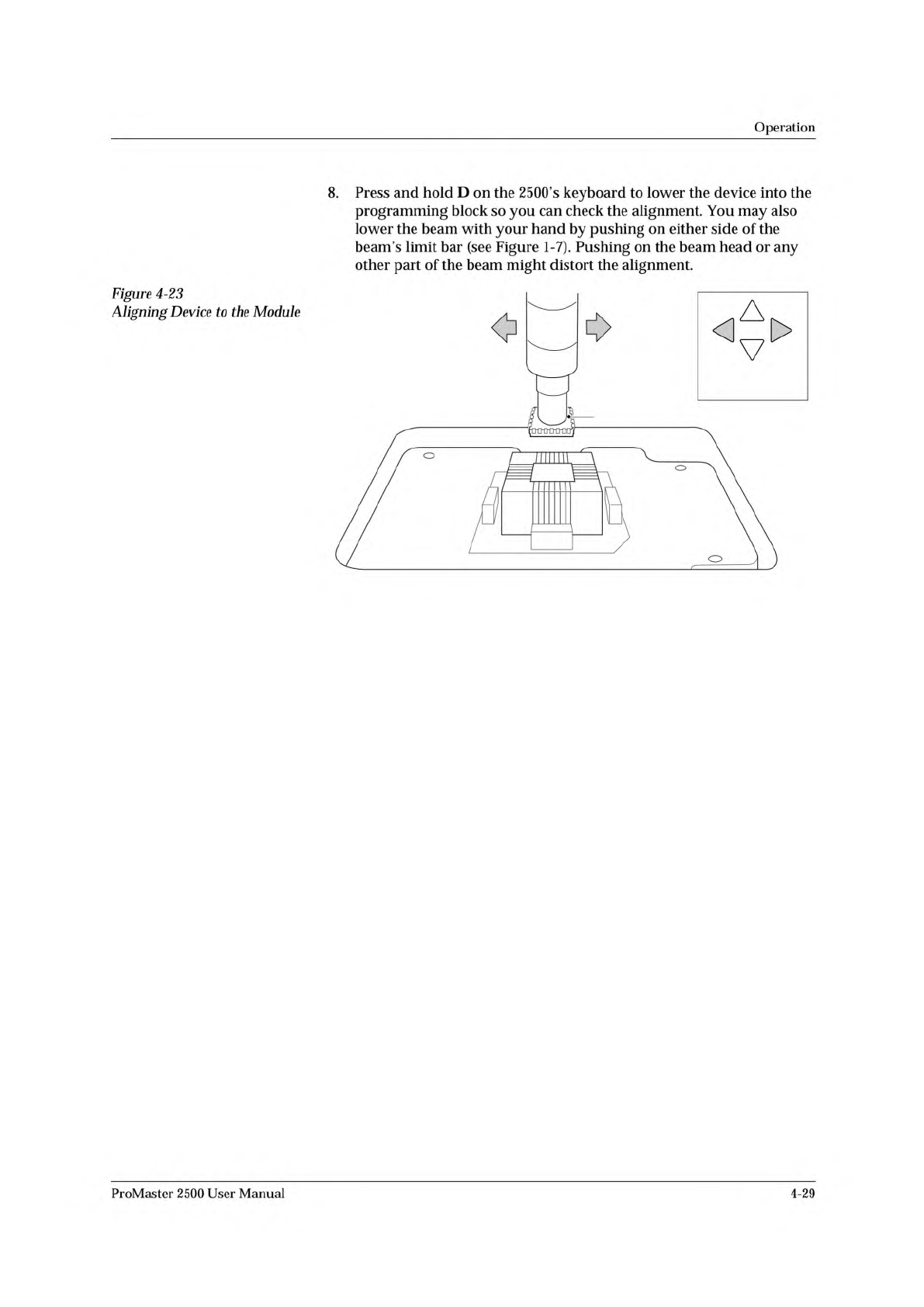
8.
Press
and
hold
D
on
the
2500's
keyboard
to
lower
the
device
into
the
programming
block
so
you
can
check
the
alignment.
You
may
also
lower
the
beam
with
your
hand
by
pushing
on
either
side
of
the
beam's
limit
bar
(see
Figure
1-7).
Pushing
on
the
beam
head
or
any
other
part
of
the
beam
might
distort
the
alignment.
Figure
4-23
Aligning
Device
to
the
Module
ProMaster
2500
User
Manual
4-29
→
°
←
PROGRAM/TEST ONLY
USE ARROW KEYS TO ALIGN BEAM WITH
DEVICE CENTER. PRESS [D] TO LOWER BEAM.
PRESS START TO CONTINUE.
1859-2
X
4
X
1
X
3
FRONT
OF 2500
Operation
Check
Front-to-back
Position
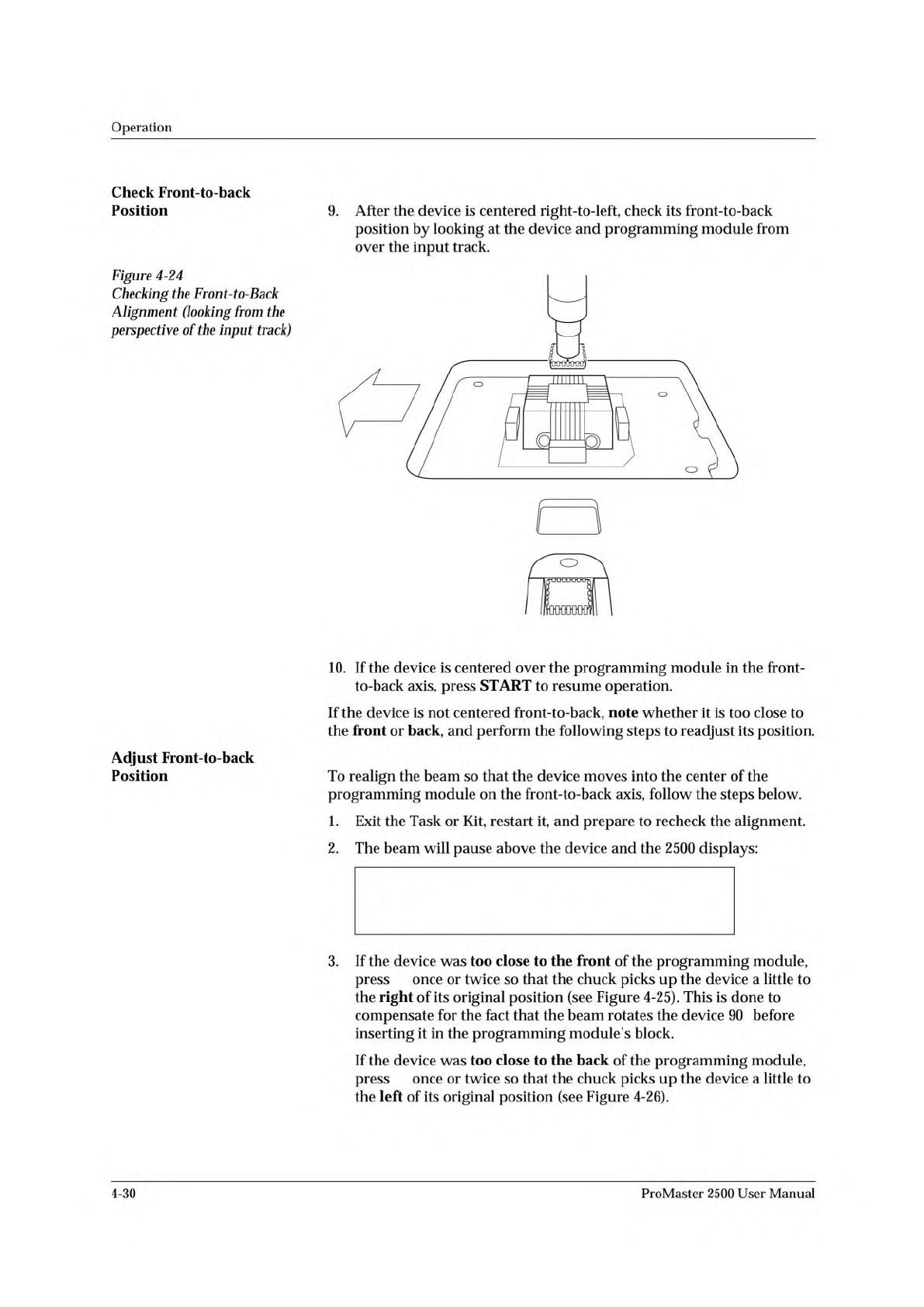
Figure
4-24
Checking
the
Front-to-Back
Alignment
(looking
from
the
perspective
of
the
input
track)
9.
After
the
device
is
centered
right-to-left,
check
its
front-to-back
position
by
looking
at
the
device
and
programming
module
from
over
the
input
track.
Adjust
Front-to-back
Position
10.
If
the
device
is
centered
over
the
programming
module
in
the
front-
to-back
axis,
press
START
to
resume
operation.
If
the
device
is
not
centered
front-to-back,
note
whether
it
is
too
close
to
the
front
or
back,
and
perform
the
following
steps
to
readjust
its
position.
To
realign
the
beam
so
that
the
device
moves
into
the
center
of
the
programming
module
on
the
front-to-back
axis,
follow
the
steps
below.
1.
Exit
the
Task
or
Kit,
restart
it,
and
prepare
to
recheck
the
alignment.
2.
The
beam
will
pause
above
the
device
and
the
2500
displays:
3.
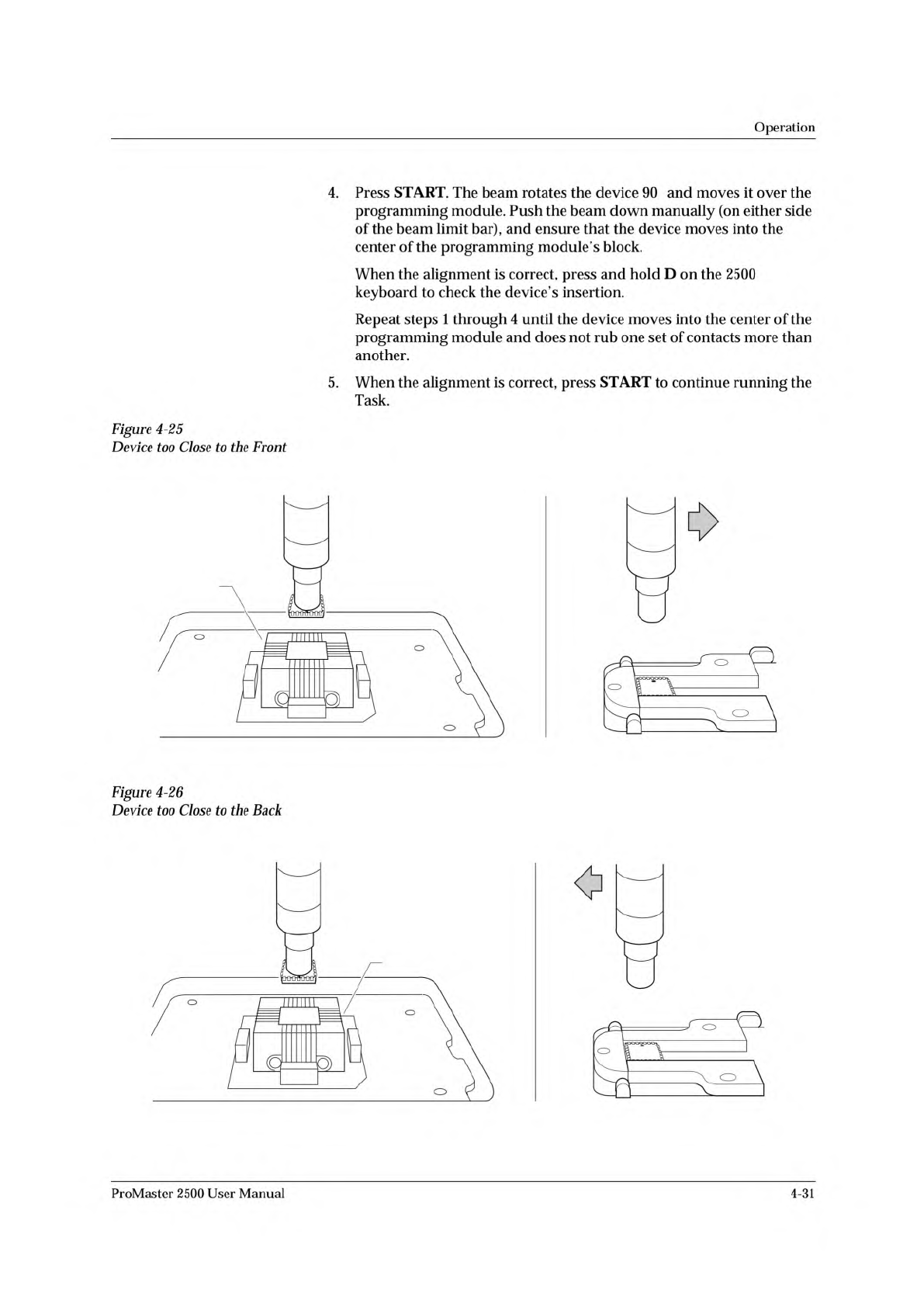
If
the
device
was
too
close
to
the
front
of
the
programming
module,
press
once
or
twice
so
that
the
chuck
picks
up
the
device
a
little
to
the
right
of
its
original
position
(see
Figure
4-25).
This
is
done
to
compensate
for
the
fact
that
the
beam
rotates
the
device
90
before
inserting
it
in
the
programming
module's
block.
If
the
device
was
too
close
to
the
back
of
the
programming
module,
press
once
or
twice
so
that
the
chuck
picks
up
the
device
a
little
to
the
left
of
its
original
position
(see
Figure
4-26).
4-30
ProMaster
2500
User
Manual
°
If the device was too close to the FRONT, move the beam to the RIGHT.
1860-2
X
4
X
1
X
3
FRONT
If the device was too close to the BACK, move the beam to the LEFT.
1861-2
X
4
X
1
X
3
BACK
Operation
4.
Press
START.
The
beam
rotates
the
device
90
and
moves
it
over
the
programming
module.
Push
the
beam
down
manually
(on
either
side
of
the
beam
limit
bar),
and
ensure
that
the
device
moves
into
the
center
of
the
programming
module's
block.
When
the
alignment
is
correct,
press
and
hold
D
on
the
2500
keyboard
to
check
the
device's
insertion.
Repeat
steps
1
through
4
until
the
device
moves
into
the
center
of
the
programming
module
and
does
not
rub
one
set
of
contacts
more
than
another.
5.
When
the
alignment
is
correct,
press
START
to
continue
running
the
Task.
Figure
4-25
Device
too
Close
to
the
Front
、
_
广
Figure
4-26
Device
too
Close
to
the
Back
MO
ProMaster
2500
User
Manual
4-31