2500_Users_Manual-.pdf - 第138页
↑ ↓ ↵ ↵ ↵ ↑ ↓ ↵ Operation Selecting a Task Selecting a Database File Select Process Figure 4-19 Choosing a Process From Those Presented on the Screen Other Prompts Selecting a Device To select a Task from the list presen…
1854-3
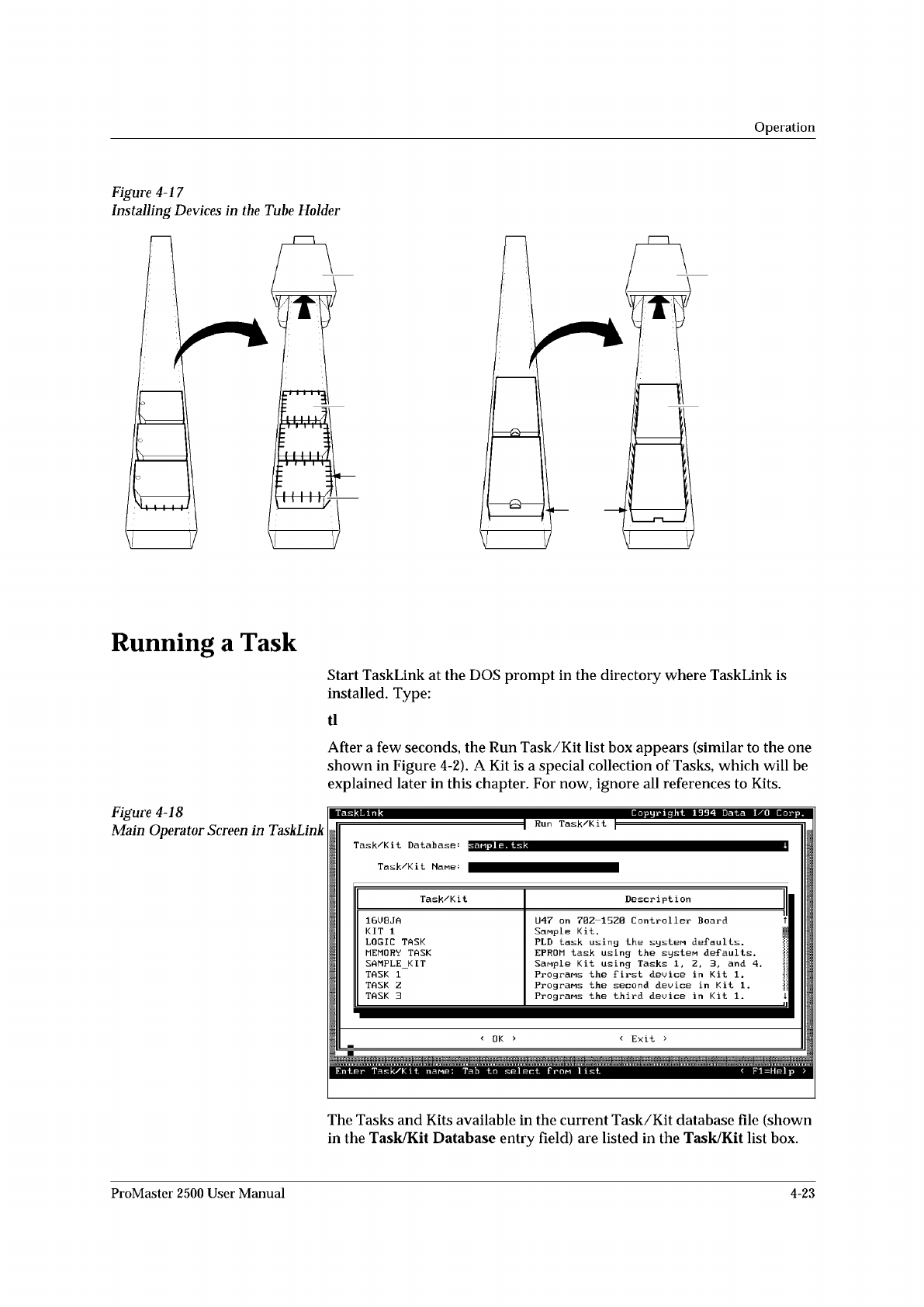
NOTCHED
CORNER
INPUT TUBE
HOLDER
INPUT TUBE
HOLDER
TUBE INSERTED
WITH DEVICE
CONTACTS
FACING UP
TUBE INSERTED
WITH DEVICE
CONTACTS
FACING UP
SQUARE
PLCC
DEVICES
DIP/SOIC
DEVICES
PIN 1
PIN 1
Figure
4-17
Installing
Devices
in
the
Tu
加
Holder
Operation
Running
a
Task
Start
TaskLink
at
the
DOS
prompt
in
the
directory
where
TaskLink
is
installed.
Type:
tl
After
a
few
seconds,
the
Run
Task/Kit
list
box
appears
(similar
to
the
one
shown
in
Figure
4-2).
A
Kit
is
a
special
collection
of
Tasks,
which
will
be
explained
later
in
this
chapter.
For
now,
ignore
all
references
to
Kits.
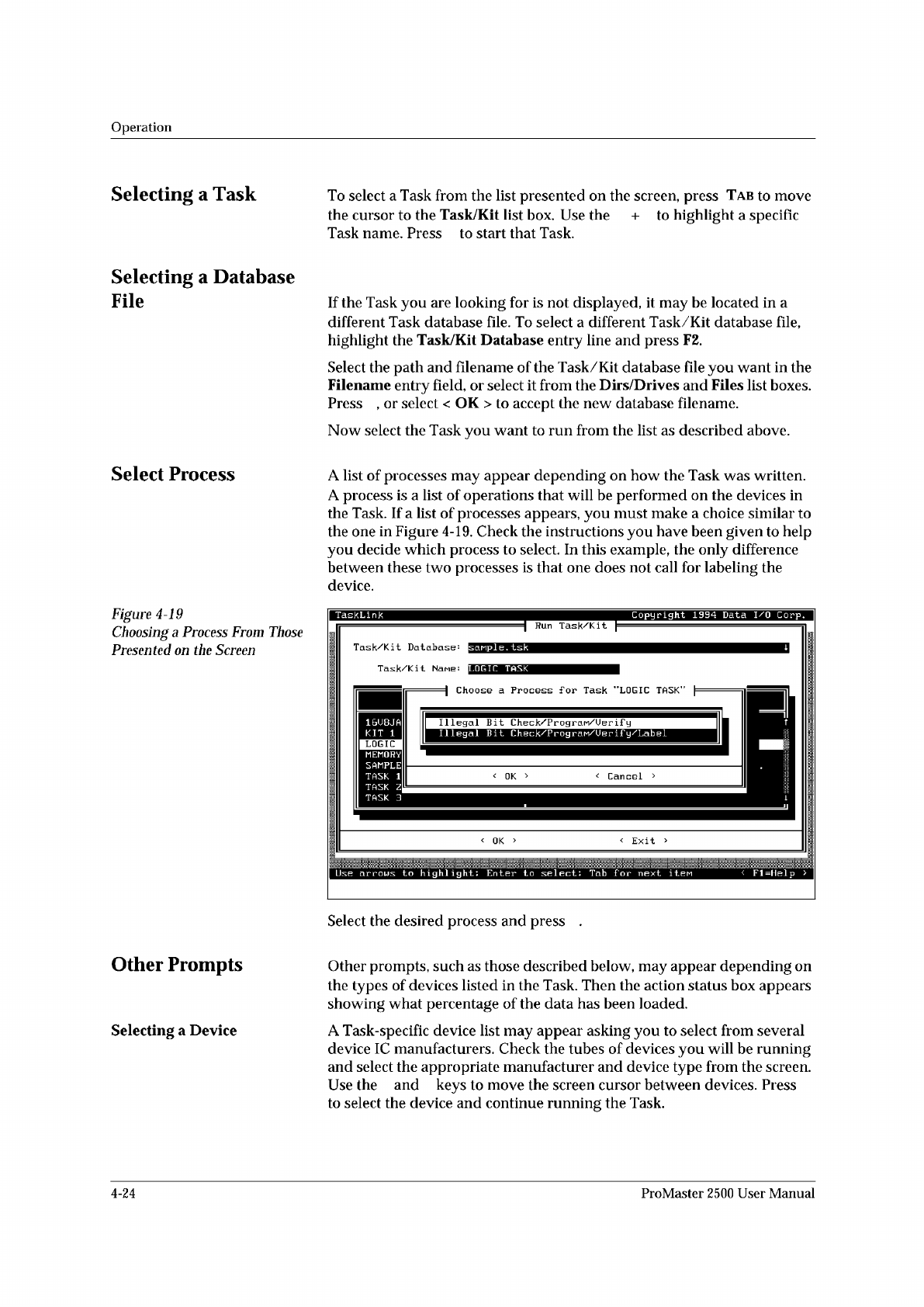
Figure
4-18
Main
Operator
Screen
in
TaskLink
The
Tasks
and
Kits
available
in
the
current
Task/Kit
database
file
(shown
in
the
Task/Kit
Database
entry
field)
are
listed
in
the
Task/Kit
list
box.
ProMaster
2500
User
Manual
4-23
↑ ↓
↵
↵
↵
↑ ↓ ↵
Operation
Selecting
a
Task
Selecting
a
Database
File
Select
Process
Figure
4-19
Choosing
a
Process
From
Those
Presented
on
the
Screen
Other
Prompts
Selecting
a
Device
To
select
a
Task
from
the
list
presented
on
the
screen,
press
Tab
to
move
the
cursor
to
the
Task/Kit
list
box.
Use
the
+
to
highlight
a
specific
Task
name.
Press
to
start
that
Task.
If
the
Task
you
are
looking
for
is
not
displayed,
it
may
be
located
in
a
different
Task
database
file.
To
select
a
different
Task/Kit
database
file,
highlight
the
Task/Kit
Database
entry
line
and
press
F2.
Select
the
path
and
filename
of
the
Task/Kit
database
file
you
want
in
the
Filename
entry
field,
or
select
it
from
the
Dirs/Drives
and
Files
list
boxes.
Press
,
or
select
<
OK
>
to
accept
the
new
database
filename.
Now
select
the
Task
you
want
to
run
from
the
list
as
described
above.
A
list
of
processes
may
appear
depending
on
how
the
Task
was
written.
A
process
is
a
list
of
operations
that
will
be
performed
on
the
devices
in
the
Task.
If
a
list
of
processes
appears,
you
must
make
a
choice
similar
to
the
one
in
Figure
4-19.
Check
the
instructions
you
have
been
given
to
help
you
decide
which
process
to
select.
In
this
example,
the
only
difference
between
these
two
processes
is
that
one
does
not
call
for
labeling
the
device.
Select
the
desired
process
and
press
Other
prompts,
such
as
those
described
below,
may
appear
depending
on
the
types
of
devices
listed
in
the
Task.
Then
the
action
status
box
appears
showing
what
percentage
of
the
data
has
been
loaded.
A
Task-specific
device
list
may
appear
asking
you
to
select
from
several
device
IC
manufacturers.
Check
the
tubes
of
devices
you
will
be
running
and
select
the
appropriate
manufacturer
and
device
type
from
the
screen.
Use
the
and
keys
to
move
the
screen
cursor
between
devices.
Press
to
select
the
device
and
continue
running
the
Task.
4-24
ProMaster
2500
User
Manual
5
Preventive
Maintenance
This
chapter
describes
ProMaster
2500
theory
of
operation,
diagnostics,
and
preventive
maintenance
procedures.
Diagnostic
tests
are
described
for
the
motors,
solenoids,
optics,
switches,
and
programming
electronics.
The
information
in
this
chapter
is
presented
in
the
following
order:
Theory
of
Operation
5-2
Conditions
Requiring
Corrective
Action
5-21
Corrective
Adjustments
5-24
Diagnostics
5-30
Preventive
Maintenance
Procedures
For
Operators
5-55
Preventive
Maintenance
Procedures
For
Service
Technicians
5-60
WARNING:
Performing
some
of
the
diagnostic
procedures
in
this
chapter
will
expose
you
to
harmful
high
voltage.
To
avoid
electrical
shock
or
mechanical
injury,
only
a
service
technician
trained
on
electromechanical
equipment
should
perform
the
diagnostic
tests
that
require
lifting
the
main
plate
while
the
2500
is
on.
ProMaster
2500
User
Manual
5-1